How to Free Up Disk Space on a Full Linux Server


%203.png&w=256&q=75)
Confirm Which Partition Is Full
Run df -h first, before touching anything else. A full disk on a Linux server cascades fast: MySQL refuses writes and throws "Error writing file" or goes read-only, WordPress can't save posts or uploads, PHP-FPM stops logging, and Nginx starts serving 500 errors to every visitor. Before you delete a single file, confirm which mount point is actually at 100%.
It is not always the root partition. Some VPS images split /var, /home, or a mounted data volume onto separate partitions, and it is entirely possible for /var to be full while / still has room. Fixing the wrong mount wastes time while sites stay down.
Also check inode usage with df -i. A partition can report plenty of free bytes yet still refuse to create new files if it has run out of inodes, which happens on servers hosting sites with huge numbers of small cache or session files. The symptoms look identical to a full disk, but the fix is different: you need to delete files, not just larger ones.
Find What's Actually Eating Space
Once you know the partition, walk down from its root with du -sh /* to see which top-level directory is the culprit, then keep drilling into the largest one. This beats guessing and it is fast enough to run on a production box under load.
If ncdu is installed (or you can apt install ncdu even with the disk nearly full — it's a tiny package), use it instead. It gives you an interactive, sorted breakdown of a whole tree in seconds and lets you drill in and delete from the same view, which is far quicker than repeated du calls.
The usual suspects, in rough order of how often they cause an emergency: unrotated or oversized log files under /var/log or per-site log directories, accumulated MySQL binary logs in /var/lib/mysql, the apt package cache under /var/cache/apt, old kernel versions still installed from unattended-upgrades, and local database backup or export files (.sql, .sql.gz, .tar.gz) that someone dumped to disk and never cleaned up.
Clear The Usual Disk Hogs
Start with the safest wins: the apt cache and old kernels reclaim gigabytes with zero risk to running services. apt-get clean empties the downloaded .deb cache in /var/cache/apt/archives, and apt autoremove strips out kernel versions Ubuntu no longer needs (it always keeps the currently running one and one fallback, so this is safe on a live server).
journalctl --vacuum-time=7d trims systemd's journal down to the last seven days, which is often several gigabytes on a server that has been running for months without ever vacuuming. Adjust the window based on how much history you actually need for debugging.
Force Log Rotation and Purge MySQL Binlogs
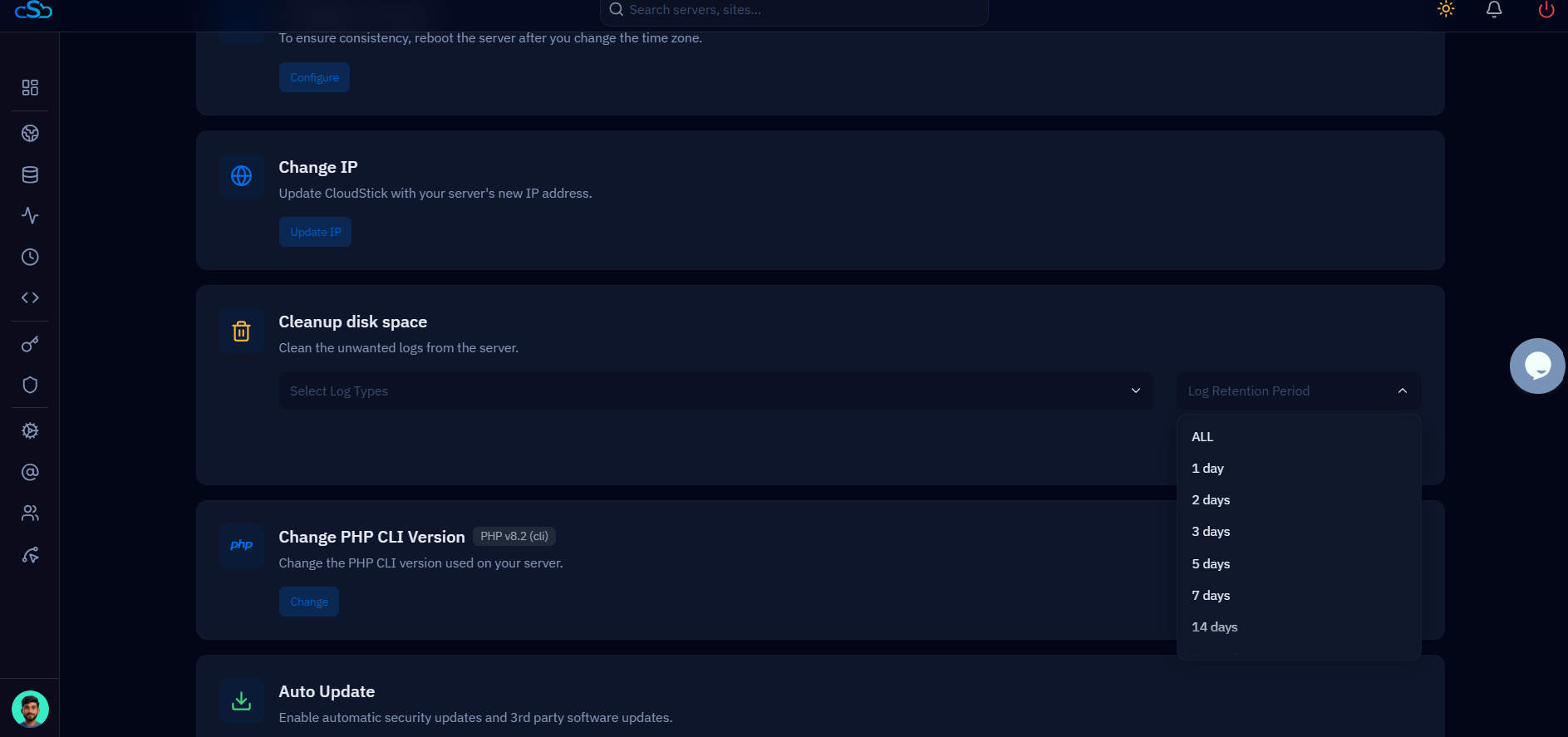
Run logrotate -f /etc/logrotate.conf to force an immediate rotation instead of waiting for the next scheduled run. A single unrotated Nginx or Apache access log on a busy site can quietly grow to tens of gigabytes if a cron job failed silently weeks ago, and forcing rotation now compresses and truncates it immediately.
MySQL binary logs are the other big one. If binary logging is enabled (common for replication or point-in-time recovery), /var/lib/mysql fills with binlog.000001, binlog.000002, and so on, indefinitely, unless expire_logs_days or binlog_expire_logs_seconds is set. You can purge them manually from the MySQL prompt.
If this server is a replication source or feeds any backup tool that reads binlogs for point-in-time recovery, check the oldest binlog a replica or backup job still needs before purging. Purging a binlog a replica hasn't consumed yet will break replication and require a full resync.
Don't Delete Blindly
A file's directory entry disappearing does not always mean the space is freed. If a running process still has that file open — a log a daemon is actively writing to, a temp file a stuck PHP-FPM worker is holding — the kernel keeps the disk blocks allocated until the process closes the file descriptor or is restarted. This is the single most common reason rm "didn't work."
Before deleting anything you're not certain about, run lsof +L1 to list deleted-but-still-open files. Each row shows the process holding it and the size still reserved. If you see a multi-gigabyte entry against an Nginx or PHP-FPM process, deleting the original file a second time won't help — you need to restart or reload that service (systemctl reload nginx-cs, or the equivalent PHP-FPM pool) so it releases the handle and the space actually returns to df -h.
Stop Backups From Refilling The Disk
Clearing space today doesn't stop it filling up again next month if the root cause is local database dumps or full-site archives piling up in a backups folder. Nightly mysqldump jobs and site archive scripts are one of the most common slow-burn causes of a full disk, because each backup is often kept "just in case" and nobody deletes the old ones.
In CloudStick's dashboard, the Backups section lets you push website and database backups straight to cloud storage instead of leaving compressed archives sitting on the same disk your sites run on. That removes an entire category of "disk full" incidents outright, since backups no longer compete with your applications for local space, and you can still restore from them without ever touching the server's own storage.
Once you've reclaimed space, set up CloudStick's Server Stats graph (powered by the Zabbix agent) to watch disk usage over time so a slow creeping fill shows up as a trend line weeks before it becomes another 100% emergency, instead of finding out from a site that's suddenly down.
As a last practical step, schedule the log-rotation and binlog-purge commands above as weekly cron jobs so the disk never gets back to 100% unattended, and move local backups off-server the moment you finish restoring from an emergency dump. A full disk is nearly always a maintenance gap, not a capacity problem — fix the gap and it stops recurring.

