How to Limit SSH Access by IP Address

%203.png&w=256&q=75)
Why IP-Restrict SSH?
Limiting SSH to specific IP addresses or CIDR ranges adds a powerful layer of protection that credentials alone cannot provide. Even if an attacker obtains valid credentials, they still cannot connect from an unknown IP. Combined with SSH keys, this creates genuinely layered security: the attacker needs the private key AND must connect from a whitelisted IP. Two independent requirements, both of which must be satisfied simultaneously.
Even if your home or office IP changes frequently, you can restrict to your country's IP range or your VPN subnet to eliminate the vast majority of threats. A compromised credential is useless to an attacker in a different country if your SSH is restricted to your ISP's block or your VPN's address space.
There are three places on a Linux server where you can enforce IP-based SSH restrictions, each operating at a different layer: UFW (the firewall), sshd_config (the SSH daemon itself), and TCP Wrappers (hosts.allow). You can use all three in combination for defense-in-depth, or pick the one that fits your setup.
Restrict with UFW
The simplest approach on Ubuntu is UFW (Uncomplicated Firewall). The strategy is to delete the existing permissive SSH rule that allows all IPs and replace it with a rule that allows SSH only from your specific IP or CIDR range. Check your current rules first, then make the replacement carefully.
Run these commands from the server console or from an already-connected SSH session. The safest sequence is: add the new IP-specific rule first, confirm it appears correctly in ufw status, then delete the permissive rule.
Restrict via sshd_config
The SSH daemon itself supports per-user IP restrictions via the AllowUsers directive in /etc/ssh/sshd_config. The format is user@host, where the host portion can be an exact IP or a wildcard pattern.
DenyUsers and AllowGroups support the same user@host syntax. Important: when AllowUsers is set, only the explicitly listed users can connect — any user not in the list is denied by default, regardless of other settings. Always run sudo sshd -t to validate your config before reloading — no output means no syntax errors.
TCP Wrappers (hosts.allow)
TCP Wrappers use /etc/hosts.allow and /etc/hosts.deny to provide an additional access control layer on systems with libwrap-enabled sshd. Before relying on this method, verify your sshd was compiled with libwrap support:
Modern Ubuntu 24.04 ships OpenSSH without libwrap support — if the above command returns nothing, TCP Wrappers will have no effect on SSH. In that case, use UFW or sshd_config methods instead. If libwrap is present, the configuration is straightforward:
Rules in hosts.allow take precedence over hosts.deny. Unlike UFW, these changes take effect immediately without any reload — the daemon checks the files on each new connection attempt.
Dealing with Dynamic IPs
If your home or office IP changes frequently, a strict single-IP allowlist becomes operationally painful. Here are the practical approaches in order of preference:
- Restrict to a VPN subnet. If you use a VPN (Tailscale, WireGuard, OpenVPN), all team members connect through the VPN first, then SSH. You allowlist only the VPN's subnet — for Tailscale, that is the
100.64.0.0/10range. Your real IP can change as often as it likes — what reaches the server is always a stable VPN address. - Use a jump host (bastion). Deploy a small server with a static IP. All team members tunnel through it:
ssh -J bastion@jump-host user@target. Only the jump host's IP needs to be allowlisted on every target server. - Automate UFW rule updates. A script can detect your current public IP, delete the old UFW rule, and add a new one. Run it as a cron job or on network reconnect.
- Restrict to your ISP's block. Your ISP has an allocated CIDR range (typically /16 to /20). Allowlisting it is less precise but still eliminates most of the world as potential sources. Run
whois <your-ip>to find your ISP's block.
The Tailscale approach is particularly clean. You allow SSH only from the Tailscale overlay network:
With this configuration, SSH is completely unreachable from the public internet. Only connections routed through the Tailscale overlay — which requires authentication with your Tailscale account — can reach port 22.
CloudStick Firewall
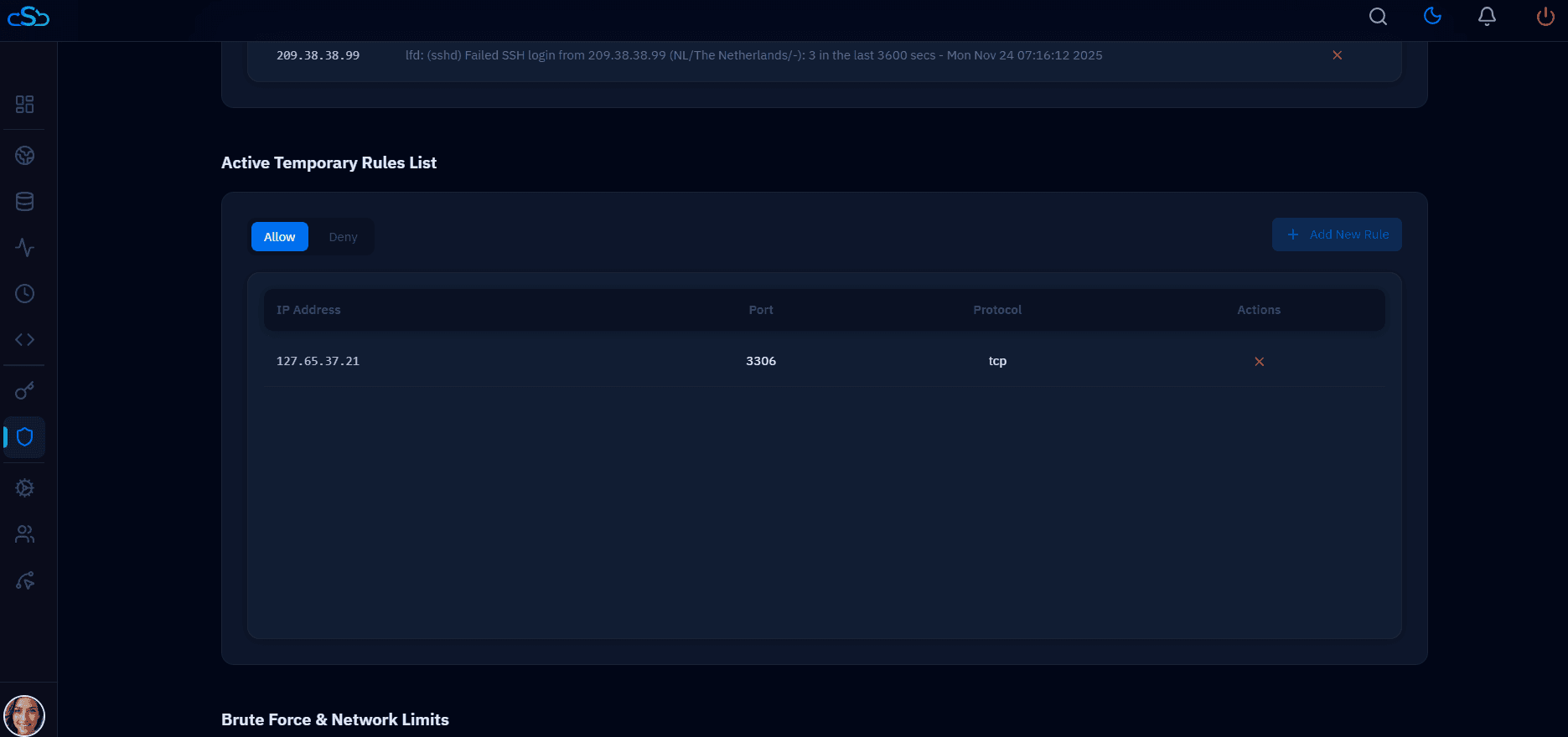
CloudStick manages CSF (ConfigServer Security & Firewall) from the Firewall section in the server panel. You can add SSH IP allowlist rules directly from the CloudStick dashboard without touching iptables or opening a terminal.
The Firewall section supports IP allowlisting per port — you can restrict port 22 to specific IPs without ever SSHing into the server to change firewall rules. This is especially useful when setting up IP restrictions on an existing server for the first time: do everything from the CloudStick dashboard, then confirm SSH access from your allowlisted IP before closing off broader access.
The SSH Settings Management section in CloudStick (available on Basic plan and above) also lets you review and manage SSH key authorization and SSH configuration directives from the dashboard. Combined with the Firewall section's IP allowlisting, you can implement the full IP restriction setup described in this article without any direct command-line access — a clean workflow when you need to lock down SSH on a server that is already in production.