How to Set Up a Production-Ready VPS: The Complete 2026 Guide

%203.png&w=256&q=75)
Prerequisites & Planning
A production VPS needs planning before you spin it up. Decide upfront on the workload (WordPress, Laravel, Node.js, or a combination), expected traffic, backup strategy, and team access model. These decisions determine the right plan size and the software stack you install.
You need a cloud account (DigitalOcean, Vultr, Hetzner, AWS, or Linode), a local machine with an SSH client, and about 30 minutes. CloudStick Basic plan ($9/month) gives you one server slot, free SSL, unlimited websites, and 4 GB backup storage — enough for most production setups.
Choosing Your Provider & OS
The four most commonly used providers for CloudStick users are DigitalOcean (best documentation), Vultr (best price/performance), Hetzner (cheapest European infra), and AWS Lightsail (easiest billing integration). For OS, Ubuntu 24.04 LTS is the default recommendation — it is the most widely supported distribution in the CloudStick agent, with Long-Term Support until 2029.
When sizing: a $6/month Vultr Cloud Compute (1 vCPU, 1 GB RAM) works for a low-traffic site; $12–24/month (2 vCPU, 4 GB RAM) covers most production WordPress or Laravel apps under 50K monthly visits; 8 GB RAM and above for WooCommerce stores or multi-site setups.
First Login & Security
After provisioning, the cloud provider emails you a root password or gives you an option to upload an SSH key. Always choose SSH key authentication — never use password-based root login in production.
Installing Essential Software
The minimal package set for a production server. Update the package index first, then install the essentials.
Keep the base system lean. Install only what the application stack requires — every extra package is an attack surface.
Create a swap file if your server has less than 2 GB RAM. Run: fallocate -l 2G /swapfile && chmod 600 /swapfile && mkswap /swapfile && swapon /swapfile — then add /swapfile none swap sw 0 0 to /etc/fstab to persist across reboots.
Firewall & Hardening
UFW (Uncomplicated Firewall) is the standard on Ubuntu 24.04. Allow only the ports you actually use.
For SSH hardening, edit /etc/ssh/sshd_config: set PasswordAuthentication no, PermitRootLogin no (after creating a sudo user), and Port to a non-standard number only if you understand the tradeoffs. Restart SSH with systemctl restart ssh.
Manage Everything With CloudStick
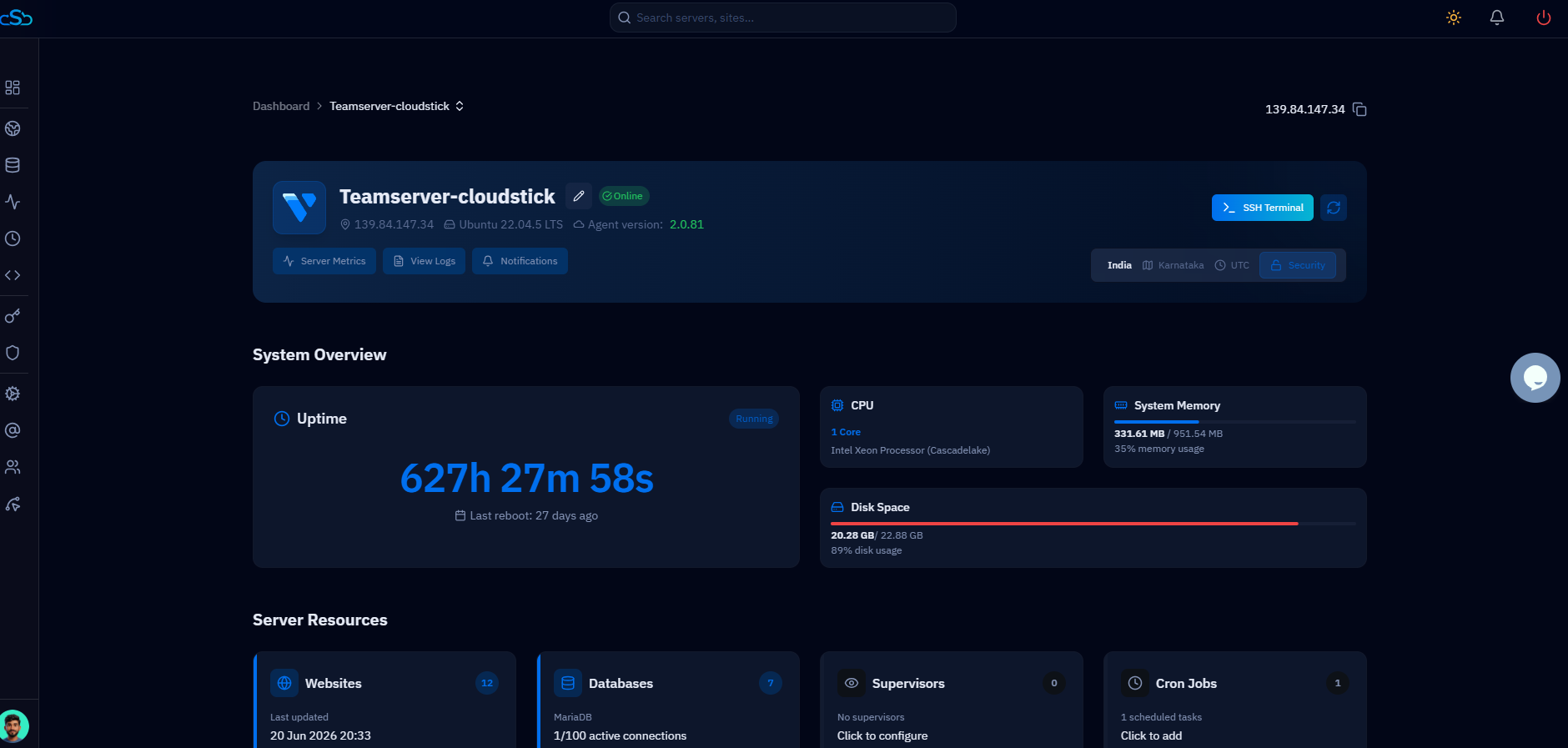
Once the base OS is hardened, connect it to CloudStick and skip manual management forever. In the CloudStick dashboard, click “+ Add Server”, choose “Connect Your Own Server”, and paste the one-line installation command onto your VPS. The CloudStick agent installs in under two minutes and immediately gives you a web dashboard for creating sites, managing SSL, monitoring CPU/RAM/disk, and configuring the firewall — all without SSH.
CloudStick's SSH Vault stores and organizes your server credentials securely. The firewall manager wraps UFW and CSF in a visual interface, and the EasyPHP extension manager installs PHP extensions with one click rather than manual apt commands.