How to Set Up Log Rotation to Save Disk Space

%203.png&w=256&q=75)
Why Logs Fill Disks Silently
An application log with no rotation policy grows forever, and it grows a few kilobytes or a few megabytes at a time, so nobody notices until df -h shows the disk at 95% used and the culprit turns out to be a single multi-gigabyte log file that had been quietly appending to itself for months. This is one of the most common causes of "disk full" incidents on a VPS, and it's almost always preventable. Node.js apps writing their own app.log, cron jobs redirecting output with >> /path/to/output.log, custom PHP error handlers, Python workers, background queue processors — any process that opens a file and keeps writing to it without ever truncating or archiving it is a candidate. The fix isn't deleting logs; it's rotating them on a schedule, keeping a bounded number of recent copies, compressing the old ones, and discarding anything older than you actually need. On Linux that job belongs to a single, well-tested utility: logrotate.
How Logrotate Works
logrotate is the standard log-management tool on Ubuntu and Debian, and it is already installed and running on a stock install — you're not adding new infrastructure, just adding a config file for it to pick up. It reads a set of rule files from /etc/logrotate.d/ (one file per application is the convention — nginx, apt, dpkg, and mysql-server all already have their own entries there) plus the defaults in /etc/logrotate.conf. It runs once a day, driven by /etc/cron.daily/logrotate on older systems or the logrotate.timer systemd unit on newer ones — either way, it's already firing daily without you having to schedule anything. The directives that matter for a basic config are: daily or weekly (how often to check for rotation), rotate N (how many old, rotated copies to keep before deleting the oldest), compress (gzip old copies to save space), missingok (don't error out if the log file doesn't exist yet — important for an app that hasn't started logging), and notifempty (skip rotating a file that hasn't grown, so you don't end up with a pile of empty archives).
Writing A Config For A Custom Log
Create one file per application under /etc/logrotate.d/ — for a Node.js app writing to /home/username/logs/myapp/app.log, save this as /etc/logrotate.d/myapp:
The key decision is copytruncate versus create. copytruncate copies the current log to a rotated filename, then immediately truncates the original file in place — it's the right choice for an app like a plain Node.js process or a shell script that opens the log file once at startup and keeps writing to that same file handle for its whole lifetime, since the app never notices the file was swapped out from under it. The tradeoff is a tiny window between the copy and the truncate where a couple of log lines can be lost. create instead renames the old file and creates a fresh empty one in its place with the same permissions, but it only works correctly if the application knows to reopen its log file afterward — usually triggered by sending it a SIGHUP via a postrotate block, which is how nginx and most well-behaved daemons handle rotation without dropping data. If you're not sure whether your app reopens log handles on signal, copytruncate is the safer default.
Testing A Config Safely
Never wait for tomorrow's cron run to find out if a config is broken — logrotate has a real dry-run mode built in. Run it in debug mode first:
-d prints exactly what logrotate would do — which files it would rotate, whether the size/age thresholds are met, and any syntax errors in the config — without touching a single file on disk. Once that output looks right, force a real rotation to confirm the whole pipeline works end to end, including compression and the state file:
-f forces rotation immediately, ignoring the daily/weekly schedule and size checks, which is exactly what you want when testing — it lets you verify a rotated, compressed file actually appears in the log directory and that your app keeps writing normally afterward, instead of waiting up to 24 hours to find out something is misconfigured.
logrotate tracks what it has already rotated in /var/lib/logrotate/status. If a forced test rotation doesn't seem to run again immediately, that's expected — check that file to see the last rotation timestamp it recorded for your log path.
Compression And Retention
compress gzips every rotated file except the one currently being written, which typically shrinks a plain-text log by 80-95% — the single biggest disk-space win in this whole setup. Pair it with delaycompress, which skips compressing the most recently rotated file for one extra cycle, leaving it as plain text until the next rotation compresses it. That matters because some processes keep a file descriptor open briefly after rotation and can still be flushing writes to what they think is the live file; compressing it out from under them immediately can corrupt or truncate output, and delaycompress avoids that race. For rotate N, pick the count based on how far back you realistically need to look, not on how much disk you happen to have — 7 to 14 daily rotations covers most debugging needs (a week or two of history), 30 is a reasonable ceiling for compliance-adjacent logs you might need to reference a month later, and anything beyond that should really be shipped to long-term storage or a log aggregator rather than kept as rotated files on the same disk you're trying to protect.
What CloudStick Already Handles For You
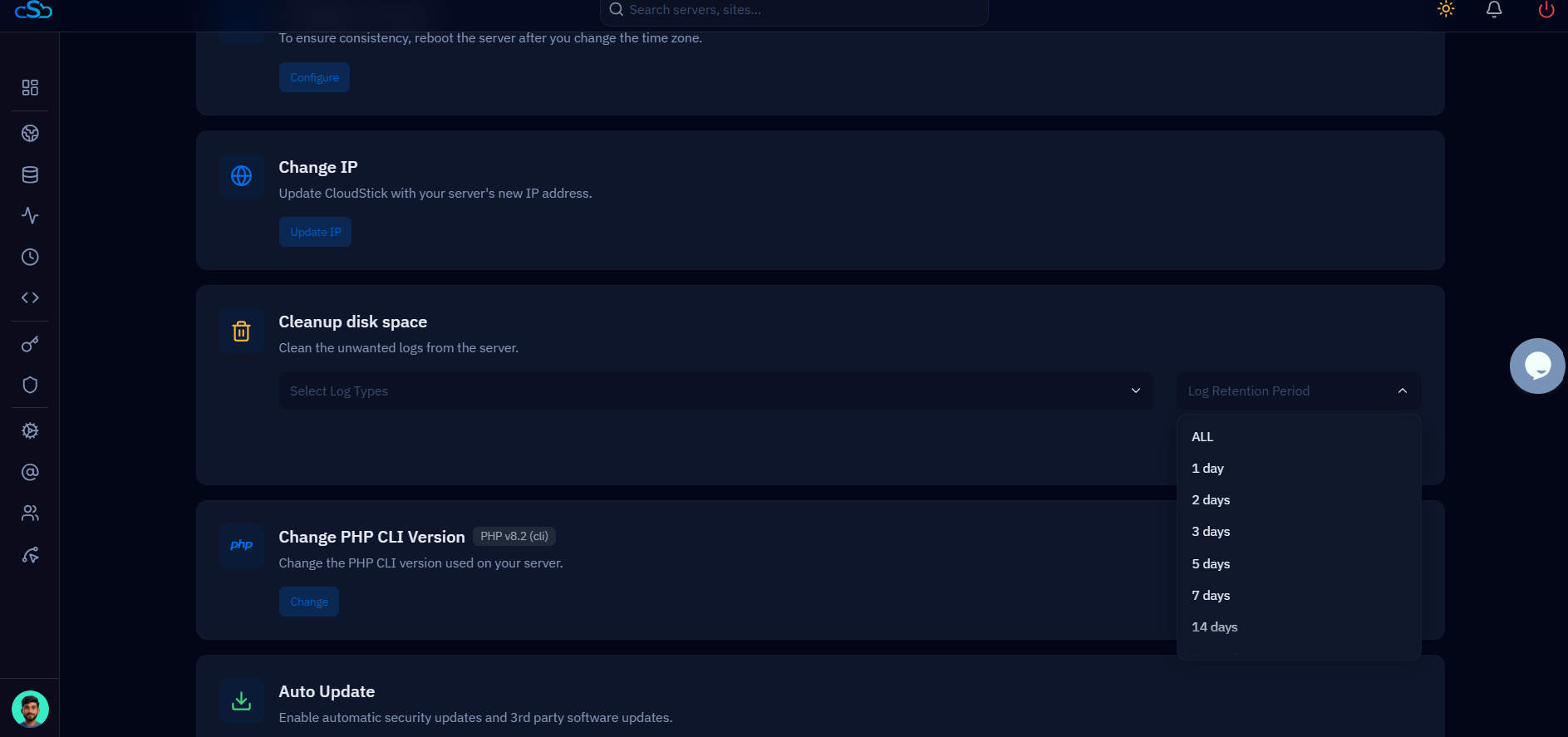
On a CloudStick server, every website already has its own nginx and Apache access and error logs at /home/<username>/logs/<sitename>/nginx-cs/ and /home/<username>/logs/<sitename>/apache-cs/, surfaced in the dashboard's Web Application Logs feature on every plan — and those logs are already rotated automatically as part of CloudStick's managed stack, so you never need to write a logrotate config for them. Everything in this article is for the logs CloudStick doesn't already own: a Node.js app's own log file, a cron job's redirected output, a custom PHP error log, a background worker's debug output — anything your own code or a custom script writes outside CloudStick's managed web-server logging. If you've got a custom app writing to a growing log file on a CloudStick server right now, the concrete next step is to drop a config like the one above into /etc/logrotate.d/, run logrotate -d against it to confirm it's valid, then force one real rotation with -f before you walk away and let the daily timer take over.

