How to Debug PHP Errors on a Production Server

%203.png&w=256&q=75)
Why Production Debugging Is Different
Debugging PHP on a local development machine is straightforward: you set display_errors = On in your php.ini and errors print directly to the browser. On a production server, that same approach is dangerous. Exposing raw PHP errors to end users leaks internal file paths, database credentials, class names, and stack traces — information an attacker can use to map your application and target vulnerabilities.
Production debugging requires a different mental model. Errors must be captured silently in log files, never rendered to the browser. Your goal is to get the same diagnostic information — exception messages, stack traces, request context — without letting any of it escape to the public internet. This means configuring log_errors = On and display_errors = Off in the same breath.
There is also the question of performance. Enabling verbose error reporting or attaching a debugger like Xdebug adds overhead. On a busy server handling thousands of requests per minute, that overhead adds up. The techniques in this guide balance diagnostic completeness with minimal impact on response times, so you can investigate issues on a live server without triggering a secondary outage.
Configure PHP Error Logging
The foundation of production PHP debugging is a properly configured error log. On Ubuntu 22.04 with PHP-FPM, PHP reads its configuration from a pool-specific php.ini file as well as any conf.d drop-ins. The PHP-FPM variant of php.ini lives at /etc/php/8.2/fpm/php.ini (adjust the version number to match your install).
Open that file and confirm — or set — the following values. The most common mistake is having log_errors enabled but error_log pointing to a file that the www-data user cannot write to, causing errors to vanish silently.
Setting error_reporting = E_ALL ensures every notice, warning, deprecation, and fatal error is captured. Some teams lower this to E_ALL & ~E_DEPRECATED to reduce noise from legacy code, but during active debugging you want the full picture. You can always filter the log file afterward.
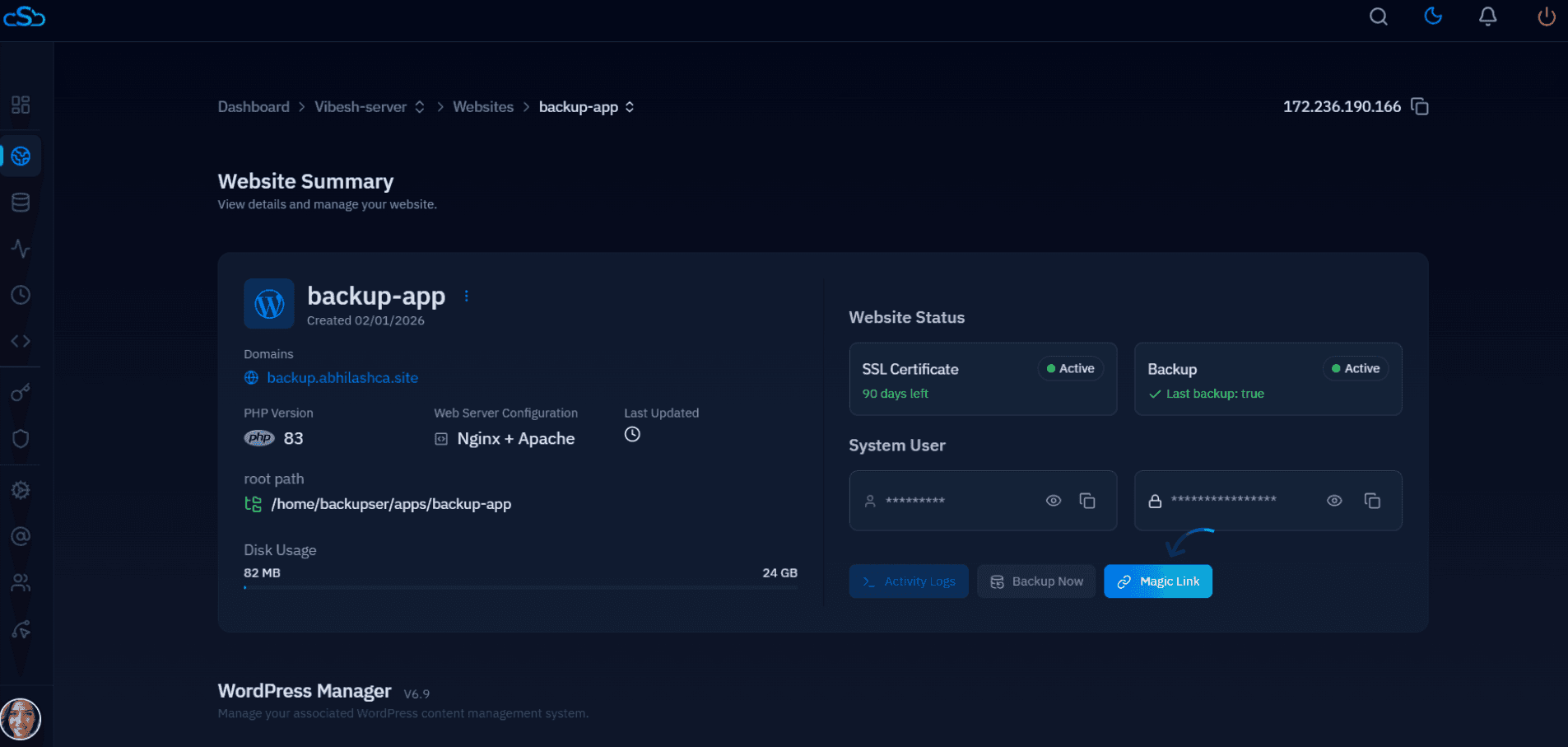
If you manage PHP versions through CloudStick, the EasyPHP panel lets you toggle the active PHP version per site and apply custom php.ini directives through the dashboard — no SSH required for routine configuration changes.
Reading PHP-FPM and Nginx Logs
PHP-FPM maintains its own error log that is separate from the application-level PHP error log. This is where you will find pool startup failures, worker crashes, slow-request recordings, and child process exit codes. On Ubuntu 22.04 it is located at /var/log/php8.2-fpm.log by default. Check the pool configuration at /etc/php/8.2/fpm/pool.d/www.conf to confirm the exact path.
stderr in a way that redirects to the web server's access log. Raw PHP errors written into access logs are rotated frequently and can be read by log aggregation tools that ship data to third-party platforms, inadvertently leaking application internals.To monitor errors in real time across both log sources at once, use tail -f with multiple files:
Enabling the slow log is one of the most useful production debugging techniques. When a request exceeds your request_slowlog_timeout threshold, PHP-FPM captures a full backtrace of every running function at that moment — without stopping execution. This tells you exactly which code path is responsible for a slow response, even on requests that eventually succeed.
The Nginx error log is equally important. When PHP-FPM crashes or runs out of workers, Nginx logs a 502 Bad Gateway with the message connect() to unix:/run/php/php8.2-fpm.sock failed. That specific message tells you the FPM socket is unavailable — check systemctl status php8.2-fpm next.
Debug WordPress with WP_DEBUG_LOG
WordPress has a built-in debugging subsystem that integrates cleanly with the PHP error logging approach described above. The key is to enable WP_DEBUG_LOG without enabling WP_DEBUG_DISPLAY. With this combination, errors are written to wp-content/debug.log but never shown to visitors.
Storing the debug log inside wp-content/ is the default, but it comes with a risk: the file is publicly accessible unless you block it at the web server level. A better practice is to set WP_DEBUG_LOG to an absolute path outside the document root, such as /var/log/php/wp-debug.log. If you must keep it inside the webroot, add the following Nginx rule:
Once logging is active, you can monitor WordPress-specific errors with tail -f /var/log/php/wp-debug.log while reproducing a bug. PHP notices from plugins and themes, database query errors, and uncaught exceptions all appear here with full context, making it the fastest way to identify a misbehaving plugin on a live site.
Using Xdebug Safely in Production
Xdebug is the gold standard for PHP debugging, but its default configuration is not safe for production. In step-debug mode, it listens for incoming IDE connections on port 9003 and can significantly slow down every PHP request. The right approach on a production server is to use Xdebug in trigger mode — the debugger only activates when a specific cookie or query parameter is present in the request. All other traffic is completely unaffected.
xdebug.client_host and a firewall rule that only allows your developer IP to reach port 9003. An open Xdebug listener on a public server is a serious remote-code-execution risk.With this configuration, you trigger a debug session by adding XDEBUG_TRIGGER=MY_SECRET as a cookie or GET parameter in your browser, using the Xdebug Helper extension for Chrome or Firefox. Your IDE on the developer machine receives the connection and lets you set breakpoints, inspect variables, and step through code — all on the live server, without affecting any other concurrent visitors.
Common PHP Errors and Fixes
Knowing where to look is only half the battle. Understanding what you are reading in the log is the other half. Here are the most common PHP error types you will encounter on a production server and what they indicate about your application.
Fatal error: Allowed memory size exhausted. PHP hit the memory_limit set in php.ini. The most common causes are loading large image files with GD or Imagick, inefficient database queries returning enormous result sets, or a recursive function without a proper base case. Increase the limit cautiously — it is better to fix the underlying inefficiency. Use memory_get_peak_usage(true) in your code to profile actual consumption.
Warning: Cannot modify header information — headers already sent. Something printed output (even a single whitespace or BOM character) before a header(), setcookie(), or session_start() call. The log message includes the filename and line number of the premature output. Look for PHP files saved with a UTF-8 BOM, closing ?> tags followed by a newline, or echo statements before the headers block.
Fatal error: Uncaught PDOException: SQLSTATE[HY000] [2002] Connection refused. PHP cannot reach the MySQL/MariaDB socket or TCP port. Verify the database service is running with systemctl status mysql, confirm the credentials in your application config match a valid MySQL user, and check that the socket path in php.ini matches the actual socket location at /run/mysqld/mysqld.sock.
PHP Parse error: syntax error, unexpected token. A syntax error in a PHP file prevents the entire script from loading. Unlike most runtime errors, parse errors cannot be caught by set_error_handler(). The error log will include the exact file and line number. Validate the file from the command line with php -l /path/to/file.php before deploying changes to catch these before they reach the live server.
Deprecated: Function X is deprecated. Deprecation notices do not cause failures immediately, but they indicate code that will break in a future PHP version. In a production log, a flood of deprecation notices often means a plugin or library has not been updated to support your current PHP version. Track these and address them during your next maintenance window — they are a leading indicator of future fatal errors after a PHP version upgrade.
Finally, always cross-reference your PHP error timestamps against your Nginx access log. If a specific URL is generating errors, you can correlate them with the originating IP, request method, and response code to determine whether the issue is triggered by specific user actions, a bot crawler, or a scheduled cron job hitting a broken endpoint.

