The Best PHP Settings for WordPress Performance

%203.png&w=256&q=75)
Why PHP Settings Matter for WordPress
WordPress is a PHP application. Every page request, every admin action, every REST API call runs through the PHP interpreter before it reaches your browser. Because of this tight coupling, the configuration of your PHP runtime has a direct and measurable impact on how fast your site loads, how reliably it handles concurrent visitors, and whether it can process large file uploads or complex WooCommerce checkouts without throwing fatal errors.
Default PHP installations are deliberately conservative. Distributions like Ubuntu 22.04 ship with values designed for broad compatibility rather than peak WordPress throughput. A stock memory_limit of 128 MB might work for a simple five-page brochure site, but the moment you install WooCommerce with a dozen extensions, that limit becomes a ceiling that causes white screens, incomplete checkouts, and slow admin dashboards.
The settings covered in this guide fall into four categories: core php.ini directives that govern memory and execution limits, OPcache settings that eliminate repeated compilation of PHP files, PHP-FPM pool parameters that control process concurrency, and PHP extensions that WordPress depends on for full functionality. Together, tuning all four layers produces the kind of snappy, stable site performance that keeps visitors engaged and search engines happy.
Core php.ini Settings to Configure
The primary PHP configuration file on Ubuntu 22.04 when running PHP-FPM is located at /etc/php/8.3/fpm/php.ini. Any changes here apply to all WordPress sites served by that PHP-FPM version. If you manage multiple sites with different requirements, you can override individual directives inside each site's PHP-FPM pool configuration file instead, which gives you per-site control without touching the global ini.
Below are the directives that have the most significant effect on WordPress performance and reliability. Open your php.ini and set these values:
memory_limit = 512M is the single most impactful change for most WordPress sites. WordPress core recommends at least 256 MB, but WooCommerce and page builders routinely spike above that during import operations, checkout processing, and media regeneration jobs. 512 MB is a safe, modern default.
max_input_vars = 5000 is critical for sites with complex menus or large option sets in themes like Divi or Avada. The default value of 1000 causes theme options to be silently truncated when saved, which produces confusing bugs that are hard to trace back to a PHP limit.
post_max_size must always be equal to or larger than upload_max_filesize. If they are mismatched, PHP silently discards the POST body when it exceeds post_max_size even if the individual file is within the upload limit, producing a confusing empty $_FILES array.
OPcache Configuration for Maximum Speed
OPcache is a bytecode cache built into PHP since version 5.5. Without it, PHP reads every source file from disk, tokenises it, parses it into an abstract syntax tree, and compiles it into opcodes on every single request. With OPcache enabled, that compilation happens once and the resulting bytecodes are stored in shared memory. Subsequent requests skip all of that work and execute the cached opcodes directly, which typically reduces PHP processing time by 40–70% for a WordPress site of average complexity.
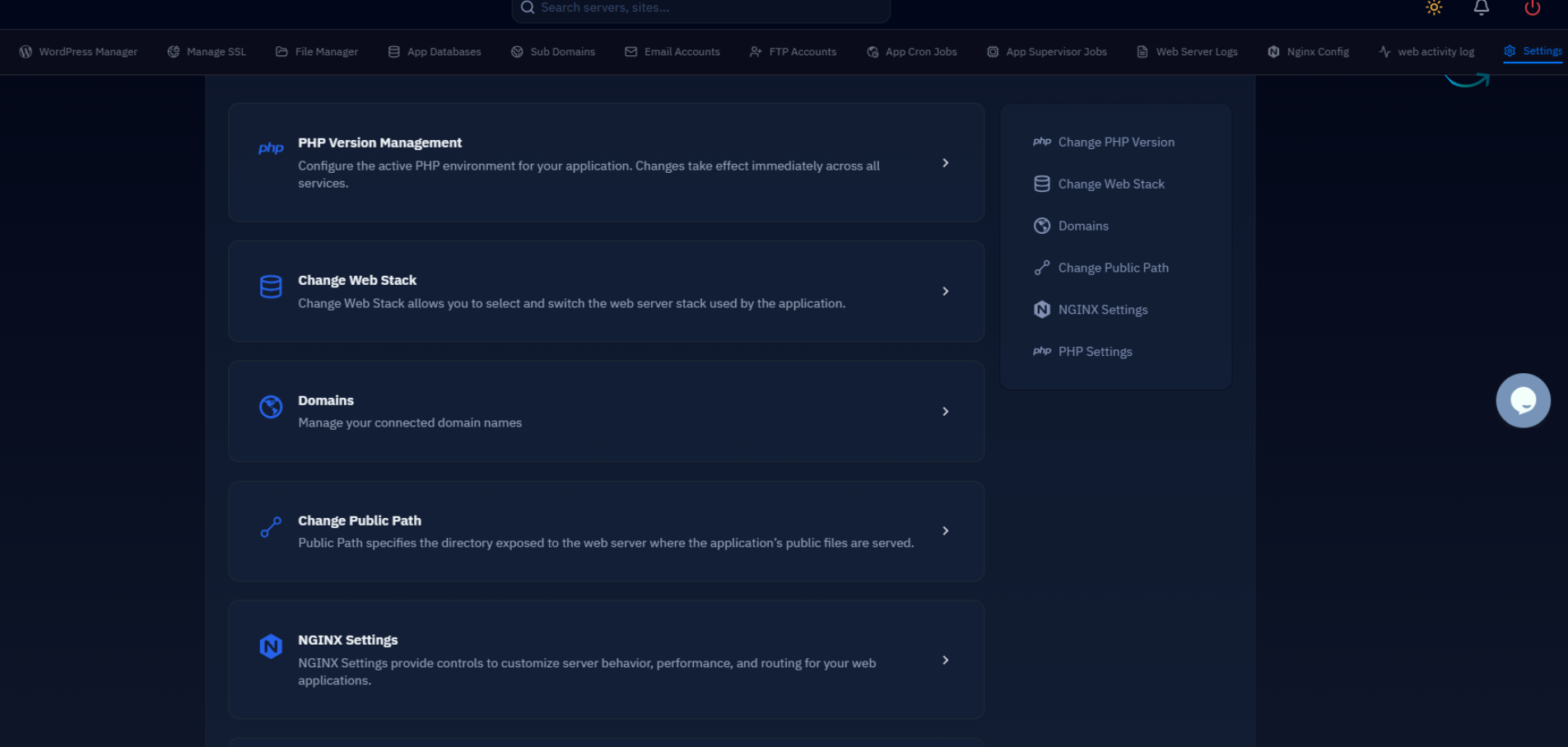
After any WordPress core update, plugin update, or theme change, the OPcache should be flushed so PHP picks up the new file versions. CloudStick's EasyPHP interface includes a one-click OPcache reset button directly in the server dashboard, so you never have to SSH in just to clear the cache after a deployment.
OPcache is configured in the same php.ini file, usually in a dedicated section near the bottom. Here are the recommended values for a WordPress production server:
opcache.memory_consumption = 256 allocates 256 MB of shared memory for the opcode cache. A standard WordPress install with twenty active plugins contains roughly 2,000–3,000 PHP files. With popular page builders or WooCommerce that number easily reaches 5,000–8,000 files. 256 MB comfortably fits all of them without eviction pressure.
opcache.max_accelerated_files = 10000 sets the maximum number of PHP scripts that can be cached simultaneously. The value must be a prime number or PHP will automatically round up to the next prime. 10007 is the commonly used practical value; setting it to 10000 is close enough that PHP will use 10007 internally.
opcache.save_comments = 1 must stay enabled for WordPress. Doctrine-style annotation comments are used by several WordPress plugins and themes to communicate metadata through PHP docblocks. Disabling this setting causes those plugins to fail silently or generate PHP warnings.
PHP-FPM Pool Tuning
PHP-FPM (FastCGI Process Manager) is the process model that sits between your web server (Nginx or Apache) and the PHP interpreter. Each WordPress request is handed off to a PHP-FPM worker process. The pool configuration controls how many worker processes exist, how they are managed, and when they are recycled. Getting this wrong in either direction causes problems: too few workers means requests queue up and your server appears slow under load; too many workers exhaust available RAM and trigger OOM kills.
The pool configuration file for PHP 8.3 on Ubuntu 22.04 is at /etc/php/8.3/fpm/pool.d/www.conf. The most important section is the process manager block:
pm = dynamic is the right choice for most WordPress hosting scenarios. It starts a pool of workers at boot, scales up when traffic increases, and scales back down during quiet periods. The alternative, pm = static, keeps a fixed number of workers running at all times, which guarantees consistent response times but wastes RAM when the site is idle.
To calculate pm.max_children for your specific server, measure the average memory used by a single PHP-FPM worker while it is processing a WordPress request, then divide your available RAM by that figure. On a 4 GB server with 2.5 GB available for PHP-FPM and workers averaging 100–130 MB each, a value of 20 is realistic and leaves headroom for the OS, MySQL, and Nginx.
pm.max_requests = 500 recycles each worker process after it has handled 500 requests. This is a low-cost way to prevent gradual memory leaks in poorly written plugins from accumulating over time. The worker is gracefully replaced, existing requests are not interrupted, and the pool auto-spawns a fresh replacement immediately.
Essential PHP Extensions for WordPress
WordPress has a defined set of required and recommended PHP extensions. Missing extensions do not always produce obvious error messages — sometimes they cause a specific feature to silently fail, or they force WordPress to fall back to a slower pure-PHP implementation. Ensuring all recommended extensions are installed and enabled prevents these subtle performance regressions.
On Ubuntu 22.04, install the complete set of WordPress-recommended extensions for PHP 8.3 with:
Several of these deserve special mention. php8.3-imagick provides ImageMagick bindings that WordPress uses for image processing. Without it, WordPress falls back to the GD library, which is slower and produces lower-quality image resizes, particularly for large uploads. php8.3-redis enables the PhpRedis extension, which is required by Redis object cache plugins such as Redis Object Cache by Till Kruss to connect at full native speed rather than through a slower socket abstraction.
php8.3-intl provides the Internationalization extension, which WooCommerce uses for currency formatting, address validation, and locale-aware string sorting. E-commerce sites missing this extension often encounter subtle checkout bugs that are difficult to diagnose because they only appear with certain locale configurations.
Applying Changes and Testing Performance
PHP configuration changes do not take effect until PHP-FPM is reloaded. Unlike a full restart, a graceful reload allows in-flight requests to complete before workers are replaced, which means you can apply these settings to a live production server with zero dropped connections:
After reloading, confirm your settings are live from within WordPress by navigating to Tools → Site Health → Info → Server. WordPress reads the active PHP configuration and displays the effective values for memory limit, max execution time, upload size, and more. This is the authoritative way to verify that your php.ini changes are being picked up by the FPM process that actually serves WordPress, rather than the CLI binary which may use a different ini file.
To measure the before-and-after impact of your PHP tuning, run a baseline load test before making any changes using a tool like ab (Apache Benchmark) or wrk. Capture requests per second and average response time for a cached and an uncached WordPress page. Apply your changes, reload PHP-FPM, flush the WordPress cache, and run the same test again. Most production WordPress sites see a 30–60% improvement in uncached PHP response time after completing all of the optimisations described in this guide.
PHP performance tuning is not a one-time activity. As your WordPress site grows — more plugins, more traffic, bigger media libraries — revisit these settings periodically. Monitor your PHP-FPM status page at /status to watch for signs of worker pool saturation, watch your OPcache hit rate (aim for above 99%), and review your PHP error log regularly. Combining well-tuned PHP settings with a solid object cache and a content delivery network gives your WordPress site the performance foundation it needs to scale confidently.

