How to Fix "Permission Denied (publickey)" SSH Errors

%203.png&w=256&q=75)
What Causes the Error
The "Permission denied (publickey)" error has five common causes. First, the wrong key file — SSH tried the wrong private key and the server rejected it. Second, bad file permissions on ~/.ssh/ or authorized_keys that cause SSH to silently reject the key. Third, the public key simply is not present in authorized_keys on the server. Fourth, the server's sshd_config has public key authentication disabled. Fifth, you are connecting with the wrong username for the account where the key was installed.
Before checking anything else, run ssh -vvv to see exactly which keys were tried and which step failed. The verbose output eliminates guesswork in seconds.
ssh -vvv user@server first. The verbose output will pinpoint the exact failure — wrong key, permissions, or server config — within seconds. Guessing without it wastes time.Check Key Permissions
SSH silently rejects keys when permissions are too open. The rules are strict — both on your local machine and on the server. If authorized_keys is owned by root but the connecting user is ubuntu, SSH will reject it even if the key content is correct.
Debug with Verbose Mode
The -vvv flag shows exactly what happened — which keys were offered, what error the server returned, and which authentication method was tried at each step.
Common output patterns: "Server refused our key" means the key is not in authorized_keys or permissions are wrong. "Too many authentication failures" means SSH agent offered too many keys before the right one — fix with -o IdentitiesOnly=yes -i ~/.ssh/specific_key.
sshd_config Issues
If PubkeyAuthentication is disabled on the server, no key will work regardless of permissions or key content. Also check if AuthorizedKeysFile points to a non-default location — if it does, your keys must be in that path instead.
Also check if SELinux or AppArmor is blocking SSH key reading. Check audit.log — it will show explicit denials if a MAC policy is preventing sshd from reading the authorized_keys file.
CloudStick SSH Troubleshooting
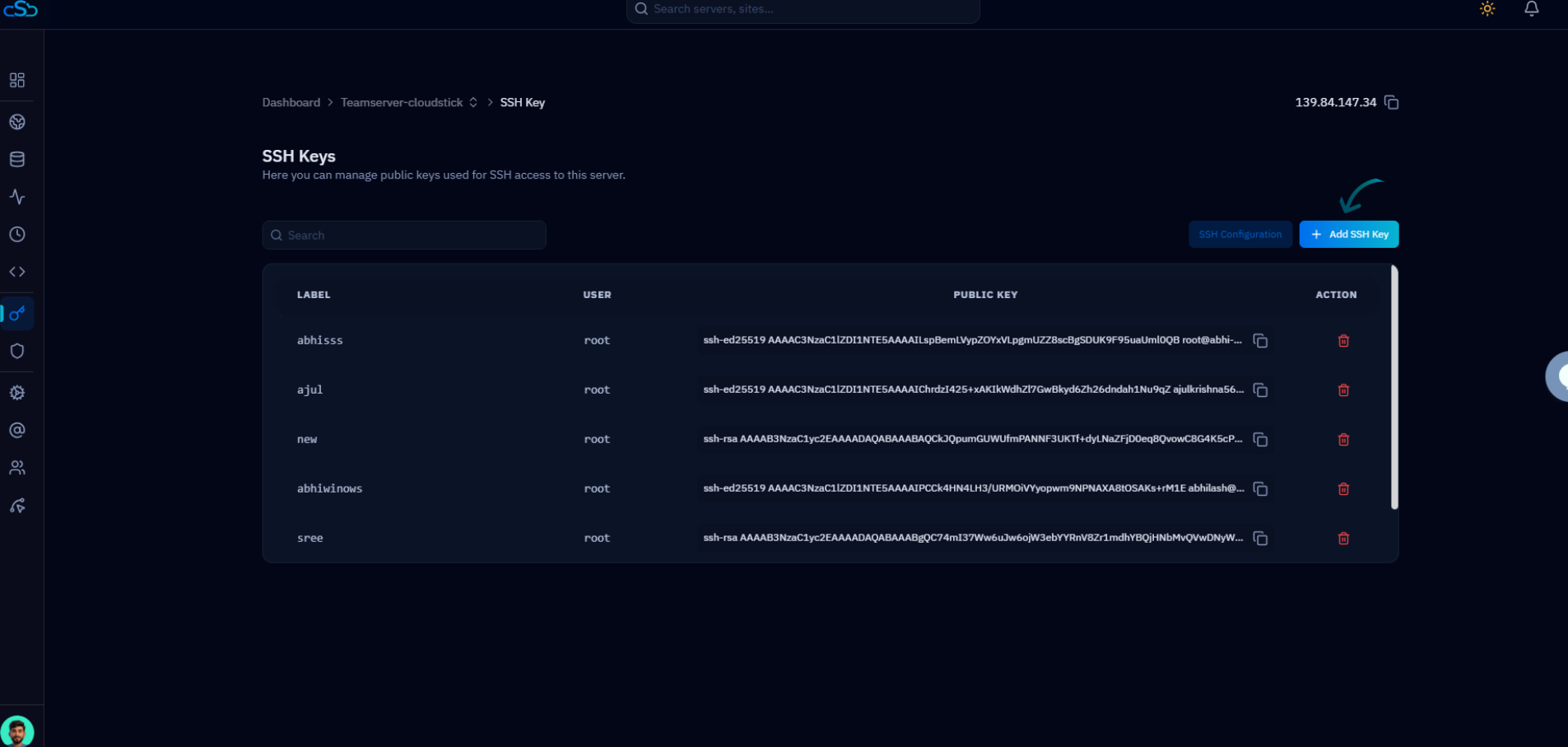
CloudStick's SSH Keys section shows which public keys are authorized for each system user on the server. If your key appears there but connections still fail, the most common cause is a permissions mismatch on the server's filesystem — often the result of a chmod -R 777 command applied to the home directory at some point, which overwrites the strict permissions SSH requires.
CloudStick's browser-based SSH terminal uses the same key authentication mechanism. If it connects successfully but your local terminal client does not, the issue is with your local key file or ssh-agent — not the server configuration. Use that as a diagnostic checkpoint: a working browser terminal confirms the server side is correctly configured.