How to Increase PHP Memory Limit and Execution Time

%203.png&w=256&q=75)
Why PHP Limits Matter
PHP ships with conservative default limits designed for shared hosting environments from an earlier era of the web. The default memory_limit is typically 128M, and max_execution_time defaults to 30 seconds. On a modern WordPress site running a page builder, WooCommerce, and a handful of plugins, those defaults are simply not enough.
When PHP runs out of memory, you see the dreaded fatal error: Allowed memory size of X bytes exhausted message, and your site goes blank. When PHP hits the execution time limit, long-running operations — such as importing products into WooCommerce, running a site migration, or generating a sitemap for a large site — die mid-way, leaving data in an inconsistent state.
Understanding where PHP reads these limits is the key to fixing them reliably. PHP evaluates configuration from multiple sources in a defined hierarchy: the main php.ini file, per-directory .htaccess or php_value directives, PHP-FPM pool configuration files, and finally runtime calls to ini_set() inside application code. Each layer can raise or lower the limit set by the layer above it, with certain directives restricted to specific contexts.
Check Your Current PHP Limits
Before changing anything, confirm what PHP is actually using at runtime. The values in a php.ini file are not always what PHP-FPM reads — there can be multiple ini files on a system, and the CLI and FPM SAPIs often use different ones.
The fastest way to check the PHP-FPM configuration as seen by a web request is to create a temporary info page:
Note the path structure: on Ubuntu 22.04 with multiple PHP versions installed via the ondrej/php PPA, each PHP version gets its own directory under /etc/php/. The CLI ini lives at /etc/php/8.2/cli/php.ini and the FPM ini at /etc/php/8.2/fpm/php.ini. These are separate files — editing the CLI ini has no effect on web requests served by PHP-FPM.
Increase Limits via php.ini
Editing the main php.ini is the most reliable way to change PHP limits server-wide. The change applies to every site running under that PHP-FPM version unless a pool-level override exists. On Ubuntu 22.04, the recommended approach is to use a drop-in configuration file in the conf.d directory rather than editing the main ini directly. This keeps your changes safe across PHP package upgrades.
memory_limit = -1 disables the memory limit entirely and will allow a runaway script to consume all available RAM, crashing the server. Always set a generous but finite limit such as 512M or 1G rather than removing the limit entirely.The 99-custom.ini prefix ensures your file is loaded last and takes precedence over any defaults set in earlier conf.d files. It is also worth noting that max_execution_time only counts CPU time consumed by PHP, not time spent waiting on I/O such as database queries or remote API calls. For WP-Cron tasks and long background jobs, you may also want to set max_input_time which limits how long PHP spends parsing incoming request data.
Per-Site Overrides with PHP-FPM Pools
One of the most powerful features of PHP-FPM is per-pool configuration. Rather than applying the same limits to every site on the server, you can give resource-hungry applications their own pool with elevated limits while keeping other sites at conservative defaults. This is especially useful when you run a mix of lightweight brochure sites and heavy WooCommerce stores on the same server.
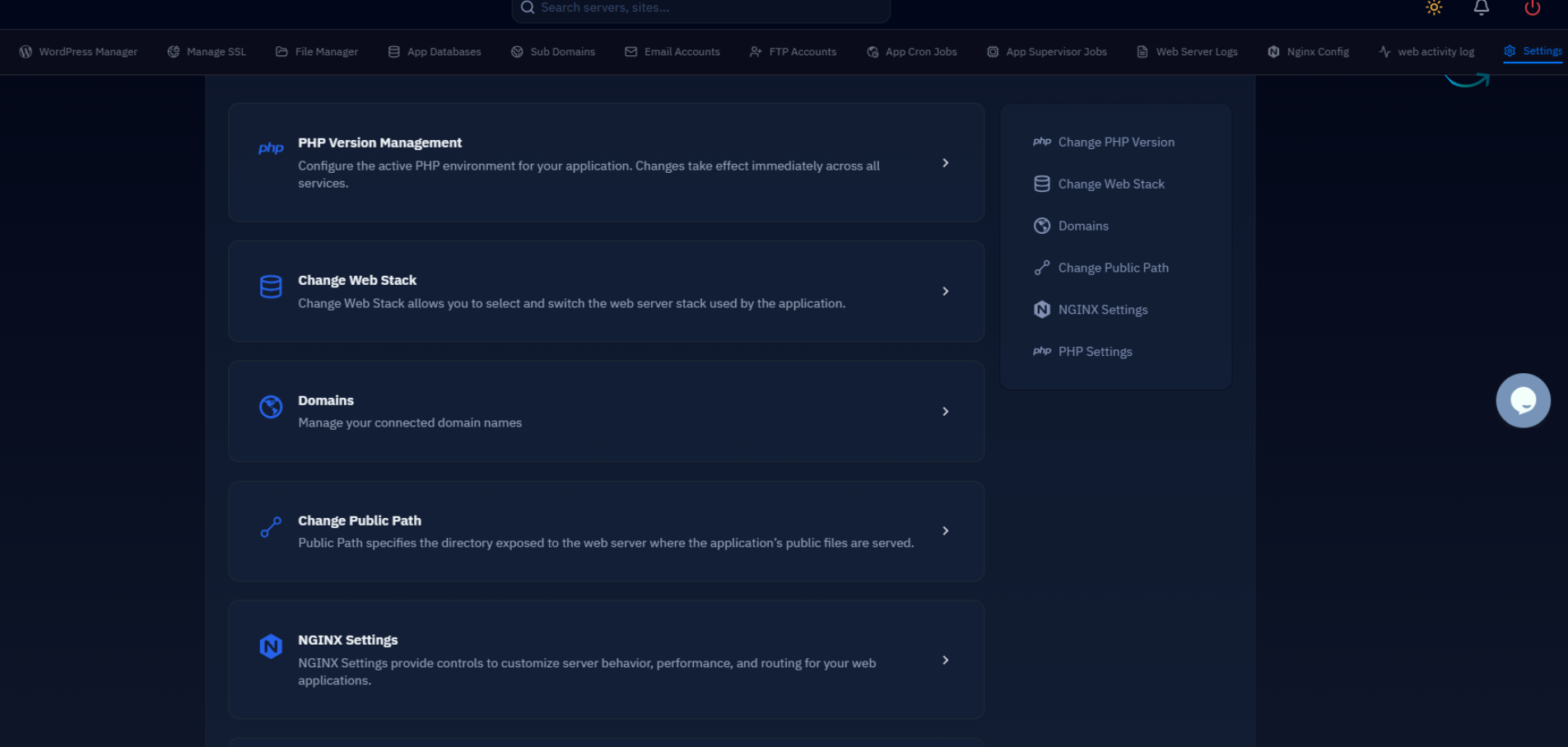
CloudStick's EasyPHP interface automatically creates a dedicated PHP-FPM pool for each site you add to a server, making it straightforward to apply per-site PHP settings without manually editing pool files or reloading services. For those managing pools directly on the command line, here is how to set it up:
The critical distinction between php_admin_value and php_value in pool files is important: php_admin_value is a hard override that application code cannot subsequently lower or raise using ini_set(). Use php_value when you want the application to be able to further tune the setting at runtime. For security-sensitive settings like disable_functions, always use php_admin_value so user code cannot override them.
WordPress-Specific Methods
WordPress provides two application-level mechanisms for raising the PHP memory limit. These are useful when you do not have server-level access, but they only work if the server-side limit is already equal to or higher than what you are requesting. You cannot use these methods to exceed the limit set in php.ini or the FPM pool config.
phpinfo() page or shell command.The WP_MAX_MEMORY_LIMIT constant controls the elevated memory budget WordPress requests when running admin tasks like the Plugin and Theme update screens. By default WordPress only raises the limit during admin operations, which is why you might see memory errors on the front end but not in the dashboard or vice versa. Setting both constants to the same value eliminates this inconsistency.
For Nginx with PHP-FPM — which is the stack used on most modern managed servers — the php_value .htaccess directive is ignored entirely. This is a very common point of confusion: developers copy a hosting guide that assumes Apache, paste the .htaccess directive, and then wonder why nothing changed. On Nginx, you must use the PHP-FPM pool approach described in the previous section.
Verify and Troubleshoot
After making changes, always verify that PHP is actually using the new values rather than assuming the edit took effect. A missing semicolon in a php.ini file, forgetting to reload PHP-FPM, or editing the wrong version's ini file are the three most common reasons changes appear to have no effect.
If php-fpm8.2 --test reports a syntax error, it will indicate the file and line number. Fix the error before reloading, otherwise the reload will silently fail and the old configuration will remain active. The systemd service will not return an error in this case — you have to run the test explicitly.
One final point: raising max_execution_time does not affect Nginx's own timeout settings. If Nginx is configured with fastcgi_read_timeout 60 (the default), requests taking longer than 60 seconds will receive a 504 Gateway Timeout from Nginx even if PHP would have completed successfully given more time. For long-running operations, set fastcgi_read_timeout in your Nginx site configuration to match or exceed the PHP max_execution_time value.

