How to Move WordPress from Shared Hosting to a VPS

%203.png&w=256&q=75)
What Changes on a VPS
On shared hosting, cPanel or Plesk handles PHP-FPM pools, SSL renewal, cron, and email for you. On a bare VPS, none of that exists until you install and configure it yourself — Nginx or Apache, PHP-FPM, MariaDB, Let's Encrypt, and a mail transfer agent are all separate services you now own. CloudStick's WordPress manager replicates the parts of cPanel that matter for WordPress — one-click install, free SSL, PHP version switching, and automated backups — without installing a full legacy control panel on top of the VPS.
Budget for this difference before you migrate: either you're comfortable maintaining Nginx configs and running apt upgrade on a schedule, or you want a dashboard doing it for you. Both are valid — just decide before migration day, not after something breaks.
Import Onto the VPS
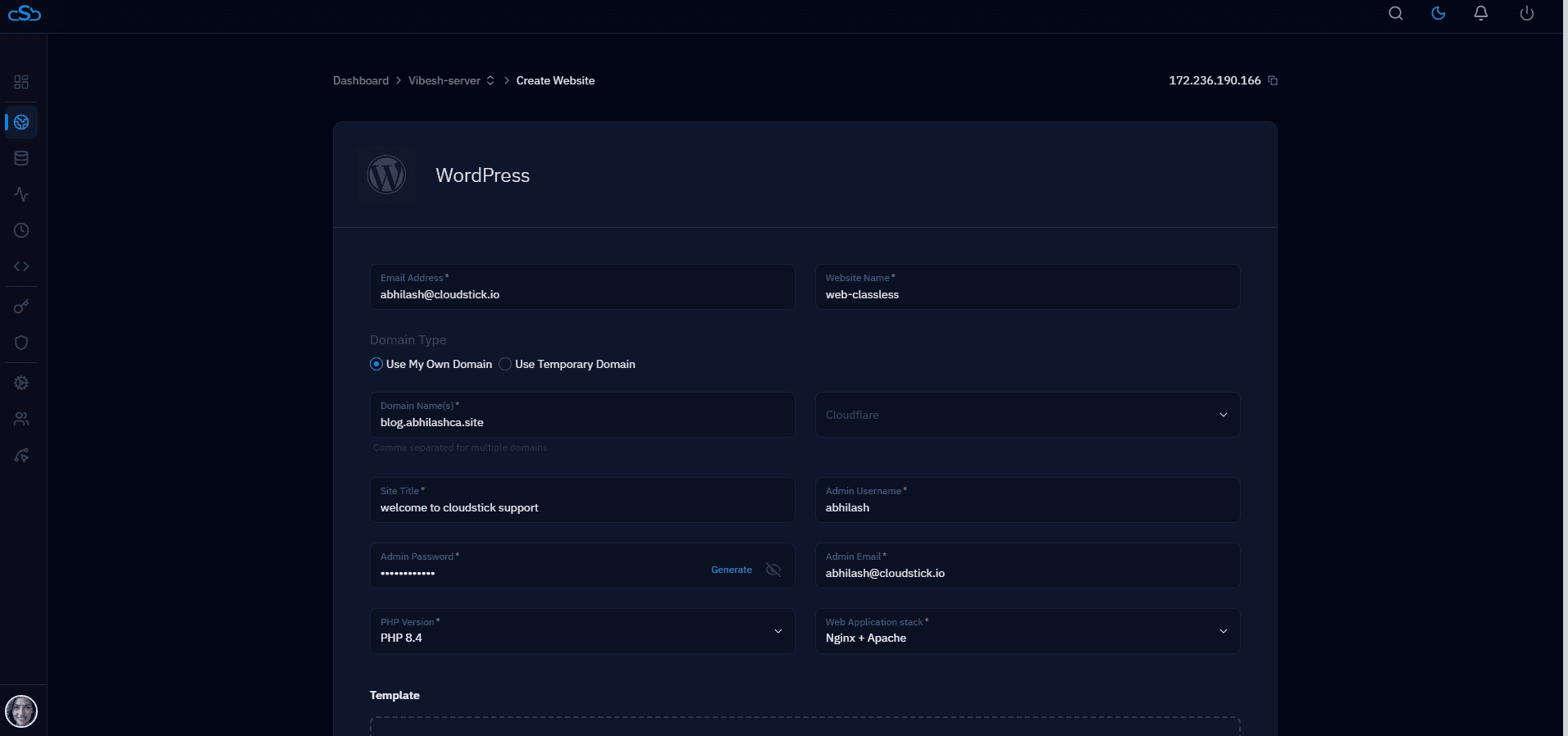
Create the website in your VPS control panel first so the document root, system user, and database already exist, then extract your archive into that document root and import the SQL dump:
CloudStick's WordPress manager can create the site, database, and system user together in one step, and its file manager lets you upload the archive directly through the browser if you'd rather skip a separate SFTP client.
DNS and Email Handoff
Test the site under its real domain using a local hosts-file override before touching DNS — the same technique used for any zero-downtime migration. Once verified, update the A record to point at the VPS. If your shared host also handled email (most do, via cPanel), that mail stops working the moment you move DNS unless you've separately configured mail on the VPS or moved to a third-party provider like Google Workspace first.
Plan the email cutover as its own task, separate from the website: set up MX, SPF, DKIM, and DMARC records on the new provider first, confirm mail flows correctly, and only then update the records that point your domain's website traffic at the VPS.

