How to Optimize MySQL for a Faster WordPress Site


%203.png&w=256&q=75)
Why MySQL Limits WordPress Speed
Every WordPress page request translates into dozens of database queries. A typical uncached page load on a standard WordPress installation with a few active plugins can trigger anywhere from 30 to 100 individual SQL queries. At that frequency, even minor inefficiencies compound into visible latency: a query that takes 80 ms instead of 8 ms, multiplied across every request, quickly becomes the dominant factor in your time-to-first-byte.
The default MySQL configuration shipped with Ubuntu 24.04 is deliberately conservative. It is sized for a shared hosting environment where dozens of databases might coexist on one server, not for a dedicated WordPress instance that owns the machine. Variables like innodb_buffer_pool_size and max_connections are left at defaults that will under-serve a busy site.
The good news: MySQL tuning for WordPress does not require deep database expertise. A targeted set of configuration changes — most of them one-liners in my.cnf — can cut database response times by 40–70% on a typical VPS. This guide works through each lever in order of impact.
Tuning the InnoDB Buffer Pool
The InnoDB buffer pool is the single most important MySQL variable for WordPress performance. It is an in-memory cache that holds table data and index pages. When a query can be satisfied from the buffer pool, MySQL never touches disk. When it cannot, it reads from disk — which is orders of magnitude slower, even on an NVMe drive.
The default innodb_buffer_pool_size on Ubuntu 24.04 is 128 MB — enough for a demo environment, not for a production site. The standard recommendation is to set it to 70–80% of the server's available RAM, leaving the remainder for the OS, PHP-FPM workers, and the web server. On a 4 GB VPS dedicated to WordPress, that means setting it to 2.5 GB or 3 GB.
Open your MySQL configuration file and add or update the following block under the [mysqld] section:
A few notes on what each variable does. innodb_buffer_pool_instances splits the buffer pool into multiple regions, reducing contention when multiple threads access the cache simultaneously — set it to one instance per gigabyte of buffer pool up to eight. innodb_flush_log_at_trx_commit = 2 writes the log buffer to the log file once per second rather than on every commit, which dramatically reduces I/O on write-heavy sites with acceptable durability trade-offs. O_DIRECT bypasses the OS page cache for InnoDB data files, preventing double-buffering since InnoDB manages its own cache.
After editing the file, restart MySQL and verify the buffer pool size was accepted:
Finding Slow Queries
Buffer pool tuning improves overall throughput, but it does nothing about individually expensive queries. Those need to be identified first. MySQL's slow query log records every query that exceeds a configurable execution time threshold, giving you a concrete list of what to investigate.
Enable the slow query log by adding these lines to your [mysqld] block and restarting MySQL:
Setting long_query_time = 1 captures queries taking more than one second. On a well-tuned site you might lower this to 0.5 or even 0.1 to catch subtler problems. The log_queries_not_using_indexes flag catches full-table scans regardless of duration — these are often the most dangerous queries on large wp_posts or wp_options tables.
Once you have collected a few minutes of traffic, use mysqldumpslow to aggregate the results:
This prints the ten slowest query patterns sorted by total execution time. For each entry, run EXPLAIN against the query in the MySQL console to see whether a missing index is responsible. WordPress meta tables — wp_postmeta and wp_usermeta — are frequent offenders on sites with many custom fields.
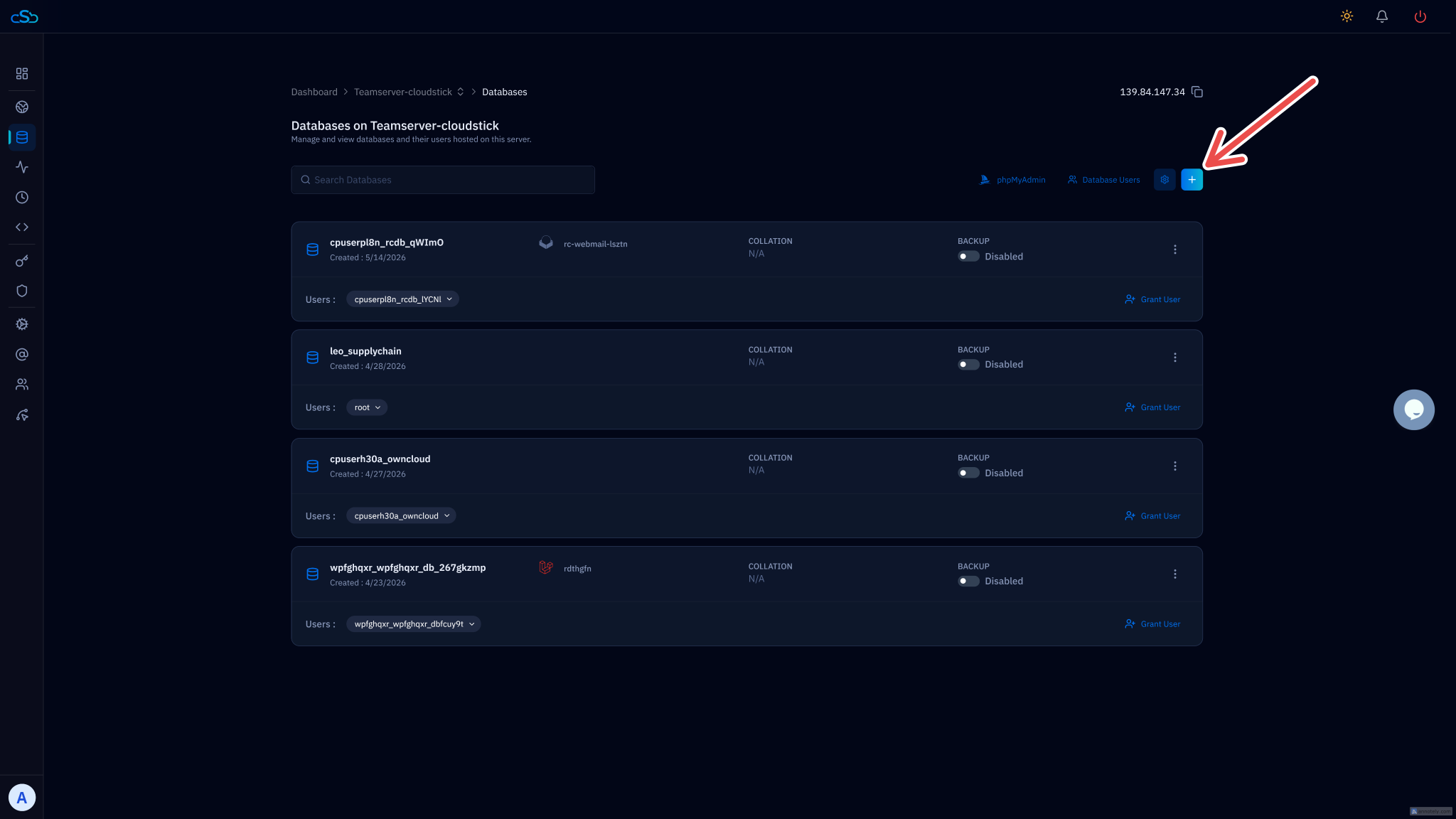
If you manage your server through CloudStick, the database panel gives you a direct view of your MySQL configuration and lets you restart the service without dropping into the terminal. This makes iterating on configuration changes faster — edit the config file via SSH, then trigger a restart from the dashboard to confirm the service comes back up cleanly before moving on.
Key MySQL Variables to Set
Beyond the InnoDB buffer pool, a handful of other variables have meaningful impact on WordPress performance. Here is a reference configuration for a 4 GB VPS running a single WordPress site, followed by an explanation of each setting.
tmp_table_size and max_heap_table_size control how large an in-memory temporary table can grow before MySQL spills it to disk. WordPress plugins that run complex GROUP BY or ORDER BY queries on large datasets benefit from these being set higher. Set both to the same value — MySQL uses the smaller of the two.
wait_timeout and interactive_timeout define how long MySQL holds an idle connection open. The WordPress default of opening a new connection per request combined with a long wait_timeout can exhaust your connection pool under traffic spikes. Setting both to 60 seconds recycles idle connections quickly and frees slots for new requests.
On MySQL 8.0: the query cache was removed entirely. Do not add those variables — they will prevent MySQL from starting. On MySQL 5.7 or MariaDB, the query cache can help read-heavy sites with low write rates, but it becomes a bottleneck under write load because every INSERT or UPDATE to a table invalidates all cached queries for that table.
Optimizing WordPress Tables
Configuration changes improve how MySQL uses resources. Table-level optimizations reduce how much work each query has to do in the first place. Two WordPress-specific problems stand out: autoloaded options bloat and post revision accumulation.
WordPress loads all options flagged with autoload = yes into memory on every single page request, regardless of whether the current page actually needs them. Many plugins write large serialized blobs to wp_options with autoload enabled and never clean them up. To check how much autoloaded data you are carrying:
To find the largest offenders and disable autoloading for stale plugin data:
Post revisions are the second major source of table bloat. By default WordPress keeps every revision of every post indefinitely. On a site that has been running for several years, wp_posts can grow to hundreds of thousands of rows, most of them revision copies the editor will never view. Limit revisions in wp-config.php:
After changing this constant, clean up existing revision rows and then run OPTIMIZE TABLE wp_posts to reclaim disk space and rebuild the table statistics. MySQL uses table statistics to make query plan decisions, so running OPTIMIZE after large deletes improves query planner accuracy.
Connection Pooling and Persistent Connections
PHP-FPM spawns a pool of worker processes, each of which opens its own MySQL connection when a WordPress request arrives and closes it when the request finishes. Under moderate traffic this is fine. Under sustained load — say, 50 concurrent requests — you are creating and tearing down 50 connections in rapid succession. Each connection handshake adds 1–3 ms of overhead, and MySQL must allocate memory and thread resources for each one.
The lightest-weight solution is ProxySQL or MySQL Router acting as a connection proxy between PHP-FPM and MySQL. The proxy maintains a warm connection pool and hands connections to PHP workers without the full handshake cost. On a high-traffic site this alone can reduce database CPU by 15–25%.
For most WordPress sites on a single server, a simpler approach is adequate: set thread_cache_size high enough to keep threads alive between connections. When a connection closes, MySQL parks the thread in the cache. The next connection reuses a cached thread instead of spawning a new OS thread, which saves kernel overhead. Set it to roughly twice your expected concurrent PHP-FPM worker count:
Verify thread cache effectiveness by checking how many threads MySQL is creating vs. reusing:
One more variable worth setting explicitly is max_allowed_packet. WordPress itself does not send large packets, but backup plugins and migration tools that transfer large post content or binary files in a single query can hit the default 16 MB limit and fail silently. Setting it to 256M covers all normal WordPress use cases:
After applying all configuration changes, use mysqltuner — a Perl script available via apt — to get a second opinion. It reads live server status counters, compares them against your configuration, and surfaces any remaining mismatches between what you have configured and what the server is actually doing under load. Run it after the site has been live for at least 24 hours so the status counters reflect real traffic patterns rather than a cold-start state.

