How to Schedule Scripts Without Cron (systemd Timers)

%203.png&w=256&q=75)
What a systemd timer actually is
A systemd timer is a unit file that starts another unit on a schedule. Instead of one crontab line, you write two small files: a .service unit that describes what to run — the command, the user, the environment — and a .timer unit that describes when to run it. The timer activates the service; systemd handles everything else. There is nothing to install on Ubuntu 24.04 or Debian, because systemd is already the init system running your server.
Your distribution already trusts this mechanism more than cron. Run systemctl list-timers on a stock Ubuntu 24.04 machine and you will find apt-daily.timer fetching package lists, logrotate.timer rotating logs, fstrim.timer trimming SSDs, and certbot.timer renewing certificates if you use Let's Encrypt. The pattern in this guide is exactly the one your own operating system uses for its scheduled work — you are just adding your scripts to the same system.
Why timers beat cron for many jobs
The single biggest win is logging. Every run of a timer-driven service is captured by journald automatically — stdout, stderr, exit code, start and finish times — with zero redirection boilerplate. Where a cron job silently discards output unless you remember to append a redirect to every line, a timer gives you journalctl -u myjob.service as a complete, timestamped history of every execution. When a job misbehaves at 3 a.m., that history is the difference between a five-minute diagnosis and an afternoon of guesswork.
Four more advantages matter in production. Persistent=true tells systemd to run a missed job at the next boot — if the server was down at 2 a.m., the backup still happens when it comes back, something cron simply cannot do. RandomizedDelaySec spreads start times across a window, so twenty servers do not all hammer a database or an API at the same second. Dependencies let a job wait for the network or another service with After= and Wants=, instead of hoping it is ready. And because the job is a normal service, you get resource control for free: CPUQuota, MemoryMax, and Nice settings keep a heavy report generator from starving your web workers.
A full worked example
Two files in /etc/systemd/system are all it takes. First the service unit, which defines the work. Type=oneshot is the right choice for scripts that run and exit, and User= runs the job as an unprivileged account instead of root:
Then the timer unit, which defines the schedule. It must share the base name — myjob.timer activates myjob.service by convention:
Reload systemd so it sees the new units, then enable and start the timer in one step:
Note that you enable the timer, not the service. The service stays disabled and is started by the timer each night at 02:00, plus up to five random minutes from RandomizedDelaySec, and Persistent=true covers any night the machine was off.
OnCalendar syntax vs cron syntax
OnCalendar reads as day-of-week, then date, then time: DOW YYYY-MM-DD HH:MM:SS, with asterisks as wildcards and every part optional. It is more verbose than cron's five fields but far harder to misread — the date is a date, not three separate columns you have to decode. Here are the translations you will reach for most often:
Never guess at an OnCalendar expression. Run systemd-analyze calendar "Mon..Fri 02:00" and systemd will validate the syntax, normalize it, and print the exact next elapse time — before you deploy the timer. It is the built-in equivalent of crontab.guru, and it catches typos that would otherwise fail silently.
Inspecting and debugging timers
Everything about a timer is observable with three commands. systemctl list-timers shows every active timer with its next scheduled run, the time remaining, and when it last fired — one table that replaces reading five crontabs. To test a job immediately, start the service directly; you do not have to wait for the schedule or fake the clock the way you would with cron:
If a run fails, systemctl status myjob.service shows the exit code and the final log lines, and journalctl -u myjob.service gives the full history — filter with --since yesterday to narrow it down. Compare that with cron debugging, where step one is grepping syslog to see whether the job even fired and step two is wishing you had redirected its output somewhere. That said, keep timer units minimal: a stray typo in a unit file shows up in systemctl status as a load error, so check status once after every edit and daemon-reload.
When cron is still fine — and your next step
Cron remains the right tool for plenty of jobs. A per-user one-liner that curls a URL every five minutes does not need two unit files, root access to /etc/systemd/system, and a daemon-reload — crontab -e is faster and perfectly reliable for it. Cron is also more portable across old systems and easier for teammates who have never opened a unit file. The honest rule of thumb: reach for a timer when a job needs logs you will actually read, must not be skipped when the server reboots, needs to wait for the network, or should be resource-limited. Reach for cron when the job is trivial, user-scoped, and low-stakes.
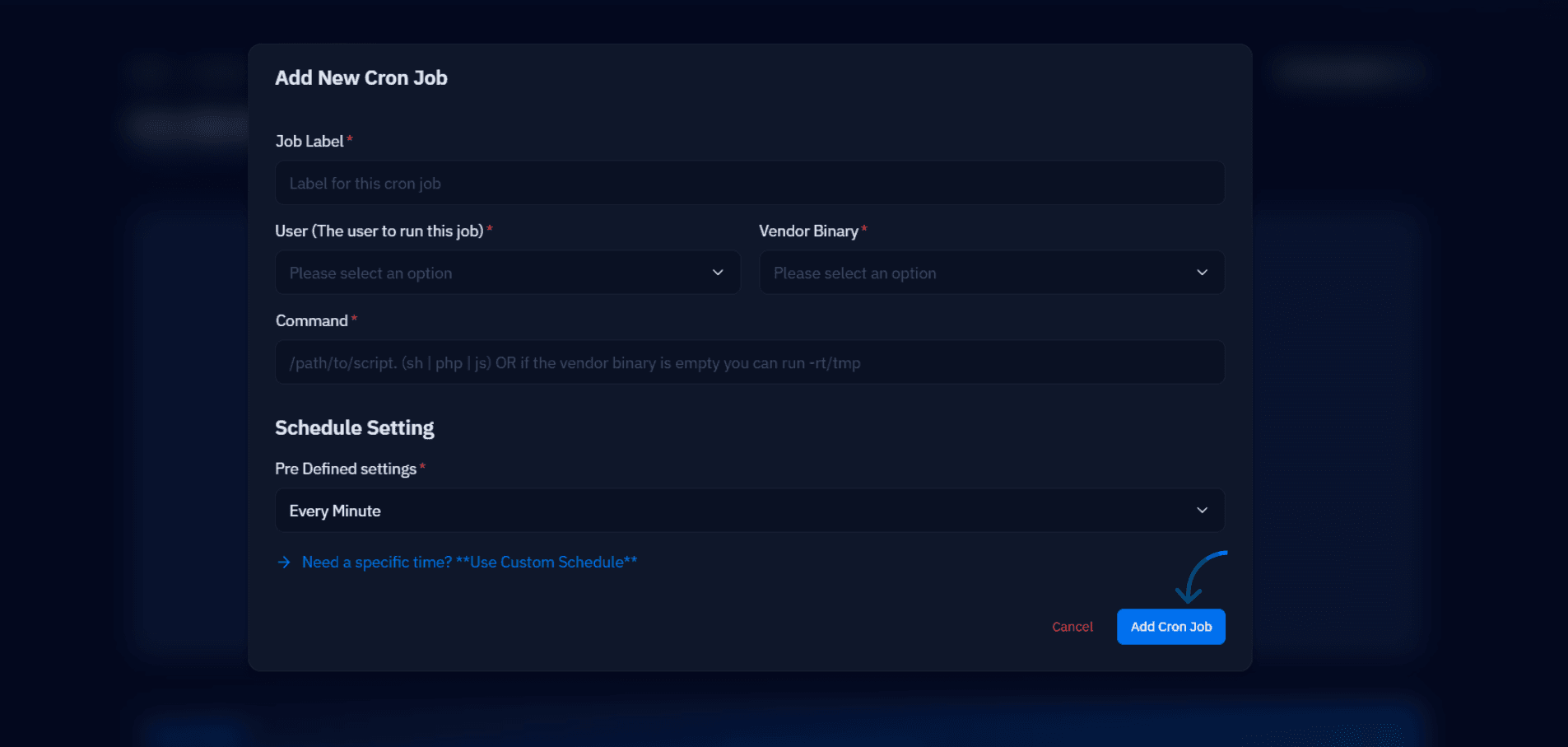
If you manage servers through CloudStick, the dashboard's CronJobs manager covers the scheduled tasks for each website on every plan, and Supervisord management on Basic and above handles the always-running workers that neither cron nor a timer should own — so timers can be reserved for the system-level jobs where they shine. Your next step is a small one: pick the one cron job whose failures you keep discovering late — usually the backup — and convert it to a service and timer pair using the example above. Enable it, run systemctl start once to test, read the journal, and you will have a scheduled job you can finally see.