How to Set Up Nginx Server Blocks (Virtual Hosts)

%203.png&w=256&q=75)
What Are Nginx Server Blocks?
An Nginx server block is equivalent to Apache's VirtualHost directive — it maps a domain name to a specific directory on your server and defines how Nginx should handle requests for that domain. You can run dozens of websites on a single VPS, each with its own server block pointing to a different document root, PHP version, and access log.
Nginx loads server blocks from config files in /etc/nginx/sites-available/ that are symlinked into /etc/nginx/sites-enabled/. This two-directory pattern lets you maintain site configs without activating them — remove the symlink to disable, restore it to re-enable, without deleting the config file.
Create the Directory Structure
Each website gets its own directory under /var/www/. Separating sites this way isolates their files and makes permission management clean — each site can have its own system user, preventing one compromised site from reading another's files.
Write the Server Block Config
Create a config file for each domain in sites-available. Name the file after your domain for easy identification. The server block below handles a PHP site with WordPress-compatible URL rewriting and separates access logs per site.
Enable the Site with a Symlink
Nginx does not read files from sites-available directly — it only reads sites-enabled. Activate the config by creating a symlink. Then remove the default site to prevent Nginx from serving the welcome page on your domain.
Test and Reload Nginx
Always validate the configuration before reloading. nginx -t checks every included config file and reports syntax errors with the file name and line number. If it passes, reload gracefully — active connections are not dropped during a reload.
Never use systemctl restart nginx in production — it tears down all active connections. Use systemctl reload nginx instead. It applies the new config without dropping connections. Only use restart if Nginx fails to start after a crash.
Managing Multiple Sites at Scale
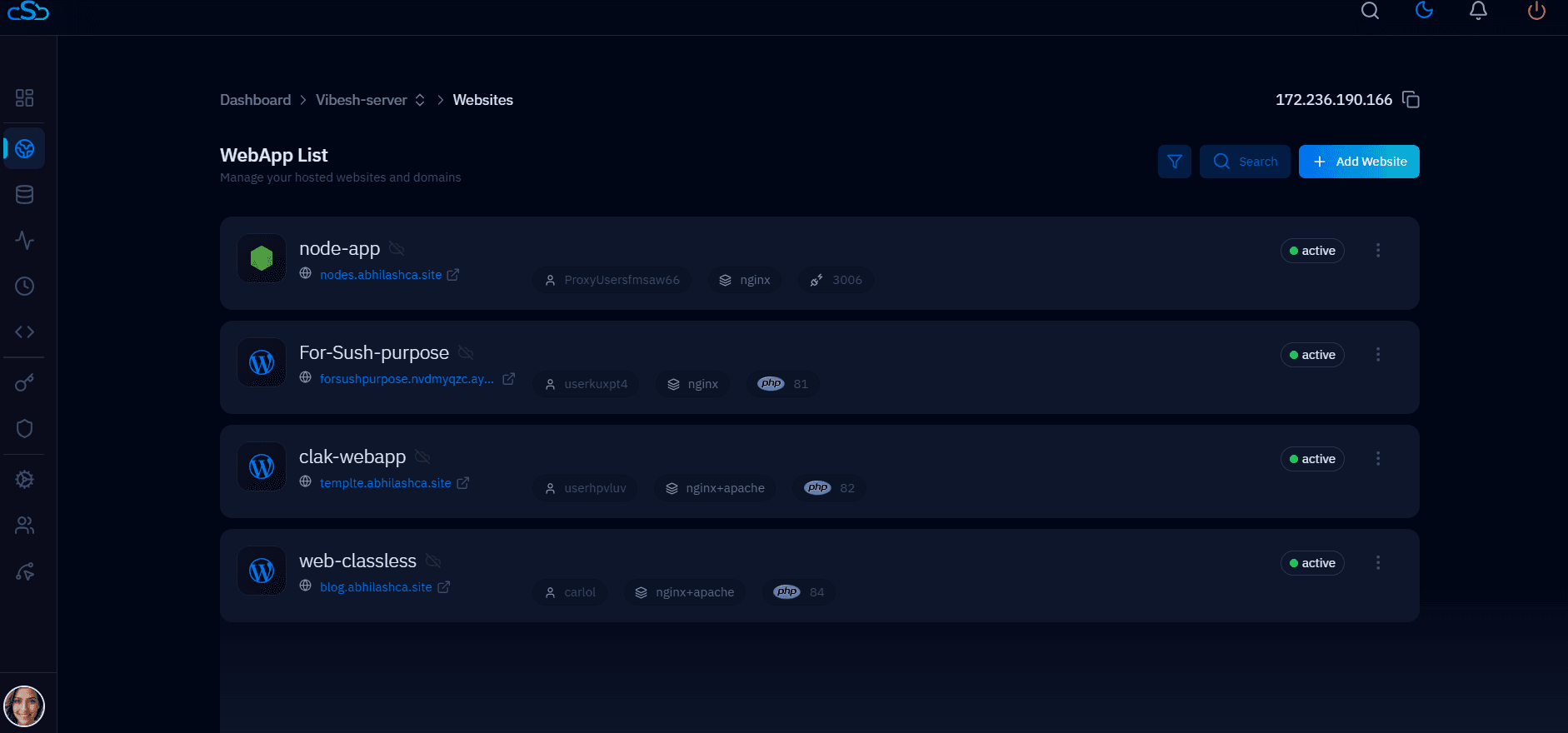
For agencies managing 10, 20, or 50 sites on a single server, manually creating and maintaining Nginx server blocks becomes error-prone. CloudStick automates exactly this workflow — when you add a new website through the CloudStick dashboard, it creates the directory structure, writes the server block, handles the symlink, and reloads Nginx automatically.
Each site also gets an isolated PHP-FPM pool, separate access logs, and its own system user. This is the correct multi-tenant server architecture — and it is the default for every site created through CloudStick. For a single-server agency workflow, the dashboard approach eliminates an entire class of configuration mistakes.