How to Set Up Staging for a Live WooCommerce Store

%203.png&w=256&q=75)
Why Staging Matters
A staging environment is a private, fully working copy of your live WooCommerce store where you test plugin updates, theme changes, and PHP version upgrades before they ever touch real customers. WooCommerce stores are especially unforgiving to test in production because checkout runs on nonces, session tokens, and cart fragments that break the moment a plugin conflict or fatal error shows up mid-purchase.
Testing directly on a live store also risks the database itself. A failed migration, a bad search-and-replace, or a plugin that rewrites `wp_options` can corrupt product catalogs or order history in seconds, and there's no undo button on a store that's actively taking payments. Staging gives you a disposable sandbox that mirrors production closely enough to catch real bugs, without risking a single live order.
The catch with WooCommerce specifically is that a staging clone isn't just a copy of WordPress — it drags along payment gateway credentials, webhook URLs, and a search-indexable storefront that all need to be handled differently than a normal blog or brochure site.
Cloning Files & Database to a Staging Subdomain
Cloning a WooCommerce store means copying two things in lockstep — the `wp-content` files (themes, plugins, uploads) and the MySQL database (products, orders, options) — onto a separate subdomain such as `staging.yourstore.com` on the same server or a dedicated staging server. Doing only one half leaves you with a site that either shows the wrong theme or references products that don't exist in the database.
Start by dumping the live database, syncing the files, importing into a fresh staging database, and rewriting every hardcoded reference to the live domain with WP-CLI's `search-replace`, which correctly handles WordPress's serialized `wp_options` and `wp_postmeta` data (a plain find-and-replace in a SQL file will corrupt serialized arrays):
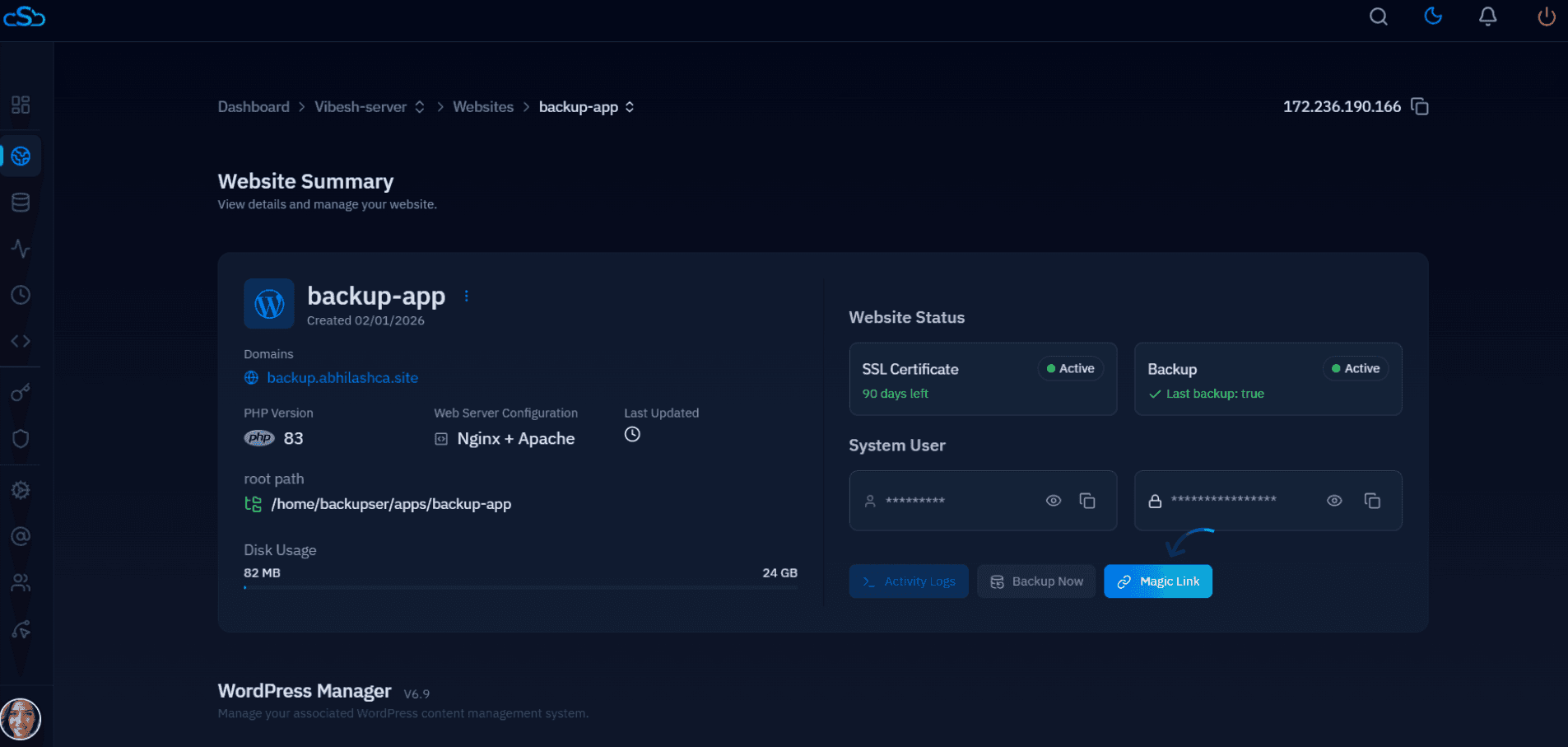
CloudStick's Visual Database Manager lets you take an on-demand backup of the live database before you start the clone, and browse or restore it later without touching phpMyAdmin or the command line — a useful rollback point in case the search-replace step goes wrong on a large catalog.
Switching Payment Gateways to Sandbox Mode
Every payment gateway plugin — Stripe, WooCommerce Payments, PayPal, Authorize.net — ships a sandbox or test mode, and a staging clone must be switched into that mode immediately after import, because cloning the database copies the live API keys along with everything else. The gateway settings live in `wp_options` (for example `woocommerce_stripe_settings`), so a database clone silently duplicates production credentials onto staging without any warning.
In WooCommerce's payment settings, open each gateway and toggle "Test mode" (or "Sandbox") on, then replace the live publishable/secret key pair with the gateway's published test keys. For Stripe, test keys are prefixed `pk_test_` and `sk_test_`; for PayPal, switch the environment from Live to Sandbox and use a sandbox business account. Do this for every gateway configured on the store, not just the default one.
Never leave live API keys active on a staging clone. If staging still holds production Stripe or PayPal secret keys, any test order you place — or any bot that stumbles onto an unprotected checkout page — can trigger a real charge against a real customer's card. Rotate to sandbox keys before you place a single test order, and treat any staging site with live keys as a security incident until it's fixed.
Blocking Search Engines From Indexing Staging
Google will crawl and index an unprotected staging subdomain within days, creating duplicate-content competition against your live store and exposing half-finished pricing or product changes to the public. Because staging shares the same content as production, search engines have no way to tell which copy should rank — so both suffer.
Add a dedicated `robots.txt` on the staging vhost that disallows everything, and back it up with an `X-Robots-Tag` HTTP header so the rule holds even if a plugin overwrites `robots.txt`:
For a store handling real customer test data, add HTTP basic auth on the staging vhost as well, so the site isn't reachable by anyone outside your team even if the noindex rules are ignored by a rogue crawler. Reload Nginx after editing the config so the header takes effect on the next request.
Pushing Changes Back Without Losing Orders
Pushing a full staging database back to production will overwrite every order placed while you were testing, because a wholesale database push replaces `wp_wc_orders` (or `wp_posts` on pre-HPOS installs) and `wp_woocommerce_sessions` with staging's stale copies. The longer staging and production run in parallel, the more real orders are at risk of being wiped out by a careless push.
Split the push into two categories instead of one blind sync. Code and design changes — theme files, plugin updates, custom code in `wp-content` — can be pushed as files directly, since they don't touch order data. Database changes — new pages, updated settings, product edits — should be pushed selectively using a migration plugin (or manual `wp export`/`wp import` for specific post types) that explicitly excludes order, session, and customer tables so live transactional data is never touched by the sync.
Always take a fresh production database backup immediately before any push, regardless of how targeted it is — if something goes wrong, restoring that backup is the fastest way back to a working store.
Next Steps
A repeatable staging workflow comes down to four checkpoints run in the same order every time: clone files and database to a subdomain, switch every payment gateway to sandbox keys, block crawlers with `robots.txt` and `X-Robots-Tag`, and push changes back through a table-aware sync that never touches live orders.
Script the clone and search-replace steps once and you can spin up a fresh staging copy before every major plugin update instead of testing on the live store out of habit. Pair that with scheduled production backups through CloudStick's Visual Database Manager, and every staging refresh doubles as a verified restore point for your live WooCommerce store.