How to Set Your Server Timezone, Hostname, and Locale

%203.png&w=256&q=75)
Why Timezone, Hostname, and Locale Matter in Production
These three settings look trivial until they cause a real problem. A wrong timezone makes cron jobs fire at the wrong hour, SSL certificate logs show confusing timestamps, and Let's Encrypt renewal failures appear to happen “yesterday” in your monitoring dashboard. A non-descriptive hostname — like ip-172-31-4-12 instead of web-prod-01 — makes log aggregation in Datadog, Loki, or Papertrail impossible to navigate when you are debugging at 2am. A missing or incorrect locale causes PHP and Python string handling errors for non-ASCII characters like accented Latin letters, Chinese, Arabic, or emoji in user-submitted content.
All three should be set in the first five minutes after provisioning a new server, before you install any application software. Getting them right at the start costs two minutes. Fixing them after an application is running costs significantly more.
Setting the Correct Timezone
The recommended timezone for production servers is UTC. UTC never observes daylight saving time, which means cron jobs fire at consistent wall-clock intervals year-round and log timestamps are unambiguous across multi-timezone teams. When a developer in London and a developer in New York both look at a log line timestamped 14:32 UTC, they know exactly when it happened.
If your application has its own timezone handling — Laravel's APP_TIMEZONE, Django's TIME_ZONE, WordPress's timezone setting — configure it separately in the application config. The OS timezone and the application timezone are independent. Setting both to UTC gives you the simplest, most predictable behaviour.
Changing the Hostname
Cloud providers often assign ugly default hostnames such as ubuntu, localhost, or IP-based names like ip-172-31-4-12. A descriptive hostname makes SSH prompts, log lines, and your CloudStick server panel immediately readable. A good naming convention: role-environment-region — for example web-prod-01, db-staging-eu, or worker-prod-02.
The hostname change takes effect immediately in new shell sessions. You may need to log out and back in to see the prompt update from the old name to the new one.
Configuring the System Locale
The locale controls character encoding, date formatting, currency symbols, and string collation. On Ubuntu 24.04, the default locale is often C or POSIX, which does not support multi-byte characters. Running PHP, Python, or MySQL with a POSIX locale causes encoding errors whenever user content contains non-ASCII characters — a common source of silent data corruption that only surfaces weeks after deployment.
For servers in non-English regions, generate your regional locale alongside en_US.UTF-8. For example: sudo locale-gen de_DE.UTF-8 en_US.UTF-8. This ensures both the OS and locale-aware applications like PHP and MySQL work correctly with regional content.
Verifying All Changes Are Permanent
All three settings survive reboots because they write to persistent configuration files: /etc/localtime (a symlink to the timezone data file), /etc/hostname, /etc/hosts, and /etc/default/locale. The systemd commands — hostnamectl, timedatectl, and localectl — update these files atomically, so you should always use them rather than editing the files directly.
If the locale is not applied to a running process (like a PHP-FPM worker that started before you changed the locale), restart the service: sudo systemctl restart php8.3-fpm. The new locale takes effect for all processes started after the change.
CloudStick Handles This During Agent Installation
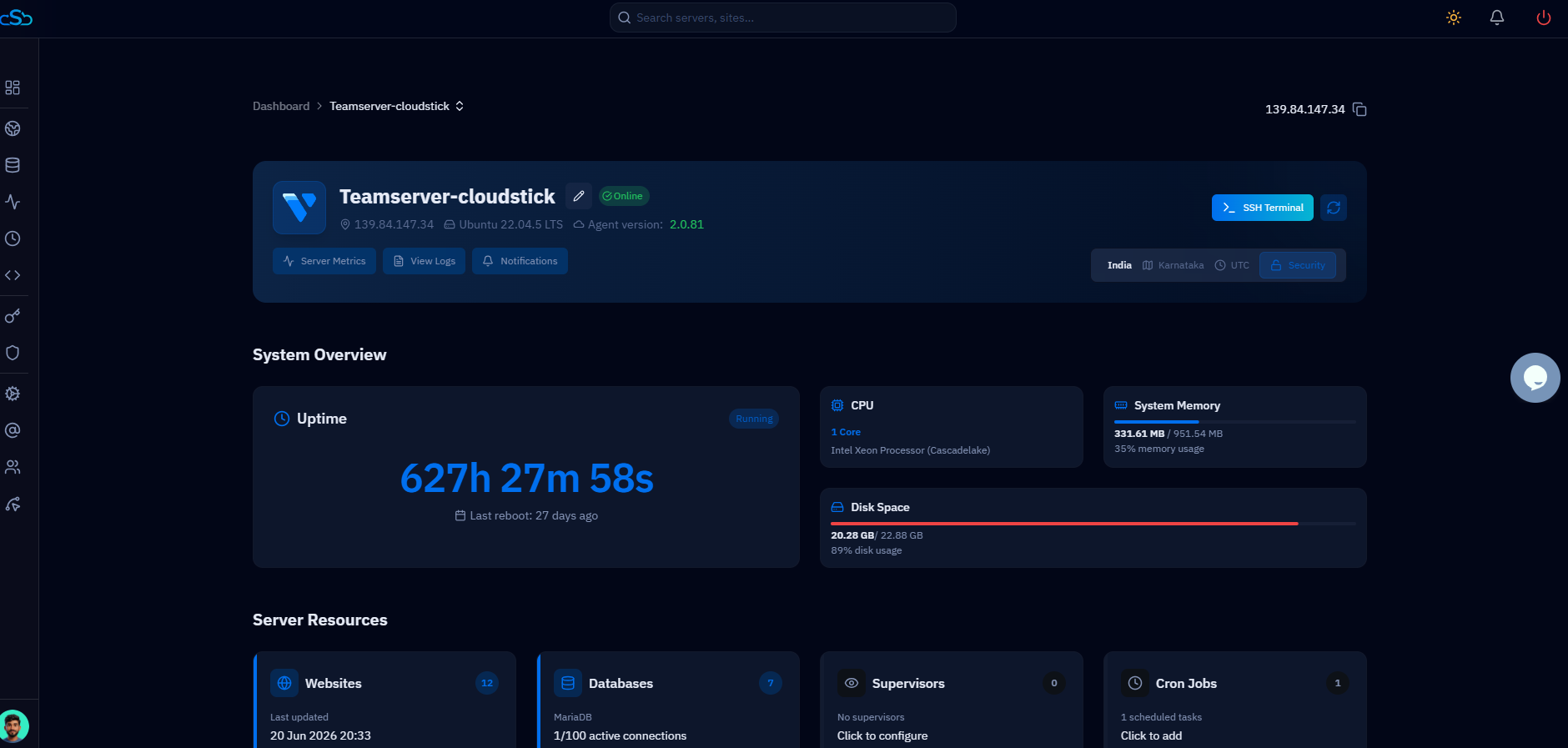
When you connect a server to CloudStick via the + Add Server flow, the CloudStick agent installation script sets a standard timezone during provisioning. For servers you connect manually, CloudStick's Timezone Management feature — available on all plans — lets you update the server timezone from the web dashboard without SSH. This is particularly useful when managing servers across multiple cloud regions and needing to align timezone settings without opening a terminal.
CloudStick also displays the server's hostname in the server panel header, making it easy to verify you are managing the right machine when you have multiple servers connected. The Service Management section shows the status of all running services — useful to confirm that PHP-FPM and MySQL restarted correctly after a locale change.