Setting Up Swap Space on a VPS for Better Stability


%203.png&w=256&q=75)
What Is Swap Space and When Do You Need It?
Swap space is disk storage that Linux uses as overflow memory. When RAM fills up — during a compilation run, a database backup, or a spike in PHP workers — the kernel moves the least recently used memory pages to the swap area on disk. Without swap, the kernel invokes the OOM (Out of Memory) killer, which terminates processes to free RAM, often choosing your web server or database.
Swap is not a replacement for adequate RAM. It is 5–10x slower than physical memory. But on a 1 GB or 2 GB VPS running WordPress or a Node.js application, a 1–2 GB swap file is the difference between surviving a traffic spike and losing your server to the OOM killer. Most cloud providers do not provision swap by default — you must configure it yourself.
Creating a 2 GB Swap File on Ubuntu 24.04
A swap file is a regular file on your root partition that Linux designates as virtual memory. The process is: allocate the file with fallocate, format it as a swap area with mkswap, then enable it with swapon.
For sizing: a general rule is to match your RAM size up to 2 GB, then use half of RAM for servers with more than 2 GB. A 1 GB VPS gets 1–2 GB swap. A 4 GB VPS can use 2 GB swap. Beyond 8 GB of physical RAM, swap is rarely needed unless you're doing large in-memory operations.
Tuning vm.swappiness for Web Server Workloads
The vm.swappiness kernel parameter controls how aggressively Linux moves pages to swap. The default value of 60 means Linux will start swapping when RAM is at 40% usage — too aggressive for a web server. Lower values tell the kernel to prefer keeping application data in RAM and only use swap as a last resort.
vm.swappiness=10 for WordPress and PHP web servers. For database servers (MySQL, PostgreSQL), use vm.swappiness=1 — databases use their own buffer pools and benefit from keeping RAM free for that purpose.Making Swap Permanent Across Reboots
The swapon command activates swap for the current session only. After a reboot, it will be gone unless you add the swap file to /etc/fstab and persist the vm.swappiness setting to /etc/sysctl.conf.
Monitoring Swap and Memory Usage
If your server is consistently using swap, you have a memory problem that swap alone cannot solve. Swap buys time; it does not fix an undersized server. Monitor how much swap is in use and act before it becomes a performance bottleneck — heavy swap usage causes high disk I/O and significantly slower response times.
"Swap is a safety net, not a memory upgrade. If your server uses more than 50% of swap regularly, you need more RAM — no amount of tuning will change that."
Watching Memory and Swap Stats in CloudStick
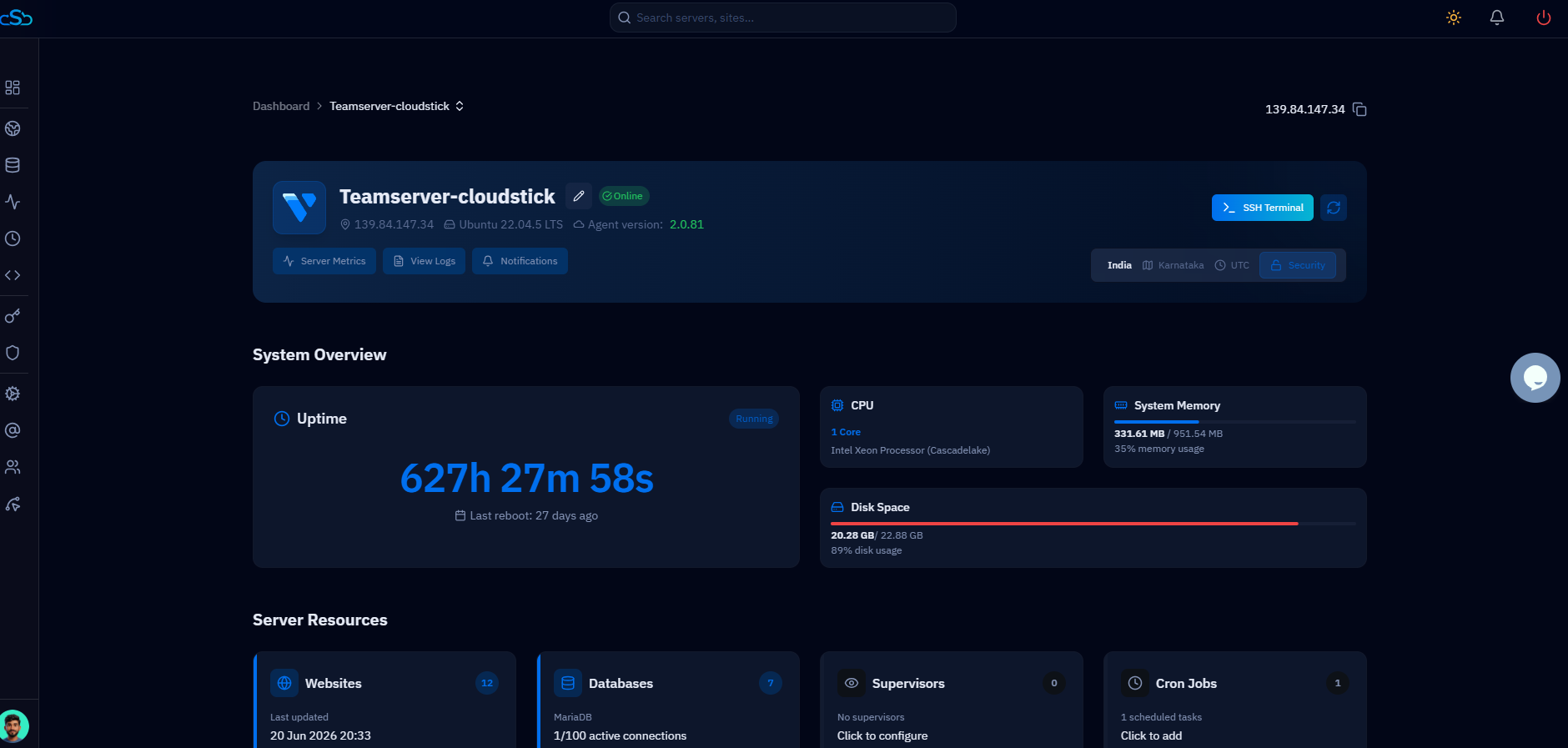
CloudStick displays real-time memory and swap usage in the server stats panel — no need to SSH in every time you want to check. The dashboard shows RAM used, swap used, and disk I/O at a glance, updated every minute. When swap usage creeps up over several days, you can catch it before it causes downtime.
For servers added to CloudStick, the agent installation also configures swap if your server size warrants it — CloudStick checks for swap during onboarding and suggests configuration if none is found. This automated check prevents the common issue of new servers sitting without swap until they OOM under load.