How to Use SFTP to Transfer Files Securely

%203.png&w=256&q=75)
What Is SFTP?
SFTP (SSH File Transfer Protocol) is a secure file transfer protocol that runs over an existing SSH connection. Unlike FTP, all data — including credentials, commands, and file contents — is encrypted. SFTP uses port 22 by default, the same as SSH, and supports the same SSH key authentication. If you can SSH into a server, you can use SFTP without any additional server configuration.
SFTP is not the same as FTPS (FTP over TLS) — they are completely different protocols despite similar names. SFTP is the standard choice for secure file access to web servers. It supports file upload, download, directory listing, renaming, permissions changes, and symbolic links — everything you need for managing files on a remote server.
Connect with the SFTP CLI
The sftp command ships with OpenSSH on Mac, Linux, and Windows 10+. It uses the same connection syntax as ssh:
ServerAliveInterval 60 to your ~/.ssh/config to keep the connection alive during large transfers.Upload and Download Files
Use put to upload and get to download. Both support recursive directory transfers with the -r flag:
GUI SFTP Clients
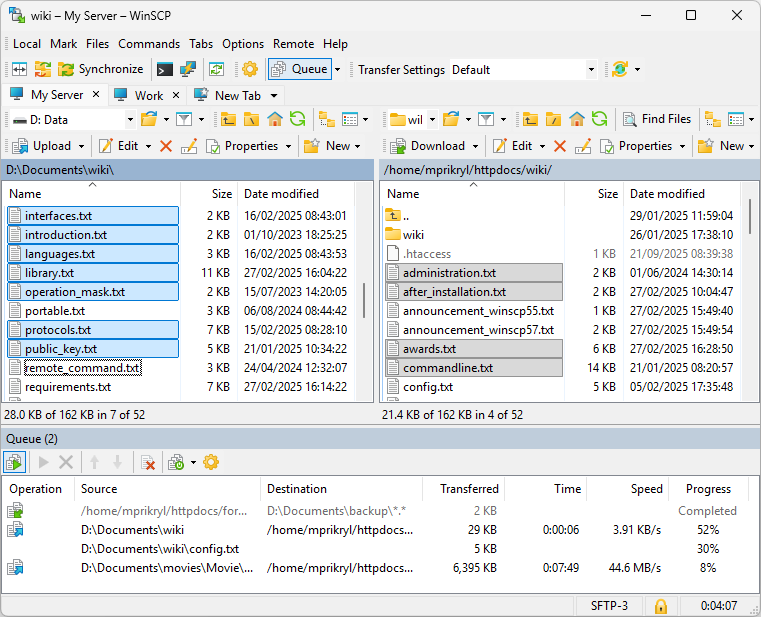
For drag-and-drop file management, GUI clients are faster than the CLI. Popular options across platforms:
FileZilla — Free, cross-platform (Mac, Windows, Linux). Use Site Manager → Protocol: SFTP. Under the Key file field, point to your private key file. FileZilla accepts OpenSSH format directly, no conversion needed.
Cyberduck — Free for Mac and Windows. Supports SFTP, S3, and major cloud storage in one app. Clean interface and good for developers who also manage cloud buckets.
WinSCP — Windows only, free. Purpose-built for SFTP and SCP. Supports scripting for automated transfers and directory synchronization.
SFTP with SSH Keys
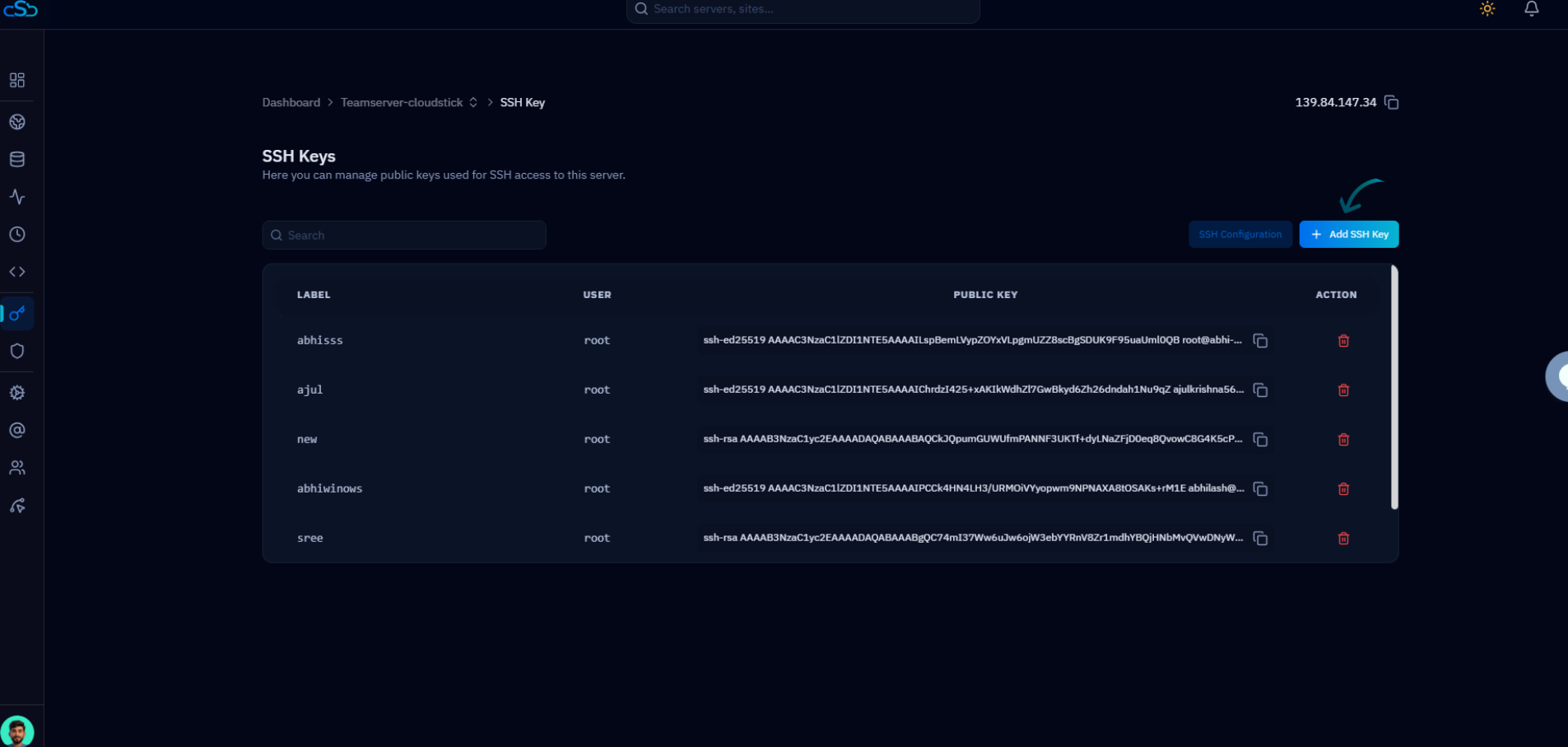
SFTP uses the same SSH key auth as SSH — no separate setup. If your key works for ssh user@server, it works for sftp user@server. SSH config aliases apply to SFTP too:
CloudStick SFTP Access
CloudStick supports SFTP on all plans and plain FTP on Basic and above. From the FTP Access section in each website's panel, you create SFTP users scoped to a specific directory. CloudStick handles chroot configuration automatically — the SFTP user can only access files within their assigned path, not the rest of the server.
This is the recommended way to give clients or contractors read/write access to a specific website directory without granting them SSH access to the full server. On the Free plan, SFTP is the only file transfer option — plain FTP is not available, which is actually a security benefit since SFTP is strictly more secure.