How to Delete MongoDB Database
Overview
Once a MongoDB database has served its purpose — a decommissioned app, a stale test environment, or a database you recreated under a different name — CloudStick lets you remove it directly from the visual database manager, with no command-line access to the server required.
This guide walks you through selecting the right server, opening the Databases section, and using the row's options menu to permanently delete a MongoDB database.
Deleting a database is permanent and cannot be undone. All collections and documents inside it are lost immediately. If backups are enabled for this database, make sure you have a recent snapshot before proceeding — see How to Enable Database Backup.
Step 1: Select Your Server
Start from the main CloudStick dashboard, which lists every server connected to your account. Choose the server that hosts the MongoDB database you want to remove.
Log in to your CloudStick dashboard.
Click the server card for the server you want to work with to open its server panel.
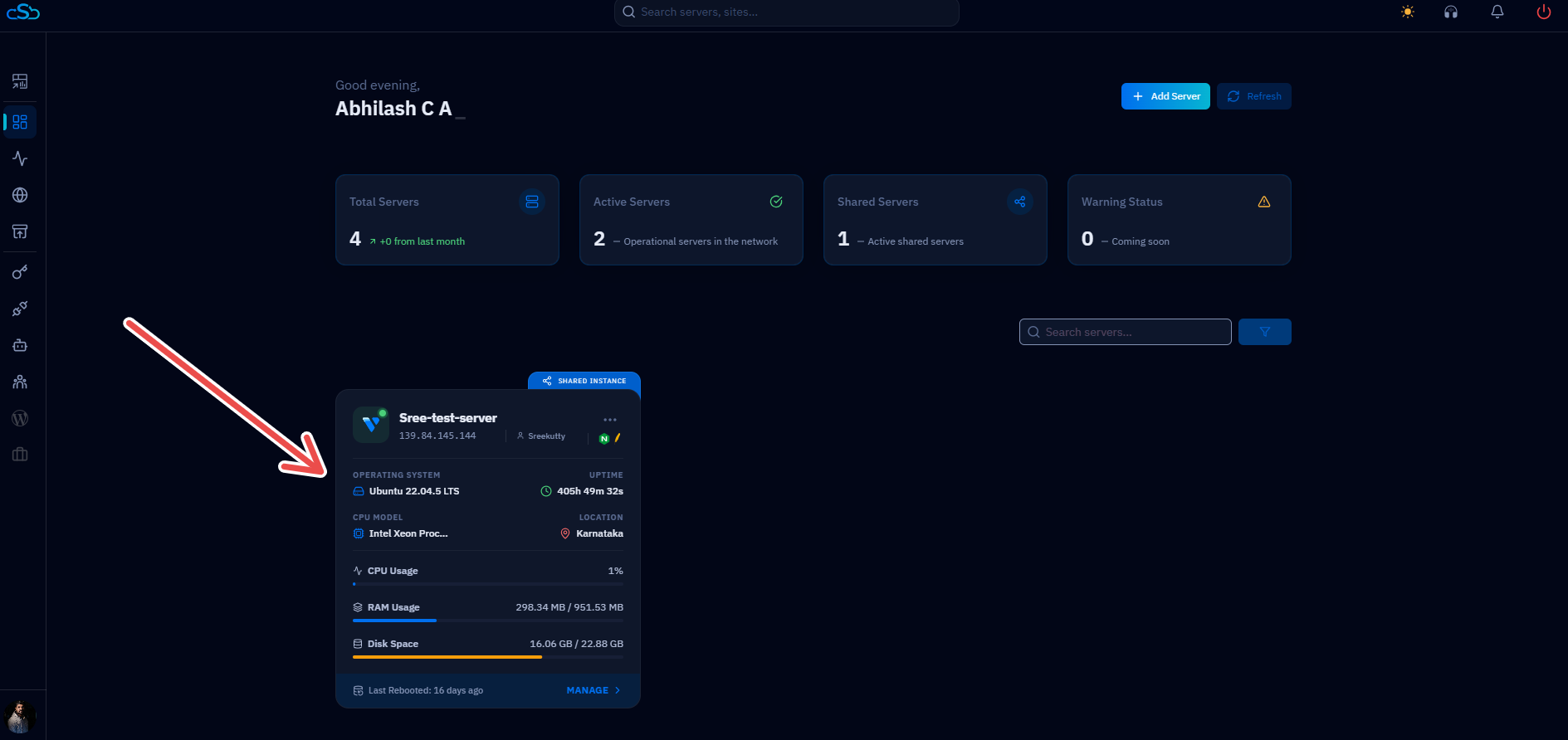
Fig. 01 — CloudStick dashboard listing connected servers. Click a server card to open its server panel.
Step 2: Open the Databases Section
Inside the server panel, the Databases section is accessible from the left-hand navigation. It lists every MySQL, PostgreSQL, and MongoDB database already created on this server.
In the left-hand navigation of the server panel, click the Databases icon.
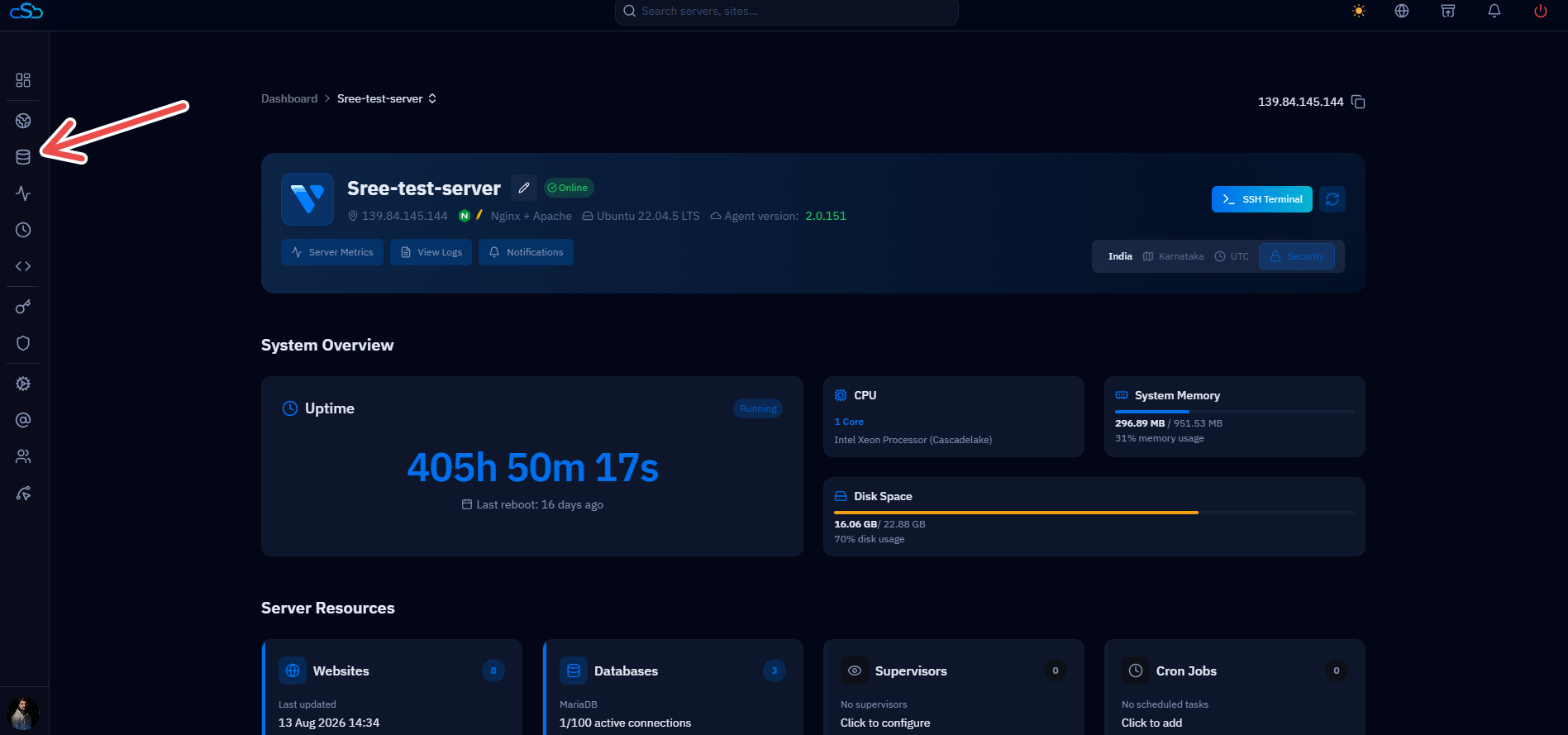
Fig. 02 — Server panel with the Databases icon highlighted in the left-hand navigation.
Step 3: Delete the MongoDB Database
The Databases section lists every database on the server. Each row has an options menu that includes backup and deletion controls.
Find the MongoDB database you want to remove in the list.
Click the three-dot menu on the right side of that database's row.
Select Delete Database from the menu.
Confirm the deletion when prompted.
Double-check the database name before confirming — CloudStick cannot recover a deleted database once the action completes.
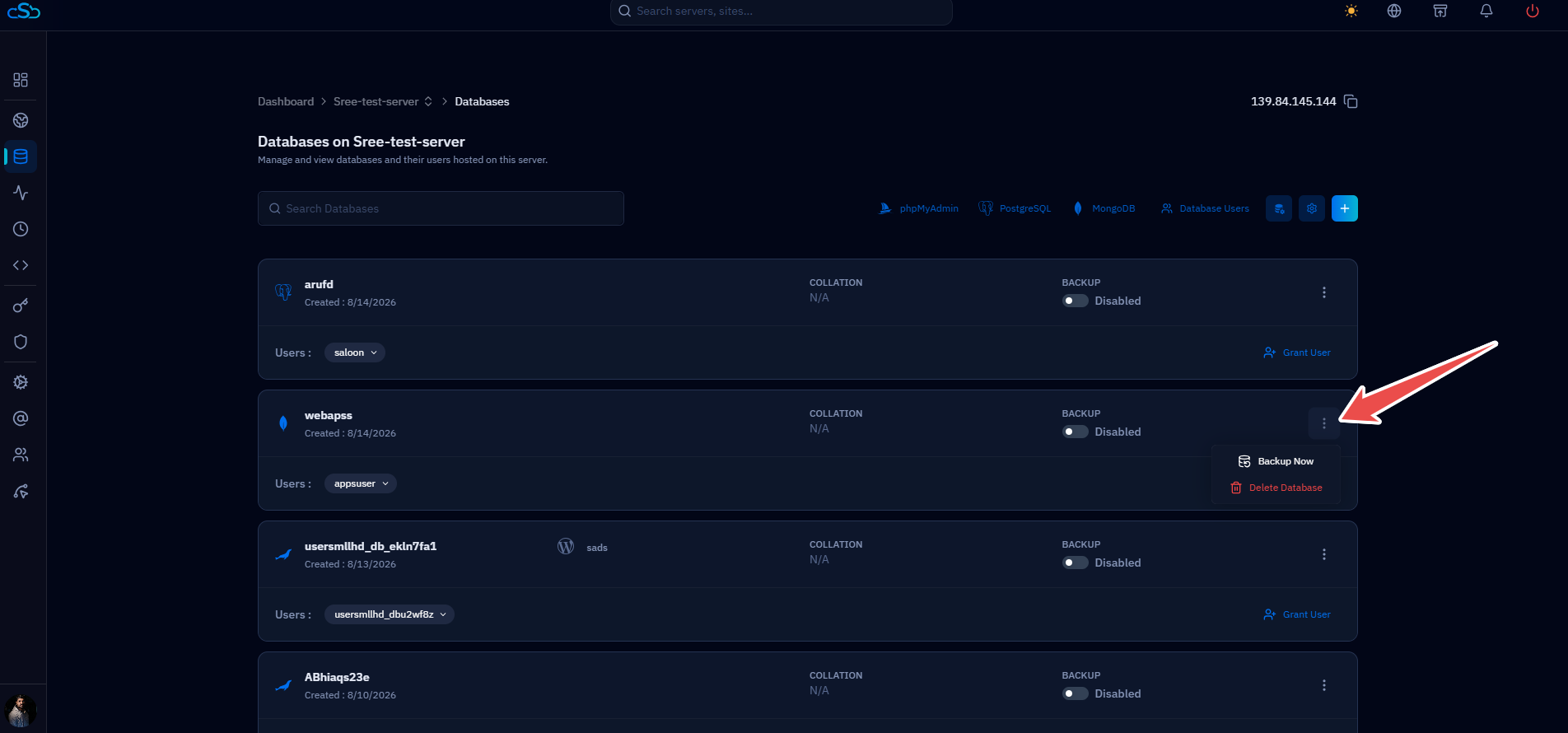
Fig. 03 — Database row options menu with the Delete Database action highlighted on a MongoDB database.