Email Hosting Basics Every Website Owner Should Know

%203.png&w=256&q=75)
What email hosting actually is
Email hosting is two things: a mailbox stored on a server somewhere, and a handful of DNS records that tell the rest of the internet to deliver mail for your domain to that server. That is the whole picture. When someone sends a message to you@yourdomain.com, their mail server looks up your domain's MX record, finds the address of your mail server, and hands the message over. Your mail server drops it into a folder on disk, and your phone or laptop syncs that folder. Everything else — webmail, spam filters, aliases — is built on top of that simple loop.
The part that surprises most website owners: email hosting and web hosting are completely separate services. Your website is served by a web server answering on ports 80 and 443; your mail is handled by mail software answering on entirely different ports, and DNS lets each live wherever you want. Your site can run on a VPS in Frankfurt while your mail lives with a provider in California — or both can sit on the same machine. Buying web hosting does not automatically give you email, and moving your website never has to touch your mailboxes.
SMTP, IMAP, and POP3 in plain English
SMTP is how mail moves. Every message you send leaves your device over SMTP, and mail servers use the same protocol to pass messages between each other. When your email app asks for an "outgoing server", it is asking for an SMTP server. It only carries mail one way — out and across — and it never stores anything for you long-term.
IMAP is how you read mail. It keeps the mailbox on the server and syncs a live view of it to every device you own: read a message on your phone and it shows as read on your laptop, file something into a folder and the folder is everywhere. Because the server holds the master copy, a lost phone loses nothing.
POP3 is the older alternative: it downloads messages to one device and, in its default setup, deletes them from the server. That made sense when storage was expensive and people owned one computer. Today it mostly causes confusion — mail that exists only on the office desktop, gone from everywhere else. Unless you have a specific archival reason to pull mail off the server, choose IMAP. Every modern provider and mail app defaults to it for exactly this reason.
The DNS records every domain needs
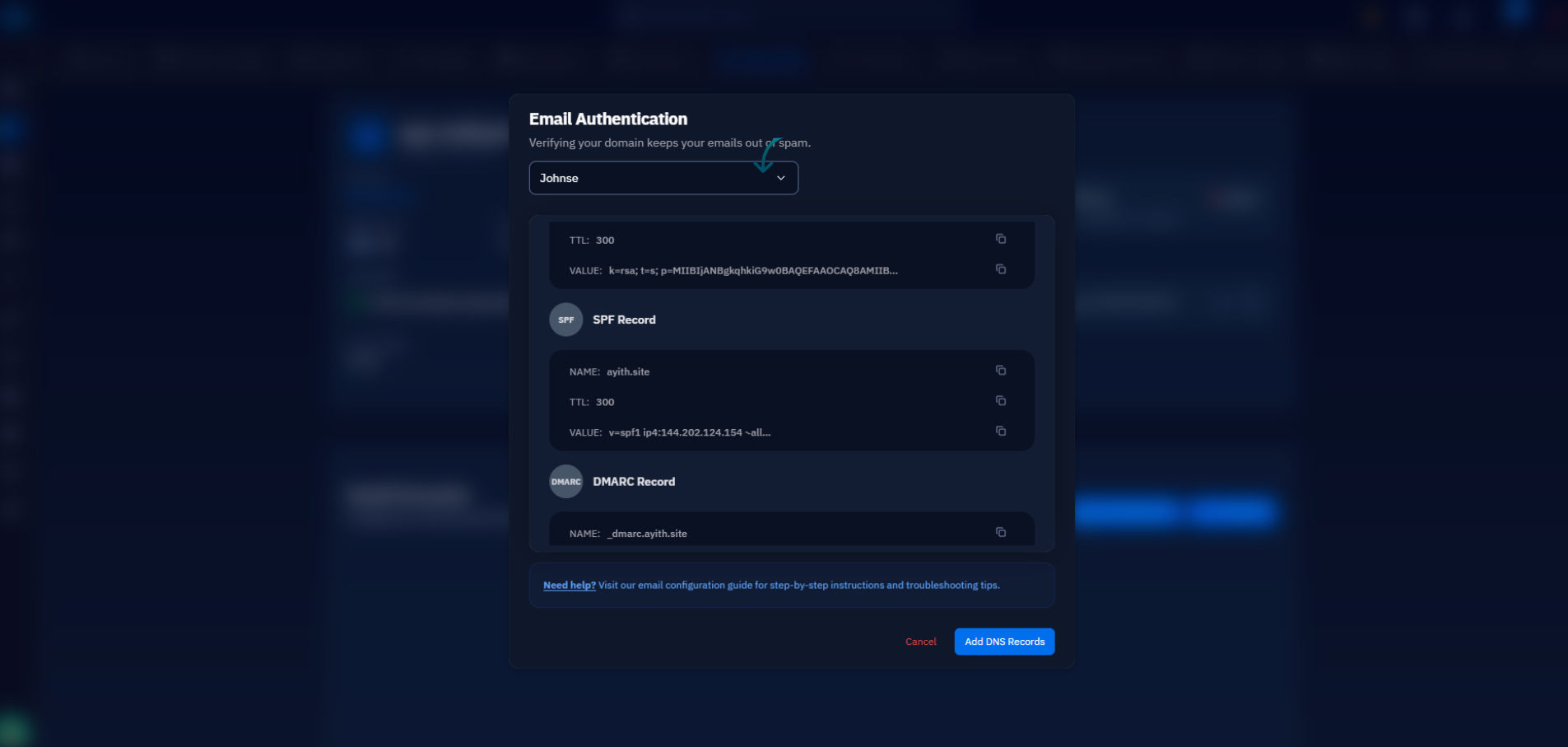
Four records make email work, and each has a one-sentence job. MX says where mail for your domain should be delivered. SPF lists which servers are allowed to send mail on your domain's behalf. DKIM adds a cryptographic signature to outgoing messages so receivers can verify nothing was forged or altered. DMARC tells receiving servers what to do when a message fails SPF or DKIM — and where to send reports about it. Each one deserves its own deep-dive guide, but the mental model is enough to set them up: MX is the delivery address, and SPF, DKIM, and DMARC are the three signatures that prove your outgoing mail is really yours.
To set up any of these records you need access to your domain's DNS management — usually at your registrar or at Cloudflare if you have pointed your nameservers there. If someone else registered the domain for you, get that login sorted before choosing an email host; every option below requires adding records.
You can see "where mail goes" for any domain right now. The dig command asks DNS for the MX records, and the answer is the hostname of the mail server plus a priority number (lower is tried first):
That single lookup tells you who hosts a domain's email — and changing that one record is how you move it. Switching email providers is, at its core, pointing MX somewhere new and re-creating your mailboxes there.
Your options: panel, provider, or self-hosted
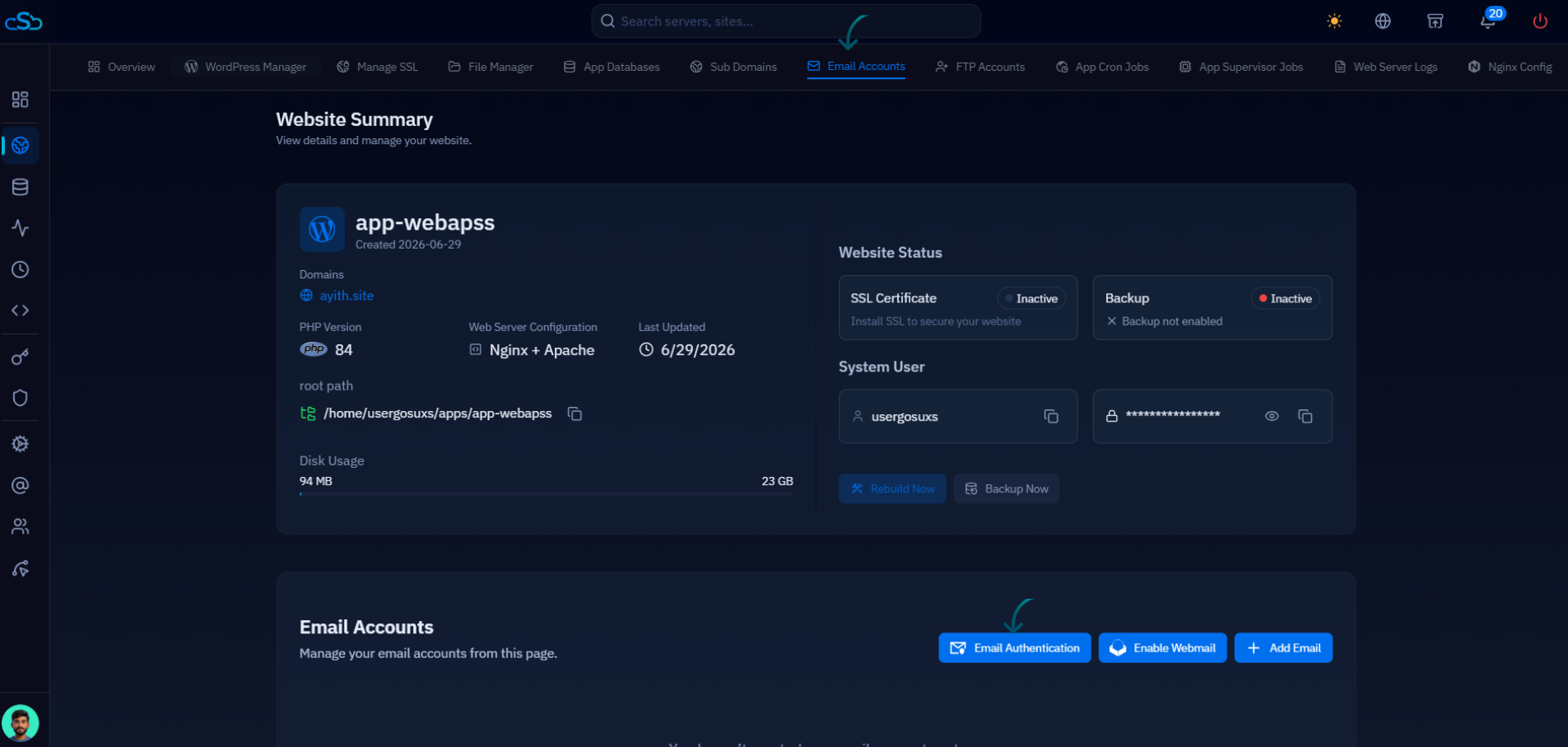
The first option is a mailbox included with your server or control panel. If you already run a VPS, the panel that manages your websites can usually run your mail too. All paid CloudStick plans include Professional Email on your own server: you create mailboxes from the dashboard, CloudStick runs the mail stack on the VPS you already pay for, and it manages the MX, SPF, DKIM, and DMARC records for you — no separate per-user subscription. For a site owner with a handful of addresses, the marginal cost is zero and everything lives in one place.
The second option is a dedicated email provider: Google Workspace (from about $7 per user per month), Microsoft 365 (similar), or Fastmail (around $5). You pay per mailbox, forever, but you get world-class spam filtering, enormous storage, and deliverability handled by teams whose whole job it is. For a company where email is mission-critical and headcount is growing, the per-user fee is usually money well spent — just do the math: ten users on Workspace is roughly $840 a year, every year.
The third option is fully self-hosting — installing and operating Postfix and Dovecot yourself, by hand. The software is free, but the effort is not: you own spam filtering, IP reputation, TLS certificates, backups, and the 2 a.m. queue debugging. It is a rewarding project for people who want to learn the stack, and a poor fit for a business that just needs mail to work. A panel-managed mail server sits deliberately between these extremes: your own server and your own data, without hand-maintaining the stack.
Forwarding vs real mailboxes — and staying out of spam
A forward is not a mailbox. Forwarding sends anything addressed to hello@yourdomain.com on to your personal Gmail — cheap, quick, and fine for receiving. The catch is replying: your answer goes out from the Gmail address, not your domain, which looks unprofessional and breaks the moment a customer replies to the wrong address. A real mailbox stores mail under your domain and sends as your domain. Use forwarding for low-stakes catch-all addresses; use real mailboxes for anything customers see.
Staying out of spam folders comes down to three habits. First, authenticate: SPF, DKIM, and DMARC must all be in place — since 2024, Gmail and Yahoo simply reject bulk senders without them. Second, be consistent: always send from the same domain you receive on, so your domain builds a coherent reputation. Third, warm up: a freshly registered domain that immediately blasts hundreds of messages looks exactly like a spammer, because that is exactly what spammers do. Send normal one-to-one volumes for the first weeks, and keep newsletters on a proper bulk-sending service rather than your own mailbox.
What to check before you choose
Whatever direction you lean, run the same five checks. Storage per mailbox — 10 GB fills faster than you think once attachments pile up. Aliases — can hello@, billing@, and support@ all land in one mailbox without paying for three seats? Webmail — you will eventually need to read mail from a borrowed machine. IMAP support — so any app on any device works, not just the provider's own. And the exit path — confirm you can export everything as standard mbox or via IMAP before you sign up, because the time to discover you cannot leave is not the day you want to.
The practical next step takes ten minutes: run dig +short MX on your own domain and see where your mail actually goes today. If the answer is nothing, or a shared-hosting relic you forgot about, pick the option that matches your situation — mailboxes on the server you already run if you want one bill and full ownership, a dedicated provider if email is mission-critical and budget allows. Then check your SPF, DKIM, and DMARC records before you send another message from your domain. Authentication is the difference between the inbox and the spam folder, and it is the one part of email hosting nobody can skip.

