How DNS Works: A Beginner's Guide for Website Owners


%203.png&w=256&q=75)
What DNS actually does
DNS translates domain names into IP addresses. When someone types yourdomain.com into a browser, no router on the internet knows what to do with that string of letters — network equipment speaks in addresses like 203.0.113.42 (IPv4) or 2001:db8::1 (IPv6). The Domain Name System is the globally distributed directory that performs the translation, billions of times a day, usually in a few dozen milliseconds. Every page load, every delivered email, and every SSL certificate issued for your site depends on a DNS lookup completing first. That is why a broken DNS record takes a site offline just as thoroughly as a crashed server — visitors never reach the server at all.
If your server is a house, DNS is the postal system: the house can be in perfect condition, but if the address on file is wrong, nobody ever arrives. A surprising share of "my site is down" incidents are DNS problems, not server problems.
The resolution chain: resolver, root, TLD, authoritative
A DNS lookup travels through four stops: a recursive resolver, a root server, a TLD server, and finally the authoritative nameserver for your domain. The resolver is what your device actually talks to — usually run by your ISP, or a public one like Cloudflare's 1.1.1.1 or Google's 8.8.8.8 — and it does the legwork on your behalf. If it does not already know the answer, it asks one of the 13 root server clusters. The root cannot resolve yourdomain.com, but it knows who operates .com, .io, .org, and every other top-level domain, so it replies with a referral. The TLD server then answers with the authoritative nameservers for your specific domain — the servers run by your registrar or DNS host, where the records you configure actually live. The authoritative server returns the final answer: an IP address, a mail server, or whatever record was requested.
Four hops sounds slow, but each is a single round trip, and caching means most lookups skip the chain entirely. The part worth remembering as a website owner: you control exactly one link — the records on your authoritative nameservers. Root and TLD infrastructure is operated for you; your job is to keep your own records correct.
The six record types you'll actually use
Six record types cover nearly everything a website owner touches. An A record maps a name to an IPv4 address — it is the record that points yourdomain.com at your server. AAAA does the same for IPv6. A CNAME is an alias: it says "this name is answered by that name," which is how www.yourdomain.com typically follows the apex domain wherever it goes — but a CNAME cannot coexist with other records at the same name, which is why you should not put one at the apex itself. MX records route email; each carries a priority number, and mail servers try the lowest number first. TXT records hold arbitrary text and have become the workhorse of email authentication — SPF, DKIM, and DMARC policies all live in TXT records, as do the verification strings services like Google ask you to add to prove domain ownership. Finally, NS records declare which nameservers are authoritative for the domain — change these and you change where all the other records are looked up.
Read the answer line left to right: the name, the TTL in seconds (3600 here), the class (IN, for internet), the record type, and the value. That one line format is the same everywhere DNS is displayed, so learning it once pays off permanently.
TTL and caching: why DNS changes take time
Every DNS record carries a TTL — time to live — which is the number of seconds a resolver is allowed to cache the answer before asking again. A TTL of 3600 means any resolver that looked up your record may keep serving the old value for up to an hour after you change it. This is where the folk term "DNS propagation" comes from: nothing is actually being pushed around the internet. Your authoritative server answers with the new value the instant you save it; what you are waiting for is thousands of independent resolver caches to expire on their own schedules. That is also why a change appears instantly for one visitor and hours later for another — their resolvers cached the old answer at different times.
Caching is not the enemy — it is what makes DNS fast and keeps your nameservers from being hammered. The skill is choosing TTLs deliberately: long (3600–86400) for records that never change, short for records you are about to change.
Planning a server migration? Lower the TTL on the affected A record to 300 seconds at least a day before the switch. Old caches drain within five minutes of the cutover instead of hours, and you can raise the TTL back once the new server is confirmed healthy.
Check any domain yourself with dig
dig is the standard tool for asking DNS questions directly, and three invocations cover most day-to-day needs. Use +short when you just want the value, name a record type to inspect mail or verification records, and use +trace to watch the full resolution chain — root to TLD to authoritative — hop by hop:
The second form is the debugging trick worth memorizing. If dig @1.1.1.1 returns your old IP while querying your authoritative nameserver directly returns the new one, your change is correct and you are simply waiting out a cache. If the authoritative server itself returns the wrong value, the record is actually misconfigured — fix it at the source. That single comparison separates "wait" from "repair" and ends most DNS panics in under a minute. dig ships with the dnsutils package on Ubuntu and Debian if it is not already installed.
Manage DNS from one dashboard, and your next step
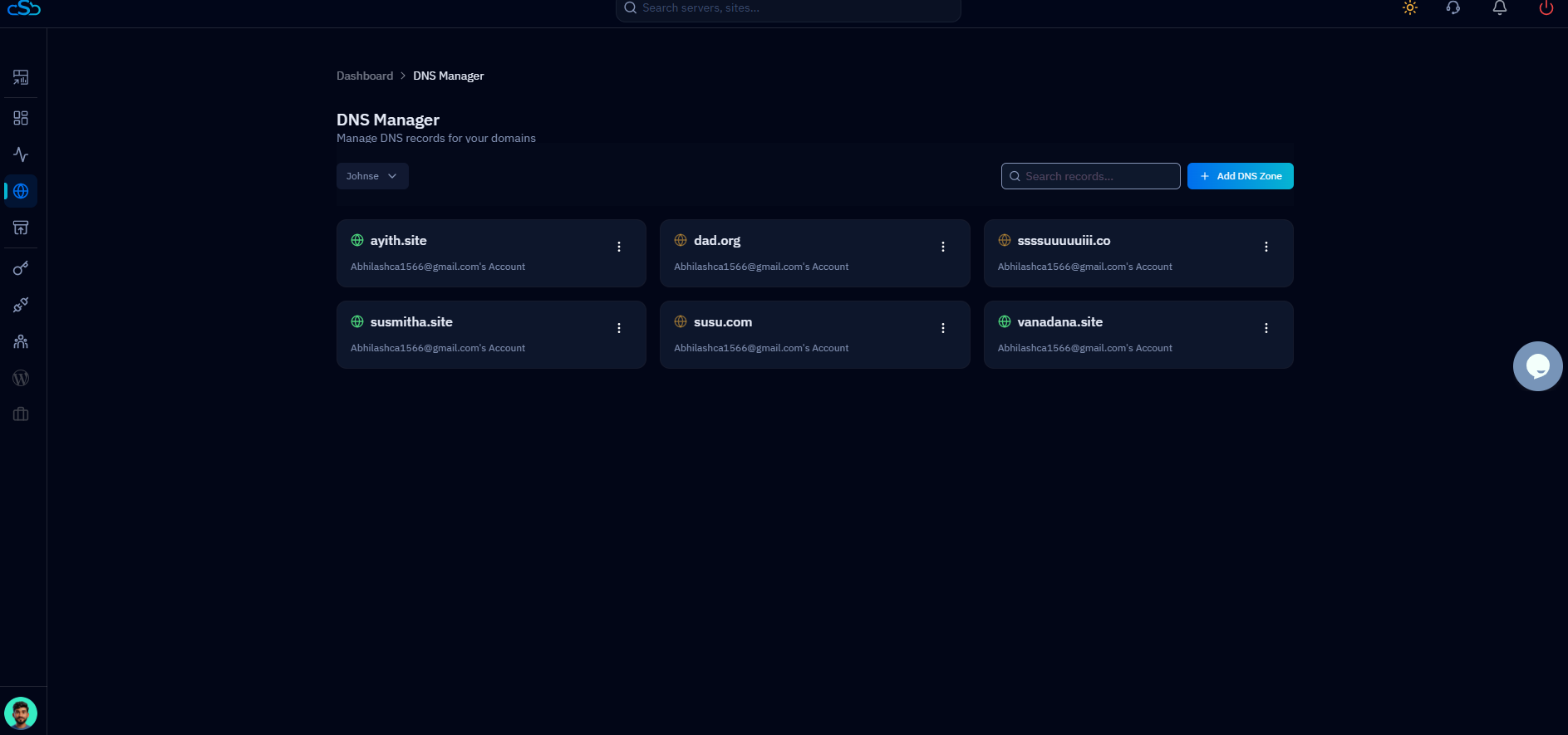
Understanding DNS does not mean you should hand-edit records across a registrar panel, a mail provider, and a CDN. CloudStick's Cloudflare integration manages DNS through the Cloudflare API directly from the server dashboard: point your domain's NS records at Cloudflare once, connect the account to CloudStick, and the records for your websites are managed from the same place you manage the servers they point to. Setting up professional email on a server is where this pays off most — the MX, SPF, DKIM, and DMARC records that email requires are exactly the fiddly TXT and MX entries people mistype by hand.
Your practical next step takes ten minutes: run dig +noall +answer against your own domain for A, AAAA, MX, TXT, and NS records, and write down what comes back. Confirm the A record matches your server's actual IP, check which nameservers are authoritative, and note any TTL above 3600 on a record you might need to change quickly. That one inventory turns DNS from a thing that happens to you into a thing you operate — and the next time a site "goes down," you will know within one dig command whether the problem is the house or the address.