How to Point Your Domain to a New Server (A Records Explained)

%203.png&w=256&q=75)
Lower the TTL before you move anything
Drop your domain's TTL to 300 seconds at least 24 to 48 hours before you change the record itself. TTL — time to live — is the number of seconds resolvers around the world are allowed to cache your DNS answer, and it is the single biggest factor in how long your switchover takes. If your A record carries the common default of 86400 (24 hours), a resolver that fetched it one minute before you flipped the record will keep sending visitors to the old server for a full day. Lower it to 300 first, and the worst case shrinks to five minutes. Check what you are currently serving:
The second column is the TTL. Change it to 300 in your DNS panel, then wait out one full cycle of the old value — resolvers that cached the 86400-second answer will not see your new TTL until their copy expires. This is the step everyone skips, and it is why some migrations feel instant while others drag on for a day.
You need three things before touching DNS: login access to wherever your records live (registrar panel or Cloudflare), the public IPv4 address of the new server, and a working copy of your site already deployed and tested on that server. The record edit itself takes two minutes — everything that makes it safe happens before and after.
Find your new server's IP address
The value you will paste into the A record is the public IPv4 address of the new machine. Every provider shows it in the instance overview — DigitalOcean calls it the droplet's public IPv4, Hetzner and Vultr list it on the server card — and if you have just provisioned the box and connected it to a control panel (CloudStick's guide to deploying your own server covers that flow), the dashboard shows the public IP right on the server's overview. From an SSH session on the server itself, ask the outside world what it sees:
Note both addresses if the second command returns one. The IPv4 address goes into the A record; the IPv6 address goes into an AAAA record. If your old DNS zone has an AAAA record and you only update the A record, IPv6-capable visitors — a large share of mobile traffic — will keep landing on the old server long after you think the migration is done. Update both, or delete the AAAA record if the new server has no IPv6.
Edit the A record at your registrar or Cloudflare
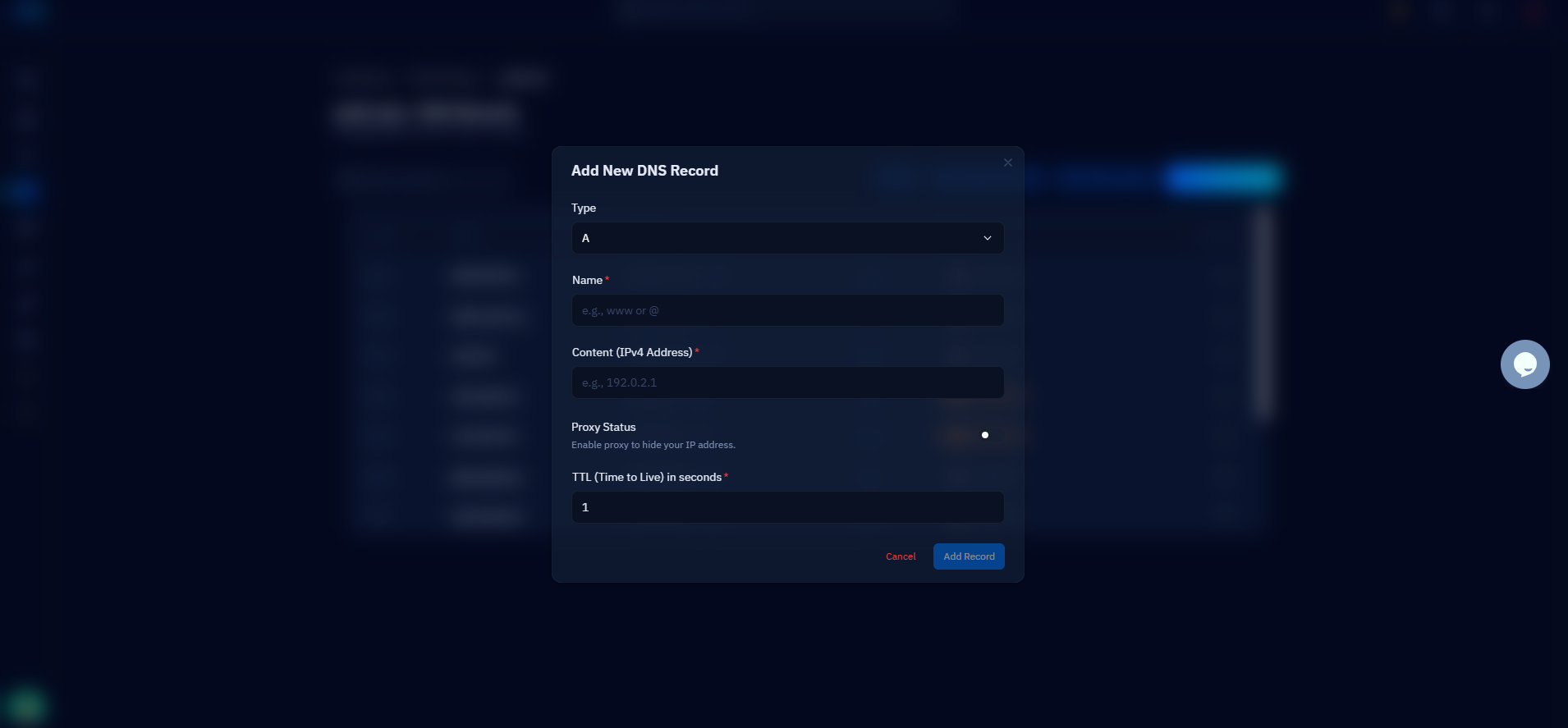
An A record maps a hostname to an IPv4 address — that is the entire mechanism behind "pointing" a domain. In your DNS panel, find the record whose name is @ (or blank, or the bare domain — panels label the apex differently) and whose type is A, and replace its value with the new server's IP. Do not create a second A record alongside the old one: two A records for the same name means resolvers round-robin between both servers, which is exactly the half-migrated limbo you are trying to avoid.
Where you make this edit depends on who hosts your DNS — which is not always the registrar you bought the domain from. Run dig example.com NS +short to see the nameservers; if they end in cloudflare.com, edit in the Cloudflare dashboard, not the registrar. Cloudflare-proxied records (orange cloud) are the pleasant special case: visitors resolve Cloudflare's edge IPs, which never change, so swapping the origin IP behind the proxy takes effect as soon as you save — no propagation wait at all. If your zone is on Cloudflare and connected to CloudStick, the Cloudflare integration lets you update these records straight from the CloudStick dashboard instead of switching tools mid-migration.
www: CNAME vs a second A record
Make www a CNAME pointing at the apex domain, and it will follow every future move automatically. A CNAME is an alias — "www.example.com is whatever example.com is" — so when the apex A record changes, www changes with it and you only ever maintain one IP address. The healthy zone looks like this:
Why not the other way around? The DNS standard forbids a CNAME at the apex, because the apex must also hold NS and SOA records and a CNAME cannot coexist with other types. So the apex gets the A record, and subdomains alias to it. If your current zone has www as an independent A record — very common in older setups — you have two choices: update both A records now, or take the opportunity to convert www into a CNAME so the next migration is a one-record job. The classic failure mode is updating the apex, testing example.com, celebrating, and never noticing that www.example.com still points at the old machine.
Verify the change with dig and ping
Ask specific public resolvers directly instead of trusting your own machine's cache. Querying Cloudflare's 1.1.1.1 and Google's 8.8.8.8 by name tells you what most of the world sees right now:
When both resolvers return the new IP and the www query shows the CNAME chain resolving to it, the switch is effectively live. One more trick belongs in your kit: curl --resolve example.com:443:203.0.113.42 https://example.com/ -I forces a request to the new server under the real hostname before or during propagation — it is how you confirm the new box actually serves your site correctly without waiting for DNS at all. If your laptop still shows the old IP while 1.1.1.1 shows the new one, that is local resolver cache, not a problem with your change.
Avoid downtime: keep the old server running
Do not shut down or cancel the old server the moment dig shows the new IP. During propagation, traffic splits: resolvers with fresh answers send visitors to the new server while stragglers — corporate resolvers and ISPs that ignore low TTLs are notorious — keep hitting the old one for hours, occasionally days. Keep the old server running and serving the identical site for at least 48 hours, and freeze anything that writes data (checkout, signups, comments) during the window if the site is dynamic, so orders do not land in a database you are about to abandon.
HTTPS sorts itself out on the far side. Let's Encrypt validates domain ownership by making an HTTP request to your domain, so a certificate cannot be issued for the new server until the A record resolves to it — which is why SSL is always the step after DNS, never before. On a CloudStick-managed server this is automatic: once the record resolves, CloudStick issues the free Let's Encrypt certificate for the site and handles renewals from then on. Your closing checklist: raise the TTL back to something sane like 3600 once traffic has fully shifted, remove any stale AAAA records, watch the old server's access log until it goes quiet, and only then power it down. A domain move done in this order — TTL down, record flipped, verified from public resolvers, old server retired last — is a non-event for your visitors, which is the whole point.

