How to Automate Database Backups with Cron

%203.png&w=256&q=75)
Why a script beats a one-liner
A mysqldump command pasted straight into a crontab is the most common database backup on the internet, and it fails in more ways than it succeeds. Put the password on the command line and it leaks into the process list and the crontab itself. Skip exit-code checking and a failed dump leaves a truncated file behind while you believe you are covered. Forget pruning and the disk slowly fills until the backups themselves start failing — usually noticed at the worst possible moment. A one-liner schedules a command; it does not build a backup pipeline.
This guide is deliberately not another scheduling walkthrough. The goal is a script you would trust with a production database: credentials stored in a protected file instead of the crontab, a consistent InnoDB snapshot that does not lock your tables, compressed and dated output files, automatic retention pruning, an exit code that actually reflects failure, and a restore you have proven works. Every command below runs unmodified on Ubuntu 24.04 and Debian. If you would rather click than script, CloudStick ships a managed version of the same pipeline — automated database backups with schedule and retention configured per database from the dashboard — and it is worth understanding what that automation does under the hood either way.
Credentials the safe way: ~/.my.cnf
Never put a database password in a crontab line or inside the script itself. The right place is ~/.my.cnf, a per-user option file that the MySQL and MariaDB client tools read automatically: mysqldump picks up the credentials without a single -p flag appearing in the process list, the crontab, or your logs. Create the file in the home directory of the user who will run the backup and lock it down to owner-only permissions:
For extra safety, create a dedicated MySQL user for backups instead of reusing root. Grant it only what mysqldump needs — SELECT, LOCK TABLES, SHOW VIEW, TRIGGER, and PROCESS — so a leaked credential can read data but never modify or delete it. If the mysql -e test above connects without prompting, cron will connect exactly the same way, because both read the same option file.
Building the backup script
The script below dumps one database to a compressed, timestamped file and exits non-zero if anything goes wrong — which is exactly what cron and your log monitoring need to see. Save it as /usr/local/bin/db-backup.sh and make it executable with chmod +x:
Two flags matter most. --single-transaction takes a consistent snapshot of InnoDB tables inside a single transaction, so the dump reflects one moment in time without locking writes — essential on a live application, where a table-locking dump would stall every request for the duration. --quick streams rows to the output instead of buffering whole tables in memory, which keeps large dumps from exhausting RAM on a modest VPS. --routines and --triggers make sure stored procedures and triggers travel with the data instead of being silently left behind.
The PIPESTATUS check is the detail most homemade scripts miss. In a pipeline like mysqldump piped into gzip, the exit code of the whole line is the exit code of gzip — which succeeds happily even when mysqldump dies halfway through. PIPESTATUS[0] inspects mysqldump itself; on failure the script deletes the partial file and exits 1, so you get a real error in the log instead of a truncated archive posing as a good backup.
Retention pruning and offsite copies
Retention is one line: find deletes anything in the backup directory older than the window you choose. Fourteen days of nightly dumps is a sensible default — long enough to recover from corruption you notice late, small enough that disk usage stays flat. Append these lines to the end of the script, after the exit-code check, so pruning only ever runs following a successful dump:
Keep at least one copy off the server. A backup that lives only on the machine it protects disappears with the machine — a failed disk, a compromised server, or an accidental teardown takes the database and every backup with it in one stroke. An rclone copy to object storage such as S3, Backblaze B2, or Wasabi after each successful dump costs pennies per month and turns a catastrophic night into an inconvenience.
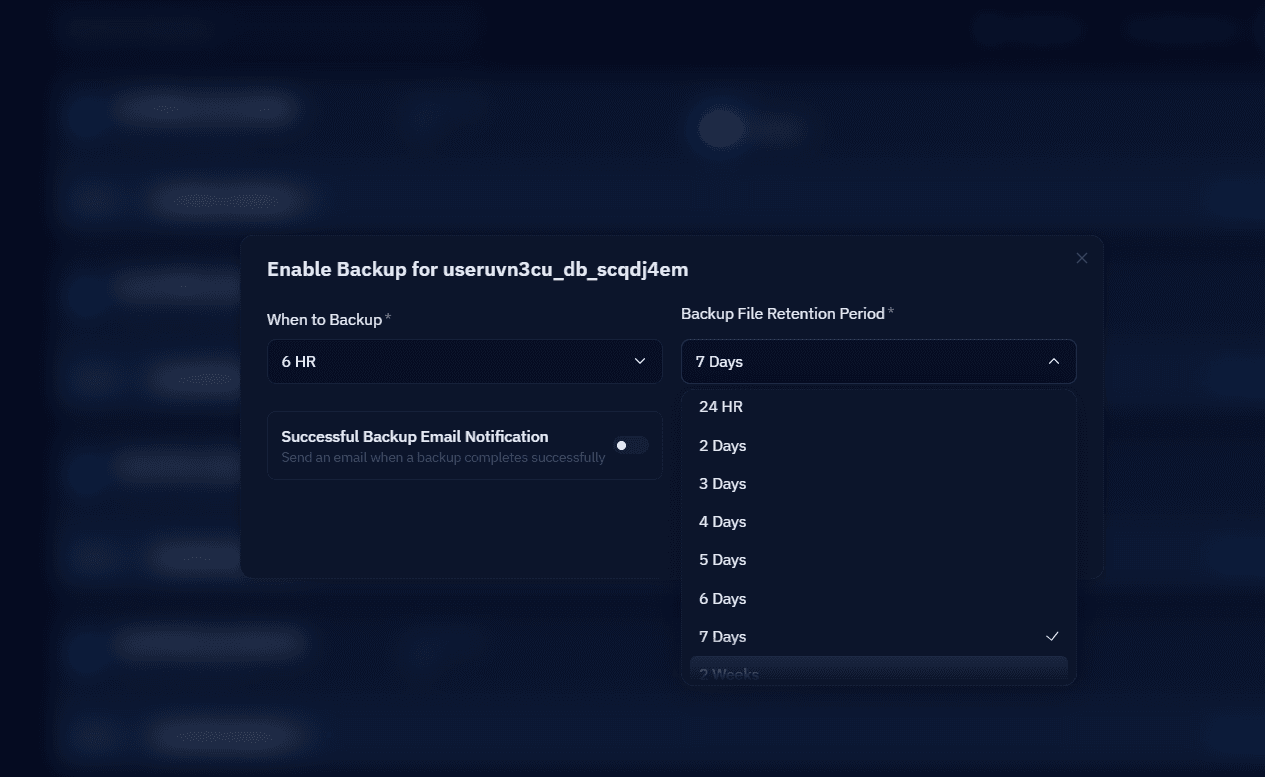
If you would rather not maintain the script at all, CloudStick does this end to end from the dashboard: enable backup per database, pick the schedule and retention period, and browse or restore archived snapshots without touching a crontab. See the CloudStick knowledge base: How to Enable Database Backup for the dashboard walkthrough.
Scheduling the script with cron
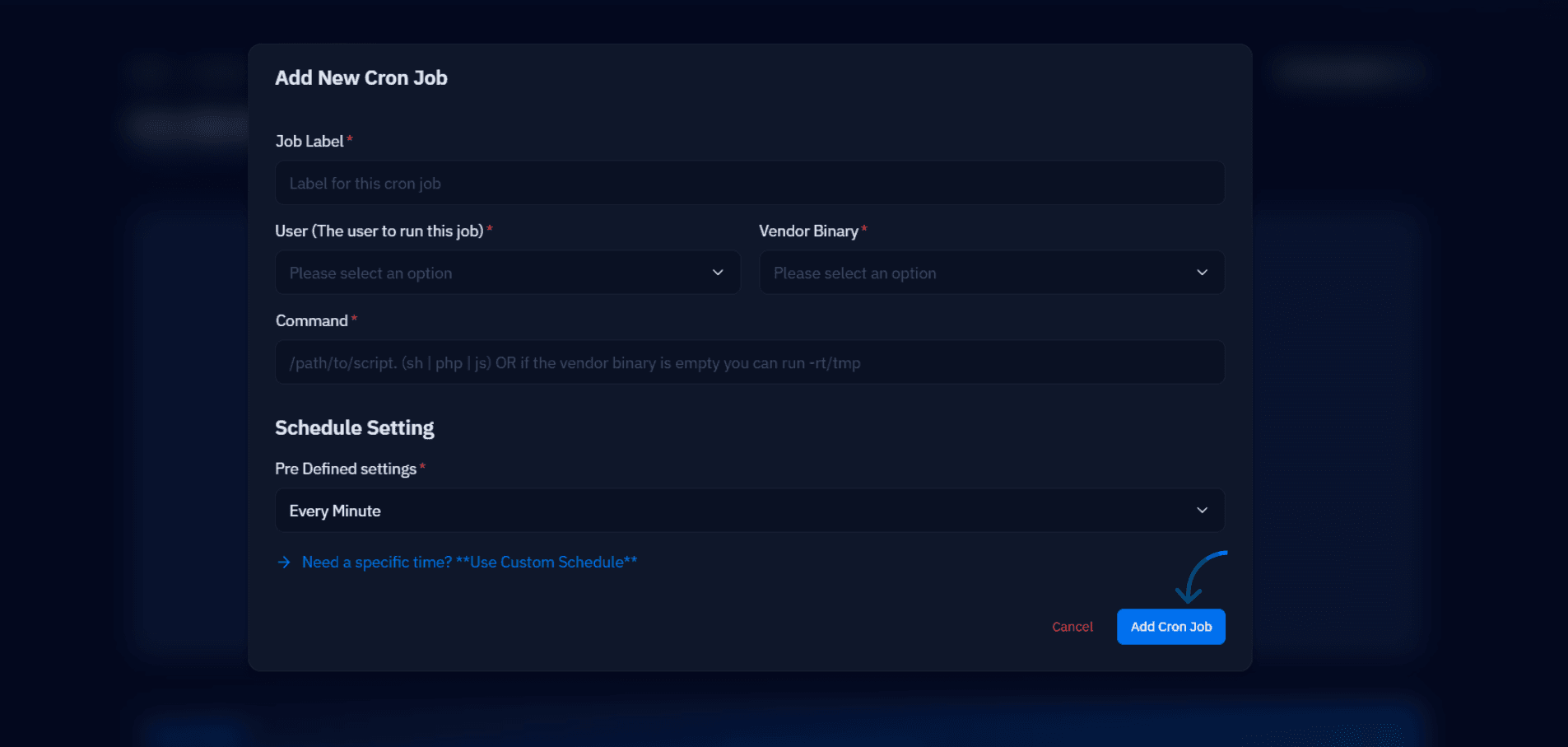
One crontab entry finishes the pipeline — and it should capture output to a log rather than discard it. Edit the crontab of the same user that owns ~/.my.cnf, use absolute paths everywhere because cron runs with a minimal PATH, and pick an off-peak minute that is not exactly midnight, when every default job on the server piles up:
The redirection at the end of the entry appends both normal output and errors to the log file, so every run leaves a trace. Tomorrow morning you can confirm success in two places: the cron daemon's own record via grep CRON /var/log/syslog, and the backup OK line — with filename and size — in /var/log/db-backup.log. A log line that shows the dump growing at a plausible rate night after night is the cheapest health check you will ever run.
Prove the restore works
A backup you have never restored is a hypothesis, not a backup. The only way to know the .sql.gz files are usable is to load one into a scratch database and look at the data. On the same server this takes four commands and a few minutes:
Check that the table list matches production and that row counts on your most important tables look right, then drop the scratch database. Put a recurring reminder in your calendar to repeat the drill quarterly — schema changes, new tables, and growing dump sizes all have a way of quietly breaking pipelines that worked six months ago. From here the upgrades are incremental: loop over multiple databases, add a failure webhook to the exit-code branch, or hand the routine job to CloudStick's automated backups and keep this script as your offsite belt-and-braces copy. Whichever path you take, the nightly file you have actually restored is the only metric that counts.

