How to Debug Cron Jobs That Aren't Running

%203.png&w=256&q=75)
Is cron even running
Nine out of ten "broken" cron jobs did exactly what cron was told — the problem is in the environment, the path, or the file itself. But rule out the trivial case first: confirm the daemon is alive. On Ubuntu 24.04 and Debian the service is called cron:
If the status is inactive or failed, start it with sudo systemctl start cron and enable it at boot with sudo systemctl enable cron. A dead daemon is rare on a managed server but common on containers and minimal images, where cron is sometimes not installed at all — apt install cron fixes that. Once the daemon shows active, everything after this point assumes cron is trying and something downstream is failing.
Did the job actually fire
Syslog answers this question definitively. Every time cron launches a job, it writes one line recording the user and the exact command. Search for it:
This single check splits the investigation in half. If the CMD line appears at the right time, cron did its job and your script failed after launch — skip ahead to environment and output capture. If there is no line at all, the schedule itself is wrong or the crontab was never installed: check crontab -l for the user you expect, remember that crontab -l as yourself and sudo crontab -l show two entirely different files, and re-read the five schedule fields for a mistake like a day-of-month where the day-of-week should be. Cron also logs when it refuses a crontab it cannot parse, and those lines land in the same syslog.
Environment and PATH differences
The most common failure by far: the command works in your terminal and dies under cron, because cron runs jobs in a nearly empty environment. There is no login shell, no .bashrc, no nvm or pyenv shims — the shell is /bin/sh (not bash), and PATH is typically just /usr/bin:/bin. Any command that lives in /usr/local/bin, /snap/bin, or a user directory is simply not found. The fixes, in order of preference: use absolute paths for every binary in the command, set PATH and SHELL explicitly at the top of the crontab, or wrap the job in a script that sets up its own environment:
The percent sign is special in crontab lines: an unescaped % is treated as a newline, and everything after it becomes stdin for the command. A date stamp like date +%F silently truncates the job. Escape every one as \% — this single character explains a huge share of jobs that fire in syslog yet never do their work.
Crontab file pitfalls
Three file-level mistakes account for most of the remaining cases. First, the missing trailing newline: cron requires every crontab line, including the last one, to end with a newline character. A final line without one may be ignored entirely — crontab -e protects you, but files installed with crontab file.txt or dropped into /etc/cron.d do not get that safety net. Second, permissions: a script must carry the executable bit (chmod +x script.sh) or be invoked through its interpreter explicitly, as in /bin/bash /path/script.sh. If syslog shows the CMD line but the log you expected is empty, run ls -l on the script and check for that x.
Third, the wrong user. Jobs in a personal crontab run as that user; jobs in /etc/crontab and /etc/cron.d have an extra user field between the schedule and the command. Copy a personal-crontab line into /etc/cron.d without adding the user field and cron reads your command name as the username — the job never runs and the error only appears in syslog. The same category covers permission mismatches: a job running as www-data cannot write to root-owned directories, and a root job that creates files in a site directory leaves them owned by root, breaking the next run of the site user's own jobs.
Capture output and test quickly
Stop debugging blind: make the job tell you what went wrong. By default cron tries to email output to the local user, which on a modern VPS with no mail transfer agent means the error evaporates. Redirect both stdout and stderr to a log file instead, and set up a one-minute copy of the job so you get a fresh attempt every 60 seconds instead of waiting for tonight's 3 a.m. run:
Within two minutes you have the actual error message — in this example a PATH problem — instead of a theory. Reproduce cron's conditions even more closely by running the command through a bare shell yourself: env -i /bin/sh -c "/home/deploy/bin/backup.sh" strips your login environment the way cron does. Once the job succeeds at the one-minute cadence, restore the real schedule but keep the redirection; a permanent log costs nothing and turns the next incident into a thirty-second diagnosis.
A repeatable debug workflow
Run the checklist in this order every time and you will rarely need more than ten minutes: confirm the daemon with systemctl status cron; confirm the launch with grep CRON /var/log/syslog; confirm the right crontab with crontab -l versus sudo crontab -l; then chase the command itself — absolute paths, escaped percent signs, executable bit, trailing newline, and a redirected log read at a one-minute test cadence. Each step eliminates an entire class of failure before you touch the next, which is exactly what makes it fast.
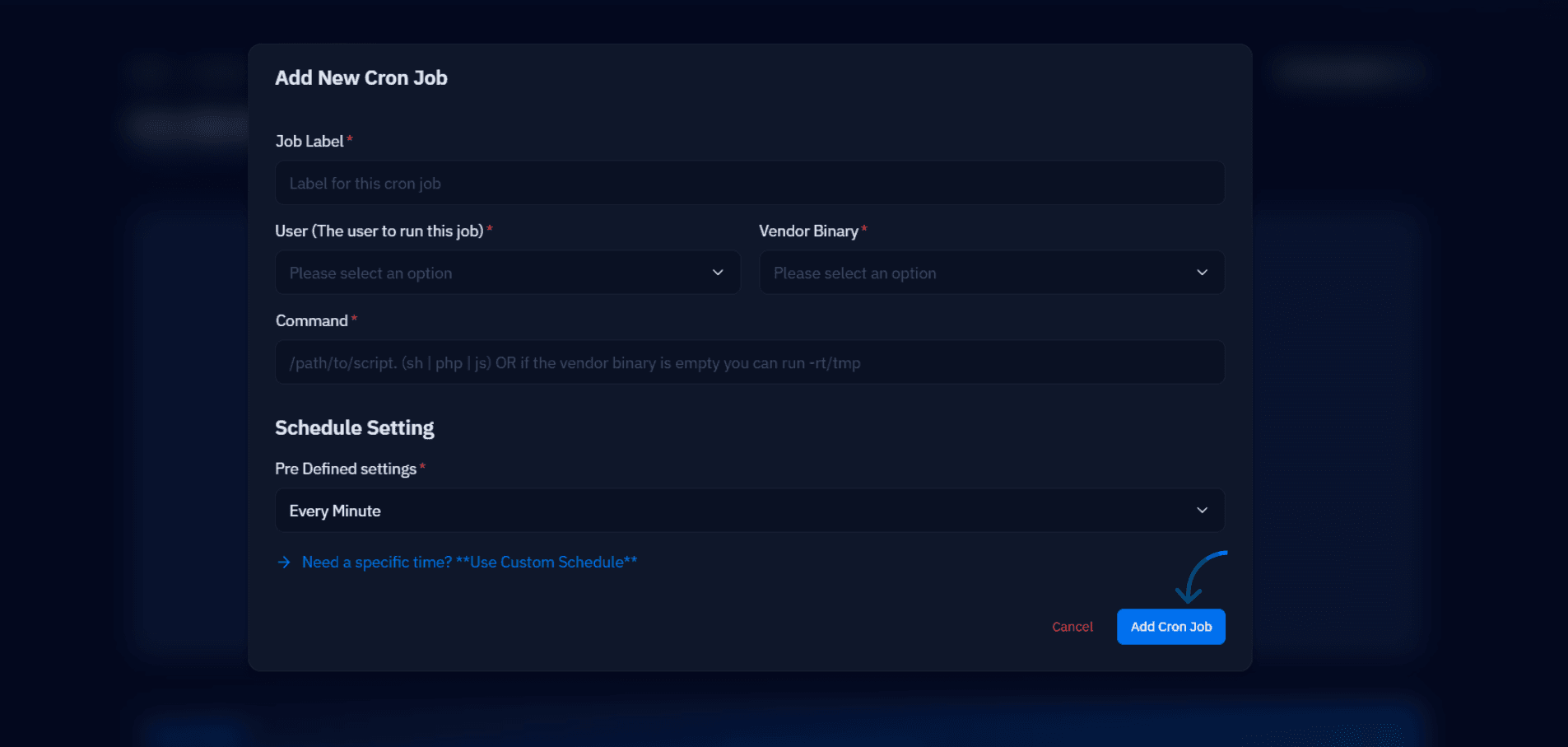
Prevention beats diagnosis. Give every production job a log destination the day you create it, and keep jobs visible to the whole team instead of scattered across personal crontabs. If your server is connected to CloudStick, the dashboard's per-website CronJobs manager lists every scheduled job for each site in one place, and the web application logs are viewable from the same panel — so the "which crontab was that in" step disappears entirely. However you manage it, the goal is the same: when a job stops running, you want evidence within one command, not archaeology.