How to Check When Your SSL Certificate Expires


%203.png&w=256&q=75)
Why SSL Expiry Still Catches People Off Guard
Even with auto-renewal in place, certificates expire unexpectedly. A DNS change can block the ACME validation challenge. A Certbot installation can become stale after an OS upgrade. A server migration can leave auto-renewal configured on the old server but not the new one. When the certificate expires, every visitor sees a browser security warning and the site effectively goes offline for anyone who doesn't click through warnings. Checking expiry proactively — and setting up monitoring — lets you catch these edge cases before they become outages.
Check the Expiry Date from Your Browser
In Chrome: click the padlock (or the tune icon) in the address bar → “Connection is secure” → “Certificate is valid”. The certificate detail panel shows the “Valid from” and “Valid to” dates. In Firefox: click the padlock → “Connection secure” → “More information” → “Security” tab → “View Certificate”. This method is convenient for a quick check but doesn't scale if you manage many domains.
Check Expiry from the Command Line
The openssl command is the most reliable way to check a live certificate's expiry from the server or from your workstation:
Check All Certbot Certificates at Once
If you manage multiple domains via Certbot on the same server, the certbot certificates command lists every managed certificate with its expiry date and renewal status:
Set Up Automated Expiry Alerts
Manual checks don't scale. A simple bash script run via cron can email you when any certificate on the server is within 21 days of expiry:
CloudStick Handles Renewal Automatically
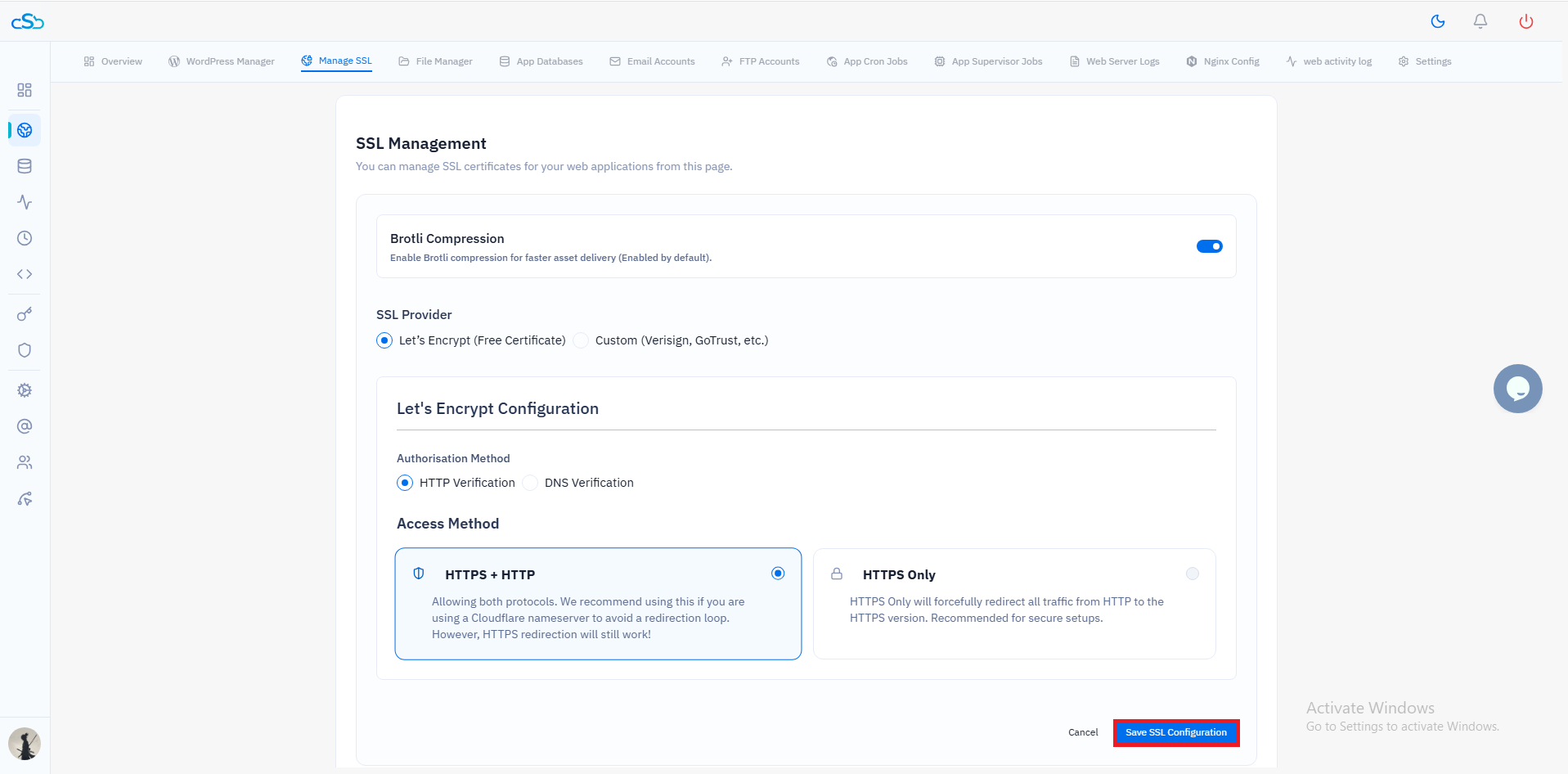
When SSL is managed through CloudStick, certificate expiry is monitored and renewal is triggered automatically — no cron jobs or scripts required. CloudStick attempts renewal when a certificate is within 30 days of expiry, retries on failure, and sends a dashboard notification if a renewal fails so you can investigate. The SSL status for each domain is visible in the SSL section of the website panel, showing the current expiry date and last renewal timestamp at a glance.