How to Fix “Your Connection Is Not Private” SSL Errors

%203.png&w=256&q=75)
What Actually Causes This Error
Chrome's “Your connection is not private” (error code NET::ERR_CERT_*) and Firefox's “Warning: Potential Security Risk Ahead” both mean the browser could not verify the site's SSL certificate. There are four root causes, each with a different fix:
ERR_CERT_DATE_INVALID — Certificate expired (most common). Fix: renew the certificate.
ERR_CERT_COMMON_NAME_INVALID — Domain name mismatch. Fix: issue cert for the correct domain.
ERR_CERT_AUTHORITY_INVALID — Untrusted or self-signed CA. Fix: use a public CA or install the full chain.
ERR_CERT_WEAK_SIGNATURE_ALGORITHM — SHA-1 cert (legacy). Fix: reissue with SHA-256.
Check Your Certificate from the Command Line
Before attempting any fix, check what certificate is actually being served. This tells you the exact error type, expiry date, and whether the full chain is present:
Fix an Expired Certificate
An expired certificate is the most common cause. For Let's Encrypt certificates managed by Certbot, renewal is a single command:
Certbot has rate limits: 5 certificates per domain per week. Use --dry-run to test without consuming a rate limit slot. The --force-renewal flag bypasses Certbot's 30-day renewal window but still counts against the rate limit.
Fix a Hostname Mismatch
A hostname mismatch (ERR_CERT_COMMON_NAME_INVALID) means the certificate was issued for a different domain than the one being visited. Common triggers: visiting with www. when the cert only covers the apex, or the reverse. Check whether the cert covers both variants:
Fix an Untrusted CA or Incomplete Chain
If the error is ERR_CERT_AUTHORITY_INVALID and you're using Let's Encrypt (a trusted CA), the most likely cause is a missing intermediate certificate in your Nginx config. Your Nginx ssl_certificate directive should point to fullchain.pem, not just cert.pem:
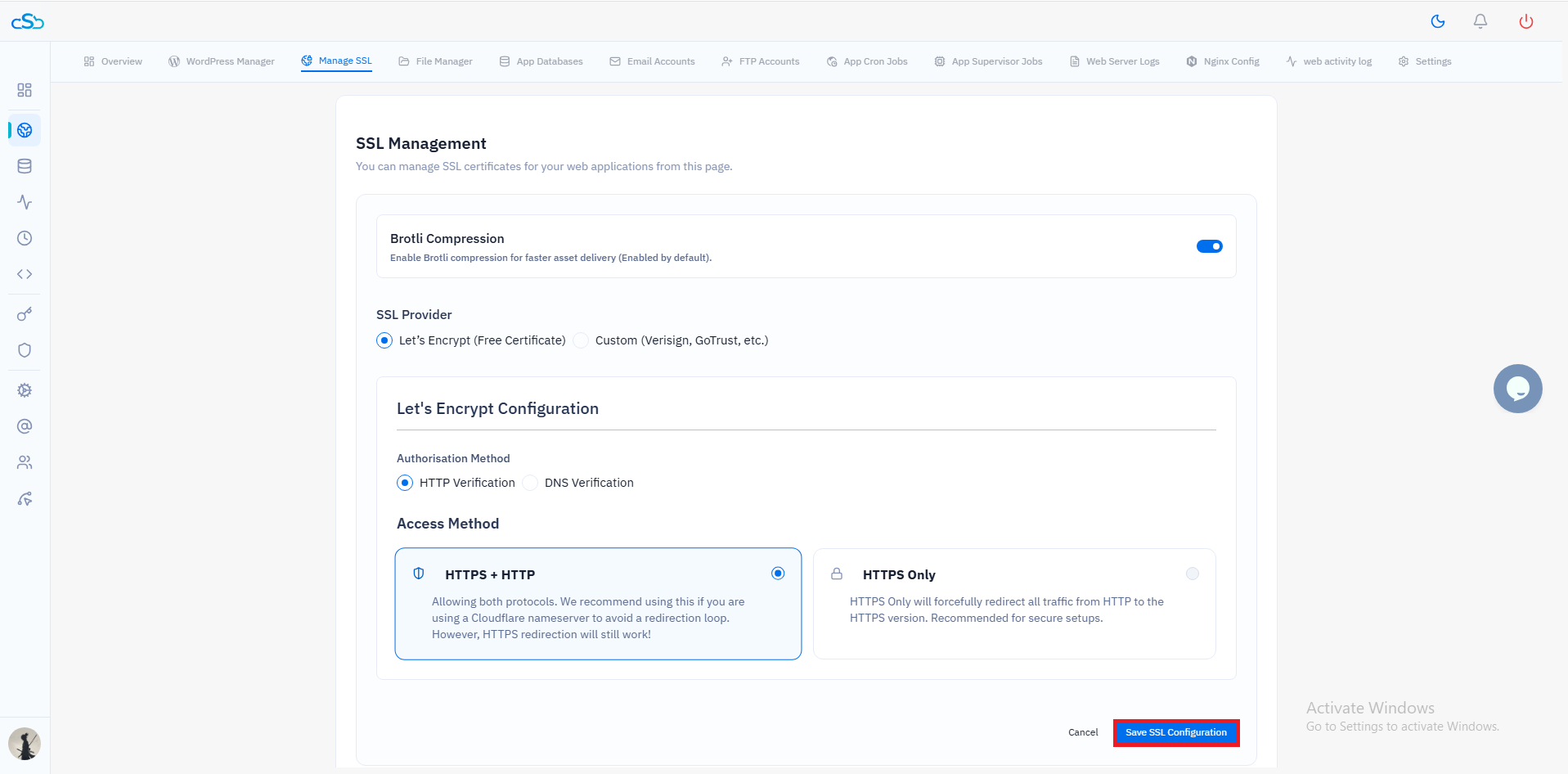
CloudStick SSL Troubleshooting
When you provision or renew SSL through CloudStick, the platform always writes fullchain.pem to the Nginx configuration, so incomplete-chain errors don't occur. If you're seeing a certificate error on a CloudStick-managed site, the most likely causes are: the certificate was issued while DNS was pointing elsewhere (causing the ACME challenge to fail silently), or the domain was added to the site after the certificate was issued and doesn't appear in the SAN list. In both cases, navigate to the SSL section of the website in your CloudStick dashboard and click “Re-issue Certificate” to trigger a fresh issuance.