How to Clone a WordPress Site for Testing

%203.png&w=256&q=75)
When a Clone Beats Staging
A staging environment is meant to persist and stay in sync with production indefinitely. A clone is disposable — spin it up to test one specific thing (a major plugin update, a PHP version bump, a risky theme change), then delete it. If you find yourself reaching for the same clone repeatedly, that's a sign you actually need a proper staging setup instead.
Clone on the Same Server
The fastest clone lives on the same server, under a subdirectory or subdomain, sharing the same PHP-FPM pool. This is fine for quick checks but shares resource limits with production — heavy testing can slow the real site down.
Clone to a Separate Server
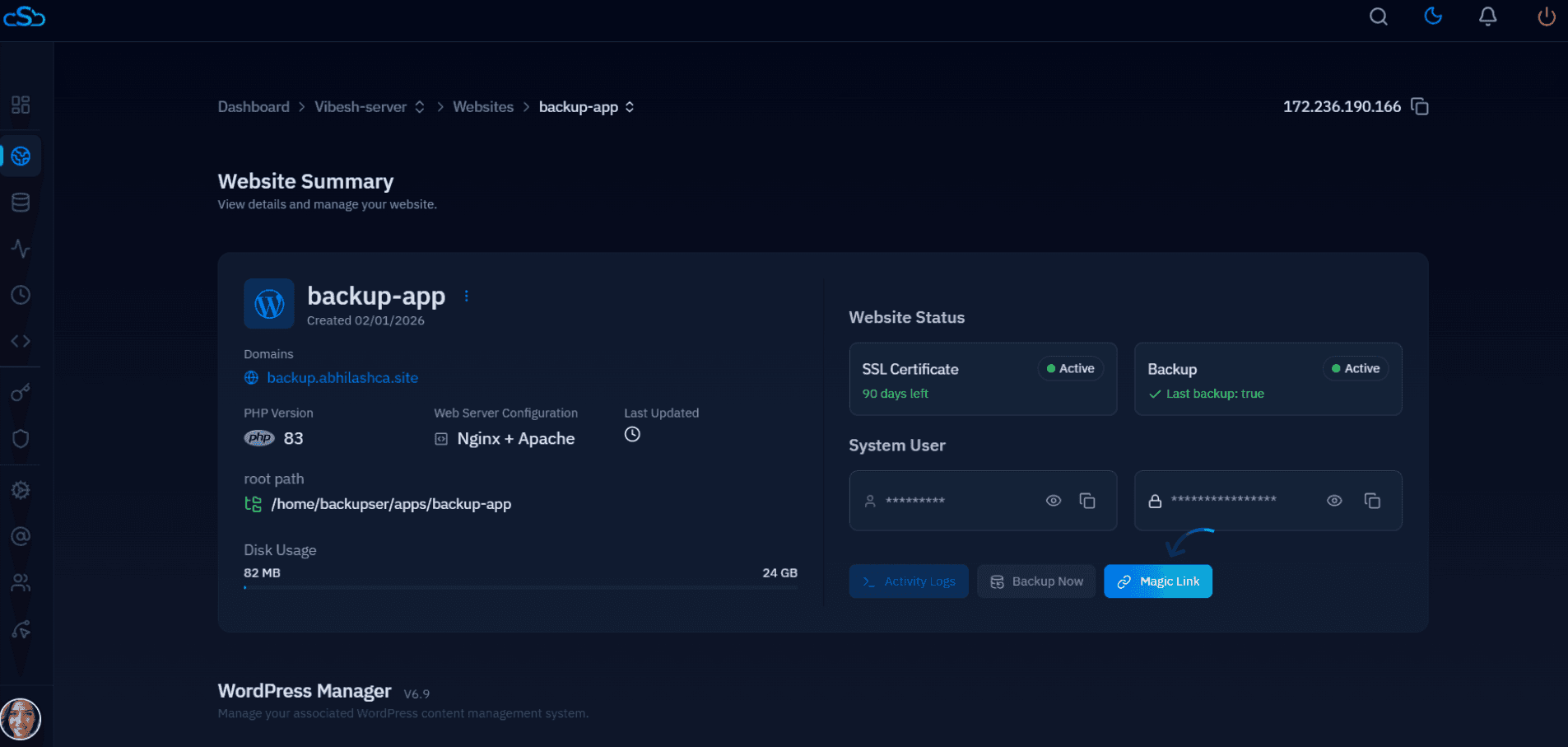
For testing that involves load, server config changes, or anything you don't want anywhere near production infrastructure, clone to a fresh, cheap VPS instead. CloudStick lets you spin up a new server and one-click install WordPress in minutes, then use the same rsync/mysqldump sequence to populate it with real content for a realistic test.
Cleaning Up After Testing
A clone that outlives its purpose becomes a security liability — an unmaintained, unpatched WordPress install sitting on your server with a real copy of your data. Delete the clone (files, database, and the subdomain DNS record) the same day testing finishes.

