How to Configure DNS Records for Email (MX, SPF, DKIM)

%203.png&w=256&q=75)
MX records: priority and format
Email delivery starts with one lookup: the sending server queries your domain's MX records to learn which machine accepts mail for it. An MX record has exactly two parts — a priority number and a mail server hostname. Lower numbers win: senders try the lowest-priority host first and only fall back to higher numbers if it is unreachable. A pair of records at priority 10 and 20 gives you a primary and a backup; two records at the same priority are picked at random, which is a crude form of load balancing.
Three format rules trip people up. The target must be a hostname that resolves to an A or AAAA record — pointing an MX at a CNAME violates the DNS standards and some receivers will refuse it. It must never be a raw IP address; that is invalid MX syntax. And if a domain has no MX record at all, senders fall back to its A record, which usually means mail is attempted against a web server that is not listening on port 25 and silently bounces.
SPF syntax and the 10-lookup limit
SPF is a TXT record at the domain root that lists every server allowed to send mail claiming to be from your domain. Receivers compare the connecting IP against that list and score the message accordingly. The record always starts with v=spf1, followed by mechanisms evaluated left to right, and ends with a qualifier on all:
Here ip4: authorizes your server's IP directly, include: pulls in another domain's SPF policy (Google Workspace, SendGrid, Mailgun all publish one), and mx authorizes whatever your MX records point at. The final token decides what happens to everyone else: ~all is a softfail — receivers accept the message but mark it suspicious — while -all is a hardfail that asks them to reject outright. Start with ~all while you inventory every legitimate sender, then tighten to -all once nothing unexpected shows up in your DMARC reports.
The hidden constraint is the 10-lookup limit. Evaluating an SPF record may trigger at most ten DNS lookups: each include, a, mx, ptr, exists, and redirect costs one, and lookups inside nested includes count too — include:_spf.google.com alone burns three. Exceed ten and receivers return permerror, treating your record as if it did not exist. ip4: and ip6: mechanisms are free, so flattening a rarely-changing include into its literal IPs is the standard fix.
A domain must publish exactly one SPF record. If you add a second v=spf1 TXT record — say one for your server and another for a newsletter tool — receivers return permerror and discard both, which is worse than having no SPF at all. Merge every mechanism into a single record instead: v=spf1 ip4:203.0.113.25 include:servers.mcsv.net ~all.
Publishing your DKIM key
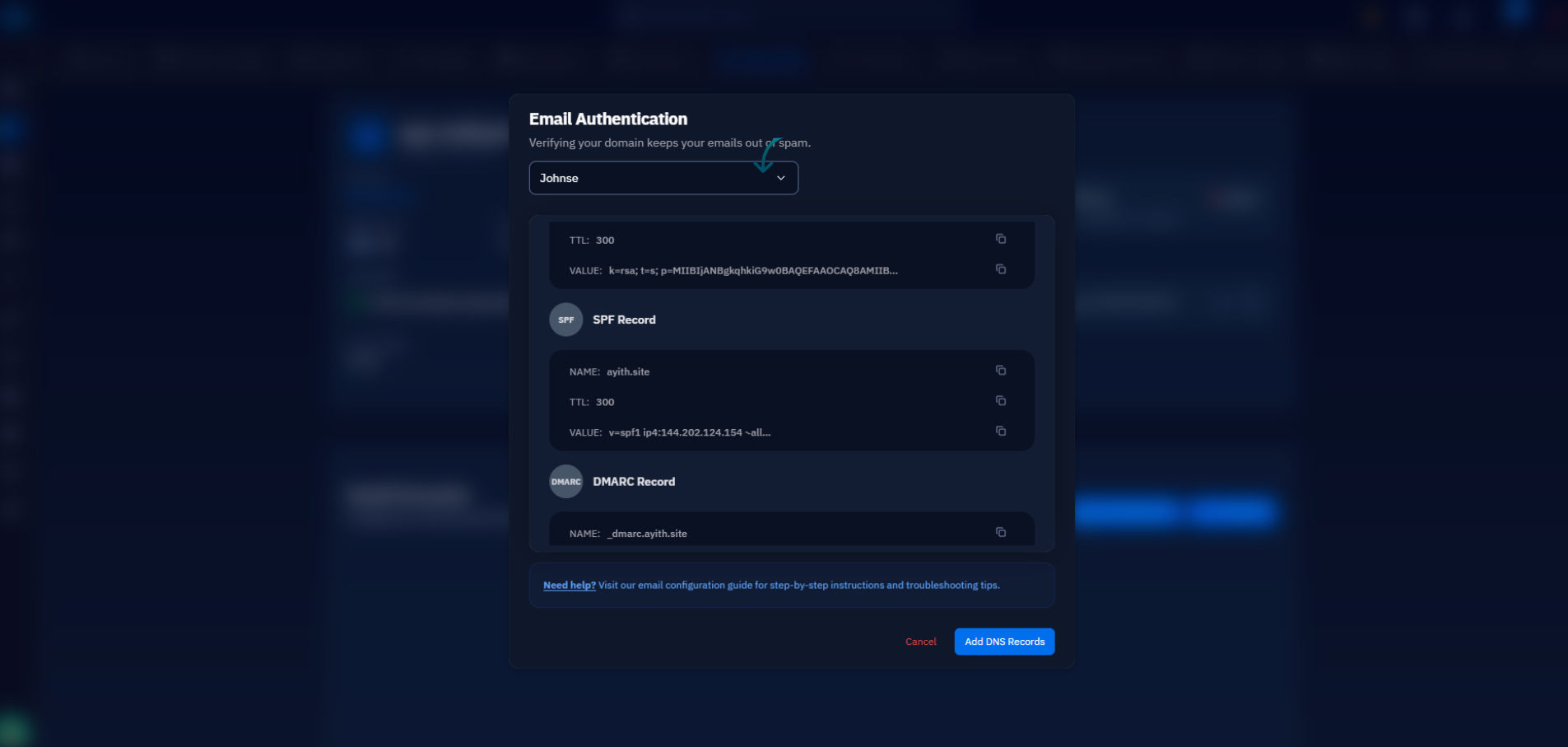
DKIM makes your server cryptographically sign every outgoing message, and the public key lives in DNS so receivers can verify the signature. The key is published as a TXT record at selector._domainkey.yourdomain — the selector is an arbitrary label (default, mail, s1) that the signing server stamps into each message header, which is what lets you rotate keys by simply publishing a new selector alongside the old one:
The p= tag holds the base64-encoded public key with no line breaks. A 2048-bit RSA key — the size you should use today — is longer than the 255-character limit of a single TXT string, so it has to be split into adjacent quoted strings that resolvers concatenate, exactly as the parenthesised zone-file form above shows. Most DNS control panels split long values automatically, but if you paste a 2048-bit key into a panel that silently truncates at 255 characters, verification fails on every message. An empty p= tag, for the record, is how you revoke a key.
DMARC: from none to reject
DMARC ties SPF and DKIM together: it tells receivers what to do with messages that fail both checks, and it adds the alignment requirement — the domain in the visible From: header must match the domain that SPF or DKIM actually validated. It is a TXT record at the _dmarc subdomain:
Roll the policy out in three stages. p=none changes nothing about delivery but makes receivers send aggregate reports to the rua= address showing exactly which sources pass and fail — run this for two to four weeks. When the reports show only forgeries failing, move to p=quarantine, which routes failures to spam; you can ease in with pct=25 to apply the policy to a quarter of failing mail. Once quarantine has been quiet, finish with p=reject so spoofed mail is refused outright. Jumping straight to reject is the classic way to bounce your own newsletter, because some forwarder or CRM you forgot about was never added to SPF.
Verifying records with dig
Verify every record from a shell before you trust it — dig shows you exactly what the world sees, and +short strips the output down to the answer:
Two extra queries save real debugging time. Ask your authoritative nameserver directly — dig MX example.com @ns1.yourdns.com +short — to confirm the record is actually published before cached TTLs expire everywhere else. And check the reverse path with dig -x 203.0.113.25 +short: the PTR record for your sending IP should return your mail server's hostname, which matters more than most people expect, as the next section explains.
Common pitfalls and next steps
Three misconfigurations cause most delivery failures. Multiple SPF records — the permerror trap covered above, and the first thing to check when a domain that used to deliver suddenly does not. SPF records over 255 characters: a single TXT string is capped at 255 characters, so a long policy must be split into adjacent quoted strings or slimmed down by flattening includes into ip4 mechanisms; a record that one panel truncated is invisible until you dig it. And a missing PTR record: if the reverse DNS of your sending IP resolves to nothing — or to a generic hostname like static.203.0.113.25.provider.net instead of the name your server uses in its HELO — Gmail and Outlook will defer or reject your mail no matter how perfect SPF and DKIM are. PTR records are set in your VPS provider's panel, not in your DNS zone, which is why they are so often forgotten.
If your server runs on CloudStick, the mail setup handles this end to end: when you enable professional email for a site, CloudStick generates the MX, SPF, DKIM, and DMARC values and publishes them automatically through its Cloudflare integration — or shows you exactly what to paste into any other DNS provider. Either way, finish with the same verification ritual: run the four dig queries above, send a test message to a Gmail address, open Show original on the received message, and confirm SPF, DKIM, and DMARC all read pass. That one screen is the ground truth for everything this article configured.

