How to Disable XML-RPC in WordPress Safely

%203.png&w=256&q=75)
What xmlrpc.php Is and Why It Gets Attacked
xmlrpc.php is a single file in every WordPress install that exposes a remote procedure call (RPC) API over HTTP. It lets external clients — desktop blogging tools, the WordPress mobile app, Jetpack — authenticate and publish posts, upload media, or manage comments without touching wp-admin. It has shipped with WordPress core by default since 2008 and remains enabled on virtually every install, whether the site owner uses it or not.
That default-on exposure is exactly why it is one of the most scanned endpoints on the web. Two attack patterns dominate. The first is pingback abuse for DDoS amplification: the pingback.ping method makes your server fetch an arbitrary URL and report back, so attackers direct thousands of WordPress sites to hammer a single victim with pingback requests that appear to originate from legitimate blogs. The second is brute-force via system.multicall: this method batches multiple XML-RPC calls into one HTTP request, so an attacker can pack hundreds of username/password combinations into a single POST and test them all in one round trip — bypassing login rate limits that only count individual HTTP requests, not the credential attempts hidden inside them.
Legitimate Uses You Might Break
XML-RPC is not purely a liability — several tools genuinely depend on it. Jetpack uses XML-RPC to communicate with WordPress.com for its stats, backups, and security scanning features on self-hosted sites (older Jetpack versions specifically; newer versions increasingly use the REST API, but XML-RPC remains a fallback path). The official WordPress mobile app uses it on some connection types to publish and edit posts from a phone. Third-party desktop clients like MarsEdit or Windows Live Writer rely on it entirely, and legitimate pingback and trackback notifications between blogs use the same file, though these are largely a relic of an earlier web era.
This is why blanket advice to "just disable XML-RPC" on every site is wrong. If you disable it on a site running Jetpack without checking first, you can silently break backups, downtime monitoring, or the security scanner without any obvious error message pointing back to the cause.
Check Before You Disable It — The "Safely" Part
Doing this safely means confirming you don't need XML-RPC before you block it, not just copying a snippet from a forum post. Start with the plugin list: if Jetpack is active, check its connection settings and module list — some Jetpack features degrade gracefully without XML-RPC, others (particularly older Jetpack Backup and Jetpack Protect configurations) do not. If you or your client publish from the WordPress mobile app, test whether the app still works after disabling before rolling the change out to a production site.
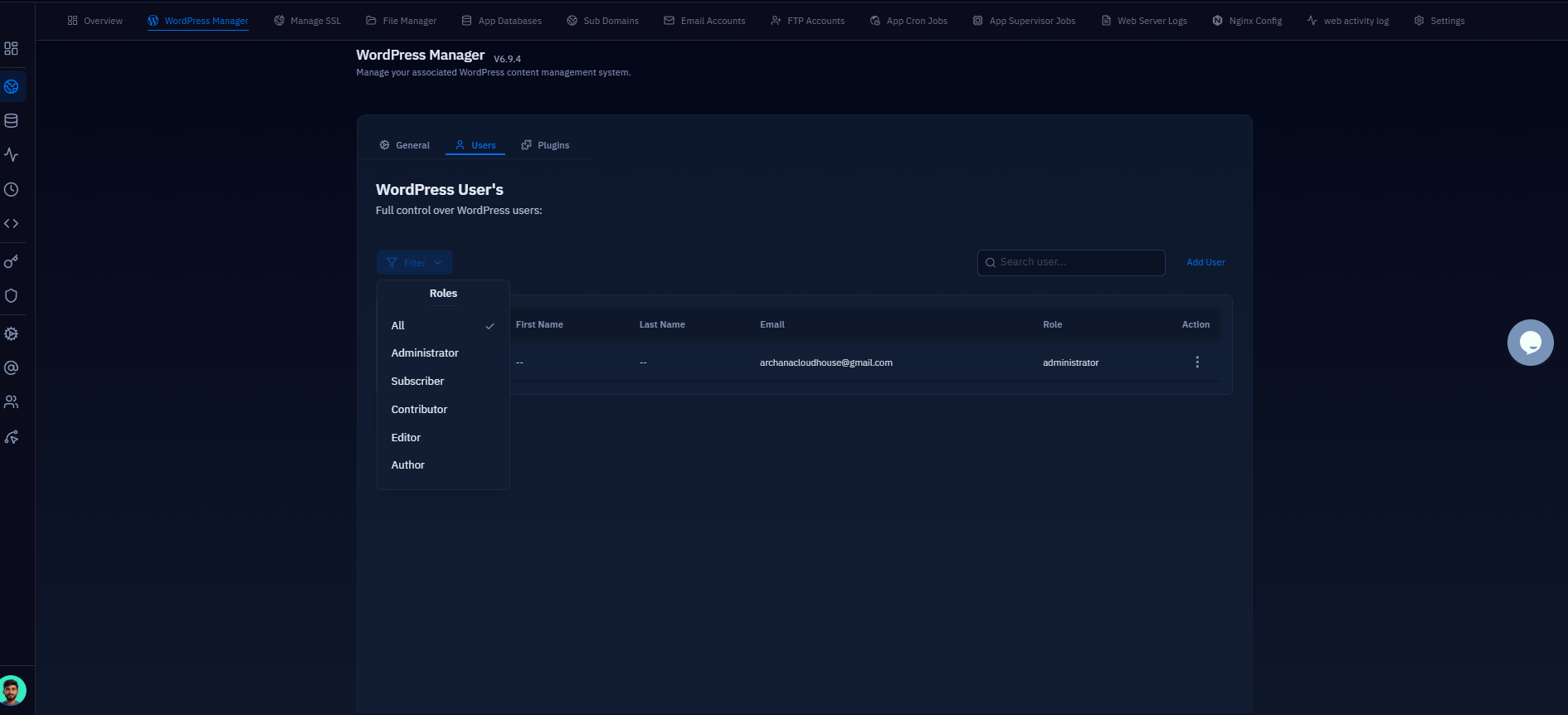
Before touching the config, look at actual traffic. CloudStick's per-site web application logs let you pull recent access log entries for a site straight from the dashboard, so you can search for xmlrpc.php requests and see the request pattern — a handful of POSTs from your own Jetpack-connected IP ranges looks very different from thousands of POSTs a minute from rotating IPs, which is unambiguously an attack.
PREREQUISITE: Confirm whether Jetpack or the WordPress mobile app is actually in use on the site before disabling XML-RPC. Disabling it out from under an active Jetpack connection can silently break backups, downtime monitoring, and remote publishing with no obvious error pointing back to the cause.
Disable XML-RPC at the Nginx Level
Blocking the endpoint at the web server is more effective than PHP-only plugin methods because the request never reaches PHP-FPM at all — no WordPress bootstrap, no database connection, no wasted CPU cycles on a request you're going to reject anyway. It also can't be undone by a plugin update or a theme function that re-enables the endpoint. Add this block inside your site's server { block:
If you need to allow XML-RPC from a specific IP range — for example, Jetpack's known outbound IPs, or your office IP for a desktop publishing client — use allow before deny all instead of blocking outright:
Reload Nginx after editing — sudo nginx -t && sudo systemctl reload nginx — and test the config syntax before reloading so a typo doesn't take the whole site down. On CloudStick, you don't need SSH for any of this: the dashboard's file manager and per-site Nginx config editor let you add this location block directly against the site's vhost and reload the web server from the same screen, which is considerably faster than editing config over SFTP for agencies managing this across dozens of client sites.
Disable via a Must-Use Plugin (PHP-Level Control)
Use the mu-plugin approach when you don't have access to the Nginx config — shared hosting without vhost access, for example — or when you want to disable only specific XML-RPC methods rather than the whole endpoint, since the Nginx block above rejects every request outright including ones you might still want (like a specific pingback partner). WordPress core exposes the xmlrpc_enabled filter specifically for this. Create a file at wp-content/mu-plugins/disable-xmlrpc.php:
Files in mu-plugins load automatically with no activation step and can't be accidentally deactivated from the plugins screen, which makes this more durable than a regular plugin. Note the trade-off versus the Nginx method: this still lets the request reach PHP and WordPress's bootstrap before being rejected with a "XML-RPC services are disabled on this site" fault response, so it doesn't save server resources the way blocking at Nginx does — it only closes the functional attack surface.
Verify It's Actually Disabled
Don't assume the config took effect — confirm it with a direct request. If you blocked it at Nginx, run a HEAD request against the endpoint from any machine:
A 403 confirms the Nginx rule is active. If you used the mu-plugin route instead, the HTTP status will still be 200 because WordPress handles the request and returns a valid XML-RPC fault response in the body rather than an HTTP error — check the response body for XML-RPC services are disabled on this site instead of relying on the status code alone. Either way, go back to CloudStick's site logs a day or two after the change and confirm the request volume against xmlrpc.php has dropped to zero (or to 403s only), and that nothing you rely on — Jetpack sync, backups, the mobile app — started failing.
Decision Checklist: Should You Disable It, and How?
Run through this before making the change: Is Jetpack installed and connected? If yes, check which Jetpack features actually need XML-RPC before blocking it outright — don't guess. Do you or a client publish through the WordPress mobile app or a desktop client like MarsEdit? If yes, keep XML-RPC open, or allowlist the specific IPs those clients connect from. Does the site receive legitimate pingbacks from other blogs? For nearly every modern site the answer is no — trackback spam long ago made this feature more liability than benefit.
If nothing on the site depends on XML-RPC, block it at Nginx — it's the most resource-efficient option and can't be bypassed by a plugin conflict. If you need selective access for one or two known integrations, use the Nginx allow/deny pattern rather than the mu-plugin, since the mu-plugin filter is all-or-nothing. Reserve the mu-plugin for shared hosting environments where you genuinely can't edit the Nginx vhost. Whichever route you choose, verify with the curl test above and keep an eye on your access logs for a few days afterward — that's the difference between disabling XML-RPC and disabling it safely.