How to Fix a Hacked WordPress Site (and Prevent Re-Infection)

%203.png&w=256&q=75)
Spot the Infection
A hacked WordPress site almost always shows one of these signs first: unexpected redirects to spam or pharma sites, Google flagging the domain as "This site may be hacked" in search results, unfamiliar admin users in wp_users, a spike in outbound email or CPU usage, or new PHP files with random names sitting in wp-content/uploads where only images should exist.
Check the server access logs for POST requests to unusual paths, and compare the modified-date on core files against your last known-good deploy. If wp-config.php, .htaccess, or files inside wp-includes were touched recently and you didn't deploy anything, treat the site as compromised and move straight to isolation — don't wait for a second data point.
Isolate the Site
Take the site offline before you clean anything — every minute it stays live, the attacker's backdoor can re-infect files you just fixed, harvest more credentials, or spread to sibling sites on the same server through shared plugin caches or a compromised database user. Put the site into maintenance mode, or better, block all inbound traffic at the web server level while you work.
Immediately rotate every credential tied to the site: WordPress admin passwords, the database user password, SFTP/SSH credentials for that system user, and any API keys stored in wp-config.php. Attackers that got in once usually got in through a leaked or weak credential, and cleaning files without rotating passwords just buys you a re-infection in a few hours.
Clean the Infection
Cleaning means replacing every core file with a known-good copy, removing any plugin or theme you don't recognize or don't actively use, and checking the database for injected admin accounts or malicious options — not just deleting the one obviously weird file you found. WP-CLI makes this fast and repeatable:
Any file that matches those grep patterns and isn't part of a plugin you trust should be deleted or restored from the plugin's original zip — never patch an infected file in place, since attackers frequently plant a second, quieter backdoor alongside the obvious one. Also check wp_options for injected entries such as rogue active_plugins values, unfamiliar cron hooks in wp_options.cron, or a modified siteurl/home pointing at a lookalike domain.
Running a malware scan is the fastest way to catch what manual grepping misses — CloudStick's built-in malware scanner checks a website's files against known-bad signatures and flags suspicious changes so you're not relying on a handful of grep patterns to catch every variant.
Restore From Backup
Restoring from a clean backup is often faster and safer than manual cleaning, provided the backup predates the compromise — a backup taken after the infection just restores the malware along with everything else. Check server logs and file modification dates to pin down roughly when the site was breached, then pick an archived snapshot from before that date.
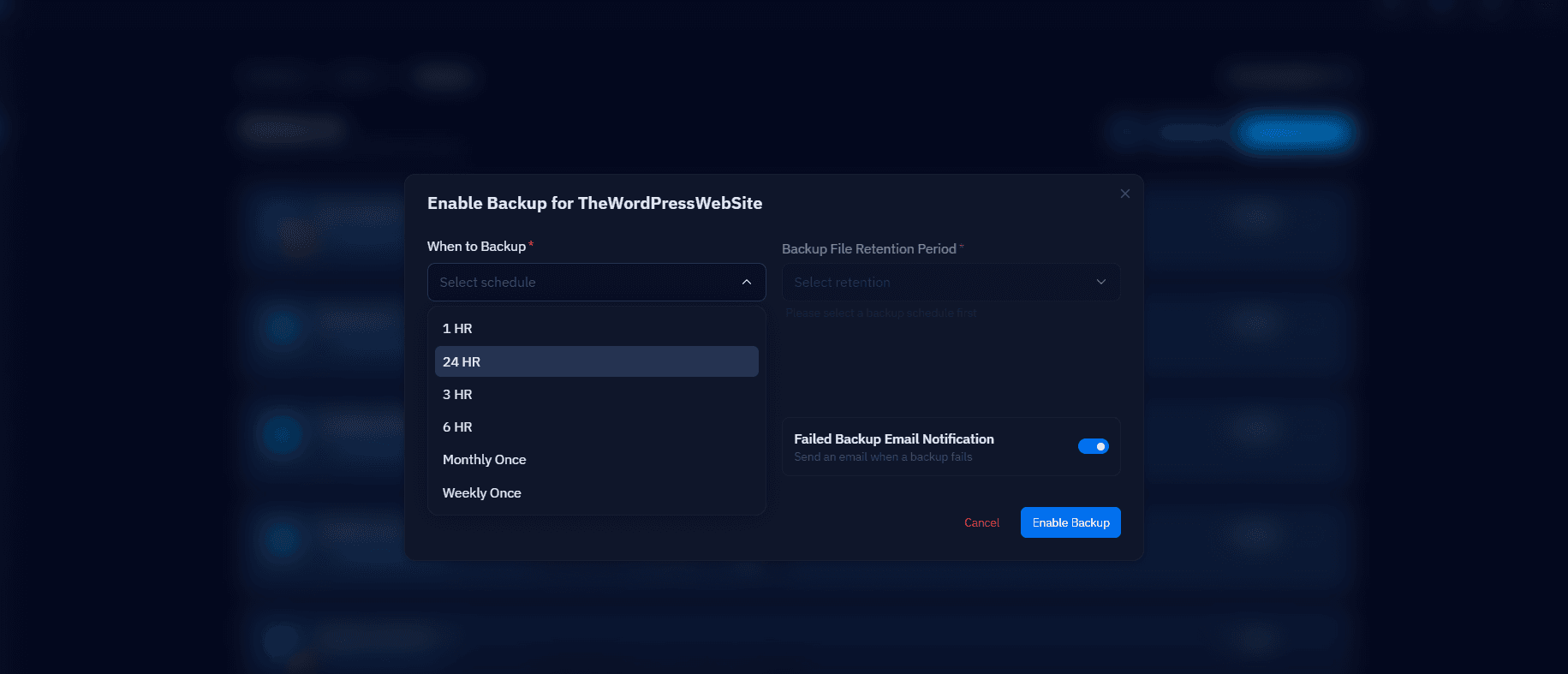
In the CloudStick dashboard, the Backups section keeps a list of archived website and database snapshots you can browse by date, so you can restore both the files and the database to a point before the injection happened without touching a command line. If you restore only the database and not the files (or vice versa), re-run the grep and WP-CLI checks from the previous section afterward — a partial restore can leave one half of the backdoor intact.
Harden Against Reinfection
PREREQUISITE: Complete the cleaning or restore step first. Hardening a site that still has an active backdoor just makes the backdoor harder for you to find later.
Correct file permissions and ownership close the most common re-entry point: a world-writable wp-content/uploads directory or a PHP process running as a user that can write to every site on the box.
Beyond permissions, disable dangerous PHP functions like exec, shell_exec, and system at the PHP-FPM pool level, keep every plugin and theme updated, remove any plugin you aren't actively using, enforce strong unique passwords with two-factor authentication on all admin accounts, and put a Web Application Firewall in front of wp-login.php and xmlrpc.php.
CloudStick applies most of this by default — each website runs under its own isolated system user with an open_basedir restriction so it can't touch files outside its own home directory, and dangerous PHP functions are disabled per pool out of the box. EasyPHP lets you manage extensions per site without editing php.ini by hand, and the Advanced File Manager makes it easy to fix ownership and permission mistakes from the dashboard instead of an SSH session.
Next Steps Checklist
Once the site is clean and back online, work through this list before you consider the incident closed: rotate every password and API key one more time now that the site is public again, request a review in Google Search Console if the domain was flagged, submit the site to Sucuri/Google Safe Browsing for a blacklist recheck, and audit every other site on the same server for the same injected-code patterns — attackers rarely stop at one site if they had shell access to the box.
Finally, schedule a recurring malware scan and confirm database and file backups are running on a schedule you trust, so the next incident — if there is one — costs you a five-minute restore instead of another afternoon of forensic grepping.
Document what you found and how the attacker likely got in — a leaked password, an outdated nulled plugin, a vulnerable contact form, or a compromised FTP account are the usual culprits — because that root cause, not just the malware itself, is what needs to be closed off. Keep a copy of the injected files and log snippets somewhere off the server; they're useful evidence if you ever need to prove a breach window to a client, an insurer, or a plugin vendor with an unpatched vulnerability.