How to Scan a WordPress Site for Malware

%203.png&w=256&q=75)
Signs Your WordPress Site Is Compromised
The fastest way to catch WordPress malware is to know what it looks like before you go hunting for it. Most infections show at least one of these symptoms: unexpected redirects to spam or pharma sites when visitors land from Google, new admin users you did not create, a spike in outbound traffic or CPU usage with no matching increase in real visitors, Google Search Console flagging the site for "deceptive content" or malware, and unfamiliar PHP files in wp-content/uploads — a directory that should never contain executable PHP.
Other tells include your host suspending the account for abuse, browsers showing a "Deceptive site ahead" interstitial, and search results for your own site showing garbled Japanese or Chinese keyword spam (a classic sign of a SEO spam injection). None of these confirm malware on their own, but any one of them is reason enough to run the checks below immediately.
Diff Core Files with WP-CLI Checksums
WP-CLI can compare every WordPress core file against the official checksums published by wordpress.org. Any file that has been modified, added, or is missing shows up immediately — this is the single most reliable way to catch a core file infection, because it does not rely on pattern matching or signatures.
A clean install returns nothing. A compromised one lists exact file paths, like wp-includes/class-wp-editor.php reporting a checksum mismatch — that file has been tampered with and needs to be replaced from a clean copy or a fresh WordPress download. Note that plugin verify-checksums only works for plugins hosted on wordpress.org — premium or custom plugins won't have a checksum to compare against, so you'll need the manual techniques below for those.
Search for Suspicious PHP Functions and Recently Modified Files
Almost every PHP-based backdoor relies on a small set of functions to obfuscate and execute its payload: eval(), base64_decode(), gzinflate(), and str_rot13(). Legitimate plugins rarely combine these, so a grep across the whole install is one of the highest-signal checks you can run.
Every match needs manual review — some caching and minification plugins legitimately use eval(). What you're looking for is a single-line file with a huge base64 blob, oddly named (wp-cache-xyz.php, class-wp-.php in the wrong directory), sitting somewhere it has no business being, like wp-content/uploads/2023/.
Pair that grep with a timestamp check. Malware droppers usually touch multiple files at once, so files modified together outside your normal deploy window stand out:
If you don't recognize a file this turns up and haven't deployed anything recently, open it. If you'd rather browse visually than work entirely over SSH, CloudStick's Advanced File Manager lets you sort a site's directory by modified date and preview file contents right in the dashboard, which makes it easy to spot a PHP file that has no business sitting in an uploads folder.
Check Cron Jobs and wp_options for Injected Redirects
Malware often re-installs itself using WordPress's own cron system, so a clean file scan can still leave you reinfected within hours. List every scheduled event and look for anything that isn't a core or plugin hook:
Suspicious cron hooks are often named to look plausible — wp_cache_check or wp_update_plugins_custom — but resolve to a function defined in a rogue must-use plugin or a hijacked theme file. Delete the event with wp cron event delete <hook> only after finding and removing the code that re-registers it, or it will simply come back on the next page load.
The wp_options table is the other common hiding place, particularly for the "Japanese keyword hack" and conditional redirect malware that only shows spam content to Googlebot. Search it directly for injected URLs or scripts:
Also check siteurl, home, and active_plugins in wp_options directly with wp option get siteurl. Attackers sometimes silently activate a rogue must-use plugin without it appearing in the normal Plugins screen.
Free and Open Scanning Tools Worth Running
Manual checks catch what automated scanners miss, but running a scanner alongside them catches known signatures fast. Sucuri SiteCheck is a free, no-install external scanner — point it at your domain and it checks the publicly served HTML for known malware signatures, blacklist status, and outdated software, though it can only see what a visitor sees, not what's hidden behind a login or served conditionally to bots.
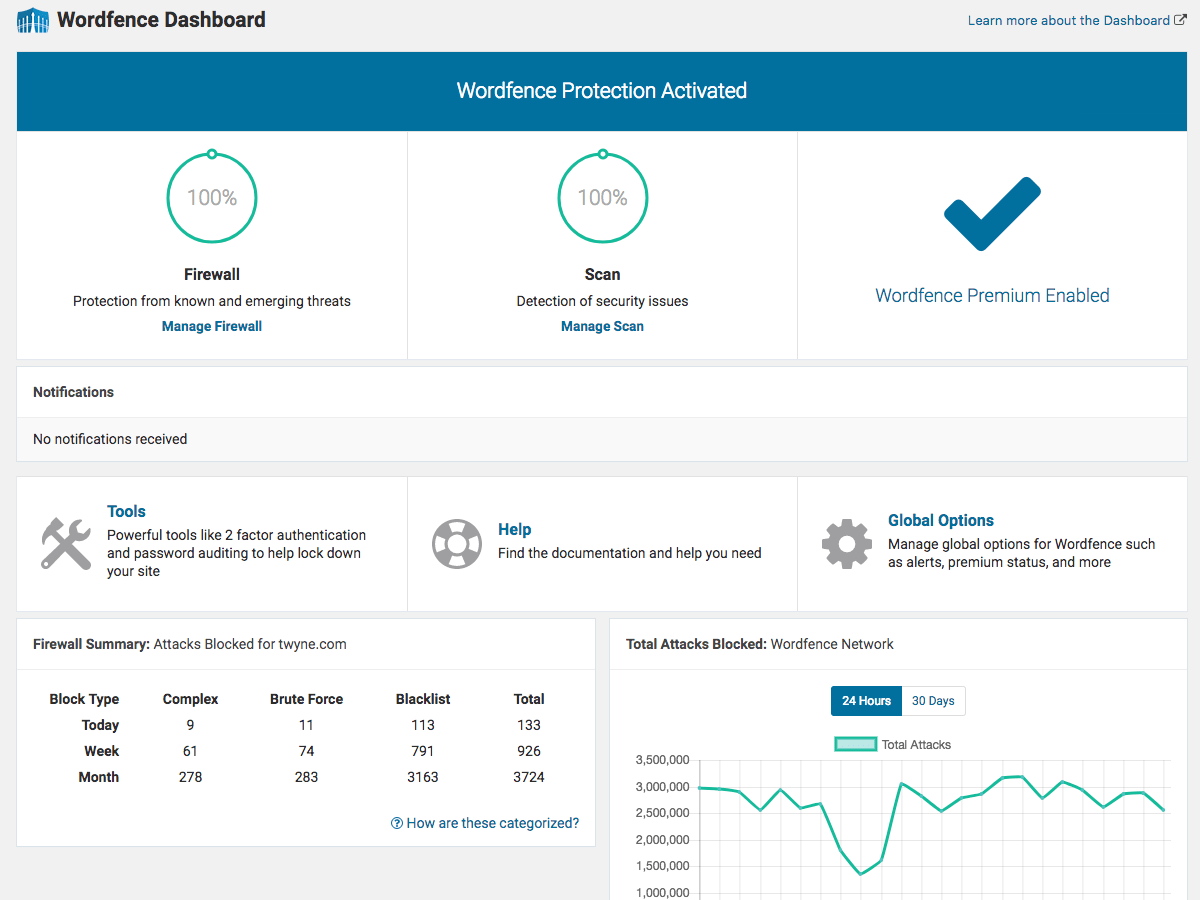
Wordfence's free plugin tier includes a file-integrity scanner that compares your core, theme, and plugin files against the official WordPress.org repository and flags known malware signatures from its threat database — it runs from inside wp-admin, so it can see files a purely external scan can't. WPScan (the CLI tool, free for personal use with an API key) takes a different angle — it fingerprints your WordPress version, theme, and plugins against a vulnerability database, which tells you what an attacker could exploit even if nothing is infected yet.
No single scanner catches everything — signature-based tools miss novel or heavily obfuscated payloads, and none of them replace the manual checksum and grep passes above. Treat scanners as a fast first pass, not a clean bill of health.
What to Do After You Find Malware
First, isolate before you clean: change every password tied to the site — WordPress admin accounts, database user, SFTP/SSH, and hosting panel — and rotate the secret keys in wp-config.php using the generator at api.wordpress.org/secret-key/1.1/salt/. Compromised credentials are how most reinfections happen even after files are cleaned.
Replace every core file with a fresh download rather than trying to hand-edit each flagged file — wp core update --force --path=/home/user/apps/site re-downloads and overwrites all core files. Do the same for any plugin or theme that failed a checksum check by reinstalling it from the official source instead of patching it in place. Delete any file the grep and timestamp checks flagged that you can't account for.
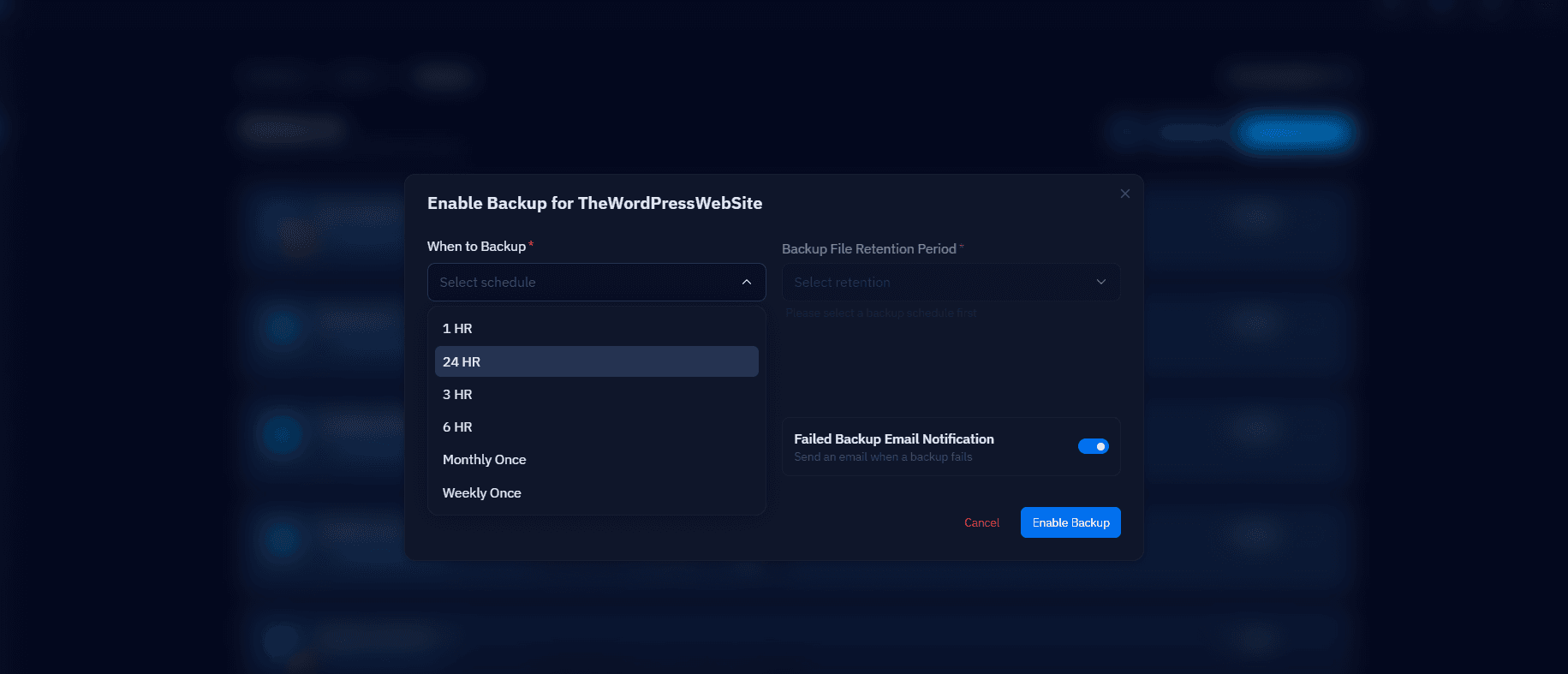
If the infection is deep or you're not confident you've found every backdoor, the safest path is restoring from a backup taken before the compromise, then re-applying only the legitimate content changes made since. CloudStick keeps scheduled website and database backups with an archived history you can browse and restore from the dashboard, which is a faster and more reliable route back to a known-good state than chasing down every dropped shell by hand — and if you need to inspect the infected version side-by-side first, CloudStick's SSH terminal access lets you do that without opening a separate SFTP client.
Build an Ongoing Scanning Routine
A one-time scan only tells you about today. Malware detection works best as a scheduled habit, not a reaction to a Google warning email. Run this checklist weekly, or nightly via cron on higher-value sites:
Beyond the commands themselves, a durable routine covers five habits: keep WordPress core, themes, and plugins updated within days of release, since most infections exploit a known and already-patched vulnerability; remove any plugin or theme you're not actively using instead of just deactivating it; enforce strong, unique passwords and two-factor authentication for every admin account; verify your backup schedule is actually running and that you've tested a restore at least once; and register for Google Search Console so you get an early warning if Google itself flags your site before your own scans catch it.
None of these steps require exotic tooling — WP-CLI, grep, and find ship with every server, and the free scanners above cost nothing but a few minutes to run. The sites that get reinfected repeatedly are almost always the ones treating a malware scan as a one-off emergency response instead of a standing weekly task.