How to Give Clients Limited Access Without Losing Control

%203.png&w=256&q=75)
Why Client Access Needs Boundaries, Not Just a Login
A client asking "can I get into my site" is asking for one thing: visibility into their own WordPress install. It is not a request for root on the server, a copy of your SSH key, or the ability to see every other client you host on that box. The gap between what they asked for and what agencies often hand over is where most access-related incidents start.
Once an agency is managing more than a handful of client sites on shared infrastructure, access stops being a courtesy and becomes a liability surface. A single overshared credential can expose every site on the server, not just the one the client thinks they are looking at. The fix is not refusing access — it is scoping it correctly before you grant it.
Per-Site Access vs. Per-Server Access
Per-site access means a client can log into their own WordPress admin, view their own database, and manage their own files — and nothing else. Per-server access means they can touch the operating system: PHP-FPM pools, Nginx or Apache config, cron jobs, firewall rules, and every other site's docroot sitting on the same box. Those two things are frequently conflated because both get described as "giving the client access."
A WordPress admin account is inherently per-site — it is scoped to that install's user table and cannot see anything outside it. A system-level SSH or SFTP account, by contrast, is per-server unless it is deliberately chrooted and jailed to one home directory. If you skip that step, "just let them upload some files" quietly becomes "the client can now read every other client's wp-config.php."
CloudStick's per-site PHP-FPM pool isolation already keeps one site's process from touching another site's files at the filesystem level, since each site runs under its own system user in /home/<user>/apps/<site>/. That isolation only holds, though, if the credentials you hand a client respect the same boundary.
What Clients Actually Need to See
Most client access requests reduce to three things: a WordPress admin login for their own site, confirmation that backups are running, and occasionally a way to upload media or check on a support ticket. That's it. Almost nobody actually needs shell access, database root credentials, or visibility into your control panel's server list.
Before granting any client access, write down exactly what they asked to do — "check my orders," "upload a new logo," "see if my site is backed up." Match the credential to that task instead of defaulting to the broadest account you have on hand.
Setting Up Role-Based Access Without SSH
The cleanest way to give a client control of their own site is a WordPress admin account created for that install specifically, with no server-level credentials attached at all. Because WordPress roles are scoped to the individual install's user table, an administrator account on Site A structurally cannot see or modify Site B, even if both sites live on the same server.
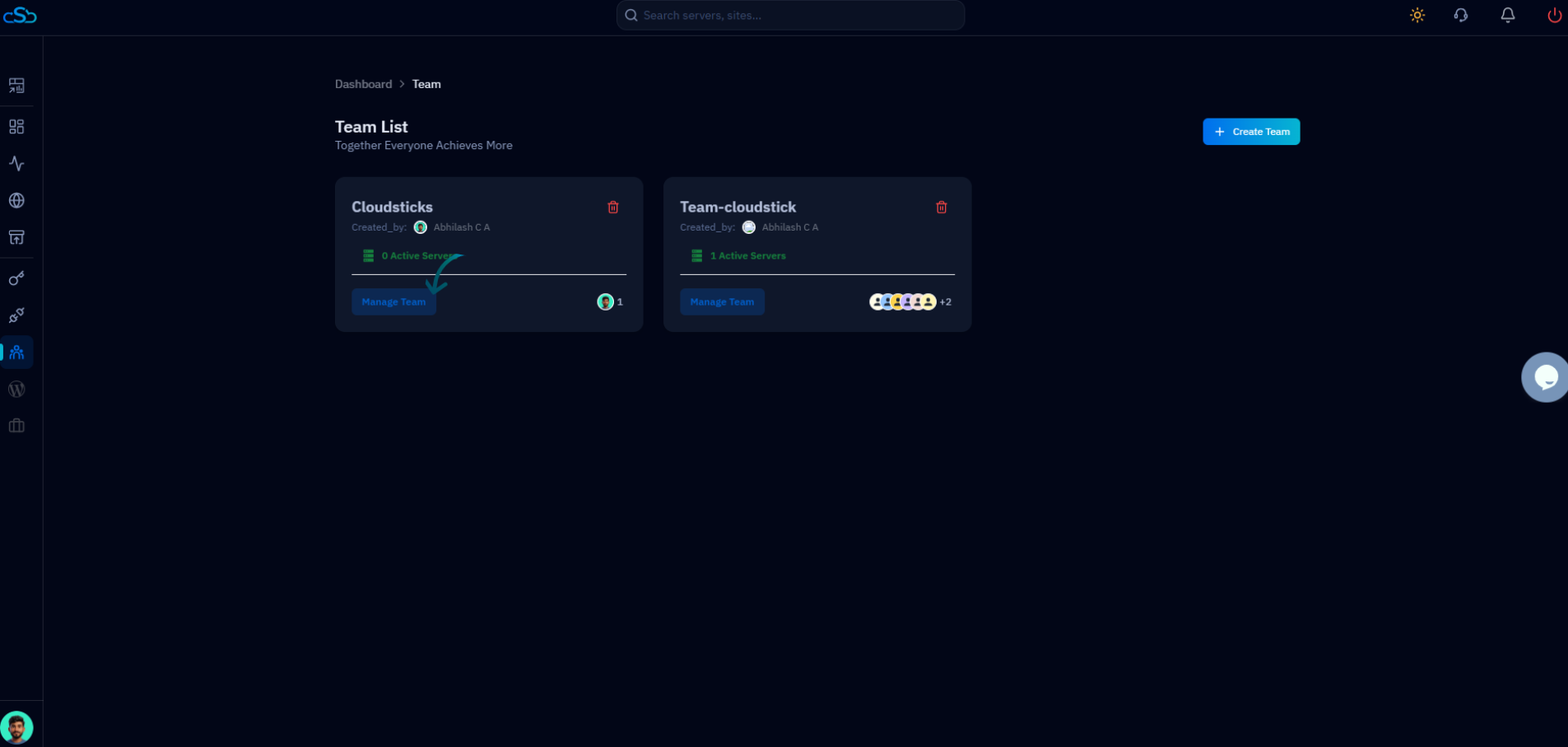
CloudStick's role-based access control extends this same idea to the control panel itself: you can invite a client as a team member with owner-level permissions on their one site, while server list, other sites, billing, and stack-level settings stay invisible to their login entirely. Business-plan agencies can go a step further with WordPress Magic Link, sending the client a passwordless admin link instead of a shared password that eventually ends up in a support email thread.
Why Raw SSH Access Is Almost Always the Wrong Call
Handing a client full SSH access hands them the ability to change things that have nothing to do with why they asked for access in the first place. A client trying to "just check something" can edit php.ini directives, delete a backup archive to free up disk space they didn't know was reserved, or change DNS records through a Cloudflare CLI token you left configured on the box. None of that requires malicious intent — it only requires curiosity and a terminal.
Over-provisioning access is easier to grant than to notice. A shared root SSH key, a database user with global privileges "just in case," or a client added as sudoer to save yourself a support ticket all look harmless in the moment — until one misconfigured PHP-FPM pool or a dropped MySQL table takes down every site on that server, not just the client's own. Grant the narrowest credential that satisfies the actual request, every time.
If a client genuinely needs file-level access — say, a developer on their side needs to drop in a theme — the right scope is an SFTP account chrooted to that one site's home directory, not a shell account on the host. That single distinction is the difference between a client uploading a plugin and a client accidentally reading another tenant's wp-config.php.
Revoking Access Cleanly When the Engagement Ends
Scoped access only stays safe if it gets removed the moment it's no longer needed. Keep a running list of every client credential you've issued — WordPress admin logins, SFTP accounts, control panel team invites — tied to the site it belongs to, and review it whenever a project wraps or a client relationship ends.
Because scoping was done correctly from the start, revoking access is a single deletion — remove the WordPress user, remove the team invite, or disable the SFTP account — instead of a server-wide audit to figure out what a departing client could still reach. Scope narrow going in, and cleanup going out takes minutes instead of a weekend.