How to Install a Free Let's Encrypt SSL Certificate

%203.png&w=256&q=75)
What is Let's Encrypt?
Let's Encrypt is a free, automated, open Certificate Authority run by the non-profit Internet Security Research Group (ISRG). It issues Domain Validation (DV) SSL/TLS certificates at no cost, with a 90-day validity period and automated renewal support. Since its launch in 2016 it has issued over 3 billion certificates and is trusted by every major browser and operating system.
The certificate it issues encrypts traffic between the browser and your server, enables the padlock icon in the address bar, and is required for HTTP/2. For the vast majority of websites — personal blogs, agency client sites, SaaS apps, WooCommerce stores — a free Let's Encrypt DV certificate is exactly what you need. The only cases where you'd pay for a certificate are Extended Validation (EV, for financial institutions showing the company name in green) or Organization Validation (OV, for enterprise compliance requirements). For everything else, Let's Encrypt is the correct choice.
Before You Start
Three things must be in place before Certbot can issue a certificate. First, your domain DNS must point to your server's public IP address — Let's Encrypt uses an HTTP-01 challenge that makes a request to your domain over port 80 to verify ownership. Second, port 80 must be open on your firewall. Third, you need root or sudo access to the server. Check all three before proceeding:
You need Ubuntu 20.04 or 22.04, root access, and a domain with its A record pointing to your server IP. If the DNS hasn't propagated yet (allow up to 24 hours), the challenge will fail. Verify with dig +short yourdomain.com before running Certbot.
Install Certbot
Certbot is the official Let's Encrypt client maintained by EFF. It handles the ACME protocol challenge, certificate issuance, and renewal. On Ubuntu 22.04 install it via snap for the most up-to-date version:
Certbot has plugins for both Nginx and Apache that can automatically configure the server block — but if you're running a custom stack or managing configs manually, the --webroot or --standalone methods give you direct control over where the certificate files land.
Issue a Certificate
Use the certonly --webroot method when you want Certbot to write a verification file into your site's webroot without touching your Nginx or Apache config. This is the safest method for servers managed by CloudStick or other control panels, since it leaves your existing server config untouched.
On success, Certbot stores the certificate files under /etc/letsencrypt/live/yourdomain.com/. The four files you care about are:
In your Nginx server block, reference fullchain.pem for ssl_certificate and privkey.pem for ssl_certificate_key. Then reload Nginx: sudo nginx -t && sudo systemctl reload nginx.
Verify Your SSL Is Working
After reloading your web server, verify the certificate is served correctly from the command line and cross-check with an online tool:
Run your domain through SSL Labs (ssllabs.com/ssltest) for a full grade. A properly configured Let's Encrypt setup with TLS 1.2 + 1.3 and a strong cipher suite will score A or A+. If you score lower, the likely culprits are old TLS 1.0/1.1 being enabled or weak Diffie-Hellman parameters.
SSL with CloudStick: Zero Commands Required
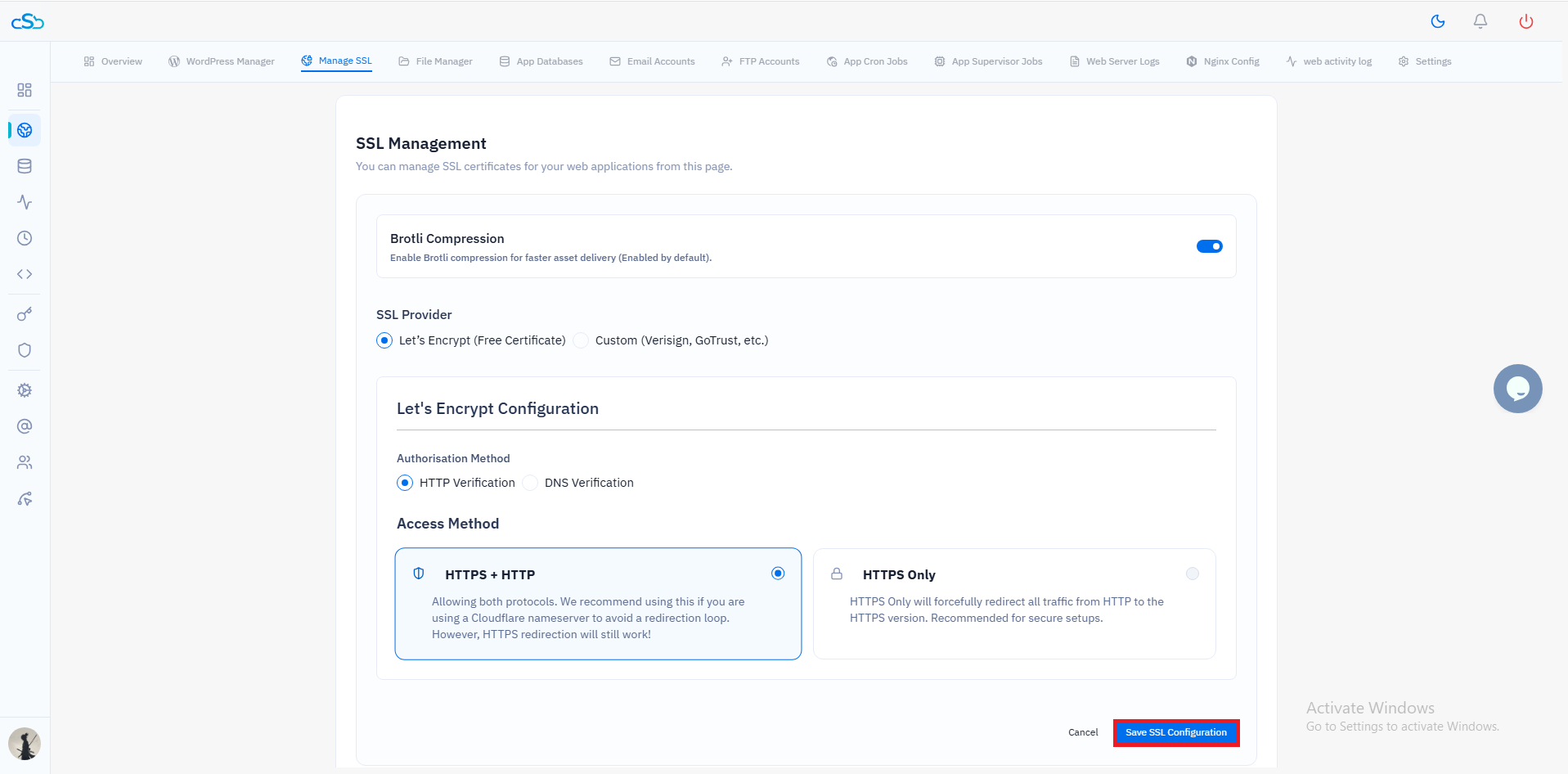
If you run your servers with CloudStick, you never need to touch Certbot at all. CloudStick issues and configures a Let's Encrypt certificate automatically when you create a new website — just point your domain's DNS to the server and click Enable SSL from the website panel. CloudStick handles the ACME challenge, writes the certificate to /home/<user>/ssl/<site>/, updates the Nginx vhost, and sets up a renewal cron. It also handles wildcard certificates and HSTS configuration from the same panel.
For servers you're managing manually, Certbot's 90-day certificates require a renewal cron job. The snap installation sets one up automatically at /etc/cron.d/certbot and runs twice daily. Test it with sudo certbot renew --dry-run to confirm it works before you forget about it. An expired certificate takes your site down hard — browser warnings appear instantly and organic traffic drops within hours. Set up renewal and test it the same day you issue the cert.