How to Install and Configure Fail2Ban to Stop Brute-Force Attacks

%203.png&w=256&q=75)
How Fail2Ban Works
Fail2Ban is a log-analysis daemon that reads service log files, applies regex filters to detect failed authentication attempts, and temporarily bans the offending IP address by adding a block rule via iptables (or UFW, nftables, etc.). When the ban expires, the IP is automatically removed from the block list.
The key components are jails (a combination of a filter and an action for a specific service), filters (regex patterns that match failure events in logs), and actions (what happens when a threshold is reached — typically an iptables ban). Fail2Ban ships with pre-built jails for SSH, Nginx, Apache, Postfix, and dozens of other services.
Install Fail2Ban on Ubuntu 24.04
PREREQUISITE: Fail2Ban requires Python 3 and a working rsyslog or journald setup. Both are present by default on Ubuntu 24.04.
Fail2Ban ships with a default SSH jail enabled immediately after install. You can confirm it is already watching SSH logs: sudo fail2ban-client status sshd should show the jail as active with a count of currently monitored IPs.
Configure Jails with jail.local
Never edit jail.conf directly — package updates will overwrite it. Instead, create a jail.local override file that takes precedence:
Edit the [DEFAULT] section to set your global ban policy:
After editing, reload: sudo systemctl reload fail2ban. The ignoreip setting is critical — add your own IP so you cannot accidentally ban yourself during testing.
Protect Nginx and WordPress Login
WordPress sites are a popular brute-force target via the wp-login.php endpoint. Add a Nginx jail to catch repeated HTTP 401/403 responses and ban the source IP. Add to jail.local:
Monitor Bans and Unban IPs
The fail2ban-client tool gives you real-time visibility into active jails and bans:
TIP: Use bantime = -1 for a permanent ban, or use increasing ban times with bantime.increment = true to make each subsequent ban from the same IP progressively longer.
CloudStick and Fail2Ban
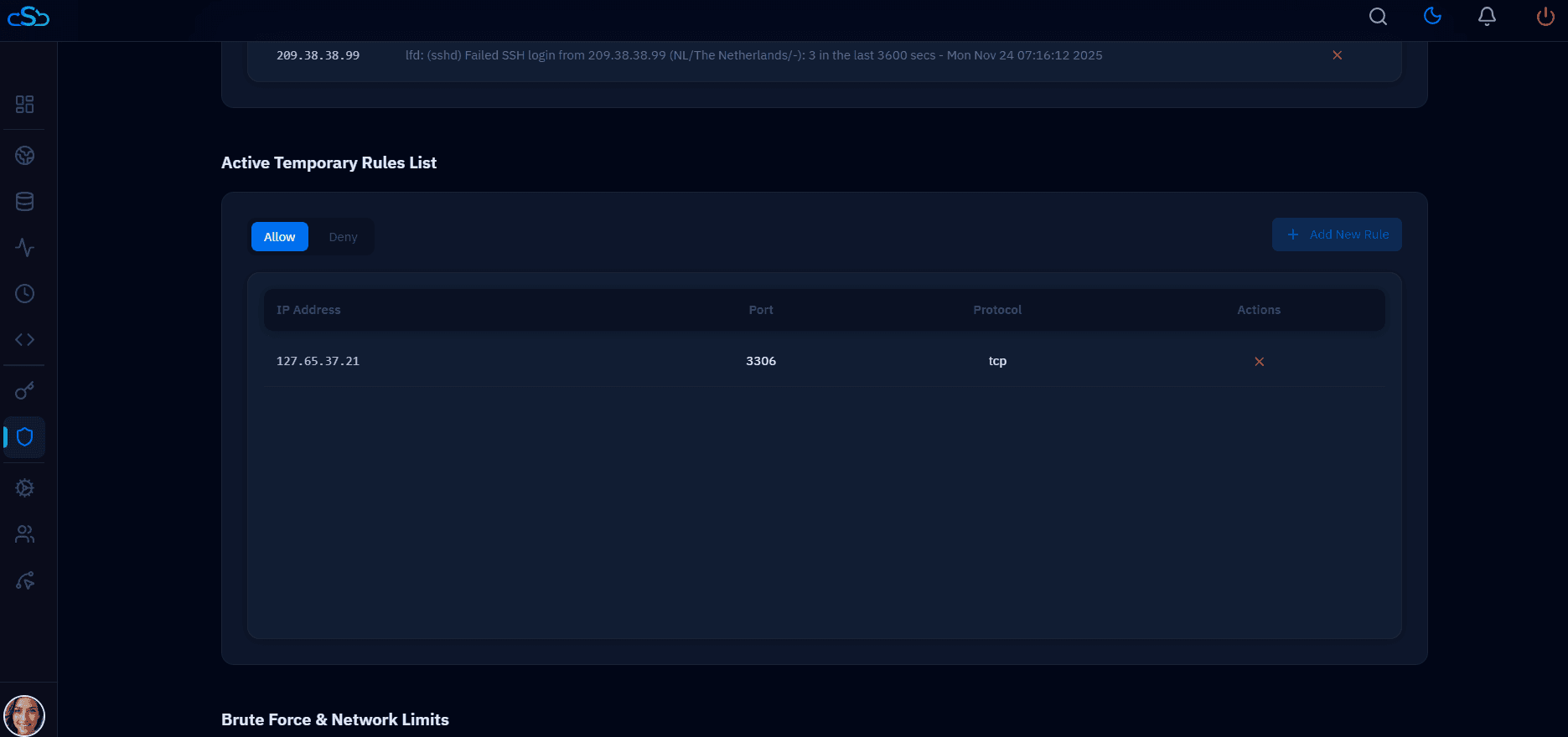
CloudStick automatically configures Fail2Ban rules when installing its agent on a new server. SSH protection is enabled by default, and you can manage additional firewall and ban rules from the CloudStick dashboard's Firewall section without touching the command line.
For agencies managing multiple servers, this eliminates the need to manually configure Fail2Ban on each machine — the security baseline is consistent across every server connected to CloudStick, applied at provisioning time as part of the agent installation process.