How to Install and Secure MySQL on Ubuntu 24.04

%203.png&w=256&q=75)
Installing MySQL 8 on Ubuntu 24.04
Ubuntu 24.04 ships MySQL 8.0 in its default APT repositories, so installation is a straightforward three-command process. MySQL 8 brings significant improvements over the 5.7 series — native JSON data types with full path expressions, window functions, invisible indexes, and the caching_sha2_password authentication plugin that replaces the older mysql_native_password default. Before you begin, make sure your package lists are current.
The systemctl status output should show active (running). If the service failed to start, the most common cause on fresh Ubuntu 24.04 installations is a port conflict — check whether anything is already listening on port 3306 with sudo ss -tlnp | grep 3306.
On Ubuntu 24.04, MySQL 8.0.x is installed into /etc/mysql/ for configuration, /var/lib/mysql/ for data files, and /var/log/mysql/ for error logs. Understanding where these live matters when you later tune the configuration or investigate slow queries.
These steps assume a fresh Ubuntu 24.04 server with a non-root sudo user and UFW firewall configured. You need at least 512 MB of RAM for MySQL to run stably, though 1 GB or more is recommended for any production workload.
Running mysql_secure_installation
After installation, the root account has no password and the server has several unsafe defaults that should be addressed before you put any data on it. The mysql_secure_installation script walks you through each of these interactively.
The script presents several prompts. Here is what each one does and what you should answer on a production server:
Activates the validate_password plugin. Answer Y and select strength level 2 (STRONG) for any internet-facing server. This enforces 8+ character passwords with mixed case, digits, and special characters for all MySQL accounts.
A fresh MySQL install includes an anonymous account that allows anyone to log in without credentials. Answer Y. There is no legitimate reason to keep anonymous accounts on a production database server.
Answer Y. The root account should only ever connect via the local Unix socket. Remote root access is a critical attack surface — if an attacker discovers the root password, restricting the bind address is your last line of defense.
Answer Y. The test database is accessible to anonymous users by default and serves no purpose on a production server. Removing it also removes the associated grant rows from the mysql.db table.
Answer Y. This flushes the privilege tables so all changes take effect immediately without requiring a MySQL restart.
One important nuance in Ubuntu 24.04: the root account uses the auth_socket (now called unix_socket) plugin by default rather than a password. This means sudo mysql connects immediately without a password prompt — root authentication is tied to your OS user rather than a MySQL password. This is actually more secure than password-based root login for most use cases. If the script asks you to set a root password and you prefer to keep the socket plugin, simply answer N when asked to change the root password.
Creating Users and Granting Privileges
Every application should connect to MySQL with its own dedicated user account scoped to a specific database. Running multiple applications under the same database user — or worse, under root — means a single compromised application can read or modify every database on the server. The principle of least privilege is your most effective database security control.
The charset specification matters. Using utf8mb4 (not utf8) ensures full Unicode support including emoji and supplementary characters. MySQL's legacy utf8 is actually UTF-8 capped at 3 bytes and will silently drop 4-byte characters such as most emoji.
For read-only users — reporting dashboards, analytics queries, backup scripts — grant only SELECT. For users that only need to read and write rows but never modify schema, drop CREATE, DROP, INDEX, and ALTER. Never grant SUPER, FILE, or PROCESS to application accounts — these privileges allow users to read files from the filesystem, kill other connections, or modify global variables.
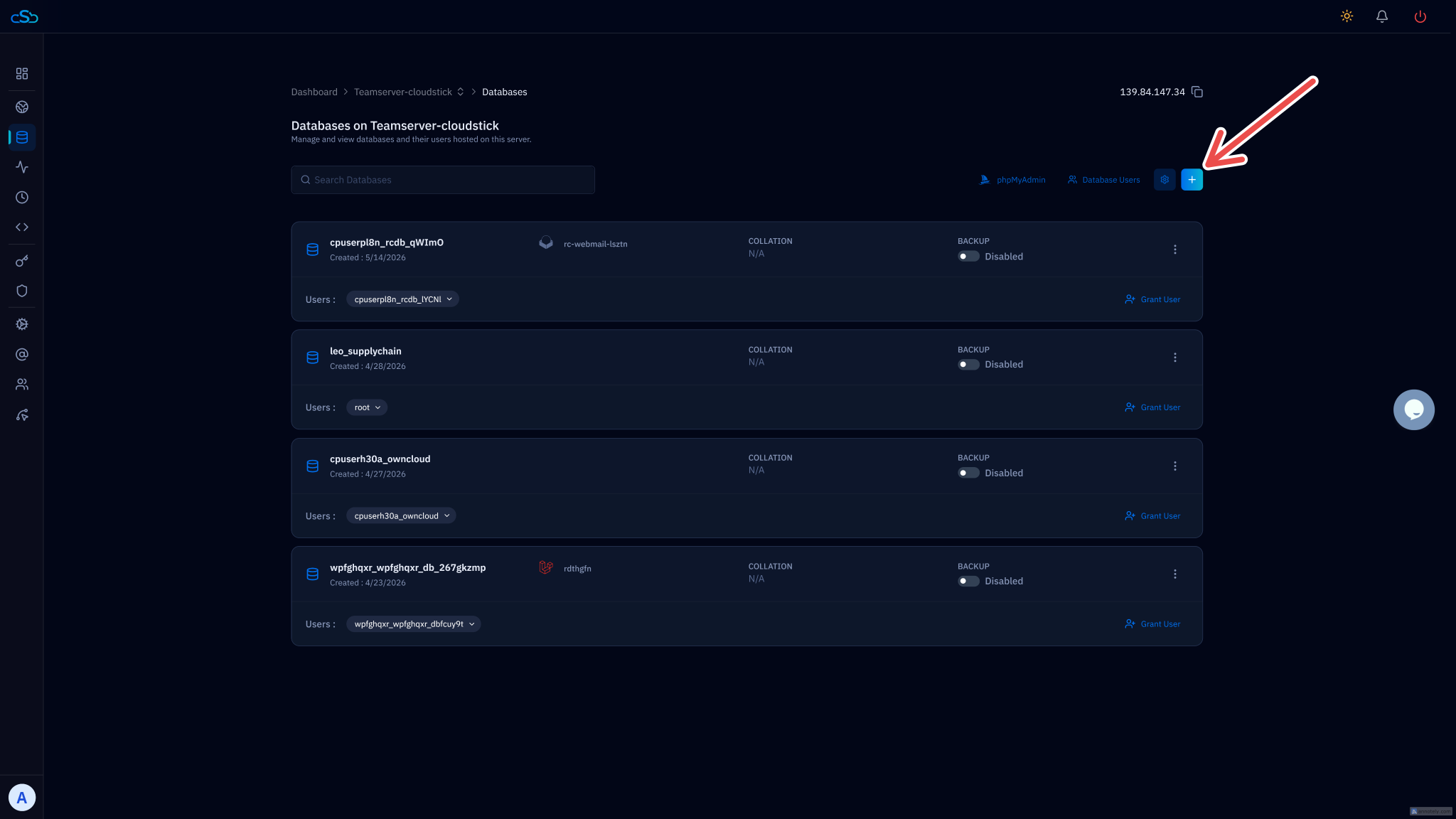
If you're managing multiple sites through CloudStick, database creation and user provisioning happens automatically when you create a new site — CloudStick generates isolated credentials per site and stores them securely, so you never have to run these SQL commands manually for web applications.
Controlling Remote Access
By default, MySQL on Ubuntu 24.04 binds exclusively to 127.0.0.1, which means it only accepts connections from the local machine. This is the correct default. Only change it if you have a specific, justified need for remote connections — such as a separate application server or a managed database GUI running from a different host.
If you do need remote access, the safest approach is to tunnel the connection through SSH rather than exposing port 3306 to the internet. From your local machine:
If you must open MySQL to a specific remote IP — for instance, a dedicated application server at a known address — modify the bind address in /etc/mysql/mysql.conf.d/mysqld.cnf and restrict access at the firewall level:
Never set bind-address = 0.0.0.0 without also restricting port 3306 in your firewall. An exposed MySQL port is one of the most commonly exploited entry points on VPS servers. Automated scanners probe port 3306 constantly — the window between opening the port and setting the firewall rule is enough to trigger brute-force attempts.
Hardening MySQL Against Attacks
Running mysql_secure_installation covers the basics, but production servers need additional hardening. The configuration file at /etc/mysql/mysql.conf.d/mysqld.cnf controls most of MySQL's security-relevant behaviour.
The local_infile = 0 setting deserves special attention. The LOAD DATA LOCAL INFILE command allows a MySQL client to read files from the client host. If your application connects to a remote MySQL server and an attacker can inject SQL, they can use this to exfiltrate arbitrary files from the application server's filesystem. Disabling it server-side prevents this attack even if the client has it enabled.
Beyond MySQL's own configuration, keep the service isolated at the OS level. MySQL runs as the mysql system user and should never need write access outside of /var/lib/mysql, /var/log/mysql, and /tmp. On Ubuntu 24.04, the MySQL systemd unit already includes ProtectSystem=full and several other sandboxing directives — you can verify these with systemctl show mysql | grep -i protect.
Consider installing Fail2Ban with a MySQL jail to automatically block IP addresses that repeatedly fail authentication. The MySQL error log records failed login attempts in a parseable format, and Fail2Ban can parse that log and issue UFW block rules automatically after a configurable number of failures.
Periodically audit which accounts exist on your MySQL instance and what privileges they hold. Run SELECT user, host, plugin, authentication_string FROM mysql.user; to list all accounts, and SHOW GRANTS FOR 'username'@'host'; to review specific account privileges. Remove any accounts you do not recognise or no longer need.
Next Steps and Ongoing Maintenance
A secured MySQL install is the foundation, not the finish line. Three ongoing practices determine whether your database stays secure over time: regular backups, prompt updates, and periodic privilege audits.
For backups, mysqldump is the simplest tool for individual databases. For larger datasets or InnoDB-heavy workloads, Percona XtraBackup performs hot physical backups without locking tables. A minimal mysqldump cron job to capture your databases daily looks like this:
The --single-transaction flag is critical for InnoDB tables — it creates a consistent snapshot using a transaction rather than locking all tables, which means your application can continue writing while the backup runs. Without this flag, mysqldump locks the entire database for the duration of the dump.
For updates, MySQL receives regular security patches through the Ubuntu 24.04 APT repository. Run sudo apt update && sudo apt upgrade mysql-server as part of your regular maintenance window. The MySQL 8.0.x minor update series has maintained strong backward compatibility — patch version upgrades are generally safe to apply without schema changes.
Monitor your error log regularly. The file at /var/log/mysql/error.log contains authentication failures, startup warnings, InnoDB recovery events, and crash reports. A sudden spike in authentication failures points to a brute-force attempt. InnoDB warnings about buffer pool or tablespace issues are early signals before a disk-space or corruption crisis develops.
A properly installed and secured MySQL 8 instance on Ubuntu 24.04 — with anonymous users removed, root login restricted, dedicated per-application accounts, local_infile disabled, and a firewall blocking port 3306 — covers the vast majority of real-world attack vectors. The remaining risk is almost always application-level SQL injection, which is addressed at the application layer through prepared statements and parameterised queries.

