How to Install WordPress on a VPS (Step-by-Step)

%203.png&w=256&q=75)
Prerequisites
You need a VPS running Ubuntu 24.04 LTS with at least 1GB RAM, a domain name with its A record pointed to your server's IP address, and SSH access as root or a sudo user. DNS propagation takes 5–30 minutes; point your domain before starting so SSL certificate issuance works by the end of this guide.
Domain A record must resolve to your VPS IP before running certbot. Check propagation with: dig +short yourdomain.com @8.8.8.8
Install the LEMP Stack
WordPress runs on Linux, Nginx, MySQL, and PHP — the LEMP stack. Ubuntu 24.04's package manager ships all four. PHP 8.3 is the current stable release and the version WordPress 6.5+ is optimized for. Install everything in one command:
Create the MySQL Database
WordPress needs a dedicated database and user — never connect WordPress using the MySQL root account. First, secure the MySQL installation, then create the database:
Download and Configure WordPress
Always download WordPress directly from wordpress.org — never from third-party mirrors. Place it in /var/www/yourdomain.com and set the web server user as owner so Nginx can serve files and WordPress can write uploads:
Configure Nginx for WordPress
Create an Nginx server block for your WordPress site. This configuration handles PHP via FastCGI, sets correct file permissions, and blocks direct PHP execution in the uploads directory:
Run the Installer and Enable SSL
With Nginx configured, get your free Let's Encrypt SSL certificate before opening the WordPress installer. Certbot modifies your Nginx config to redirect HTTP to HTTPS automatically:
Now visit https://yourdomain.com in a browser. The WordPress five-minute installer will load. Enter your site title, admin username, a strong password, and email. WordPress is installed. Set permalinks to "Post name" under Settings → Permalinks for clean URLs, then run sudo systemctl reload nginx to apply the rewrite rules.
After the installer, add authentication keys to wp-config.php by generating fresh salts at https://api.wordpress.org/secret-key/1.1/salt/ — replace the placeholder key block. These keys invalidate all existing sessions and are unique per installation.
The CloudStick Alternative: One Click
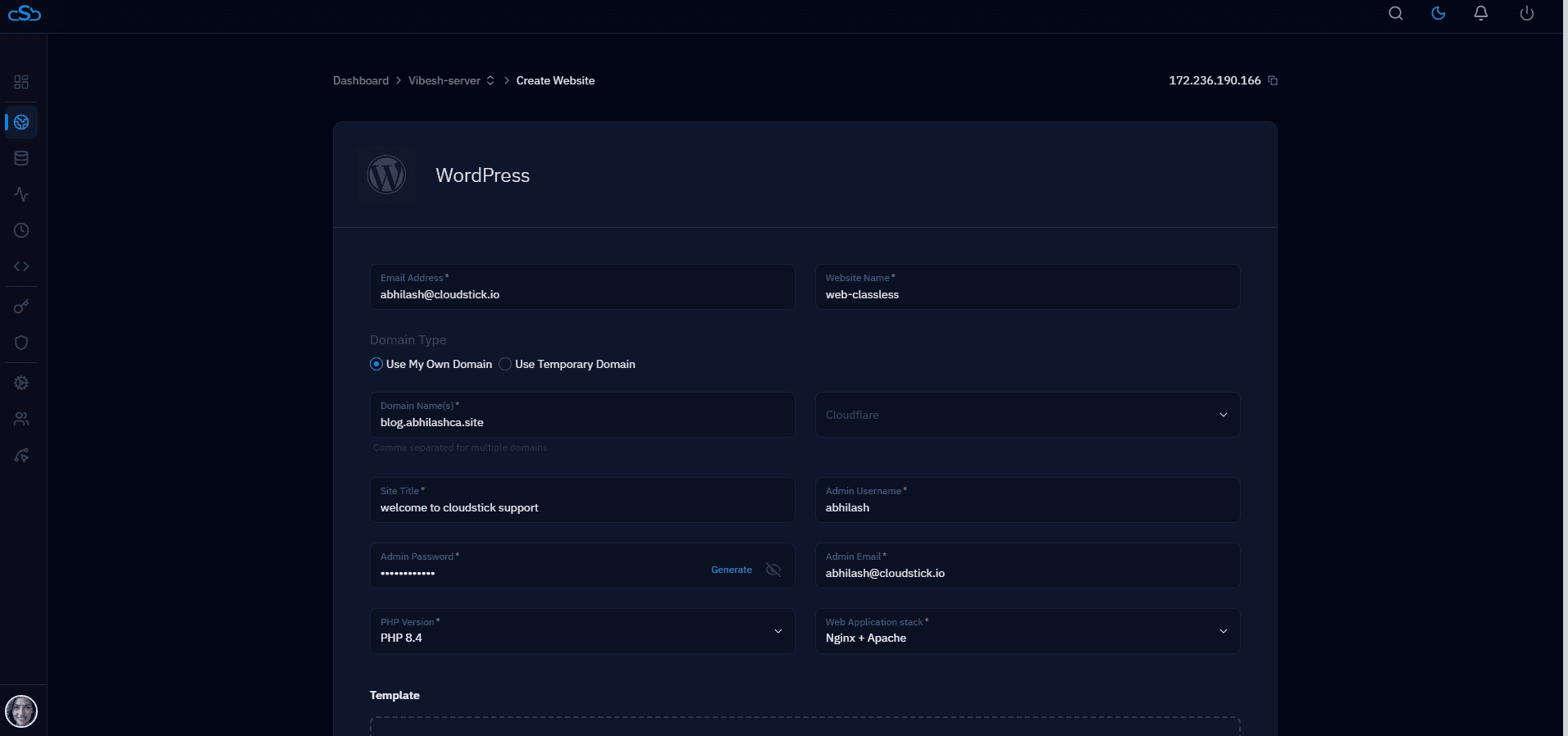
Every step above — LEMP install, database creation, file permissions, Nginx configuration, SSL certificate, and WordPress setup — happens in a single click in CloudStick's WordPress Manager. Connect your VPS to CloudStick, click "Install WordPress," enter your domain and admin credentials, and the dashboard handles the rest in under two minutes.
CloudStick also applies server hardening (UFW firewall, Fail2ban, SSH key auth) automatically at server connection time — steps this guide doesn't cover but that are essential for production. The manual steps above teach you how it works. CloudStick is how you do it at scale without repeating them for every new site or server.