How to Keep a Node.js App Running with PM2 and Startup Scripts

%203.png&w=256&q=75)
The three ways a Node app dies
A Node.js process in production dies in exactly three ways, and each one needs a different defense. First, it crashes: an unhandled exception or promise rejection reaches the event loop, Node prints a stack trace, and the process exits. Second, it runs out of memory: a slow leak grows the heap for days until V8 aborts or the kernel's OOM killer picks your process as the sacrifice. Third, the server reboots: a kernel update, a provider maintenance window, or a plain power cycle — and everything that was running is gone.
PM2 covers all three, but with three separate mechanisms, and mixing them up is how sites stay down at 3 a.m. Autorestart covers crashes: the daemon watches your process and respawns it the moment it exits. A memory ceiling covers leaks: max_memory_restart recycles the process before the kernel has to. And a systemd startup script plus a saved process list covers reboots: the OS starts PM2 at boot, and PM2 resurrects your apps from a dump file. Running node server.js in an SSH session covers none of them — the process dies with the session. The rest of this guide builds each layer in order.
Start the app with the right restart policies
Install PM2 globally and start the app with a name and a memory ceiling from day one:
Autorestart is on by default — if the process exits for any reason, PM2 respawns it immediately, which is the crash defense done. The flag worth adding explicitly is --max-memory-restart 300M: when the process crosses that threshold, PM2 gracefully restarts it. This is not a fix for a memory leak, it is a controlled failure mode — a two-second restart you choose instead of an OOM kill you don't. Size it to your app's real footprint plus headroom; check pm2 ls after a day of traffic to see what normal looks like. If your app crash-loops on boot (say, the database isn't up yet), PM2 stops retrying after 15 rapid failures by default; --exp-backoff-restart-delay=100 makes retries back off exponentially instead of hammering.
Codify it in ecosystem.config.js
Flags typed into a terminal are configuration you will forget. An ecosystem file puts the whole process definition in version control:
The two lines that change behavior are instances and exec_mode. In cluster mode, PM2 uses Node's cluster module to run one process per CPU core (instances: 'max'), all sharing the same port with requests load-balanced across them — a 4-core VPS goes from using one core to using four with zero code changes. Cluster mode also unlocks pm2 reload api, which restarts processes one at a time so the app never fully goes down during a deploy. The caveat: your app must be stateless across processes. In-memory sessions or caches live in one worker and vanish from the others, so move that state to Redis before turning cluster mode on. With max_memory_restart in the ecosystem file, note the limit applies per process — four instances at 300M can total 1.2 GB.
Survive reboots with pm2 save and pm2 startup
Everything so far dies with the server. Reboot survival takes two commands that only work as a pair. First, pm2 startup generates a systemd unit; on Ubuntu 24.04 you can name the init system explicitly:
Run the printed sudo line exactly as shown — it writes a unit file at /etc/systemd/system/pm2-deploy.service and enables it. The unit is worth reading once: it runs as your user (-u deploy), sets PM2_HOME to /home/deploy/.pm2, and its ExecStart calls pm2 resurrect, which reads the dump file and restarts every process recorded in it; ExecReload maps to pm2 reload all and ExecStop to pm2 kill. That dump file is what pm2 save writes — a snapshot of the processes running right now, with their names, paths, and options. At boot, systemd starts the PM2 daemon, the daemon resurrects the snapshot, and your app is back before you can SSH in. Re-run pm2 save whenever the process list changes: after adding an app, deleting one, or changing instance counts.
Two mistakes here cause almost every "PM2 didn't come back after reboot" report. First, run pm2 startup as the user who owns the processes and then execute the exact sudo line PM2 prints — it encodes that user (-u deploy --hp /home/deploy) into the unit. Running the whole thing as root registers root's empty process list instead of yours. Second, pm2 startup alone resurrects nothing: it only starts the daemon. If you never ran pm2 save, the dump file is empty or stale, and after a reboot PM2 comes up with zero processes. Startup script + save, always as a pair.
Verify with a real reboot — and rotate your logs
Do not trust the setup until you have watched it survive an actual reboot — a maintenance window at your provider is the wrong time to find out. Run sudo reboot, wait a minute, SSH back in, and check pm2 ls: every app should show status online with an uptime measured in seconds, and systemctl status pm2-deploy should report active. If the list is empty, check that the dump file exists (ls ~/.pm2/dump.pm2) and that the systemd unit points at your user, not root — those two cover nearly every failure.
The last silent killer is disk space. PM2 appends stdout and stderr to files under ~/.pm2/logs/ forever — a chatty app can fill a 25 GB disk in months, and a full disk takes down everything, not just Node. The pm2-logrotate module fixes it in four commands:
That rotates any log file at 10 MB, keeps 14 rotated files, and gzips the old ones. The module runs inside PM2 itself, so it survives reboots along with everything else — but run pm2 save once more after installing it, so it lands in the dump file too.
Watch memory with pm2 monit — and next steps
pm2 monit opens a live terminal dashboard: per-process CPU and memory on the left, streaming logs on the right. Watch it for a few minutes under real traffic and you learn things pm2 ls can't tell you — whether memory climbs steadily (a leak your 300M ceiling will keep truncating) or plateaus (normal), and whether one cluster worker is doing all the work. For history rather than a live view, pm2 describe api shows restart counts and uptime; a restart counter that climbs by itself is a crash loop you haven't noticed yet, and its stack trace is waiting in ~/.pm2/logs/api-error.log.
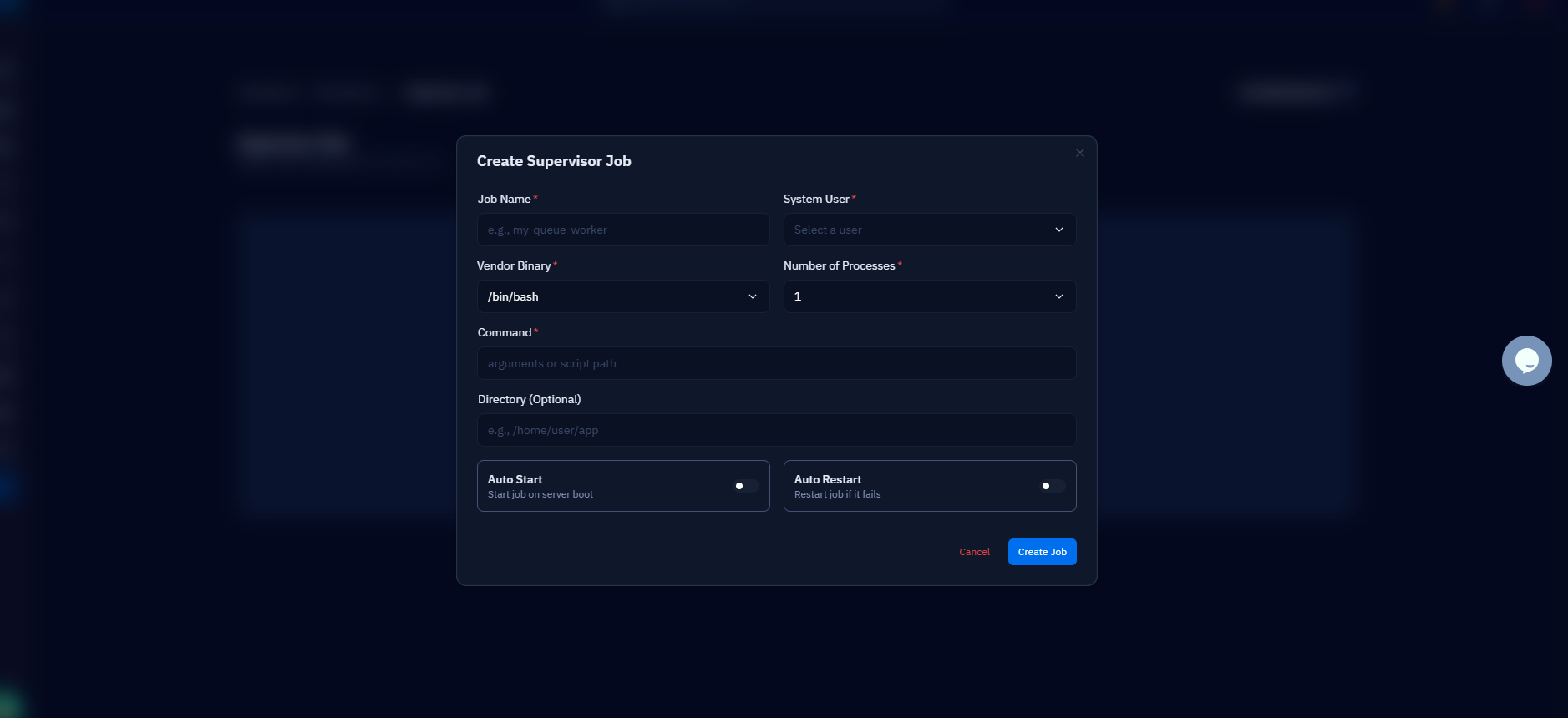
Worth knowing if your team standardizes on a dashboard instead of a terminal: CloudStick servers ship with Supervisord Management built in, which fills the same role as PM2 for teams that prefer Supervisor — you define the command, user, and autorestart policy in the dashboard, and Supervisor keeps the process alive and restarts it at boot without any pm2 startup dance. Paired with a proxy web application, where nginx-cs terminates TLS and forwards to your app's port, it means a Node service can be supervised, proxied, and monitored without SSH. Either tool is correct; the failure mode is using neither.
Your checklist from here: start the app through the ecosystem file, run pm2 startup systemd and execute the printed sudo line, pm2 save, install pm2-logrotate, then schedule one deliberate reboot and watch pm2 ls come back online on its own. Thirty minutes of setup, and the three ways a Node app dies — crash, leak, reboot — all become events your server handles while you sleep.