How to Keep WordPress, Plugins, and Themes Updated Automatically

%203.png&w=256&q=75)
Outdated plugins and themes are the number one cause of WordPress compromises — not weak passwords, not server misconfiguration, not clever zero-days. The overwhelming majority of hacked WordPress sites analyzed by security firms trace back to a known, already-patched vulnerability in a plugin or theme the site owner simply never updated. The fix is not "remember to check for updates every week." Nobody does that reliably, and agencies managing dozens of client sites definitely don't. The fix is a disciplined auto-update strategy paired with a safety net that makes a bad update trivially reversible, so you can update aggressively without fear.
WordPress Core's Built-In Auto-Update Behavior
WordPress core has shipped automatic background updates since version 3.7, and by default it already handles more than you might think. Minor core releases — the maintenance and security releases like 6.5.1 or 6.5.2 — are applied automatically with no configuration required. This has been true out of the box for over a decade, and it's the reason most WordPress installs stay patched against critical core vulnerabilities without any admin ever touching the dashboard.
Major version updates (6.4 to 6.5, for example) are treated differently — they can introduce breaking changes, so WordPress does not auto-apply them by default. You control this behavior with the WP_AUTO_UPDATE_CORE constant in wp-config.php:
For most production sites, leaving the default 'minor' behavior in place is the right call — you get every security patch automatically, and major version jumps stay a deliberate, tested decision rather than something that happens to you overnight.
Enabling Auto-Updates for Individual Plugins and Themes
Since WordPress 5.5, every plugin and theme in the dashboard has a per-item auto-update toggle — no plugin or code required. Go to Plugins → Installed Plugins, and in the far-right column of each row you'll see an Enable auto-updates link. Click it and WordPress will silently update that plugin whenever a new version is published, checked roughly twice daily via WP-Cron. The same control exists under Appearance → Themes for each installed theme.
This dashboard toggle is the right tool for solo site owners and small teams managing a handful of sites. Its limitation is scale: clicking "Enable auto-updates" on 40 plugins across 15 client sites is tedious and easy to forget on new installs. That's where WP-CLI and cron come in for anyone managing WordPress at agency scale.
Full Automation with WP-CLI and a Cron Job
On a managed server, the most reliable pattern is a scheduled WP-CLI command rather than relying on WordPress's internal WP-Cron, which only fires on page load and can go idle on low-traffic sites. WP-CLI gives you direct, scriptable control over updates:
Wrap these into a nightly cron entry and every site on the server stays current without anyone touching a dashboard:
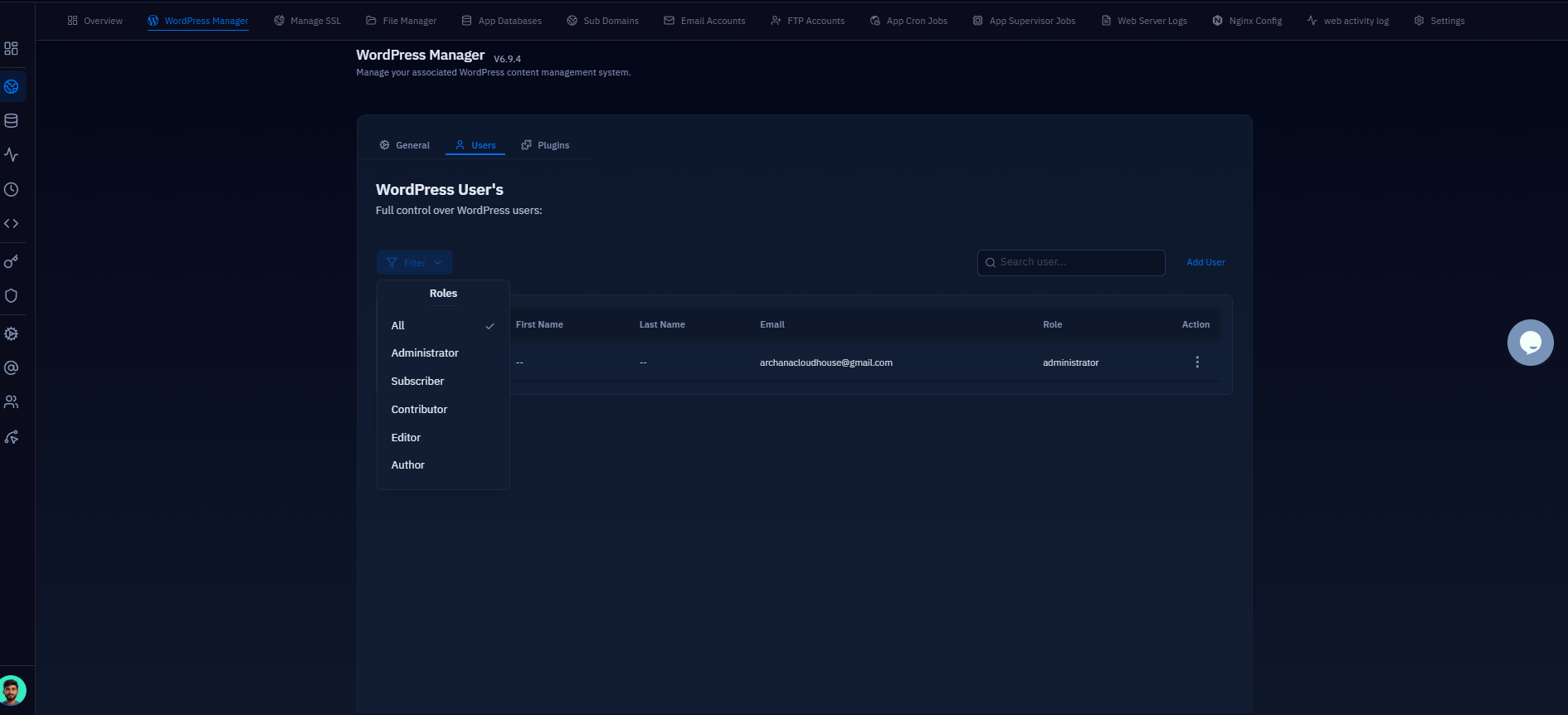
CloudStick's Cron Job management makes this practical without SSH access at all — you add the WP-CLI command as a scheduled job directly from the server panel's Cron section, set the interval, and CloudStick handles execution and logging on the server's crontab. For an agency running the same update script across dozens of sites, this turns a manual chore into a set-once-and-forget schedule per site.
Why Auto-Updates Need a Backup Safety Net First
Auto-updates are only safe to run unattended if a bad update is trivially reversible. Occasionally a plugin update ships a regression — a fatal PHP error, a broken checkout flow, a conflict with another plugin — and if that happens at 2:30 AM with nobody watching, you need a way back that doesn't involve manually reconstructing the site from memory. That's the actual point of pairing auto-updates with backups: the update itself becomes low-risk because a bad outcome costs you a restore, not a rebuild.
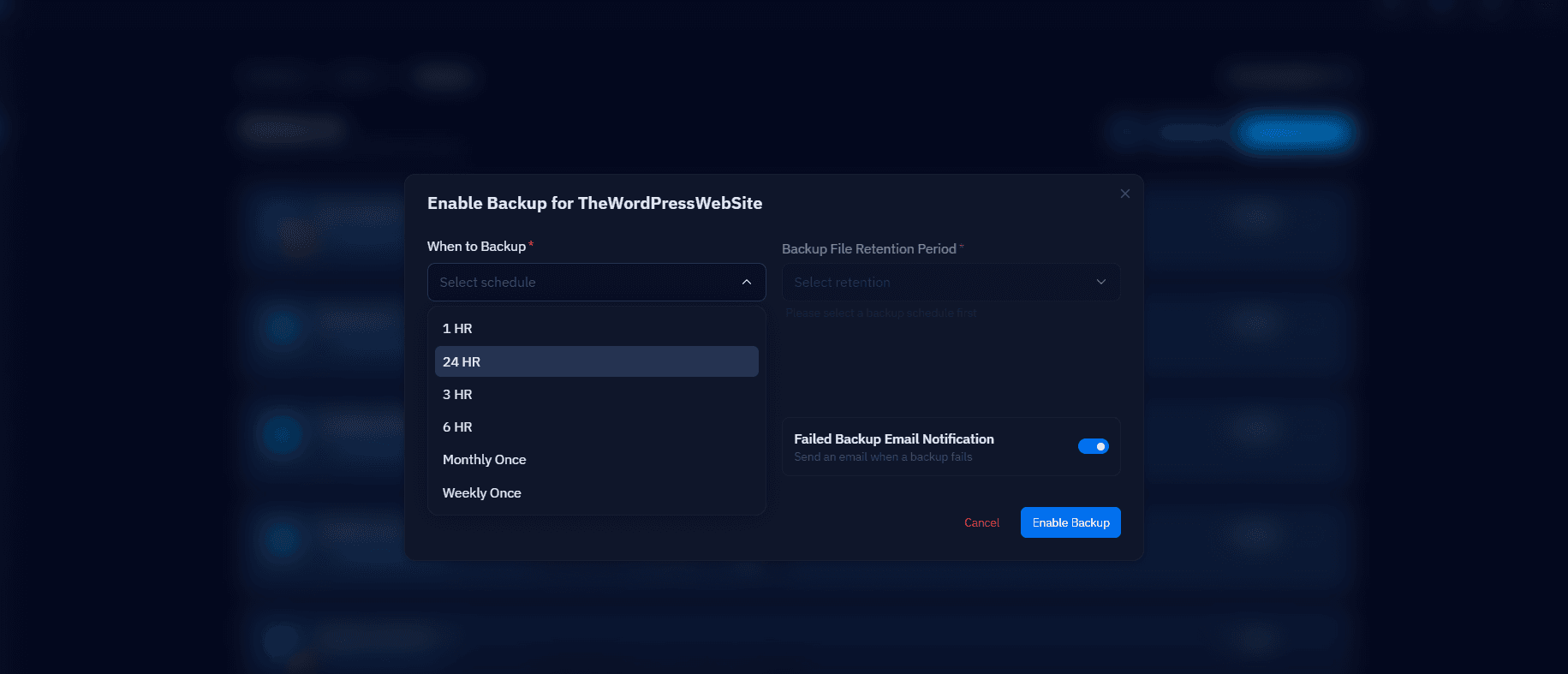
Never enable unattended plugin or theme auto-updates without a backup schedule running ahead of them. CloudStick's backup scheduling lets you configure automated daily backups with a defined retention window, so if a scheduled update breaks a site overnight, you restore the previous day's snapshot in minutes instead of debugging a broken production site under pressure.
A Staging-First Approach for Critical Sites
Blind auto-updates are the wrong call for a small subset of sites: complex WooCommerce stores with custom checkout logic, membership sites with heavily customized plugins, or anything where a broken update means lost revenue rather than a cosmetic glitch. For these, run updates through a staging copy first rather than applying them directly to production.
A practical staging workflow: clone the site, run wp plugin update --all and wp theme update --all against the clone, click through the critical paths — checkout, login, key custom pages — and only then apply the same updates to production. This is more overhead than pure auto-updates, so reserve it for sites where the cost of downtime genuinely outweighs the cost of the manual step. Everything else should just run on autopilot with the backup safety net in place.
Recommended Update Cadence Checklist
Put these in place once and the update problem stops being a recurring task:
Daily: automated backup runs before the update window, and a nightly WP-CLI cron job updates plugins and themes on standard sites.
Weekly: review the update log for any failed or skipped updates, and manually check plugins that are excluded from auto-updates because they need testing.
Monthly: apply pending WordPress core major-version updates after a staging test, and review whether any plugin has been abandoned by its developer (no updates in 12+ months is a red flag worth replacing).
Per critical site: staging clone, verify, then promote — never auto-update complex e-commerce or membership sites blind.
Always: keep WP_AUTO_UPDATE_CORE set to at least 'minor' so core security releases are never missed, even on sites you've otherwise excluded from full automation.

