How to Point a Domain to Your WordPress Server

%203.png&w=256&q=75)
How DNS Routes Traffic to Your Server
Connecting a domain to your WordPress VPS requires two separate configurations: DNS records that tell the internet where your server is, and an Nginx server block that tells your server which site to serve for that domain. Both must be correct — getting DNS right but not configuring Nginx means visitors hit your server's default page rather than WordPress.
The DNS propagation timeline is 5–30 minutes with Cloudflare, 1–4 hours with most registrars, and up to 48 hours in rare cases (when you're changing nameservers). The Nginx configuration is instant. Run dig yourdomain.com +short to confirm DNS has propagated before debugging WordPress.
Setting DNS A Records
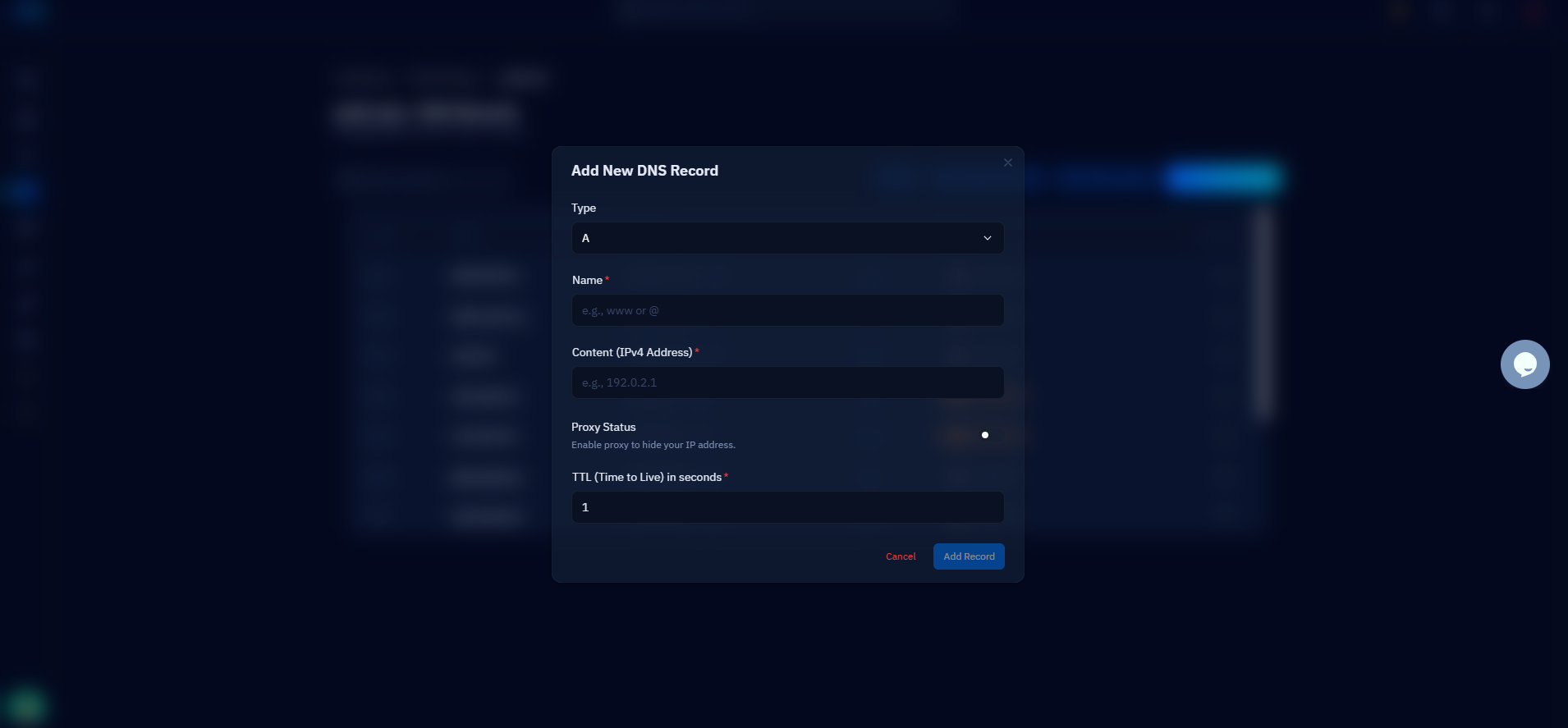
Log into your domain registrar (GoDaddy, Namecheap, Google Domains, etc.) and navigate to DNS management. Create two A records pointing to your VPS IP address:
The @ record handles yourdomain.com (the apex/root domain). The www record handles www.yourdomain.com. Both should point to the same IP. Set TTL to 300 (5 minutes) for initial setup — you can raise it to 3600 after everything works.
Creating an Nginx Server Block for Your Domain
Create a new Nginx config file at /etc/nginx/sites-available/yourdomain.com:
Enable the config and reload Nginx:
Installing SSL with Certbot
Once DNS propagates (confirm with dig yourdomain.com +short returning your server IP), issue a free Let's Encrypt certificate. Certbot also automatically updates your Nginx config to redirect HTTP to HTTPS:
Certbot requires that DNS has already propagated. If you run it before the A records resolve, the ACME challenge will fail and you'll see an error: Challenge failed for domain yourdomain.com. Wait for DNS, then retry.
Using Cloudflare as Your DNS Provider
Cloudflare is the recommended DNS provider for WordPress VPS deployments. Free plan includes global anycast DNS (propagation in 5 minutes instead of hours), DDoS protection, and an optional CDN. Add your domain to Cloudflare, change your registrar's nameservers to Cloudflare's, and create A records in the Cloudflare dashboard.
When using Cloudflare as a proxy (orange cloud enabled), set SSL mode to Full (Strict) in Cloudflare's SSL/TLS settings. This requires a valid certificate on your origin server (installed with Certbot above). Using "Flexible" mode sends unencrypted traffic between Cloudflare and your server — never use it for WordPress. CloudStick's Cloudflare integration configures DNS records automatically when you add a domain, and sets the correct SSL mode without manual configuration.
Pointing Domains Through CloudStick
CloudStick handles both sides of domain configuration from one interface. When you add a website in CloudStick, it creates the Nginx server block, installs PHP-FPM, sets up the document root, and optionally issues SSL — all automatically. If you've connected your Cloudflare account, it also creates the DNS A records in Cloudflare for you.
The manual process in this guide takes 15–20 minutes. The CloudStick version takes under 3 minutes. The underlying server configuration is identical — CloudStick runs the same commands under the hood, but from a dashboard rather than a terminal.