How to Set Up a New WordPress Site in Under 10 Minutes

%203.png&w=256&q=75)
What You Need Before Starting
Three things: a CloudStick account (free at cloudstick.io), a VPS with Ubuntu 24.04 (any provider — DigitalOcean, Vultr, Hetzner, Linode, Contabo), and a domain pointed at your server's IP address. If you don't have DNS configured yet, you can still install WordPress at the server IP and add the domain afterwards — CloudStick handles domain attachment separately from the initial installation.
Your VPS must be a fresh Ubuntu 24.04 install with root SSH access. CloudStick installs its agent (under 50MB RAM) and the full LEMP stack. Existing server? CloudStick can be added to servers that already have Nginx — it detects and works with existing configurations rather than overwriting them.
Step 1 — Add Your Server to CloudStick
Log into your CloudStick dashboard and click Add Server. Enter your server's IP address and the root SSH password or key. CloudStick SSHes into the server and runs the installation script automatically — you watch a live log of the process. The script installs Nginx, MySQL 8.0, PHP 8.3-FPM, certbot, UFW firewall, and CloudStick's management agent.
Server provisioning takes 3–5 minutes depending on the cloud provider's package mirrors. Once complete, the server appears as Active in your CloudStick dashboard. You won't need SSH again unless you specifically choose to use it — everything else happens through the dashboard.
Step 2 — Create a New Website
Click Add Website on your server. Enter your domain name (e.g. yourdomain.com), select PHP version (8.3 recommended), and choose the web server (Nginx). CloudStick creates the Nginx server block, sets up the document root at /var/www/yourdomain.com, creates a dedicated PHP-FPM pool, and creates a MySQL database and user — all in under 60 seconds.
Step 3 — One-Click WordPress Installation
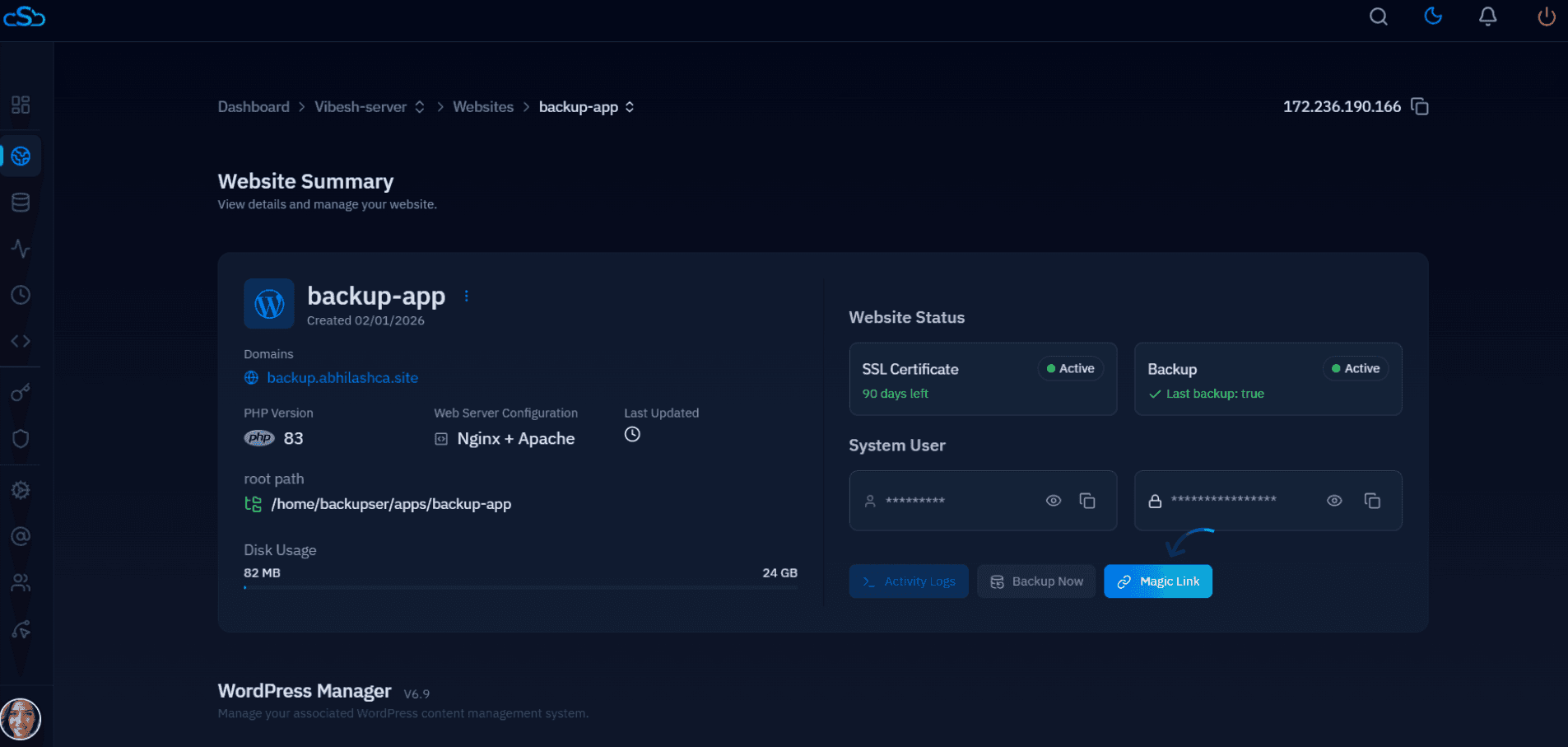
Inside the website you just created, click Install Application and select WordPress. Enter your WordPress admin username, password, and email. CloudStick downloads the latest WordPress, extracts it to the document root, writes wp-config.php with the database credentials it created in Step 2, sets correct file permissions, and completes the WordPress installation — no browser-based installer required.
The installation runs WP-CLI under the hood. If you prefer, you can use WP-CLI directly from the CloudStick terminal access panel without switching to SSH. WP-CLI is pre-installed on every CloudStick-managed server and available from the dashboard.
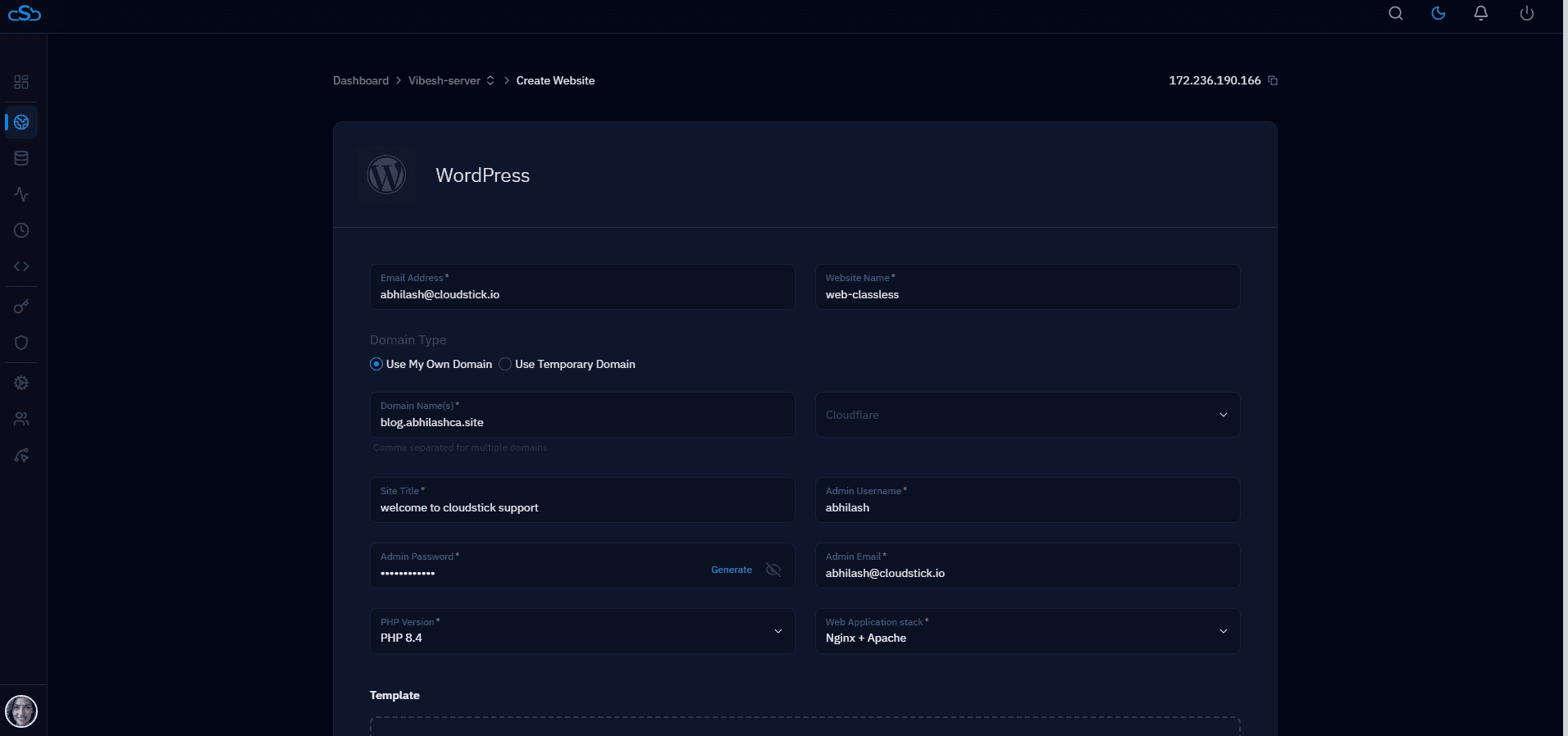
Step 4 — Enable Free SSL
Navigate to SSL under your website and click Issue Certificate. CloudStick runs Certbot, issues a Let's Encrypt certificate for your domain and www subdomain, updates the Nginx config to redirect HTTP to HTTPS, and configures auto-renewal via a cron job. The entire process takes under 30 seconds.
CloudStick also supports wildcard SSL certificates (e.g. *.yourdomain.com) using DNS validation. This is useful if you plan to add subdomains later, or if you're hosting multiple WordPress installs on subdomains. Enable wildcard SSL from the same SSL panel — it requires Cloudflare DNS integration for automatic DNS validation.
Step 5 — Log Into Your New WordPress Site
Navigate to https://yourdomain.com/wp-admin and log in with the credentials you entered during installation. Your WordPress site is live on HTTPS, running on Nginx + PHP 8.3-FPM + MySQL 8.0, with OPcache enabled and auto-renewing SSL.
Total elapsed time from clicking "Add Server" to a live WordPress site with SSL: typically 7–10 minutes. The manual equivalent — installing Nginx, MySQL, PHP-FPM, downloading WordPress, configuring wp-config.php, setting up Nginx server blocks, and running Certbot manually — takes 30–45 minutes for an experienced developer. CloudStick does the same work without the terminal time investment.