How to Run WordPress Cron Reliably with a Real Cron Job

%203.png&w=256&q=75)
Why WP-Cron misses schedules
WP-Cron is not cron. Despite the name, WordPress ships with a PHP pseudo-scheduler that only wakes up when a visitor loads a page: on every request, WordPress checks whether any scheduled event is overdue and, if so, fires an internal loopback request to wp-cron.php to run it. No visitors means no requests, and no requests means nothing runs — scheduled posts stay unpublished, backup plugins skip their window, and WooCommerce follow-up emails sit in the queue until someone happens to visit the site.
Busy sites suffer the opposite problem. When thousands of requests arrive per minute, every single one pays the small cost of the scheduler check, and under race conditions several requests can attempt to spawn the same wp-cron.php run at once. WordPress uses a transient-based lock to soften this, but on high-concurrency sites with object caching quirks the lock itself becomes a source of duplicated or stuck events. Either way — too little traffic or too much — the schedule you configured is only an approximation of what actually executes.
WP-Cron guarantees an event will run no earlier than its scheduled time — it never guarantees the event will run at that time. A real system cron job is how you close that gap.
Disable WP-Cron in wp-config.php
The first step is to stop WordPress from triggering the scheduler on page loads. Add the DISABLE_WP_CRON constant to wp-config.php, above the line that says stop editing:
Two important clarifications. This constant does not disable scheduled events — plugins can still register hooks, and the internal event queue keeps filling as normal. It only stops page visits from spawning wp-cron.php, which means from this moment nothing will run until you provide an external trigger. Do the next step in the same sitting: a site with DISABLE_WP_CRON set and no real cron job is worse off than before, because now even a lucky page visit will not rescue an overdue event.
Add a real cron job every five minutes
The cleanest trigger is WP-CLI, because it runs events in a proper PHP CLI process with no web-server timeout and prints real errors when something fails. Edit the crontab of the system user that owns the site — not root — with crontab -e and add a five-minute schedule:
The --due-now flag runs every event whose scheduled time has passed and exits — it never runs anything early. Five minutes is the sweet spot for most sites: tight enough that scheduled posts and email queues feel instant, loose enough that overlapping runs are rare. If you cannot use WP-CLI on the server, hit wp-cron.php over HTTP instead. Either of these lines does the job:
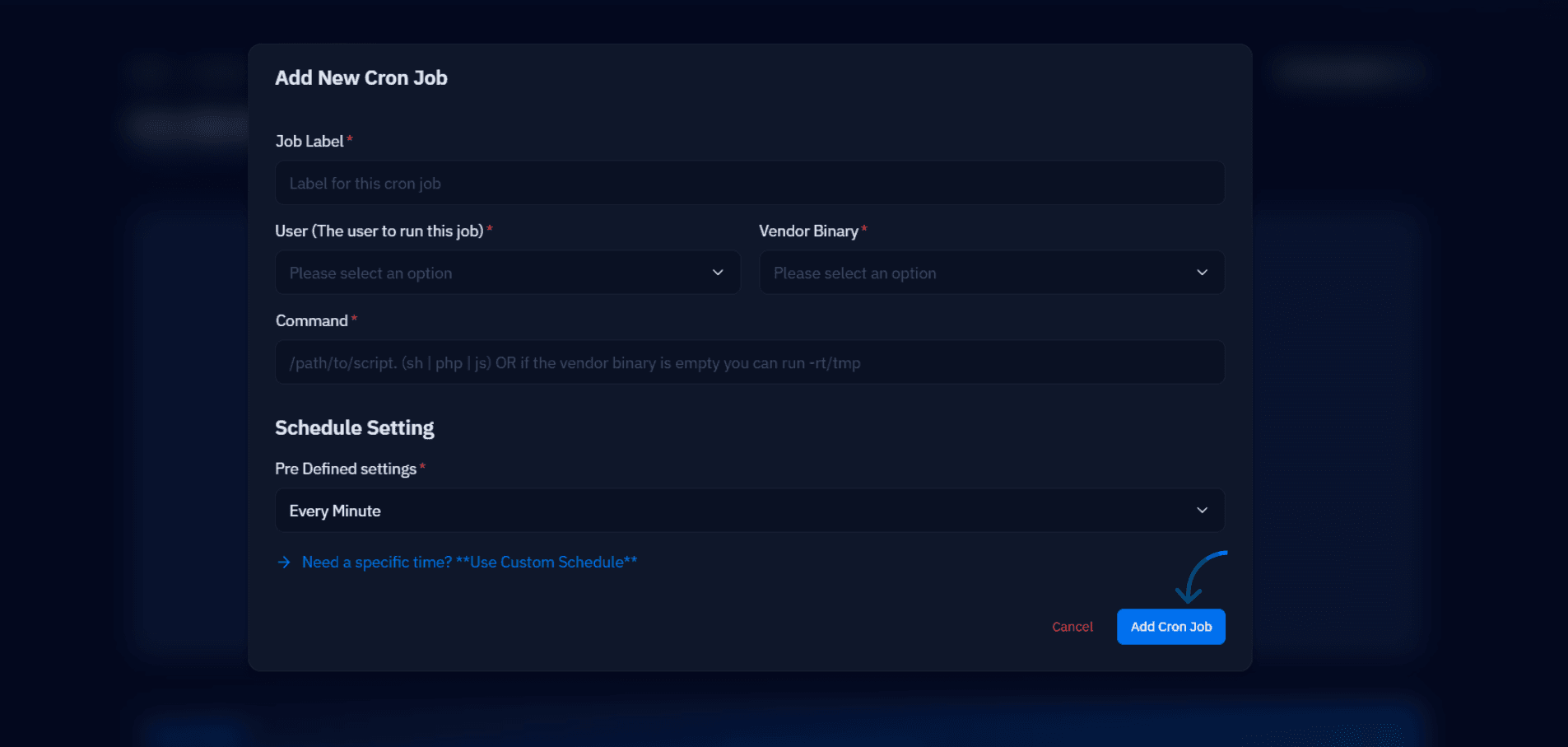
Always use absolute paths in crontab entries — cron runs with a minimal environment and will not find wp or php the way your login shell does. If wp is not on cron's PATH, spell it out as /usr/local/bin/wp. On a CloudStick server this whole step is a form instead of a file edit: every website has a CronJobs manager in the dashboard on all plans, so you pick the site user, paste the command, choose every five minutes, and save.
Multisite needs extra care
On a multisite network, each site keeps its own event queue, so a single wp cron event run against the network root only drains the main site. Every subsite needs its own trigger. The standard pattern is one crontab line that loops over the network with WP-CLI:
The --url flag tells WP-CLI which site context to load before running events. For networks with dozens of subsites, watch how long a full pass takes in the log; if it creeps toward your five-minute interval, widen the schedule or split the network across two staggered entries so runs never overlap.
Verify events actually run
Verification takes two minutes and saves you from discovering a broken setup weeks later. List the event queue and read the next-run column:
Wait ten minutes, run the list again, and confirm that events which were due have moved to their next occurrence instead of showing now or a negative time. Overdue entries that never clear mean your trigger is not firing — check the log file from your crontab line, then run the exact command by hand as the site user and read the error. A quick grep CRON /var/log/syslog also confirms whether cron attempted the job at all. Once the queue advances on schedule, the fix is working.
Keep it reliable long term
Make the setup part of your launch checklist, not a one-off fix. Every new WordPress site you deploy should go live with DISABLE_WP_CRON set and the five-minute trigger installed on day one — retrofit it and you inherit a backlog of overdue events that all fire at once on the first real run. Keep the log file from your crontab entry under rotation, and skim it whenever a plugin update changes scheduling behavior. When you migrate a site to a new server, the crontab entry is the piece everyone forgets to move; put it in your migration notes next to the DNS records.
If you manage servers through CloudStick, the pieces line up neatly: the one-click WordPress installer gets the site running, and the per-website CronJobs manager holds the trigger where the whole team can see it — visible in the dashboard rather than buried in a crontab only one engineer knows about. Wherever you host, the destination is the same: a queue that drains every five minutes, a log that proves it, and scheduled posts that publish exactly when you told them to.

