How to Send WordPress Emails Reliably (SMTP Setup)

%203.png&w=256&q=75)
Why wp_mail() fails silently
WordPress emails vanish because wp_mail() does not really send email — it hands the message to PHP's mail() function, which drops it on whatever local mail program the server happens to have, with zero authentication. The receiving mail server sees a message claiming to be from your domain, delivered by a random VPS IP that has never proven it is allowed to send for that domain. Gmail and Outlook respond the only way they can: junk folder, or outright rejection you never see.
The failure is silent by design. wp_mail() returns true the moment the local mailer accepts the message — it has no idea what happens downstream. Your checkout page says the order confirmation was sent; the customer's inbox says otherwise. Password resets, new-user notifications, contact form submissions, and WooCommerce receipts all ride this same broken pipe. The fix is to stop using unauthenticated local mail entirely and send through an SMTP server that logs in with a username and password, so receiving servers can verify the message came from someone authorized to send it.
Option 1: point WP Mail SMTP at real credentials
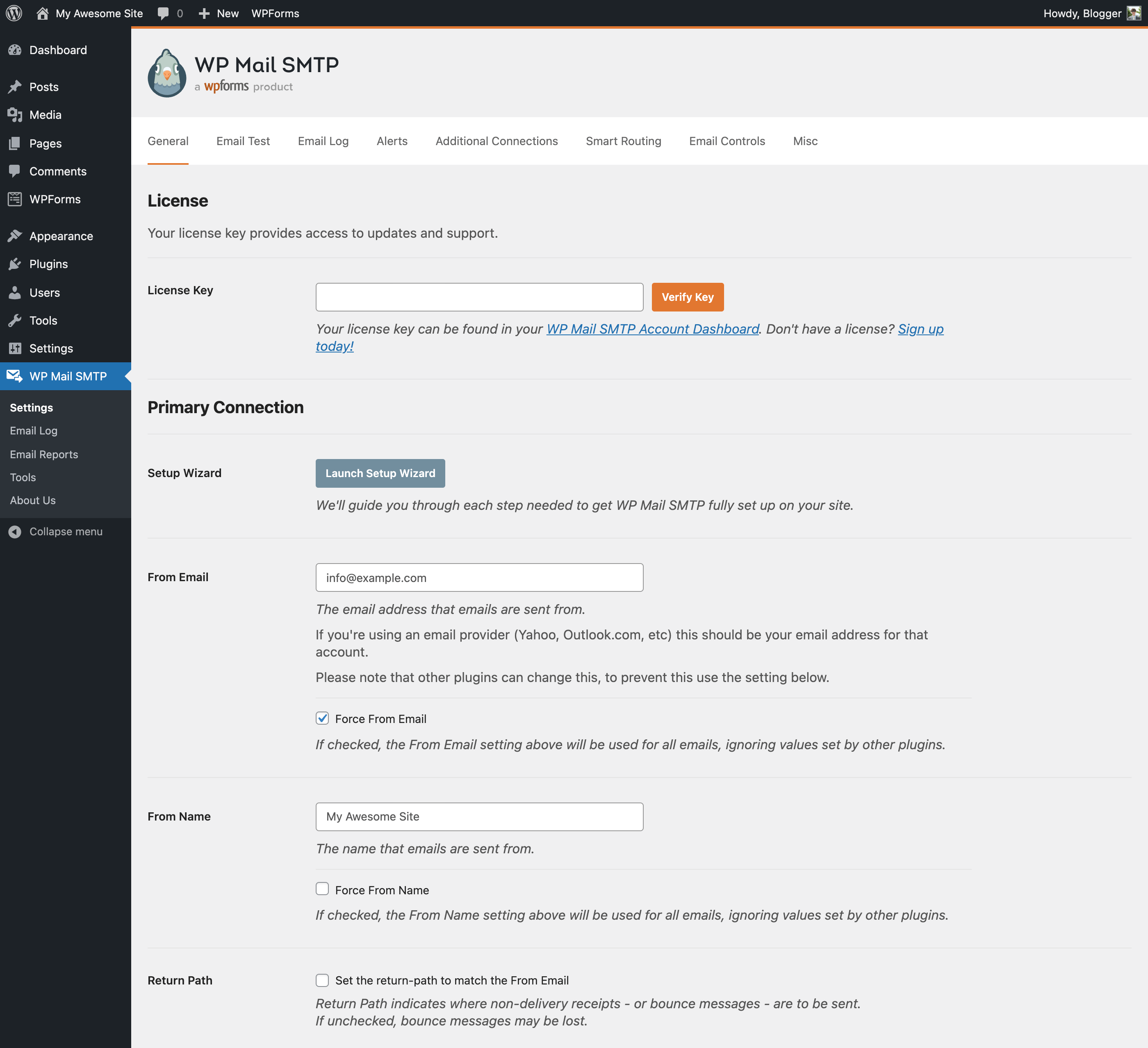
The fastest fix is a plugin like WP Mail SMTP (or FluentSMTP / Post SMTP — they all do the same job): it reroutes every wp_mail() call through PHPMailer's SMTP transport instead of PHP mail(). Install it, choose Other SMTP as the mailer, and fill in four settings: SMTP Host — your mail server, e.g. mail.example.com; Port — 587, the standard submission port; Encryption — TLS (STARTTLS on 587; choose SSL only if you use port 465); and Authentication — on, with the full mailbox address as username and its password.
Where do those credentials come from? Any real mailbox on your domain works. On a CloudStick server this takes about a minute: open the server panel, create a mailbox like orders@yourstore.com under the Email section, and CloudStick provisions the SMTP endpoint and credentials for you — the same dashboard's WordPress manager handles the WordPress install itself, so the whole chain from site to sending mailbox lives in one place. Set the plugin's From Email to that exact mailbox, save, and every wp_mail() call now authenticates before it sends.
Option 2: keep credentials in wp-config.php, not the database
Typing an SMTP password into a plugin settings page stores it in the wp_options table — readable by any plugin with database access and included in every database export you hand to a developer. The cleaner pattern is to define the settings as constants in wp-config.php. WP Mail SMTP reads these WPMS_* constants natively and locks the corresponding UI fields once they are defined:
Prefer no plugin at all? PHPMailer ships inside WordPress core, and the phpmailer_init action lets you switch it to SMTP from your theme's functions.php or a small mu-plugin: inside the hook, call $phpmailer->isSMTP() and set $phpmailer->Host, Port, SMTPSecure, SMTPAuth, Username, and Password to the same values as above. Same result, one fewer plugin to update.
Constants in wp-config.php survive staging-to-production database pushes. When you clone a site, the cloned database carries the old plugin settings — but wp-config.php is per-environment, so each copy of the site keeps its own SMTP identity and you never accidentally send test emails through the production mailbox.
Option 3: a transactional relay for high-volume stores
A busy WooCommerce store sends thousands of emails a month — order confirmations, shipping updates, abandoned-cart nudges — and at that volume your deliverability depends on IP reputation you do not control from a single VPS. Transactional providers like Amazon SES, Postmark, Brevo, or Mailgun exist for exactly this: they send from warmed, monitored IP pools, give you bounce and complaint reporting, and cost fractions of a cent per message. The wiring is identical to Option 1 — every provider hands you an SMTP hostname, a port (587 with TLS), and a username/password pair, which you drop into WP Mail SMTP or the WPMS_* constants. Many also have dedicated mailer integrations in the plugin that use their HTTP API instead of SMTP, which is faster and survives hosts that block outbound port 587. Rule of thumb: under a few hundred emails a month, your own domain mailbox is fine; past that, or the moment revenue depends on an email arriving, use a transactional relay.
Match your From address, then verify with a test mail
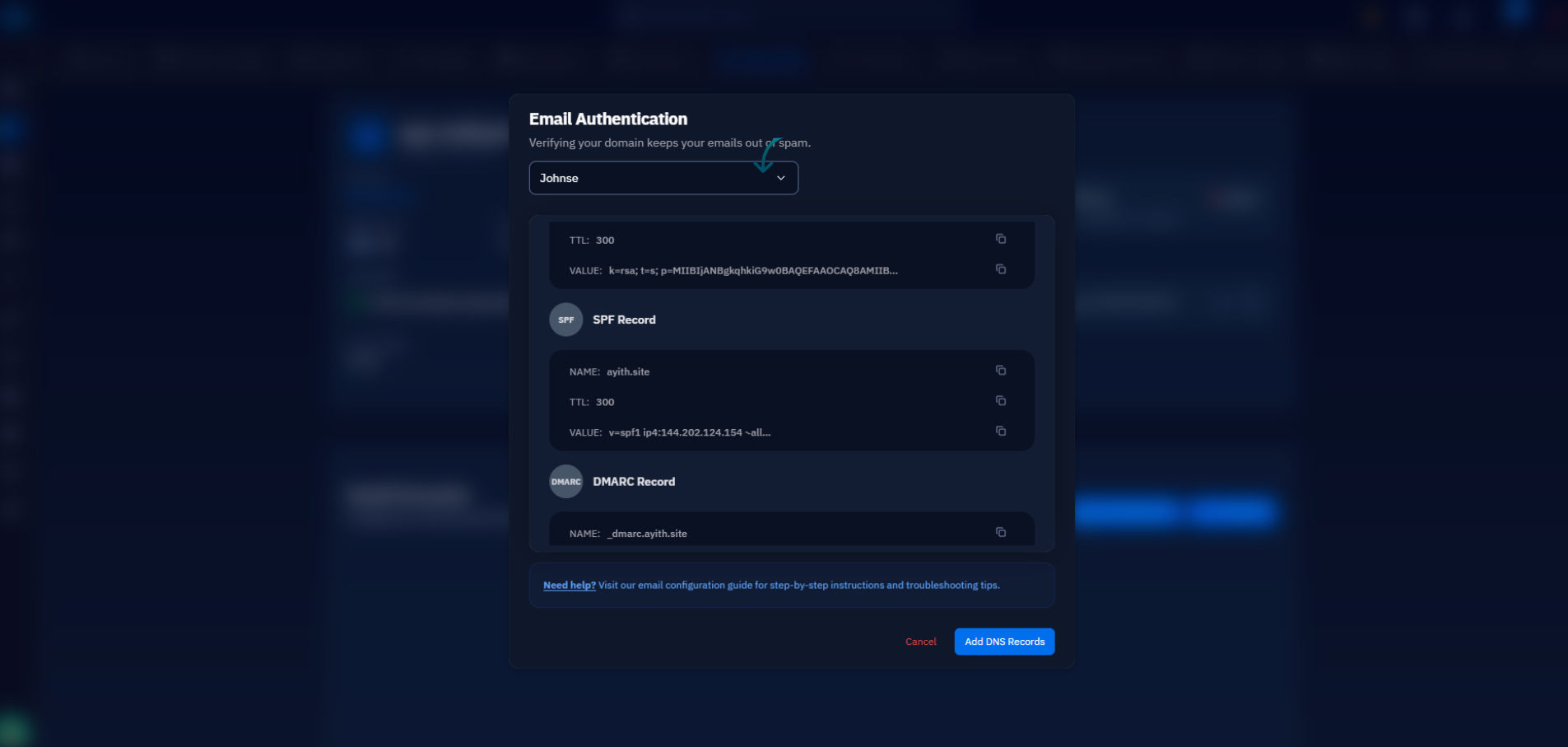
Authenticated SMTP only helps if the From address aligns with the domain that authenticated. If you log in as orders@example.com but send From noreply@gmail.com, DMARC alignment fails and you are back in the spam folder. Keep the From domain identical to the authenticated sending domain, make sure that domain's SPF record includes your mail server or provider (v=spf1 mx include:provider ~all), and publish the DKIM key your mail server or relay gives you.
Then prove it works. Use the plugin's Email Test tab (or trigger a password reset) addressed to a Gmail account, open the received message, choose Show original, and read the Authentication-Results header:
Three passes means receiving servers can verify your mail end to end. A fail on spf means the sending IP is missing from your SPF record; a fail on dkim usually means the DNS TXT record was published under the wrong selector. Fix the record, wait for DNS to propagate, and test again — do not move on until all three pass, because "mostly authenticated" still filters as spam under a strict DMARC policy.
Log failed sends so silence never returns
Even with SMTP configured, sends can still fail — expired password, provider outage, a plugin mangling headers. WordPress fires a wp_mail_failed action whenever PHPMailer throws, and four lines in functions.php or an mu-plugin turn those invisible failures into log entries:
Failures now land in your PHP error log with the SMTP error message and the recipient that bounced — check it after any credential rotation or provider change. WP Mail SMTP's email log feature does the same job with a dashboard UI if you prefer clicking to grepping. Your practical checklist from here: create an authenticated mailbox for the site's domain (one minute in the CloudStick dashboard), point WP Mail SMTP at it over port 587 with TLS, move the password into WPMS_* constants, confirm dkim, spf, and dmarc all pass in a Gmail test, and wire up the wp_mail_failed logger. Five steps, under half an hour, and the phrase "the customer says they never got the email" leaves your support queue for good.

