How to Set Correct File Permissions for WordPress

%203.png&w=256&q=75)
Correct Baseline Permissions
Directories should be 755, files should be 644, and wp-config.php should be 640 or tighter. That is the entire baseline a healthy WordPress install needs. Nothing in WordPress core, in a well-built theme, or in a well-built plugin ever legitimately requires 777.
To understand why these specific numbers matter, remember that Linux permissions are three digits: owner, group, and world (everyone else). A directory permission of 755 means the owning user can read, write, and enter (execute) the directory, while the group and world can only read and enter it — they cannot create or delete files inside. A file permission of 644 means the owner can read and write the file, while group and world can only read it. Nobody but the owner can execute either one as a program, which is exactly what you want for PHP source files sitting on a web server.
This baseline applies uniformly across wp-admin, wp-includes, active and inactive themes, and every installed plugin. There is no folder in WordPress core that needs a looser setting than 755/644 — the one meaningful exception, wp-content/uploads, still only needs write access, not execute permission for scripts, which the next section covers.
Why wp-content/uploads Needs Write Access but Not Execute
The media library, plugin-generated cache files, and some theme customizer assets all write into wp-content/uploads at runtime, so the PHP process needs write access to that directory tree. That is a functional requirement — a directory permission of 755 already grants the owning user (the PHP-FPM process, running as the site's system user) full write access, so 755 is sufficient. You never need 775 or 777 to make uploads work; if uploads are failing, the problem is almost always ownership, not permission bits.
What uploads should never have is execute permission for arbitrary scripts. The directory bit that lets you enter a folder is separate from whether the web server will execute a PHP file placed inside it — that behavior is controlled by the web server and PHP-FPM configuration, not by chmod alone. This is why a properly configured stack disables PHP execution inside the uploads directory at the server level: even if an attacker manages to upload a malicious `.php` file through a vulnerable plugin, the server refuses to run it. Permissions and this kind of execution restriction work together — loose file permissions make it easier to drop a bad file there in the first place, and execution restrictions stop it from doing damage if one gets through.
Files uploaded through the media library (images, PDFs, documents) should land as 644, same as any other file. If you see uploaded files sitting at 666 or 777, that is a sign a plugin or a previous manual fix set an overly permissive umask, and it is worth auditing.
Securing wp-config.php Specifically
wp-config.php holds your database credentials, authentication salts, and secret keys in plain text, which makes it the single most sensitive file in a WordPress install. It should be tighter than the general 644 baseline — 640 is the standard recommendation, restricting read access to the owner and group only, with no world-readable bit at all:
On servers where the PHP-FPM pool runs strictly as the site's own system user (which is the standard per-site isolation model), you can go further and set it to 600 — owner read/write, nothing else — since neither the group nor the world ever needs to open the file. Whichever value you land on, never restore it to 644 or looser after a migration or restore script touches it; many WP-CLI and hosting migration tools reset permissions to their own defaults and it is worth re-checking wp-config.php explicitly afterward.
PREREQUISITE: Before tightening wp-config.php, confirm which system user your PHP-FPM pool actually runs as. Setting the file to 600 owned by the wrong user will lock WordPress out of its own database credentials and take the site down.
The Danger of 777 and How It Gets Introduced
A permission of 777 means read, write, and execute for the owner, the group, and every other user and process on the server — including a compromised process running under a completely different account. On a shared or multi-tenant server, that turns one vulnerable plugin into a doorway for writing, modifying, or executing files anywhere inside that directory tree, regardless of who is supposed to own it. It also defeats the entire point of per-site process isolation: if uploads or wp-content is world-writable, it does not matter that PHP-FPM runs as a dedicated system user, because "world" already includes everyone.
777 rarely gets set on purpose out of malice — it almost always gets introduced by someone trying to fix an unrelated problem the fast way. The three most common paths:
- A plugin installer or update fails with a "permission denied" error, and a forum post tells the user to
chmod -R 777the whole site to make it go away. - A developer testing file uploads locally copies commands from an old tutorial written before shared hosting moved to per-user PHP execution, where looser permissions were sometimes the only workaround.
- An FTP client set to a default of 777 on new uploads, silently propagating world-writable files every time content is pushed to the server.
In every one of these cases the actual fix is almost never a permission problem at all — it is an ownership mismatch, where the file is owned by a different user than the one PHP is running as. Chasing that symptom with 777 papers over the real issue and leaves a much bigger one behind.
Never use chmod 777 — recursively or on a single file — as a fix for a WordPress permission error. It resolves the symptom by removing the security boundary entirely, and on a server with multiple sites it can expose every other tenant's files to whichever process first gets compromised.
Bulk-Fixing Permissions with find + chmod
If permissions have drifted across a site — a common result of manual FTP uploads, old migration scripts, or a previous "fix it with 777" attempt — the reliable way to reset everything is to run find against directories and files separately, since they need different target values:
Run these commands in this order — files last for wp-config.php so the more specific rule is not overwritten by the broader 644 pass. If you use WP-CLI, wp core verify-checksums is a useful follow-up: it flags any WordPress core file that has been modified from its original release, which combined with a permissions reset gives you a clean baseline to work from.
Ownership vs Permissions: chown to the Correct User
Permission bits (755/644/640) only work correctly if the files are also owned by the right user and group. On an isolated hosting setup, every website runs as its own dedicated system user, and PHP-FPM executes as that same user — so the correct owner for a WordPress install is always that site's user, never root, never www-data, and never a different site's user left over from a copy-paste migration.
This is why "permission denied" errors during plugin installs are so often an ownership issue, not a chmod issue: if the files were uploaded by root via a one-off SSH session, or copied in during a migration under a different account, PHP-FPM running as the site user has no write access at all, and no chmod value fixes that until ownership is corrected:
Replace user with the actual system username for that site. Each website provisioned through CloudStick gets its own isolated system user — typically something like cpuser followed by a random string — with correct ownership and default permissions already applied at creation time, so this problem mostly shows up after a manual migration, a bad restore, or a plugin that shells out and creates files as the wrong user.
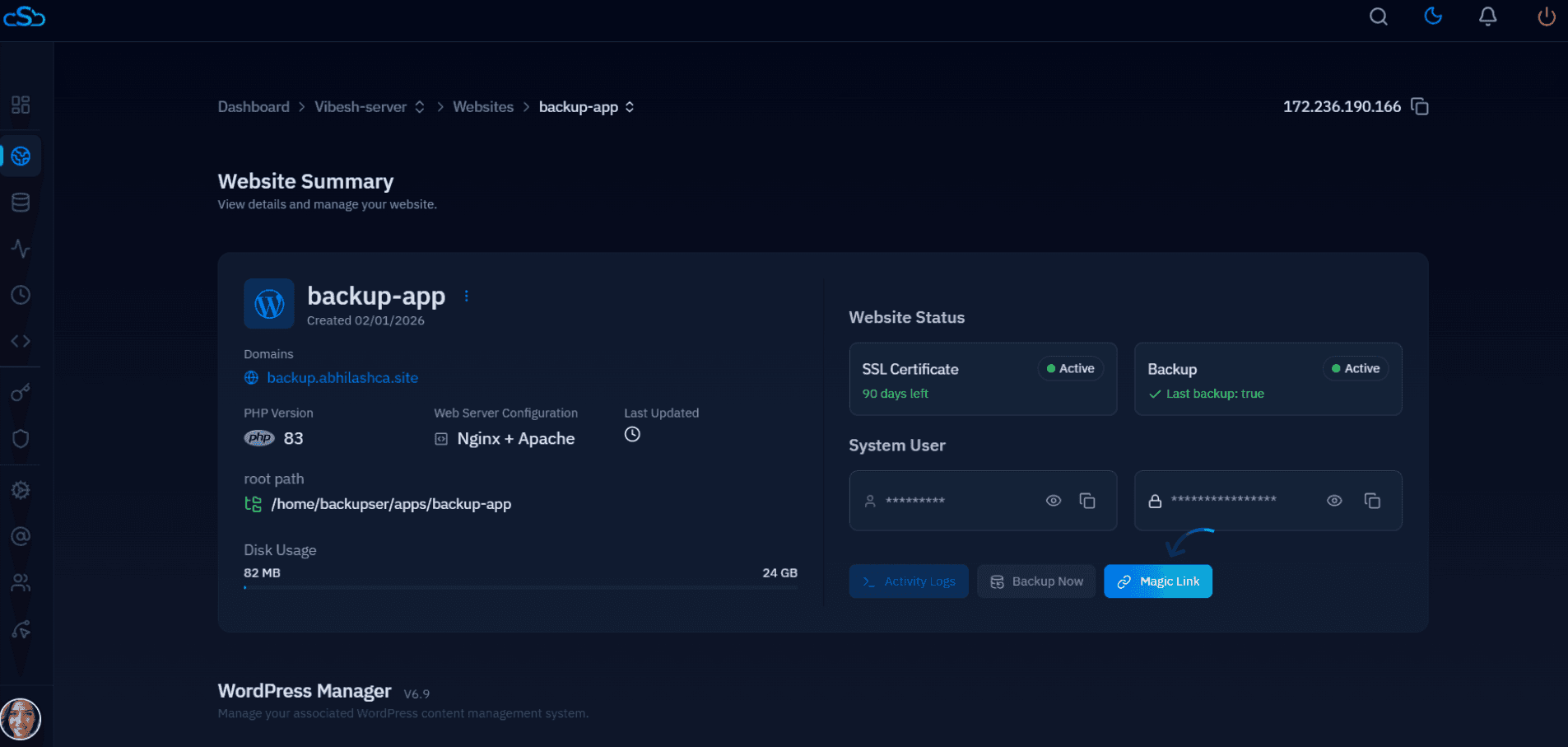
If you are not comfortable running chown and chmod over SSH, CloudStick's Advanced File Manager lets you inspect and correct both ownership and permission bits for any file or folder directly from the dashboard, which is often faster than opening a terminal for a one-off fix and avoids the risk of a stray recursive command hitting the wrong directory.
Permissions Audit Checklist
Run through this list any time you inherit a site, finish a migration, or suspect a plugin has left permissions in a bad state:
- Confirm no directory anywhere under the site root is 777 —
find /home/user/apps/site -type d -perm 777should return nothing. - Confirm no file is world-writable —
find /home/user/apps/site -type f -perm -002should return nothing. - Verify
wp-config.phpis 640 or tighter and not world-readable. - Verify every file and folder is owned by the site's dedicated system user, not root or another site's user.
- Spot-check
wp-content/uploadsfor stray executable files (.php,.phtml) that should never live in a media directory. - Re-run the audit after any bulk restore, migration, or plugin that failed mid-install — these are the events most likely to leave permissions inconsistent.
Getting these numbers right once and re-checking them after major changes is a five-minute task; cleaning up after a compromised, world-writable install is not. Treat 755/644/640 as the non-negotiable default for every WordPress site you manage, and use the audit list above — or CloudStick's Advanced File Manager if you would rather do it visually — as a standing part of your post-migration checklist.