SERVER HARDENING
June 24, 2026

How to Set File and Folder Permissions Correctly on Linux

8 min read
Author
CloudStick Team
Security Specialist
Share this article
Linux File Permissions
CloudStick
Linux File Permissions

Understanding Linux Permissions

Every file and directory on Linux has three permission sets: owner, group, and other. Each set has three bits: read (r=4), write (w=2), and execute (x=1). The combined value is what you set with chmod.

Quick reference: 644 = owner read/write, group/other read-only. 755 = owner read/write/execute, group/other read/execute. 600 = owner read/write only. 777 = everyone can do everything — almost always wrong.

Read the Current Permissions

Use ls -la to list permissions in symbolic notation, or stat for numeric and metadata details:

# List with symbolic permissions
ls -la /var/www/html/
# Example output:
-rw-r--r-- 1 www-data www-data 4096 Jun 24 index.php
# Breakdown: -rw-r--r--
# - = file (d = directory)
# rw- = owner: read+write
# r-- = group: read only
# r-- = other: read only
# Get numeric permission with stat
stat -c "%a %n" /var/www/html/index.php
# Output: 644 /var/www/html/index.php

chmod and chown Commands

chmod changes permission bits; chown changes the owner and group. Use -R to apply recursively to a directory tree:

# Set permissions on a single file
chmod 644 /var/www/html/index.php
# Set permissions recursively on a directory
chmod -R 755 /var/www/html/
# Change owner and group
sudo chown www-data:www-data /var/www/html/uploads/
# Change owner recursively
sudo chown -R deploy:www-data /var/www/mysite/
# Symbolic notation: add execute for owner
chmod u+x script.sh

Web Server File Permissions

For WordPress and general web applications running behind Nginx with PHP-FPM, the correct permission model is:

# Set owner to deploy user, group to www-data (nginx/php-fpm user)
sudo chown -R deploy:www-data /var/www/mysite/
# Files: 644 (owner rw, group/other r)
find /var/www/mysite/ -type f -exec chmod 644 {} \;
# Directories: 755 (owner rwx, group/other rx)
find /var/www/mysite/ -type d -exec chmod 755 {} \;
# WordPress uploads dir: 775 (php-fpm needs to write)
chmod 775 /var/www/mysite/wp-content/uploads/

Never set web application files to 777. The common excuse is "it fixed a permissions issue" — but 777 means any process on the server can write to those files, including a compromised web process from another site on the same server.

Find Files with Bad Permissions

Use find to locate files with dangerous permissions across your server:

# Find world-writable files (everyone can write — dangerous)
find / -xdev -type f -perm -0002 2>/dev/null
# Find world-writable directories
find / -xdev -type d -perm -0002 2>/dev/null
# Find SUID/SGID files (run with owner privileges)
find / -xdev \( -perm -4000 -o -perm -2000 \) -type f 2>/dev/null
# Find files owned by no one (orphaned)
find / -xdev \( -nouser -o -nogroup \) 2>/dev/null

TIP: The -xdev flag prevents find from crossing filesystem boundaries — important on servers with mounted remote filesystems or Docker volumes that would otherwise be included in the scan.

CloudStick Advanced File Manager

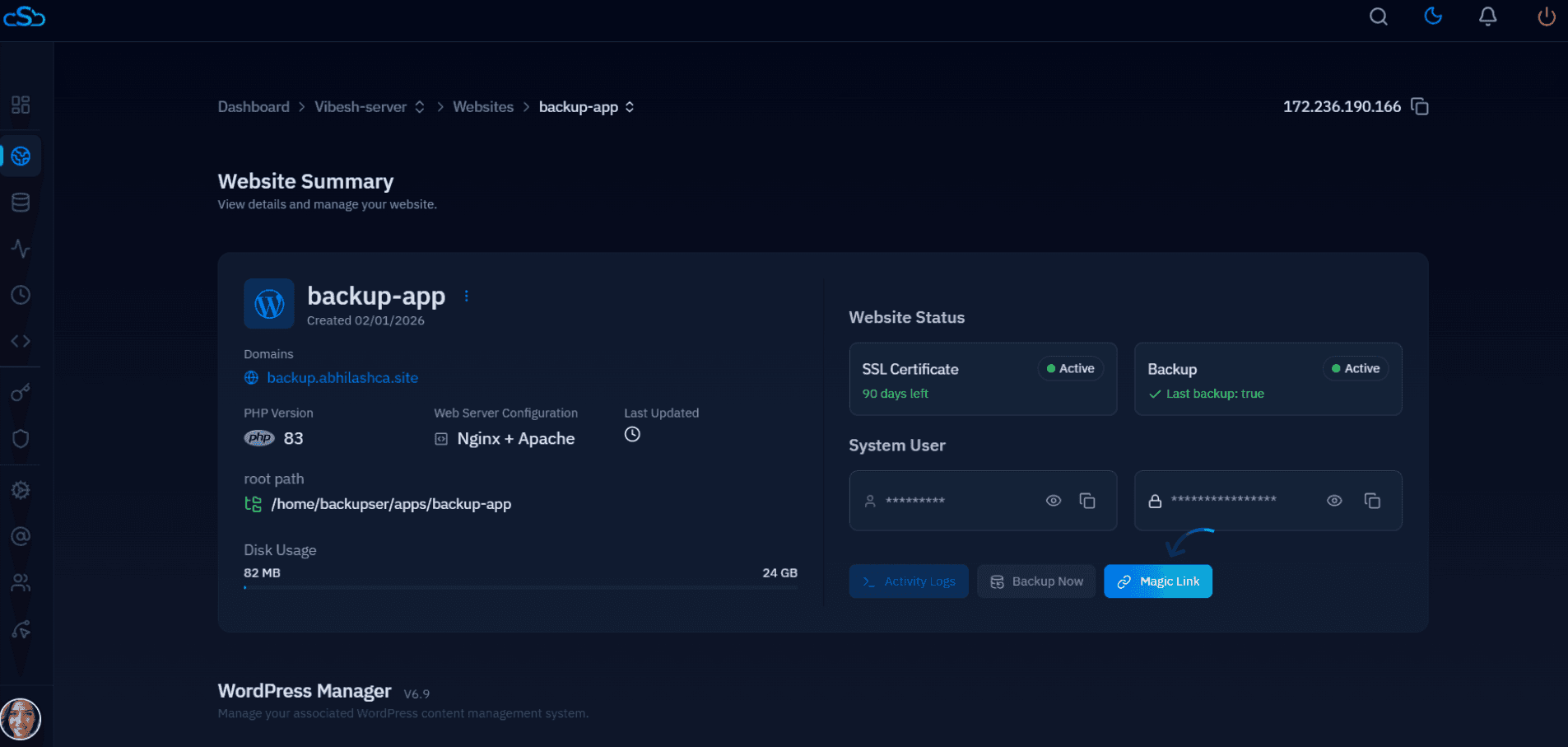
CloudStick's Advanced File Manager (available on Basic plan and above) lets you browse server files, view and modify permissions, and manage file ownership directly from the dashboard — without needing to use SFTP or terminal commands. This is especially useful for quickly fixing a permissions issue on a specific file or directory without SSHing into the server.

Leave a comment
Full Name
Email Address
Message
On this page

We use cookies to improve your experience

CloudStick uses cookies to personalise content, analyse traffic and keep you signed in. Cookie Policy · Terms of Service

Manage cookies
