Ubuntu 24.04 Server Hardening: The Complete Checklist

%203.png&w=256&q=75)
Step 1: Update and Patch the System
The first thing you do on any new Ubuntu 24.04 server is apply all pending updates. A fresh server from a cloud provider may be hours or days behind on security patches — vulnerabilities exploited in the wild may already have fixes waiting in the package manager.
After the reboot, check what kernel is running with uname -r. You want the latest HWE (Hardware Enablement) kernel on Ubuntu 24.04 LTS. Enable unattended security updates — covered in step 5 — so future patches apply automatically.
Ubuntu 24.04 LTS ships with unattended-upgrades pre-installed. It is not always enabled by default — confirm it is running with systemctl status unattended-upgrades.
Step 2: Create a Sudo User and Disable Root Login
Operating as root is dangerous — a single typo can wipe the system, and any compromised process running as root can do anything. Create a dedicated sudo user and lock the root account from direct SSH access.
Once confirmed working, disable root SSH login by editing /etc/ssh/sshd_config and setting PermitRootLogin no. Reload SSH with sudo systemctl reload ssh.
Step 3: Harden SSH Access
SSH is the primary entry point to your server. Password-based SSH authentication is vulnerable to brute-force attacks — switch to key-based auth and disable passwords entirely. Copy your public key first, then lock things down:
WARNING: Never close your current SSH session until you have confirmed that key-based login works from a second terminal window. Locking yourself out requires console access through your cloud provider.
Additional SSH hardening: change the default port from 22 to a non-standard port (e.g. 2222), restrict SSH access to specific IP ranges using AllowUsers directives, and set MaxAuthTries 3 to limit brute-force attempts per connection.
Step 4: Configure UFW Firewall
UFW (Uncomplicated Firewall) is the standard firewall tool on Ubuntu. The default policy should deny all incoming traffic and allow all outgoing, then explicitly allow only what you need.
If you are running a database server, keep MySQL (3306) and Redis (6379) blocked on the public interface — they should only be accessible on the loopback interface (127.0.0.1) or through a VPN. Exposing database ports to the internet is one of the most common server security mistakes.
Step 5: Install Fail2Ban
Even with key-based SSH auth, attackers will still pound your server with connection attempts. Fail2Ban watches log files and bans IPs after a configurable number of failed attempts, making brute-force attacks computationally impractical.
Additional Hardening Steps
The checklist above covers the critical baseline. Here are additional steps to consider depending on your threat model:
- Enable automatic security updates — Configure
unattended-upgradesto apply security patches automatically without requiring manualapt upgraderuns. - Remove unused packages — Run
sudo apt autoremoveand audit installed services withsystemctl list-units --type=service --state=running. Stop anything you do not need. - Set correct file permissions — World-writable files are a privilege escalation risk. Run
find / -xdev -type f -perm -0002to find them. - Enable AppArmor — Ubuntu 24.04 ships with AppArmor enabled and pre-configured profiles for common services. Verify with
sudo aa-status. - Audit open ports regularly — Use
ss -tulpnto list all listening ports and verify each one is expected. - Configure sysctl hardening — Add network-level hardening via
/etc/sysctl.d/99-hardening.confto disable IP source routing, enable SYN flood protection, and ignore ICMP redirects.
TIP: Run the Lynis security auditing tool after hardening — sudo apt install lynis && sudo lynis audit system — to get a scored report and additional recommendations specific to your configuration.
CloudStick Automates Server Hardening
When you connect a server to CloudStick, the agent install process applies a security baseline automatically: SSH key management, firewall configuration via the dashboard, Fail2Ban rules, and automatic security updates — all configured without requiring you to run any of the commands above manually.
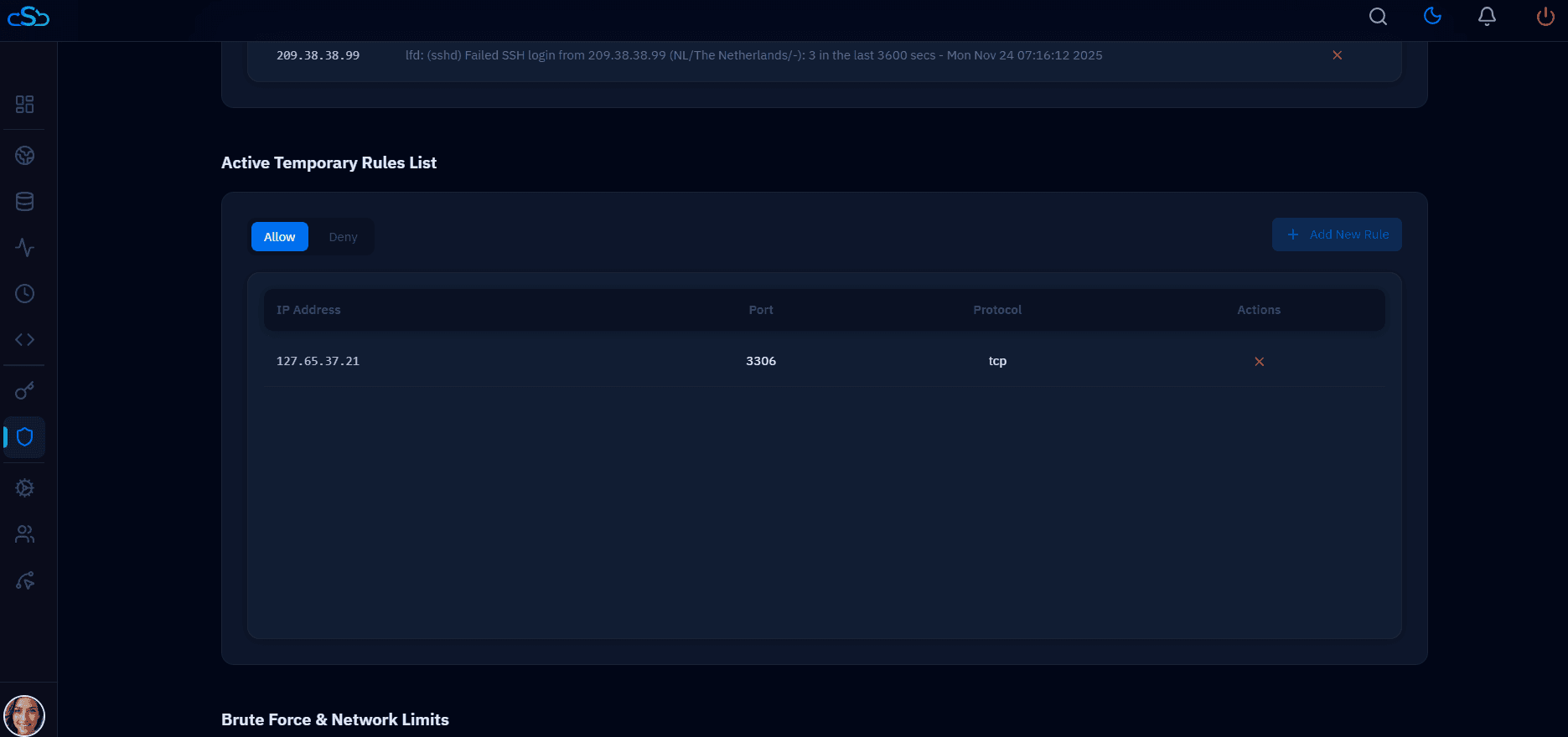
CloudStick's firewall panel lets you manage UFW rules visually — add, remove, and review ingress rules for any server without touching the command line. SSH key management is built into the vault, letting you add and revoke team member keys from the same dashboard where you manage websites and databases. For teams managing multiple servers, this eliminates the risk of inconsistent hardening across different machines.