How to Set Up SSH Access for Team Members Safely

%203.png&w=256&q=75)
One Key Per Person
Never share SSH keys between team members. Each person must have their own key pair. When you share a key, you lose the ability to revoke one person's access without revoking everyone's. You also lose the audit trail — authorized_keys won't tell you which person made which connection. Shared keys are the number one cause of security incidents when team members leave companies.
Create System Users
Create a dedicated system user per team member (or per role) rather than adding everyone to root or ubuntu. Each user gets their own home directory, their own .ssh/authorized_keys file, and their own audit trail in the system logs. This is the foundation of safe team SSH access.
The chmod 700 on .ssh is not optional — SSH will silently refuse to read keys from a directory with world-readable permissions. The chown ensures the directory is owned by the correct user so SSH can read it during login.
Add Team Members Keys
Ask each team member to share their public key (the .pub file — never the private key). Add it to authorized_keys under their own system user, not under root or a shared account:
The comment at the end of the public key (e.g. alice-work-laptop) is freeform text — set it to something meaningful so you can identify the device when you audit later. If a team member uses multiple machines, add a separate key entry per device rather than copying the same key.
Restrict with sudo
Avoid adding everyone to the sudo group unless they genuinely need full administrative access. Instead, use /etc/sudoers.d/ to grant exactly the commands each person needs — no more.
The example below gives a developer permission to restart Nginx without granting any other privileged access. Always use visudo to edit sudoers files — it validates syntax before saving, so a typo won't lock you out:
Files in /etc/sudoers.d/ are included automatically and can be removed individually — much cleaner than editing the main sudoers file. When a team member leaves, delete their file and their sudo access is gone instantly without touching any other user's permissions.
Audit and Revoke Access
Periodically review who has SSH access across all users on the server. The quickest way is to check all authorized_keys files in one command, and monitor live connection attempts in the auth log:
Deleting just the authorized_keys entry is not enough — the team member could still be actively logged in with an open session. The usermod -L command locks the account (prepends ! to the password hash) and setting the expiry date to 1 (January 1, 1970) immediately disables login via PAM. Both together ensure the account is fully shut down.
CloudStick Team Access
CloudStick's SSH Key Management section lets you add and remove authorized keys per server user directly from the dashboard — no command line required. When a team member leaves, you revoke their key from one place and it's gone across every server you manage through CloudStick.
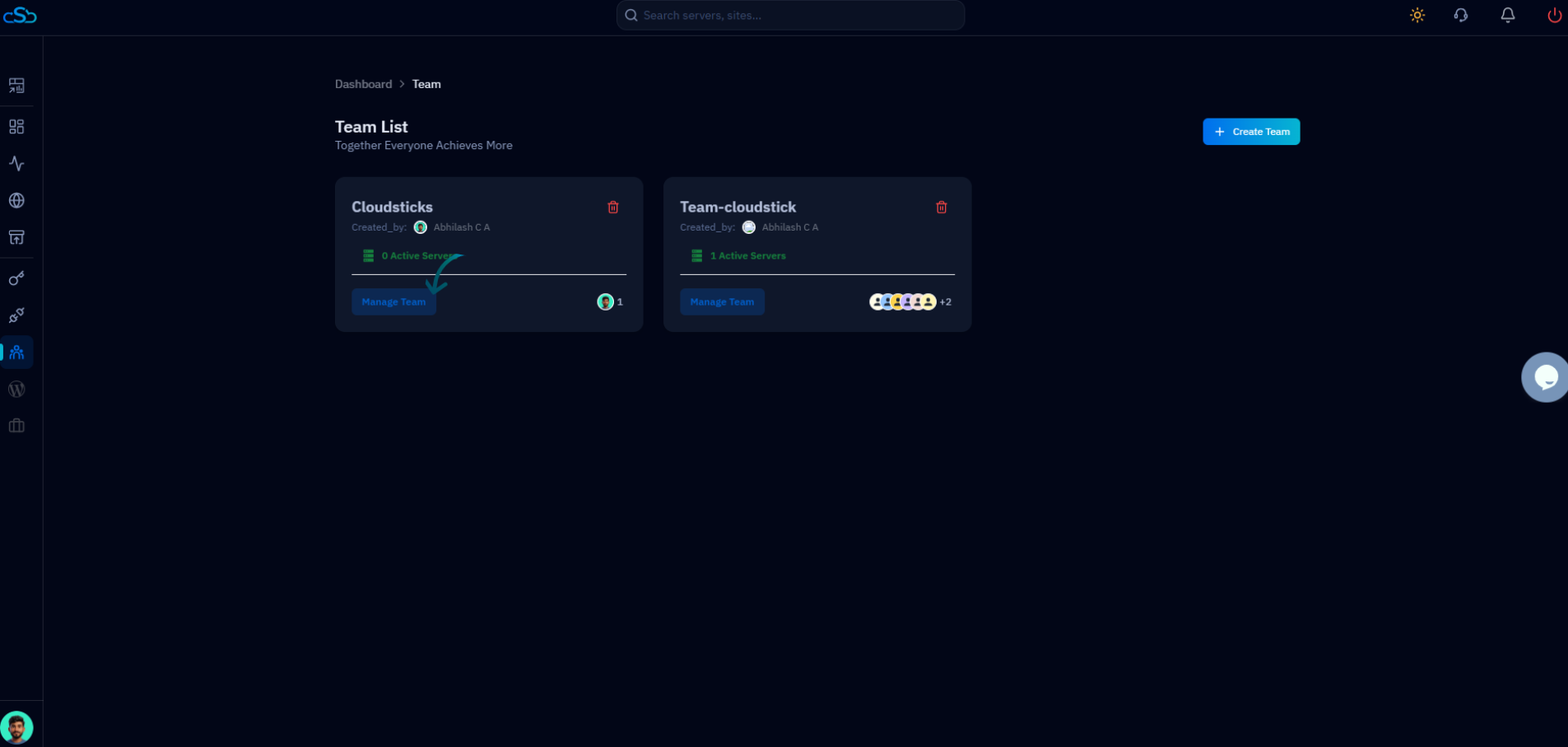
The Teams feature adds an extra layer on top of SSH access: team members only see and access servers they've been explicitly granted inside CloudStick — unauthorized servers remain completely invisible to them. CloudStick offers 2 team seats on Basic, 4 on Pro, and 10 on Business. For agencies managing dozens of servers, this is far safer than manually distributing SSH keys and trying to keep track of who has access to what.