How to Speed Up WordPress: The Complete 2026 Guide

%203.png&w=256&q=75)
A slow WordPress site doesn't just frustrate visitors — it actively costs you rankings, conversions, and revenue. Google's Core Web Vitals now factor directly into organic placement, and a 1-second delay in page load time reduces conversions by an average of 7%. The good news: nearly every performance problem in WordPress is solvable at the server or configuration layer, without switching themes or gutting your plugin stack. This guide covers the complete optimization path — from the Ubuntu 22.04 OS layer through PHP-FPM, Nginx, Redis, MariaDB, and asset delivery — with specific, tested commands you can run today.
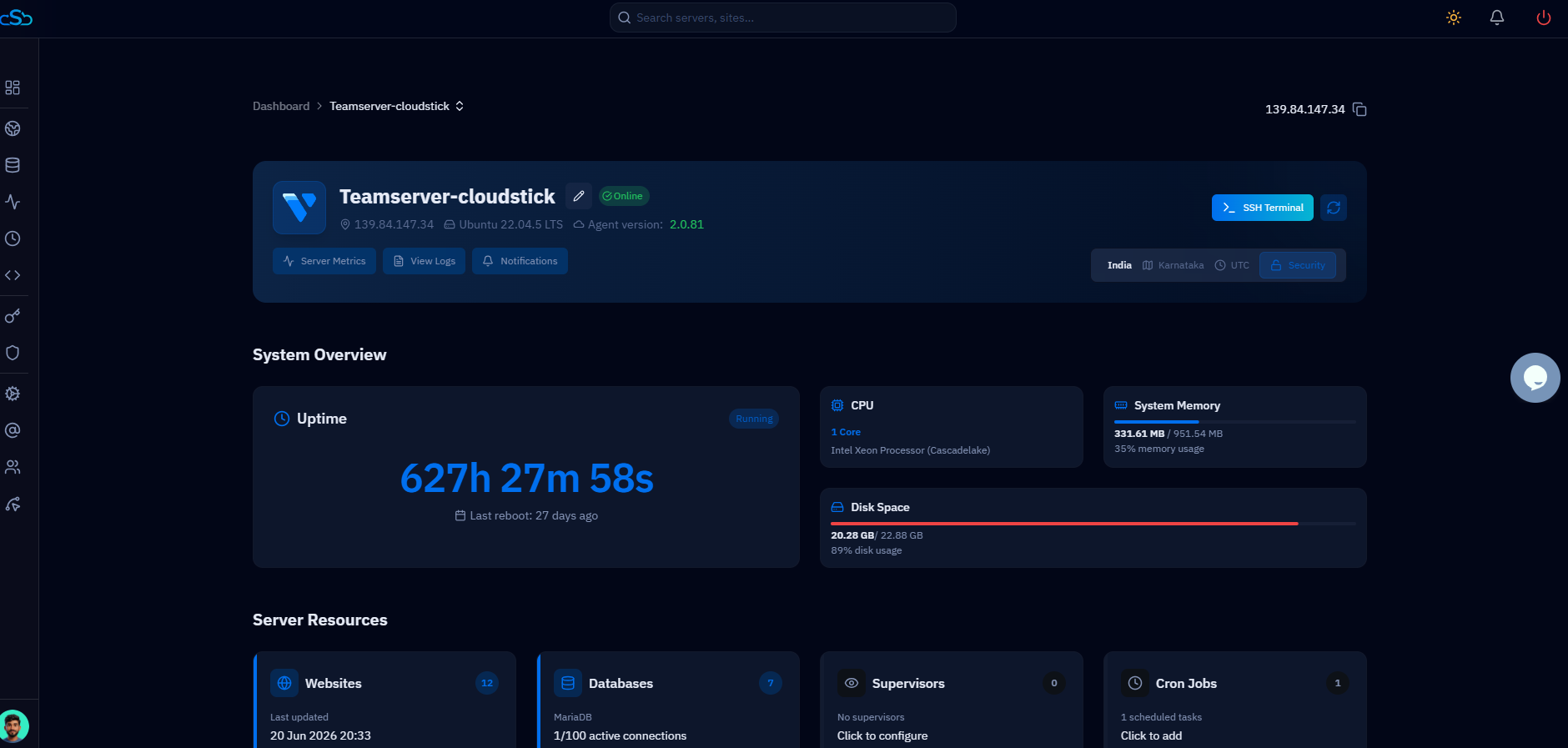
Server Foundation First
The single highest-leverage decision you make is the PHP version your site runs on. PHP 8.3 is roughly 3× faster than PHP 7.4 on real-world WordPress workloads, and PHP 8.4 pushes that further with JIT improvements to opcode caching. Before tuning anything else, confirm you are on PHP 8.3 or 8.4.
Beyond PHP version, ensure your server has adequate RAM headroom. WordPress with WooCommerce and a handful of plugins typically requires 512 MB–2 GB of RAM under real load, depending on traffic. Swapping to disk — even on NVMe — is orders of magnitude slower than serving from RAM. Check memory pressure with free -h and consider a small swap file as a safety net, not a performance strategy.
PHP-FPM Tuning
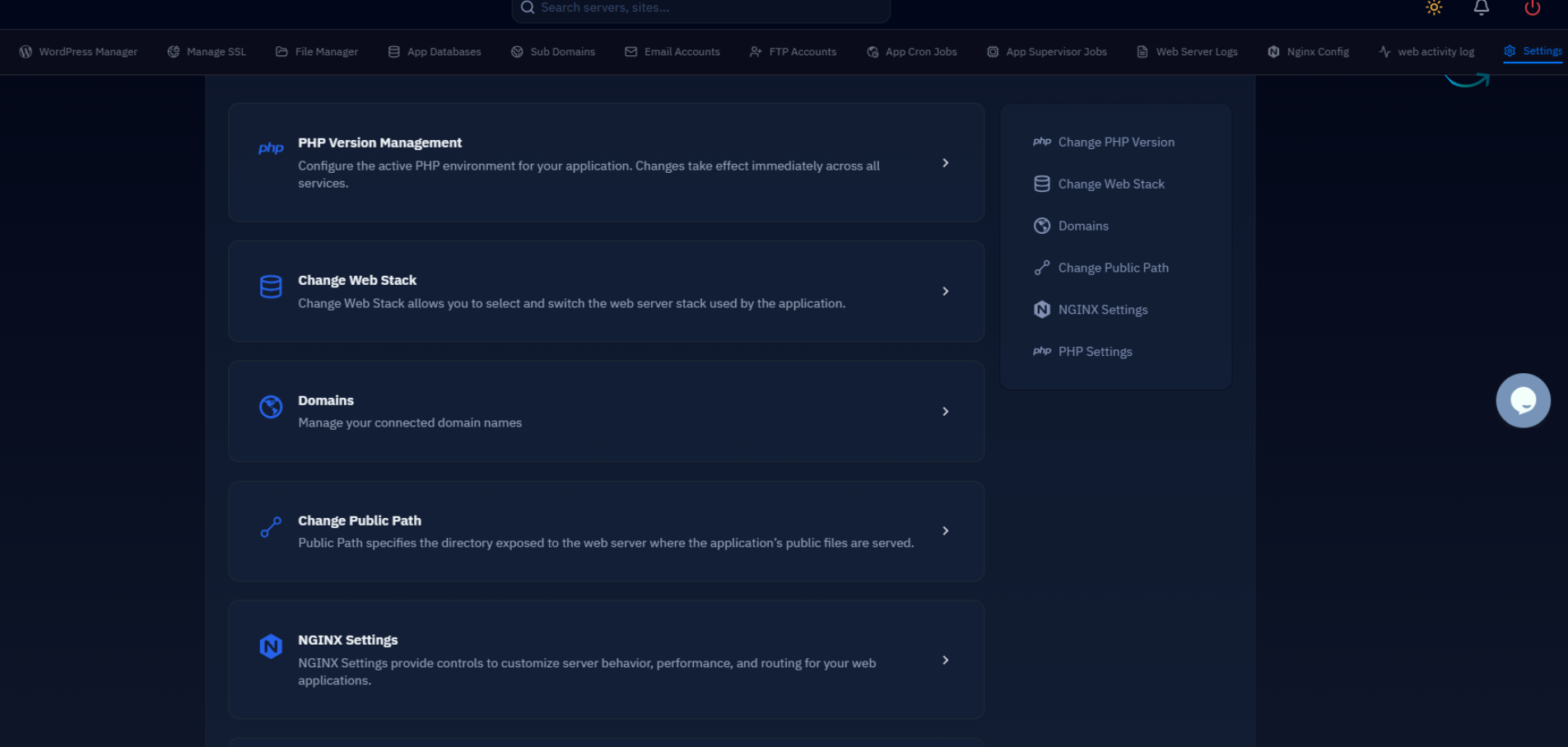
PHP-FPM's process manager configuration is responsible for how many concurrent PHP workers handle requests simultaneously. The default dynamic mode is conservative and frequently causes queueing under burst traffic. Switching to ondemand or tuning static mode for predictable high-traffic sites makes a measurable difference.
The pm.max_children value should be calculated based on available RAM. Divide your available RAM by the average memory footprint of a single PHP-FPM worker — typically 30–80 MB per worker for WordPress — and set max_children slightly below that ceiling to leave headroom for MariaDB, Nginx, and Redis. Setting opcache.validate_timestamps = 0 on production eliminates stat() calls on every request — just remember to reload PHP-FPM after any plugin or theme updates so OPcache picks up the new bytecode.
Never set opcache.validate_timestamps = 0 on a development server. You will edit a file and see no change, waste time debugging, and eventually blame the wrong layer. Reserve this setting for production-only pool configurations — or at minimum add a deploy hook that runs sudo systemctl reload cloudstick-php8.3-fpm after every deployment.
Nginx & Page Caching
Full-page caching is the highest single-impact WordPress optimization available. When Nginx serves a cached HTML file directly — bypassing PHP-FPM, WordPress, and MariaDB entirely — response times drop from 200–800 ms to under 5 ms. CloudStick runs Nginx as the frontend reverse proxy (nginx-cs service) with Apache on port 81 behind it, giving you a natural place to bolt on FastCGI cache.
The X-FastCGI-Cache header will show HIT, MISS, or BYPASS — check it with curl -I https://yourdomain.com to verify the cache is working. Pair this setup with the Nginx Helper plugin in WordPress to automatically purge the cache on post saves and comment submissions.
A properly configured FastCGI page cache turns a WordPress site that handles 50 concurrent users into one that handles 5,000 — without adding a single server. The cache layer absorbs the traffic spike; PHP never wakes up.
Redis Object Cache
Page caching helps anonymous visitors, but it cannot cache authenticated sessions, WooCommerce cart pages, or admin-area queries. Redis persistent object caching fills that gap by storing the result of expensive database queries in memory and serving them on subsequent requests without touching MariaDB.
CloudStick includes Redis via the Service Management section of the dashboard — enable it there and it will be available as a system service. Once running, connect WordPress to it using the Redis Object Cache plugin and the following wp-config.php constants:
With Redis active, WordPress stores transients, user sessions, WP_Query results, and nav menu objects in memory instead of repeatedly querying MariaDB. On sites with active plugins that hammer the database — WooCommerce, Advanced Custom Fields, WPML — this can reduce database query counts by 60–80% per page load. Monitor hit rate with redis-cli info stats | grep keyspace_hits and aim for a hit ratio above 90%.
Database Optimization
MariaDB 10.6 ships with sensible defaults, but WordPress workloads benefit significantly from tuning the InnoDB buffer pool and query cache. The buffer pool is the most important lever: it determines how much of your database fits in RAM instead of requiring disk reads. A rule of thumb is to allocate 70–80% of available RAM to the buffer pool on a dedicated database server, or 25–40% on a shared application + database server.
Beyond server tuning, WordPress accumulates database bloat over time: post revisions, transient cache entries, spam comments, and orphaned postmeta rows. A site running for a year can easily accumulate tens of thousands of unnecessary rows that slow every query touching those tables. Automate cleanup with WP-CLI, which you can run as a scheduled task:
You can schedule these commands as cron jobs directly from the CloudStick dashboard under the Cron Jobs section — no need to edit crontab manually. Set them to run weekly during off-peak hours and your database stays lean without manual intervention.
Asset Delivery & Images
Images account for 50–70% of total page weight on a typical WordPress site. Every optimization you make at the server level is multiplied by what you deliver over the wire. The 2026 baseline: serve WebP or AVIF, compress aggressively, lazy-load offscreen images, and use Nginx to add long-lived cache headers for static assets.
At the WordPress layer, use a plugin like Imagify or ShortPixel to convert uploaded images to WebP automatically. Combined with WordPress 6.x's native lazy loading (loading="lazy" on img tags) and the fetchpriority="high" attribute on your Largest Contentful Paint image, you cover both the total weight and the perceived load time.
For JavaScript and CSS, the most impactful change is eliminating render-blocking resources. Defer or async non-critical scripts; inline critical CSS for above-the-fold content. Tools like WP Rocket or Perfmatters handle this at the WordPress layer, while the EasyPHP section in CloudStick lets you install extensions like php8.3-brotli to serve Brotli-compressed responses instead of Gzip where the client supports it — typically achieving 15–25% better compression ratios.
Use curl -I -H "Accept-Encoding: br" https://yourdomain.com to check whether your server is sending Brotli-compressed responses. Look for Content-Encoding: br in the response headers. If you see gzip instead, the Brotli module is either not installed or not enabled in your Nginx config.
Next Steps
Work through the layers in order — server foundation, PHP-FPM, Nginx page cache, Redis, database, then assets — and measure with a real tool after each change. Google PageSpeed Insights and WebPageTest give you Core Web Vitals scores; ab -n 1000 -c 50 https://yourdomain.com/ gives you raw throughput numbers that PageSpeed hides.
The optimizations with the most compound effect, ranked by impact-to-effort ratio:
Apply all five and a WordPress site that previously scored 45 on PageSpeed Mobile will reliably reach 85–95+. The remaining gap is usually third-party scripts — analytics, chat widgets, ad networks — which require a different strategy: loading them asynchronously, facades, or deferring until user interaction. Those are application-layer choices; the server work described here is the non-negotiable foundation they sit on.

