How to Speed Up WordPress Without a Caching Plugin

%203.png&w=256&q=75)
Your WordPress site is slow, and the first suggestion everyone reaches for is "install a caching plugin." W3 Total Cache, WP Super Cache, LiteSpeed Cache — they all promise the world, and they all add another layer of complexity, potential conflicts, and opaque configuration screens sitting on top of your stack. The truth is that for most sites, properly configured server-side infrastructure eliminates the need for a caching plugin entirely, and often outperforms one.
This guide walks through every meaningful lever on the server: Nginx FastCGI caching, PHP-FPM process tuning, Redis object caching, MariaDB query optimisation, HTTP/2, and Gzip/Brotli compression. Each technique is independent — apply the ones that match your bottleneck, or stack them all.
This guide assumes Ubuntu 22.04 LTS with Nginx as the front-end reverse proxy and Apache on port 81 as the PHP handler — the standard CloudStick stack. PHP-FPM versions 8.1, 8.2, 8.3, or 8.4 are all supported. You will need SSH root access and a running WordPress installation.
Why server-level beats plugin-level
A caching plugin operates inside PHP, which means PHP has already booted, WordPress has already loaded, and hundreds of database queries may have already run before the plugin decides to serve a cached response. Server-level caching intercepts the request before PHP is involved at all — Nginx serves a static HTML file directly from disk or memory at a fraction of a millisecond.
Beyond raw speed, there are operational reasons to prefer the server layer. Caching plugins add dependencies that can conflict with each other, with your theme, or with other plugins. They require their own update cycle, their own configuration interface, and their own cache-purge logic. Server-side configuration is version-controlled, auditable, and independent of the WordPress ecosystem entirely.
The remaining sections work through each optimisation layer in order of impact. Start with FastCGI caching — it is the single biggest win for most WordPress deployments — then layer on the others where needed.
Nginx FastCGI cache: the biggest single win
Nginx's built-in fastcgi_cache directive caches PHP responses as files on disk, then serves those files directly for subsequent requests — completely bypassing PHP-FPM and Apache. For a typical content-heavy WordPress site, this reduces TTFB from several hundred milliseconds to under 10 ms.
Add the following to your Nginx configuration. On the CloudStick stack, the main Nginx config lives at /etc/nginx-cs/nginx.conf and per-site configs under /etc/nginx-cs/sites-available/.
After saving, test and reload Nginx: nginx-cs -t && systemctl reload nginx-cs. Verify with curl -I https://your-domain.com — the X-FastCGI-Cache header will read HIT on the second request.
To purge cache on publish, add a small shell script triggered by a WordPress hook, or use the nginx-cache-purge module. This keeps your content fresh without requiring a full cache flush — only the updated URL's cache entry is removed.
PHP-FPM tuning: stop over-provisioning workers
When FastCGI cache misses occur — for admin users, POST requests, or pages with query strings — PHP-FPM picks up the request. Default PHP-FPM pool settings are conservative and rarely match your server's actual resources. Under-provisioned pools queue requests; over-provisioned ones exhaust RAM and trigger the OOM killer.
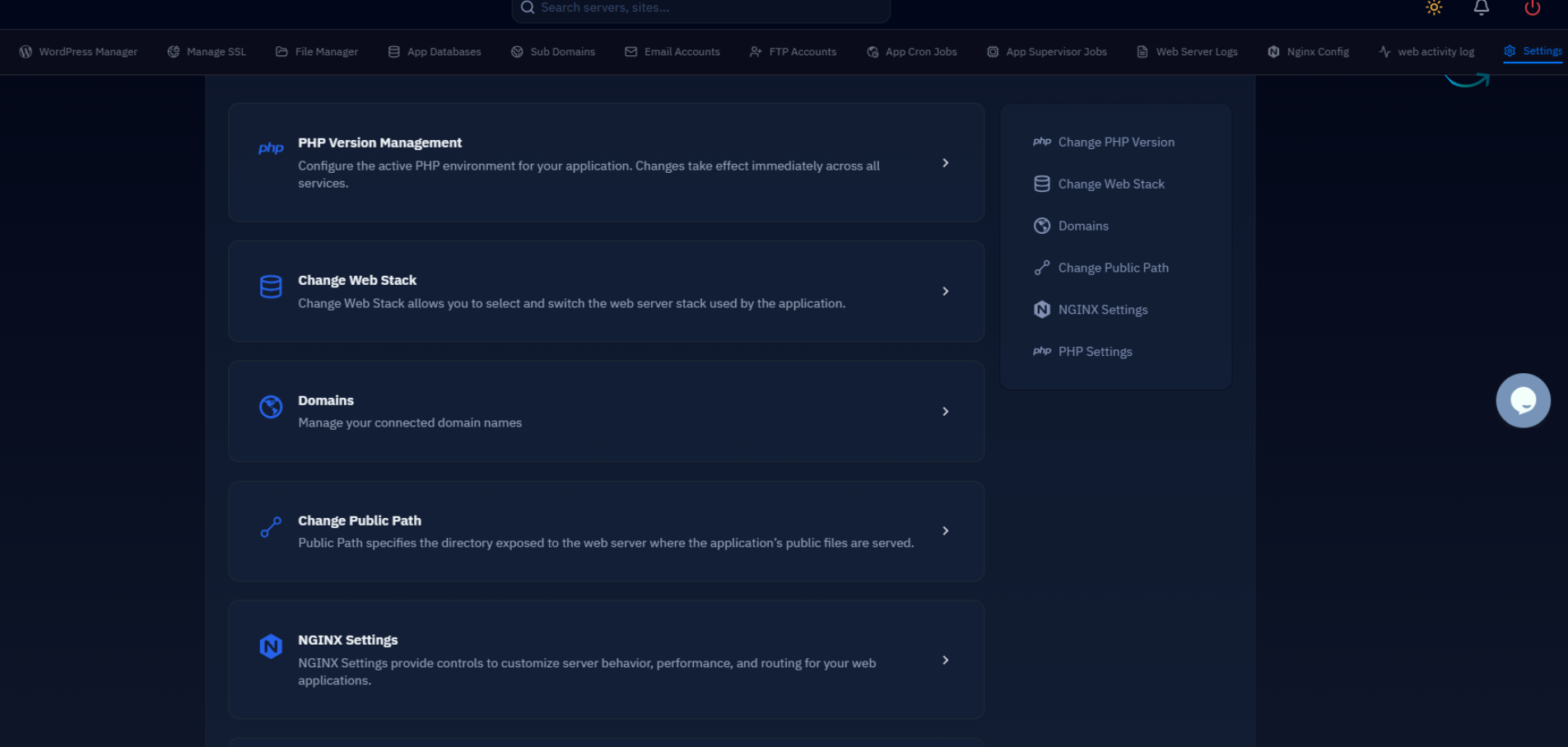
CloudStick installs PHP-FPM configs under /etc/php/8.3/fpm/pool.d/ (substitute your PHP version). The key parameters for a 4 GB VPS running a single WordPress site:
Setting opcache.validate_timestamps = 0 means OPcache never checks disk for file changes — every PHP file is served from compiled bytecode in shared memory. This alone can reduce uncached PHP response time by 30–50%. On production servers where files don't change between deploys, this is safe to leave at 0. Run systemctl restart php8.3-fpm-cs after any pool changes.
Redis object cache: eliminate repeated database queries
FastCGI caching handles anonymous page views. Redis object caching handles everything else: authenticated requests, AJAX calls, WooCommerce sessions, and wp-admin pages that can't be served from Nginx cache. WordPress's object cache API is built-in — it just defaults to storing objects in PHP memory, which evaporates at the end of each request. A persistent Redis back-end keeps those objects alive across requests.
Redis is available as a standard system package on Ubuntu 22.04 and can be enabled from the CloudStick Service Management dashboard without touching the command line. Once the Redis service is running, install the PHP extension and a WordPress drop-in:
Note the prefix: if you run multiple WordPress sites on the same Redis instance — as is common on a shared VPS — each site needs a unique prefix to avoid cache key collisions. With Redis object caching active, database queries for options, transients, and post meta are served from RAM instead of MariaDB, typically cutting uncached PHP execution time in half.
With FastCGI cache serving anonymous traffic and Redis object cache absorbing repeated database queries for authenticated requests, most WordPress sites reach sub-100 ms TTFB without a single caching plugin installed.
Database optimisation: MariaDB that doesn't thrash
CloudStick runs MariaDB 10.6. Out of the box, the InnoDB buffer pool is set conservatively — often 128 MB — which means MariaDB is constantly reading from disk rather than serving queries from memory. The buffer pool should hold your entire working dataset if your server RAM allows it.
Beyond configuration, WordPress databases accumulate bloat over time: post revisions, transient records, and orphaned postmeta rows. A monthly cleanup keeps query plans tight:
Automating this as a monthly cron job on the server — rather than relying on a WordPress plugin like WP-Optimize — keeps the maintenance loop off WordPress entirely.
HTTP/2 and compression: squeeze every byte
HTTP/2 multiplexes multiple requests over a single TCP connection, eliminating the head-of-line blocking that makes HTTP/1.1 slow for pages with many assets. On the CloudStick stack, Nginx already supports HTTP/2 — you just need to declare it on your SSL listener. Brotli compression, where available, achieves 15–25% better compression ratios than Gzip for text assets.
The immutable directive on static assets tells browsers that the file will never change at this URL — so they never even issue a conditional If-None-Match request for a returning visitor. Pair this with WordPress's built-in asset versioning (?ver=x.x.x query strings) and you get perfect cacheability without any configuration on the WordPress side.
If your host supports the Nginx Brotli module (ngx_brotli), add brotli on; brotli_comp_level 6; alongside Gzip — browsers that support Brotli will receive it automatically via the Accept-Encoding negotiation header.
Next steps: measure, then tune
Each optimisation in this guide is measurable. Before making changes, establish a baseline with curl -o /dev/null -s -w "%{time_starttransfer}\n" https://your-domain.com — run it five times and average the results. After each change, re-measure. The numbers tell you whether an optimisation actually moved the needle on your specific workload.
Prioritise in this order for most WordPress deployments:
- Nginx FastCGI cache — eliminates PHP for anonymous traffic entirely. Biggest single win.
- OPcache tuning — eliminates disk reads for PHP bytecode on every cache miss.
- Redis object cache — reduces database load for authenticated users and API requests.
- MariaDB buffer pool — ensures your working dataset fits in memory rather than hitting disk.
- HTTP/2 + Gzip — reduces asset payload and round-trips for every visitor.
- PHP-FPM pool sizing — prevents queuing and OOM kills under traffic spikes.
If you are running on CloudStick, enabling Redis takes a single toggle in Service Management, PHP-FPM configurations are accessible from the server dashboard, and SSL is handled automatically — which means the configuration work above is reduced to editing a few text files over SSH rather than wrestling with a control panel's abstraction layers.
Once server-level performance is locked in, the next frontier is the application layer itself: image formats (WebP/AVIF), JavaScript loading strategy (defer vs. async vs. module preload), and database query profiling with the EXPLAIN statement. The related articles below cover both in depth.

