How to disable Search Engine Visibility in CloudStick WordPress Manager
Overview
Search Engine Visibility controls whether search engines like Google and Bing are asked to index your WordPress website. While a site is under development, being redesigned, or going through maintenance, you usually don't want half-finished pages showing up in search results — disabling visibility asks search engines to stay away until the site is ready.
Normally this option lives inside the WordPress admin under Settings → Reading, but with CloudStick's WordPress Manager you can toggle it directly from the CloudStick dashboard — no WordPress login required. This guide shows you where to find the Search Engine Visibility option in the General settings and how to enable or disable it in a single click.
Your server must be connected to CloudStick and the website must be a WordPress installation. Keep in mind this setting is a request, not a hard block — search engines that already indexed your site may keep existing results until they recrawl.
Step 1: Navigate to Your Server
Start from the CloudStick Dashboard, which lists all connected servers with real-time resource usage and status.
1. Log in to CloudStick: Go to app.cloudstick.io and sign in with your credentials.
2. Open your server: Find the server hosting your WordPress website on the Dashboard. Click the Manage button on its card to open the server panel.
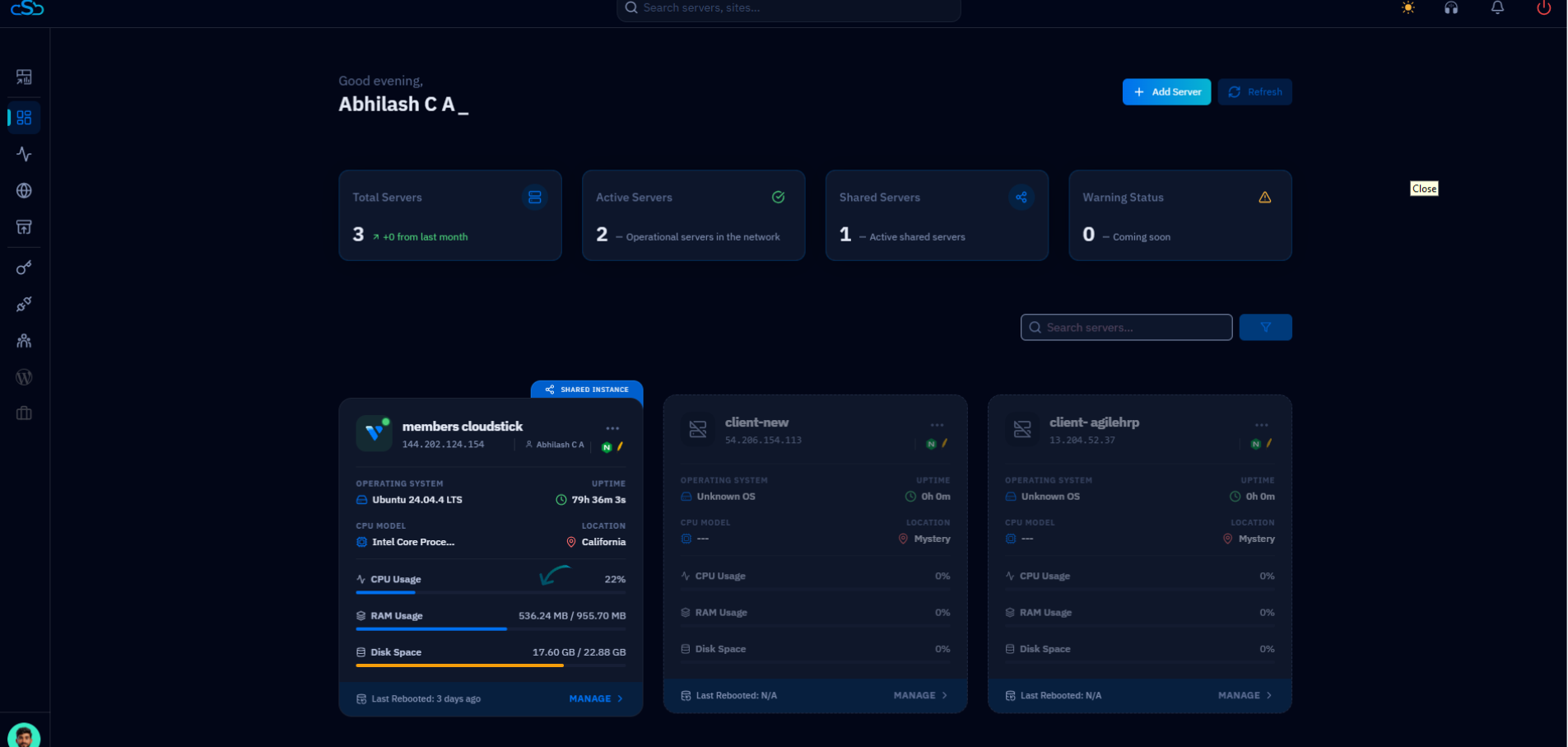
Fig. 01 — CloudStick Dashboard showing connected servers with CPU, memory, and disk usage. Click Manage to enter the server panel.
Step 2: Open the Websites List
The server panel opens on the System Overview. From here, head to the Websites section to see everything hosted on this server.
1. Locate Websites: Use the Websites icon in the left-hand navigation, or scroll down to the Server Resources section and click the Websites card.
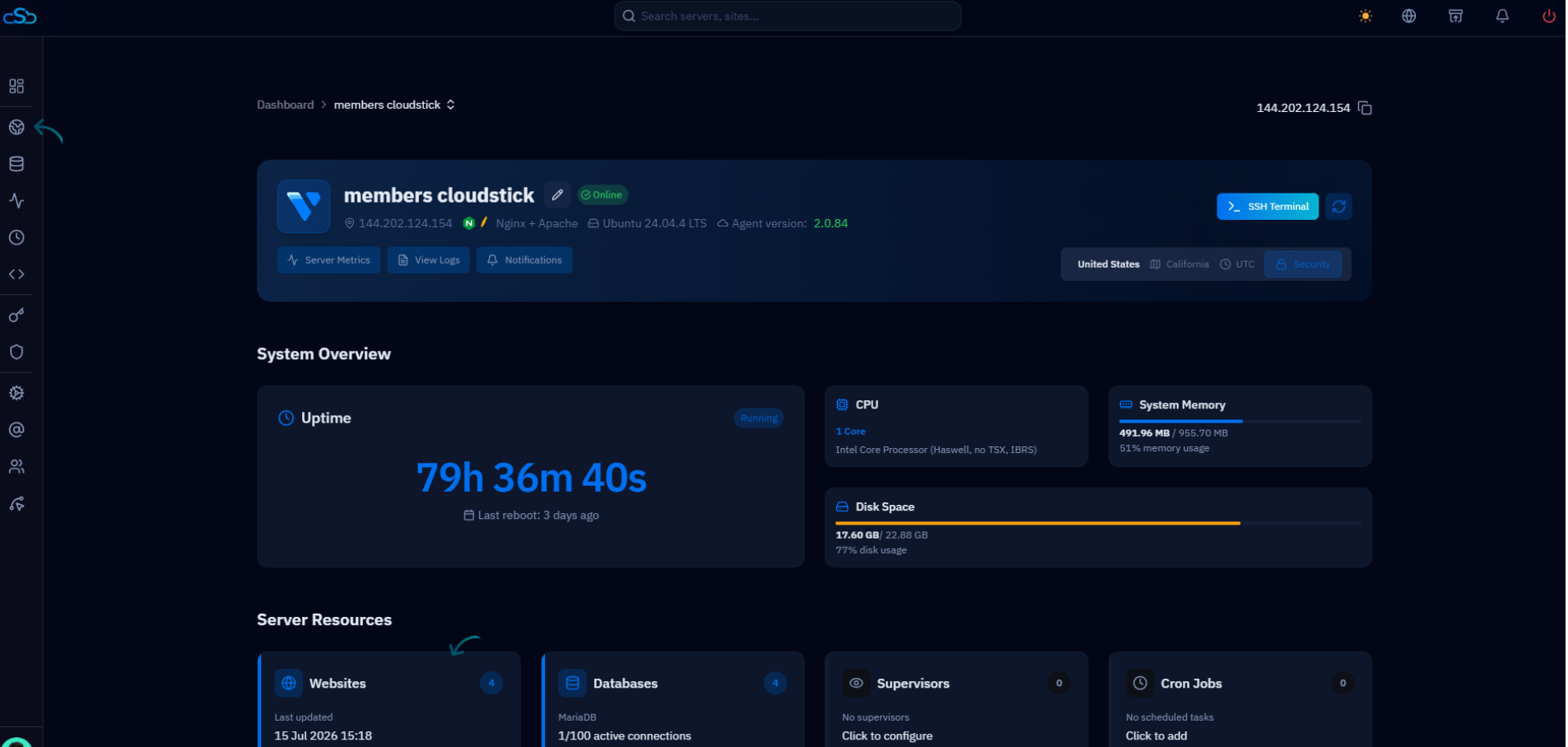
Fig. 02 — Server panel System Overview with the Websites option highlighted in the left-hand navigation and under Server Resources.
Step 3: Select Your WordPress Website
The Websites List shows every website on the server along with its system user, web stack, and disk usage.
1. Find your WordPress site: WordPress websites display the WordPress logo next to their name. Click your site to open its management view.
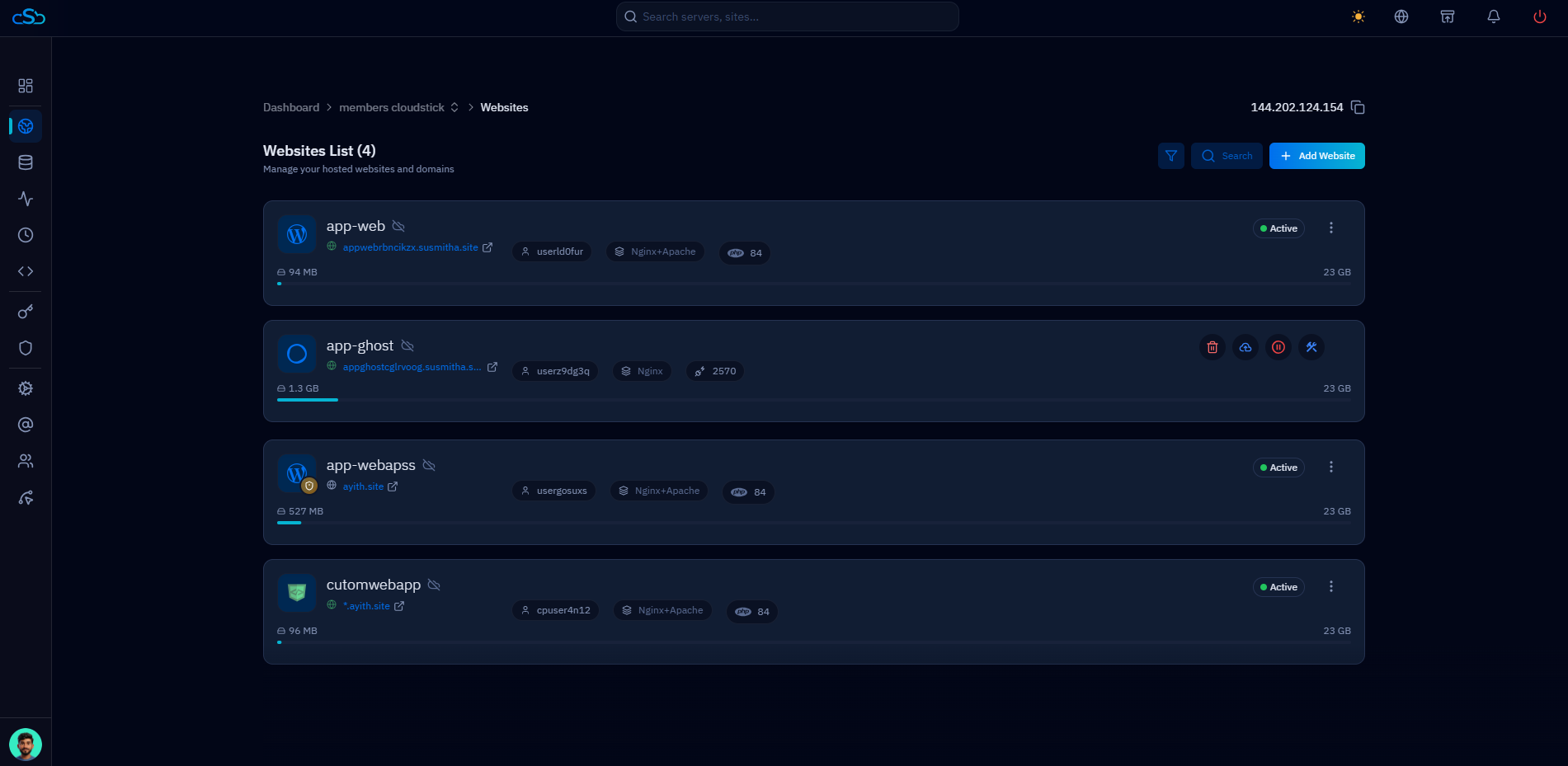
Fig. 03 — Websites List showing all websites hosted on the server. Click your WordPress site to open its management view.
Step 4: Open WordPress Manager
The WordPress Manager gives you direct control over your WordPress installation — core version, users, plugins, and site settings — from within CloudStick.
1. Click the WordPress Manager tab: At the top of the site management page, click the WordPress Manager tab. The Website Summary appears with the WordPress Manager section below it.
2. Scroll to WordPress Manager: Below the Website Summary card you will find the WordPress Manager with its General, Users, and Plugins tabs.
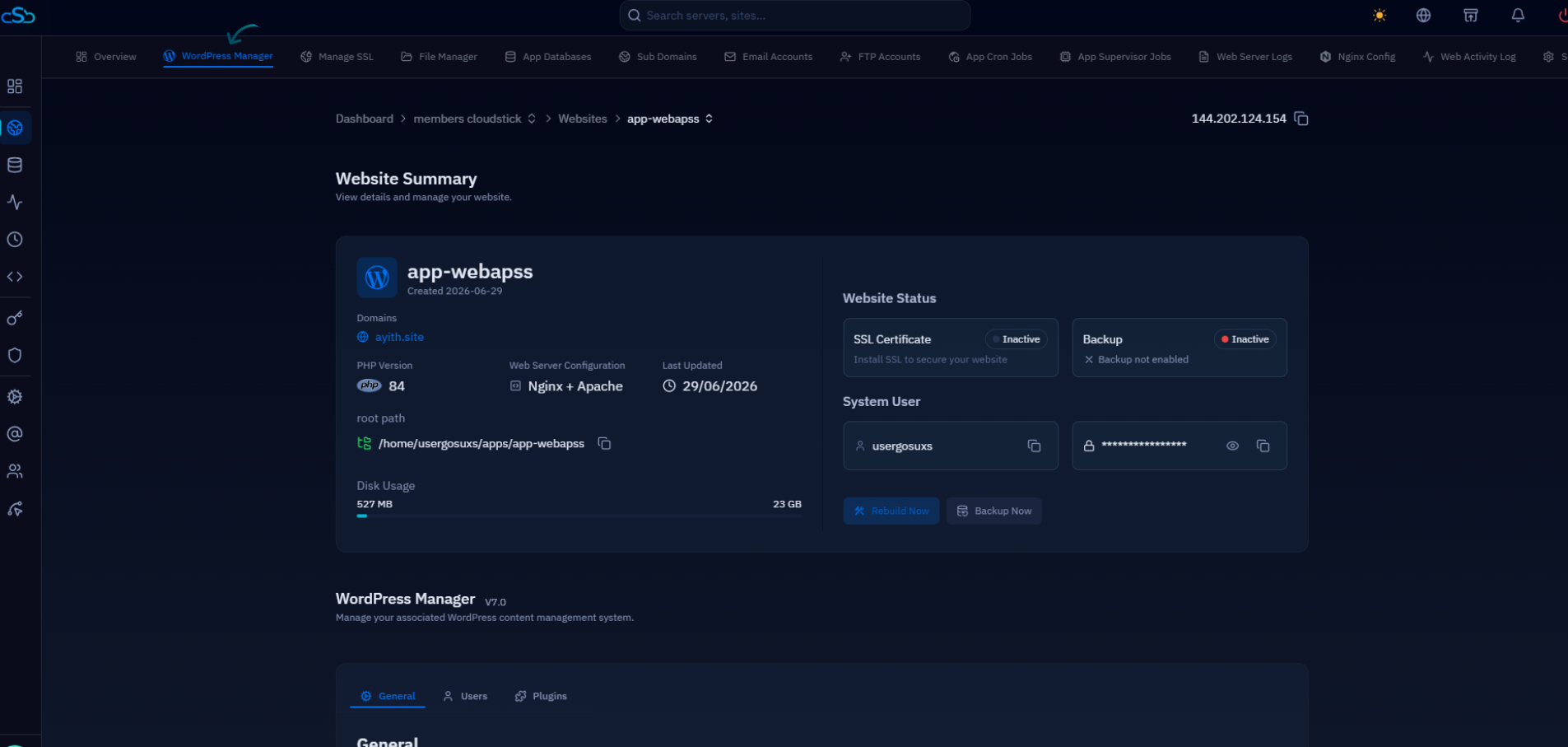
Fig. 04 — Website Summary with the WordPress Manager tab active, showing the WordPress Manager section with the General tab.
Step 5: Disable Search Engine Visibility
The General tab ends with a Visibility & Tools section that controls how your site is seen and managed — this is where the Search Engine Visibility toggle lives.
1. Open the General tab: Inside WordPress Manager, make sure the General tab is selected, then scroll down past Site Status to the Visibility & Tools section.
2. Locate Search Engine Visibility: You will see the option described as “Discourage search engines from indexing this site”, alongside Debugging and Maintenance Mode.
3. Turn on the toggle: Enable the Search Engine Visibility toggle to discourage search engines from indexing your website. CloudStick applies the change to your WordPress installation immediately.
Disabling search engine visibility is ideal while your website is under development or maintenance. Once your site is ready for visitors, return here and turn the toggle off so search engines can index your content again — otherwise your site will not appear in search results.
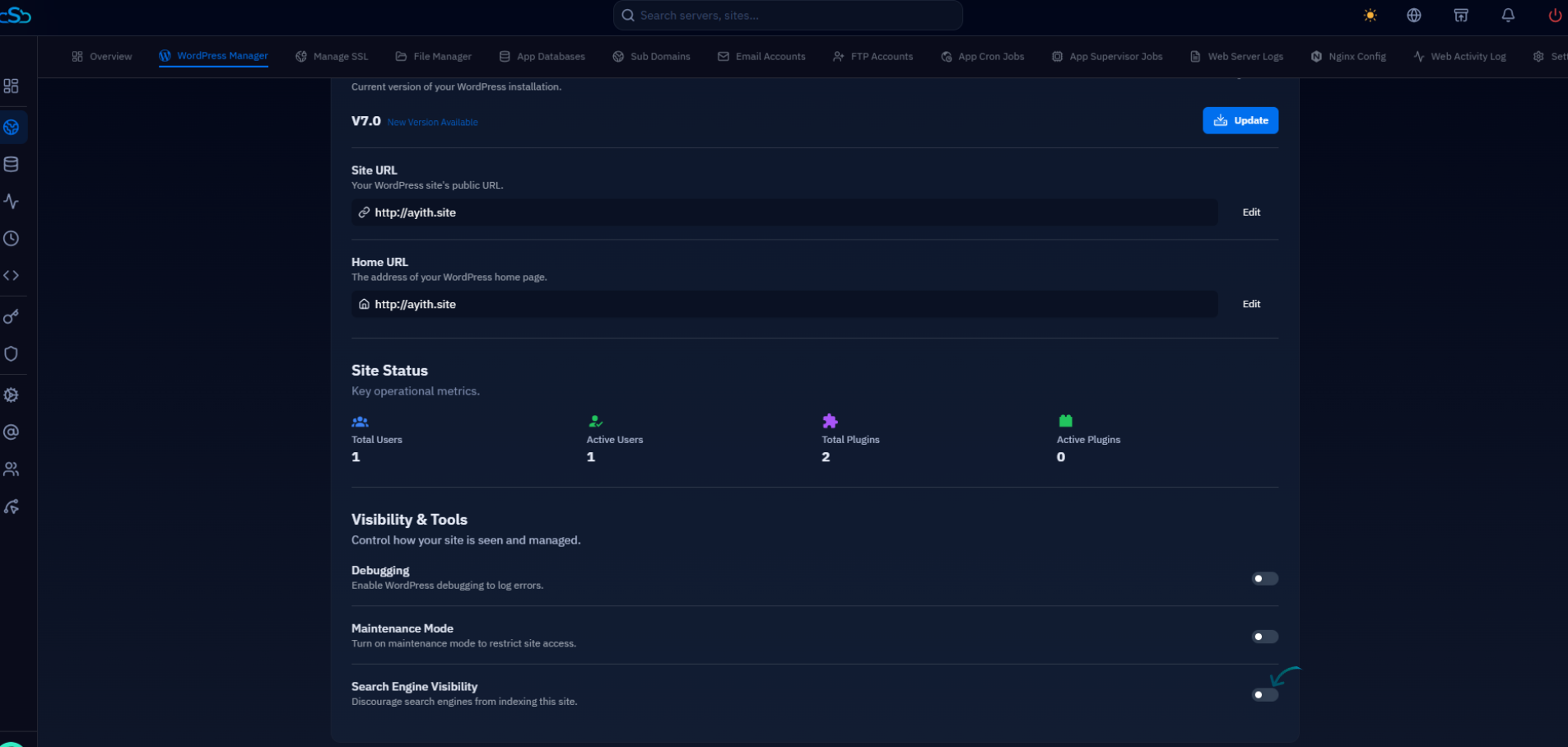
Fig. 05 — Visibility & Tools section in WordPress Manager General settings, with the Search Engine Visibility toggle at the bottom.