How to Set Up White-Label Branding in CloudStick
Overview
White-Label is a Business Plan exclusive feature that lets you rebrand the CloudStick control panel entirely as your own product. Instead of your clients seeing "CloudStick," they see your company name, your logo, and your brand colors — giving you a professionally branded hosting environment you can resell with confidence.
This guide walks you through setting up Business Branding in CloudStick: from creating your Business Setup to entering your brand name, uploading logos, and selecting a primary brand color. Once configured, your changes take effect instantly for your entire team and all white-label clients across every dashboard view.
White-Label is available exclusively on the Business Plan. You must have an active Business Plan subscription before proceeding with the steps below.
Step 1: Navigate to Business Setup
The Business Branding configuration lives in a dedicated section of your CloudStick dashboard. Here is how to reach it and initiate your setup:
1. Log in to your CloudStick Dashboard: Sign in at app.cloudstick.io with your account credentials.
2. Open Business Setup: In the left-hand navigation of your dashboard, click on Business Setup.
3. Click "Create Business Setup": On the Business Branding landing page, click the blue Create Business Setup button to begin configuring your brand identity.
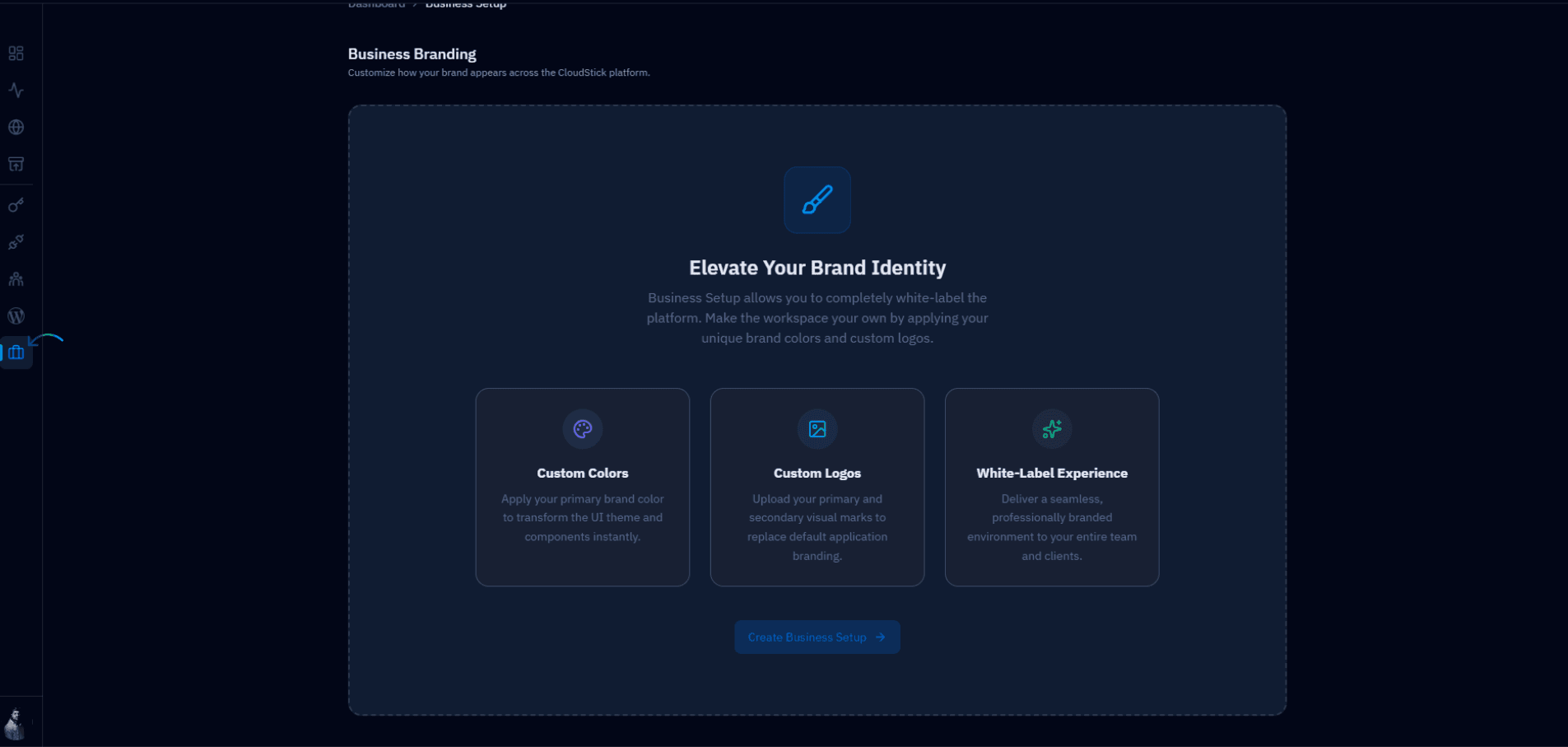
Fig. 01 — Business Branding landing page showing the "Create Business Setup" button and feature overview.
The Business Branding page highlights three capabilities: Custom Colors, Custom Logos, and White-Label Experience. These are all configured in a single setup form.
Step 2: Configure Your Brand Identity
After clicking Create Business Setup, you are taken to the full branding form. Fill in each section to define how your brand appears across the platform:
Identity Details
Brand Name: Enter your company or product name. This replaces "CloudStick" wherever the platform name appears in the dashboard.
Primary Logo URL: Paste a publicly accessible URL to your primary logo image. This logo appears in the top navigation and primary branding areas.
Secondary Logo URL: Paste a URL for a secondary logo variant (e.g. a smaller icon or monochrome version) used in compact display contexts.
Theme Customization
Primary Brand Color: Select a color from the preset palette or click the "+" button to enter a custom hex value. This color transforms the UI theme and interactive components across the entire dashboard.
Save Your Branding
Review the Demo Preview panel on the right to see a live preview of how your brand name and logo will appear.
Once satisfied, click the blue Update Branding button to apply your changes.
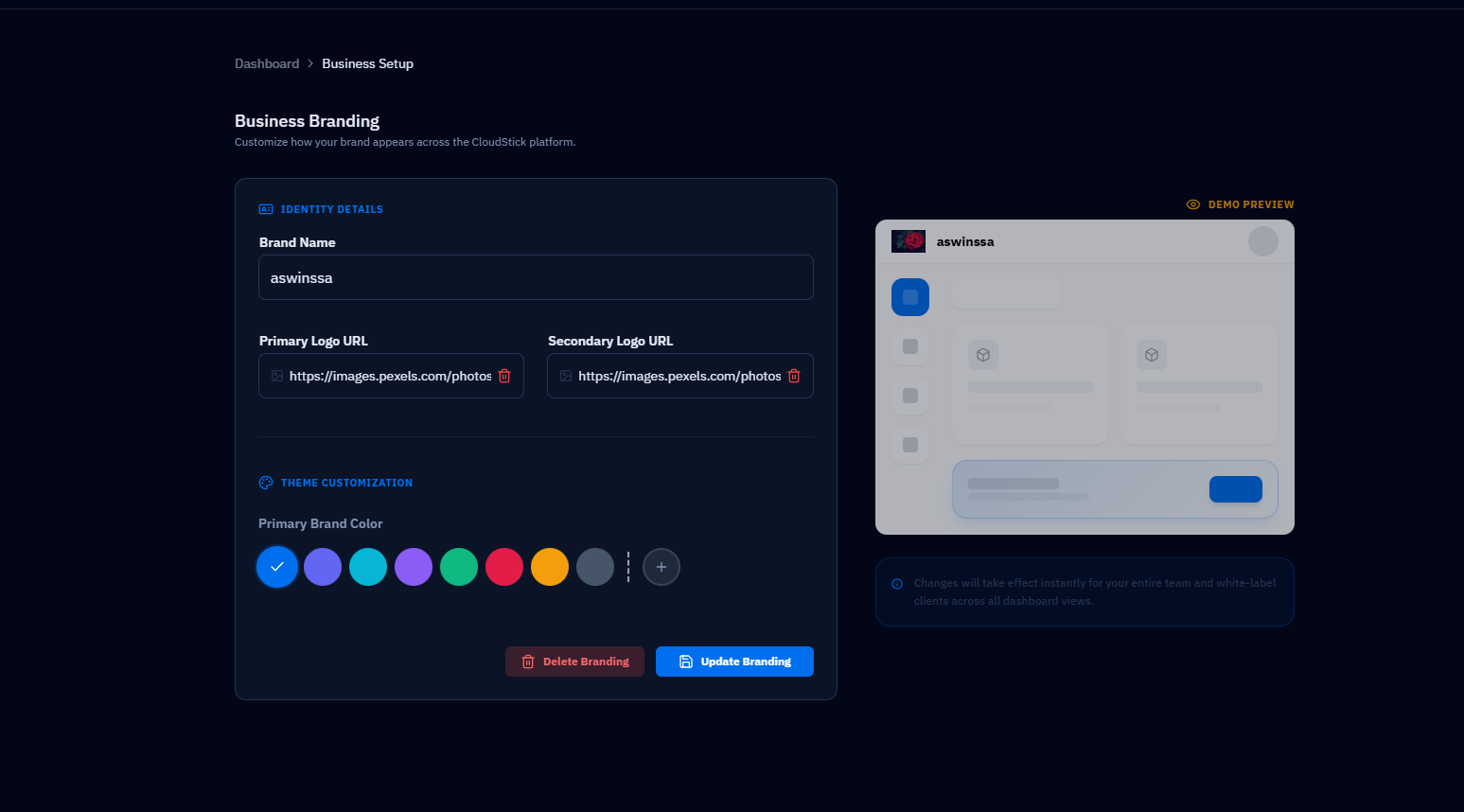
Fig. 02 — Business Branding form with Identity Details, Theme Customization, and live Demo Preview panel.
Changes take effect instantly for your entire team and white-label clients across all dashboard views. To remove your branding and revert to defaults, click the Delete Branding button.