How to Automate Server Backups (and Actually Test Restores)

%203.png&w=256&q=75)
Why Testing Backups Is the Part Everyone Skips
A backup you have never restored is not a backup — it is a guess. Drives fail silently, backup scripts write corrupt archives, cron jobs stop running after a system update, and rsync destination directories fill up unnoticed. None of these failures show up in a monitoring dashboard unless you specifically look for them. The only way to know a backup works is to restore it to a test environment and verify the result.
This guide covers both sides: setting up automated backups that actually run reliably, and building a restore-testing routine that catches failures before they cost you anything.
What to Back Up on a Web Server
A complete server backup covers four categories of data:
- Website files — everything under
/var/wwwor your web root. For WordPress sites, this includes core, themes, plugins, andwp-content/uploads. - Databases — MySQL or MariaDB databases exported with
mysqldump. This is the most critical data — files without a matching database are useless. - Configuration files —
/etc/nginx,/etc/php,~/.ssh, any custom scripts under/etcor/usr/local. - Mail data — if you run email on the server,
/var/mailand Postfix/Dovecot configs.
Never store backup files on the same server being backed up. If the server is compromised or the disk fails, backups stored locally are lost with the primary data. Always transfer to a separate location — a different server, object storage (S3, Wasabi, B2), or a remote NFS/SFTP destination.
Setting Up Automated Backups
A reliable backup script handles database export, file archiving, compression, offsite transfer, and cleanup of old backups in one run:
Save this as /usr/local/bin/run-backup.sh and make it executable with chmod +x /usr/local/bin/run-backup.sh. Then schedule it with cron:
Testing Restores: The Part That Actually Matters
Schedule a restore test monthly at minimum. The process: spin up a fresh VPS (or use a local VM), restore your latest backup, and verify the site functions. This validates both the backup content and your restore procedure.
Document your restore procedure as a numbered runbook — not just the commands, but the expected output at each step. When you actually need to restore under pressure at 3am, you want step-by-step instructions, not commands you have to remember. Reviewing this runbook is itself a useful part of the monthly test.
Monitoring Backup Success and Failure
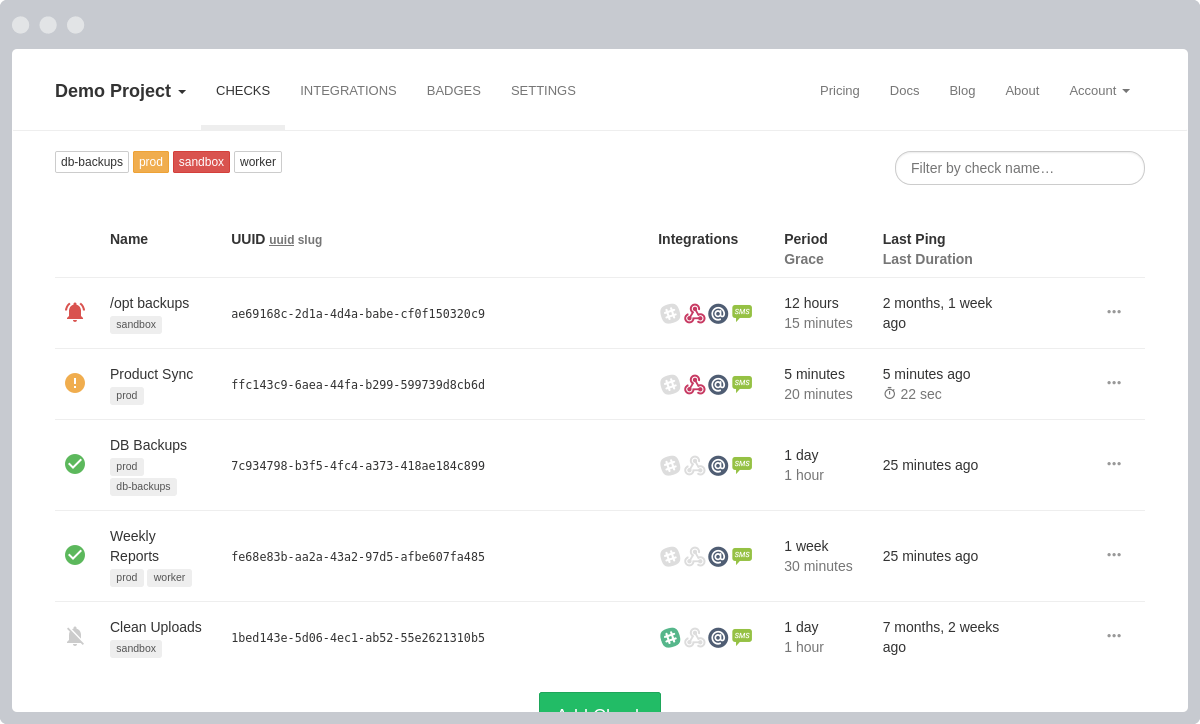
A backup script that runs silently is dangerous — you have no idea if it succeeded. At minimum, the script should send a success or failure email. A better approach is to integrate with a dead-man's switch monitoring service like Healthchecks.io: your backup script pings a URL on success, and the service pages you if it does not hear from the script within the expected window.
Also monitor the backup destination size. Add a check to alert you if the total size of recent backups shrinks unexpectedly — this can indicate the backup script stopped writing new files while cron continued to report success.
CloudStick Handles Backup Scheduling and Storage
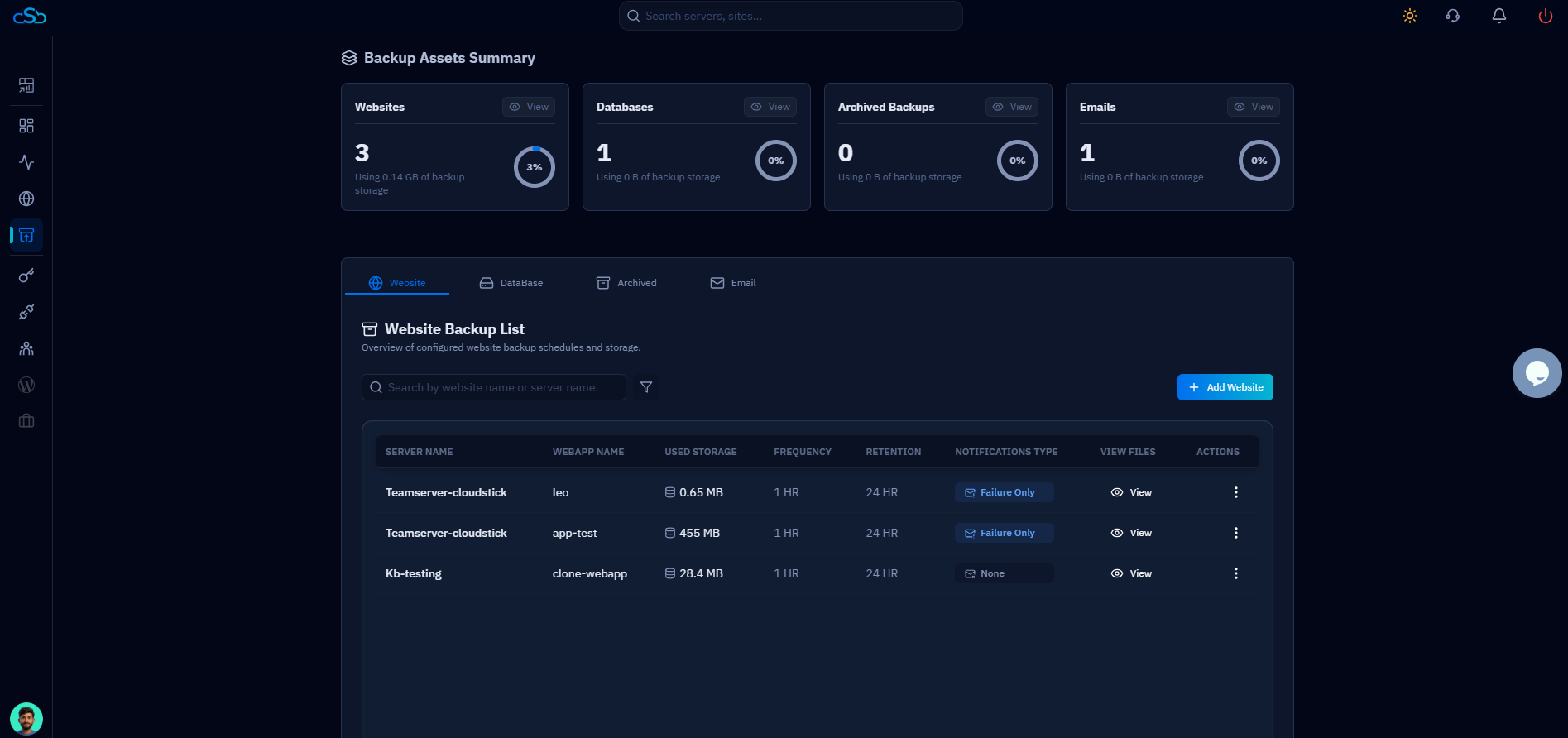
CloudStick's Backups section automates all of the above — website files and databases are backed up on a configurable schedule, and stored in CloudStick's managed backup storage (included on all paid plans, starting at 4 GB on Basic). The Archived Backups view shows every snapshot with its date, size, and restore status, and you can download any backup file directly to your local machine to run your own restore test.
See the CloudStick knowledge base: How to Enable Free Backup Quota for step-by-step instructions on activating backup storage and configuring your first automated backup schedule from the dashboard.