How to Access API Keys in CloudStick
Overview
CloudStick provides a built-in API Access section in your profile that lets you generate and manage API keys and secrets. These credentials allow external tools, scripts, and third-party services to authenticate securely with your CloudStick account — without exposing your login password.
This guide walks you through locating the API Access section, generating a new API key, and safely storing your credentials for use in integrations.
Keep your API key and secret confidential at all times. Do not share them publicly or embed them in client-side code. If a key is compromised, regenerate it immediately from the API Access section.
Step 1: Open Your Profile
The profile menu is accessible from the bottom-left corner of your CloudStick dashboard — this is your starting point for all account-level settings.
1. Log in to your CloudStick account: Navigate to your dashboard. You will see your connected servers listed on the main screen.
2. Locate your profile avatar: At the bottom-left corner of the dashboard, you will find your profile avatar and account name.
3. Click on your profile avatar/name: Clicking this area expands a small panel showing your account details, current plan, and a Logout button. It also navigates you to your full Profile page.
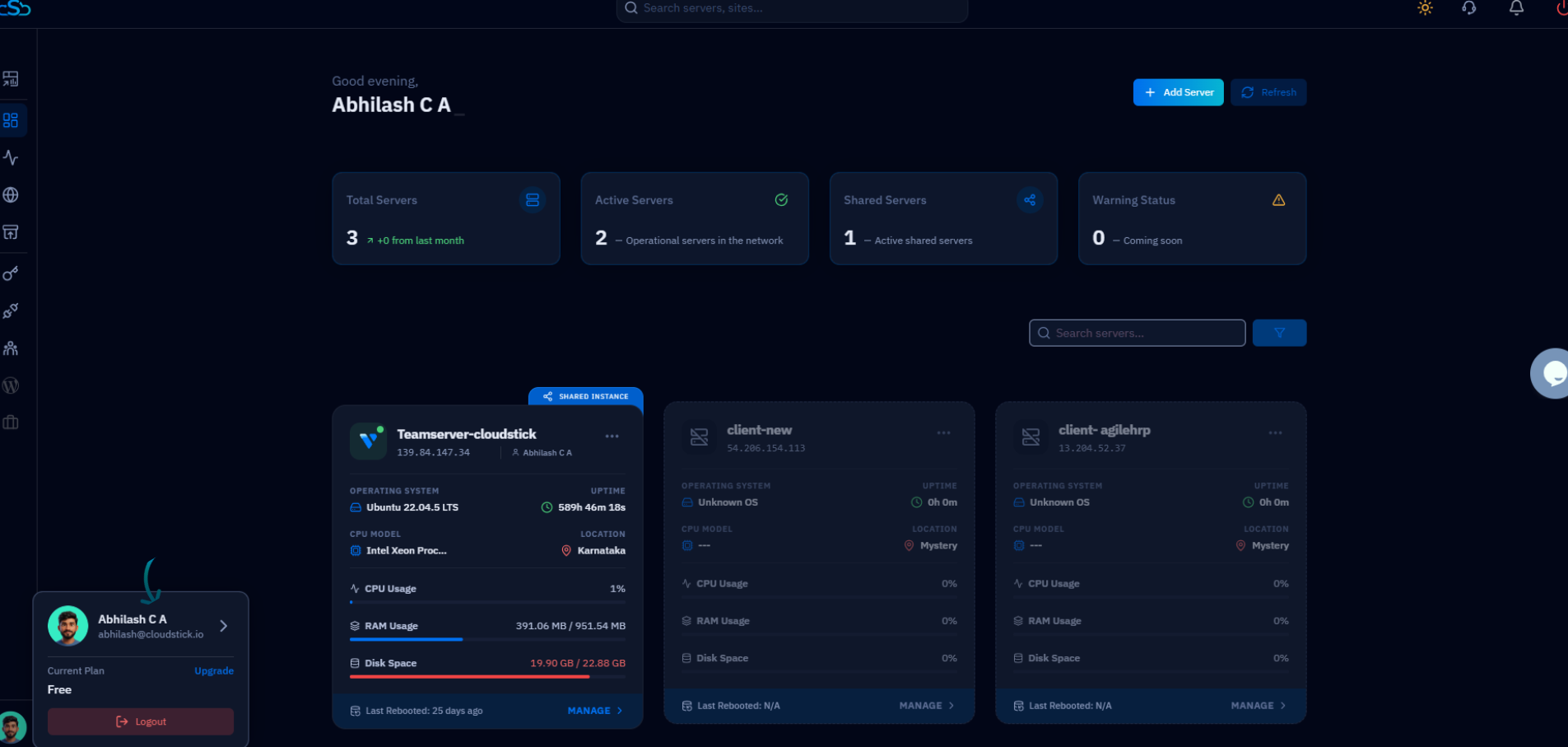
Fig. 01 — CloudStick dashboard with the profile panel expanded at the bottom-left corner, showing account name, email, plan, and Logout button.
Step 2: Open API Access
Once you are on the Profile page, a right-hand navigation panel lists all profile sub-sections. The API Access section is where your integration credentials live.
1. Look at the right sidebar: You will see sections including User Details, API Access, Subscription, Login Activity, User GIT SSH, Two-Factor Auth, and Security & Privacy.
2. Click on
API Access — this takes you directly to the API key management panel.
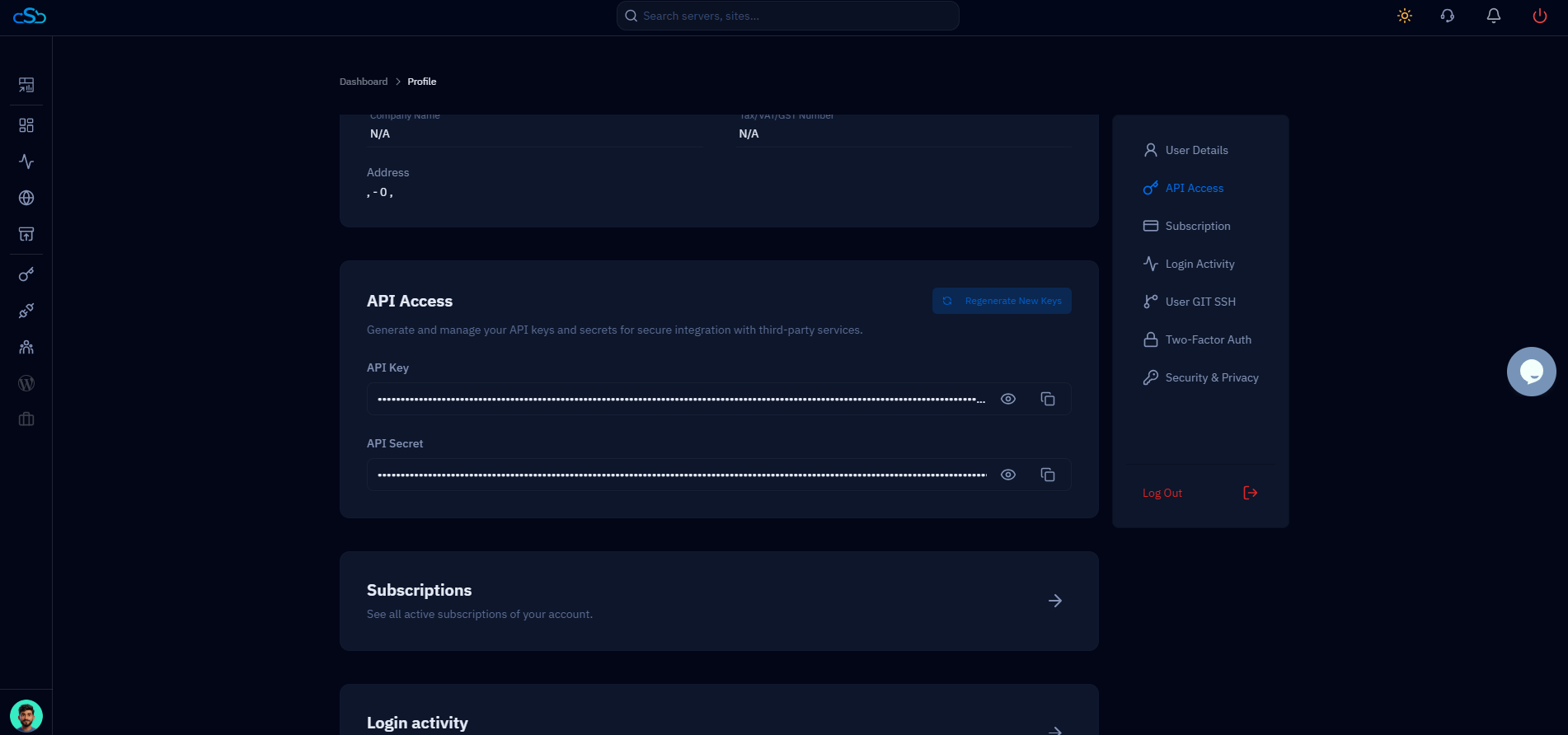
Fig. 02 — Profile page showing the API Access section with API Key and API Secret fields, and the Regenerate New Keys button in the top-right corner.
Step 3: Generate or Manage API Keys
The API Access panel gives you full control over your integration credentials. You can view your existing keys or generate fresh ones at any time.
Generate a new API key: Click the blue Regenerate New Keys button in the top-right corner of the API Access card to create a fresh API key and secret pair.
View existing API keys: Your current API Key and API Secret are displayed as masked fields. Click the eye icon next to each field to reveal the value.
Copy a key: Use the copy icon beside each field to copy the API Key or API Secret to your clipboard without revealing it on screen.
Regenerate API secrets: If your secret is compromised or you rotate credentials on a schedule, use Regenerate New Keys to invalidate the old pair and issue new credentials immediately.
Regenerating your API keys will invalidate any existing integrations using the old credentials. Update all connected services with the new key and secret after regenerating.
Step 4: Save Your API Credentials
Once generated, your API key and secret must be stored securely — CloudStick does not display the full secret again after you navigate away.
Copy your API Key: Click the copy icon next to the API Key field and paste it into your password manager or secure vault.
Copy your API Secret: Repeat the same step for the API Secret field. Treat this value like a password.
Use in integrations: Provide the API Key and API Secret when connecting CloudStick to third-party applications, automation tools, or custom scripts that use the CloudStick API.
Never include your API key or secret in public repositories, client-side JavaScript, or shared configuration files. Store them in environment variables or a secrets manager on your server.